











Webex network conference system is a network-based multimedia conference platform. It supports multi-person video meetings, video communication, multi-person audio, screen sharing, dynamic PPT presentation, text communication, electronic whiteboard, desktop sharing, file transmission, voting, and so on.
Webex enables users to achieve face-to-face communication through the Internet without the time and zone restrictions. This product also provides meeting recording functions too, but many users complained that they can’t find a way to export the recorded Webex meeting video through it.
For most of the users, they find it essential to record Webex meeting video especially those that involve negotiations or future plans of the company.
Introducing the best and easiest screen recording application software called VideoPower GREEN or ZEUS. It can record Web-ex meetings on your computer, so that you can replay it, especially in those instances when you missed or forgot something.
ZEUS can do what VideoPower series can do and more with an almost similar interface.
Check out NOW! Start easier with more affordable prices!
Record Webex Meeting as a Participant
Step 1: Choose sound source and area
1) Choose a sound source
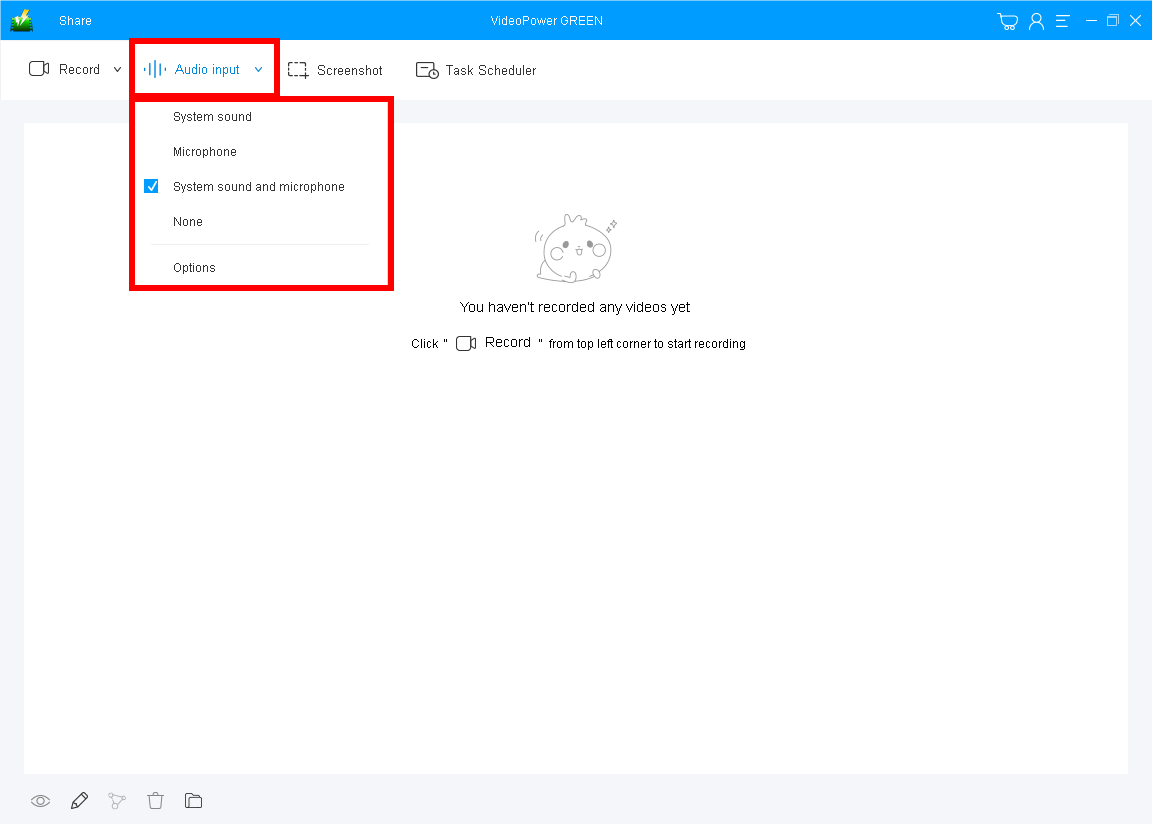
You can choose “System sound, Microphone, System sound, and microphone or None” by clicking the ‘Audio input’ drop-down button. To do so, “System sound and microphone’ is recommended to record including your voice.
2) Select a recording mode
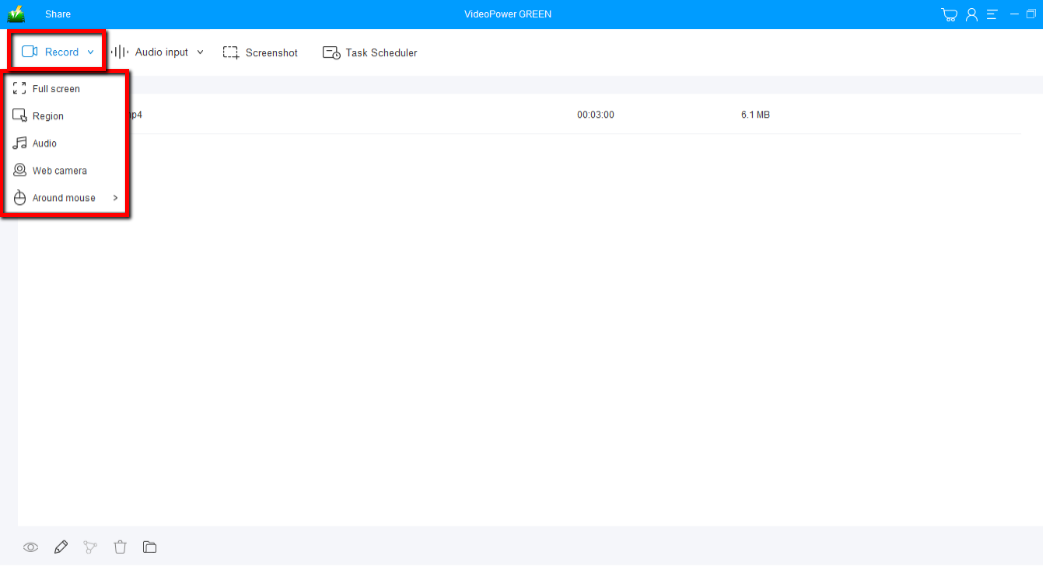
Click on the “Record” drop-down button to choose the recording mode of action from “Full screen, Region, Audio, Web camera, Around mouse”.
In recording the Webex conference and meeting, you can use ‘Region’ to capture a specific range of the video meeting.
If only for recording Web-ex meeting audio, select “Audio”.
3) Start recording Web-ex session meeting
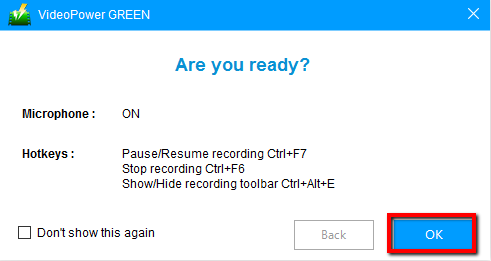
Before the recording, a pop-up box will appear informing you whether you are ready to start recording. Click ‘OK’ to record the meeting on Webex.
Step 2: Annotate and edit instantly (optional)
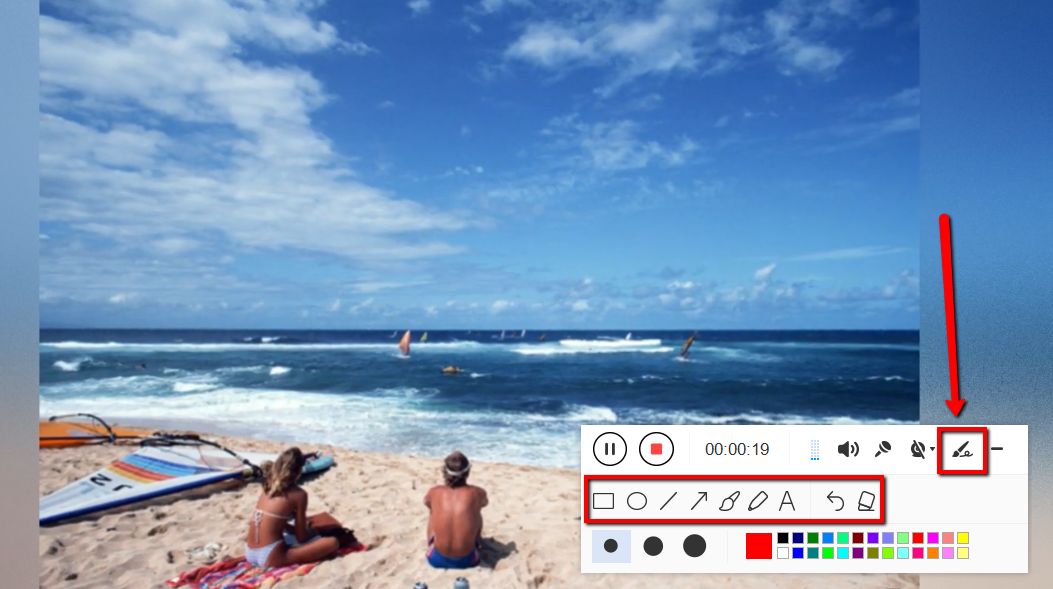
While recording you can add lines, arrows, shapes, texts, highlight, blur, etc. by clicking the edit button by the toolbar.
Step 3: Check the recorded meeting file

Click the “Stop” button to stop recording.
After that, the recorded Web-ex meeting and webinars video file can be seen on its main interface.
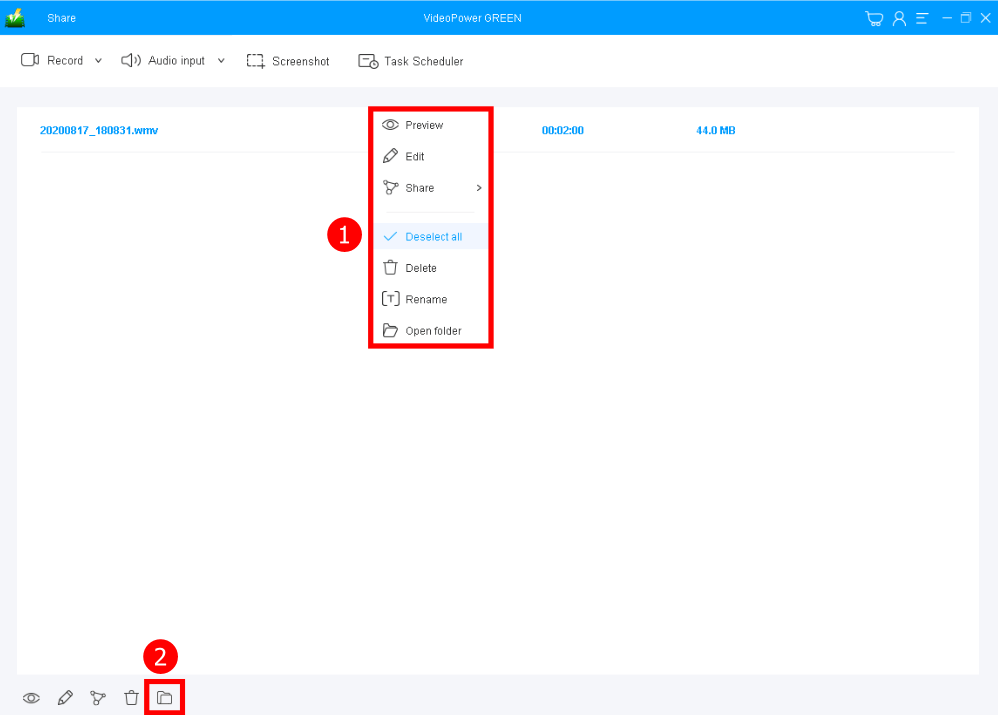
1. Your recorded file can be seen in the main interface. You can right-click the file and do more operations if you like.
2. Click the folder icon to view it in the pointed output folder.
Conclusion:
Recording screen activity and audio with this software are really great. VideoPower GREEN has surpassed expectations. It lets you record Web-ex meetings to the computer so you can easily go back and replay the recorded file so that you won’t miss anything from the meeting.
In addition, you can easily record screen and audio from the microphone during your Webex meeting using the editing toolbar that capable of emphasizing important details and blurring out personal information.
It has a video editor extension wherein you can trim unnecessary parts or add necessary parts together. You can adjust dark videos brightly and easily, and adjust the color, zoom in on a part of the video or convert it into different formats.
ZEUS series can do everything that VideoPower series can do and more, the interface is almost the same.
Check out NOW! Start easier with more affordable prices!




ZEUS Series
VideoPower brother products, start easier with more affordable prices!
| ZEUS BUNDLE 1 Year License ⇒ $29.99 |
ZEUS BUNDLE LITE 1 Year License ⇒ $19.99 |
ZEUS RECORD LITE 1 Year License ⇒ $9.98 |
ZEUS DOWNLOAD LITE 1 Year License ⇒ $9.98 |
||
| Screen Recorder | Screen&Audio Recording | ✔ | ✔ | ✔ | |
| Duration Setting, Schedule Recording | ✔ | ||||
| Video Downloader | Paste URL to download, batch download | ✔ | ✔ | ✔ | |
| Search/download video,browser detector | ✔ | ||||
| Music Recorder | Record music and get music ID3 tag info | ✔ | ✔ | ||
| Music search/download/record, CD Ripper/Creator, Audio Editor | ✔ | ||||
| Video Editor | Edit and convert videos, create slideshow | ✔ | |||
| Screen Capture | Capture screen, image editor | ✔ | |||