











Live streaming videos became popular nowadays. This is usually used by users to do a live video and allows viewers to interact in real-time. For live streaming, there are a bunch of live streaming applications available including Facebook, YouTube, or Instagram. These become useful to users, especially for online selling and vlogging. It is essential sometimes to record the live streaming video to easily share it with viewers or followers who cannot watch it in real-time.
Nowadays, not only digital technologies are persistently developing but also digital applications. This time, disseminating pieces of information through videos is very common. But how could you successfully record live streaming videos on Facebook, Instagram, or YouTube? What software would be best for this?
VideoPower GREEN or ZEUS is an impressive application software for screen capturing and recording. This application software’s recording feature works flexibly as you can record any genres and categories of videos, most especially live streaming video on your browsers like Chrome and Firefox as much as you want.
If you wish to record any streaming videos use this software with a free download, it is a highly recommended, best, and easiest screencast/screen recorder software of all time. Now, there is no need for you to be bothered anymore on how to record while streaming videos since you have come to the right place, and with the simple guide below, you are one step ahead of your game.
Just click the link below to download its trial version and enjoy recording your favorite videos.
ZEUS can do what VideoPower series can do and more with an almost similar interface.
Check out NOW! Start easier with more affordable prices!
Steps on How to Record Live Streaming Video on Windows 7,8,10
Step 1: Choose a Sound Source

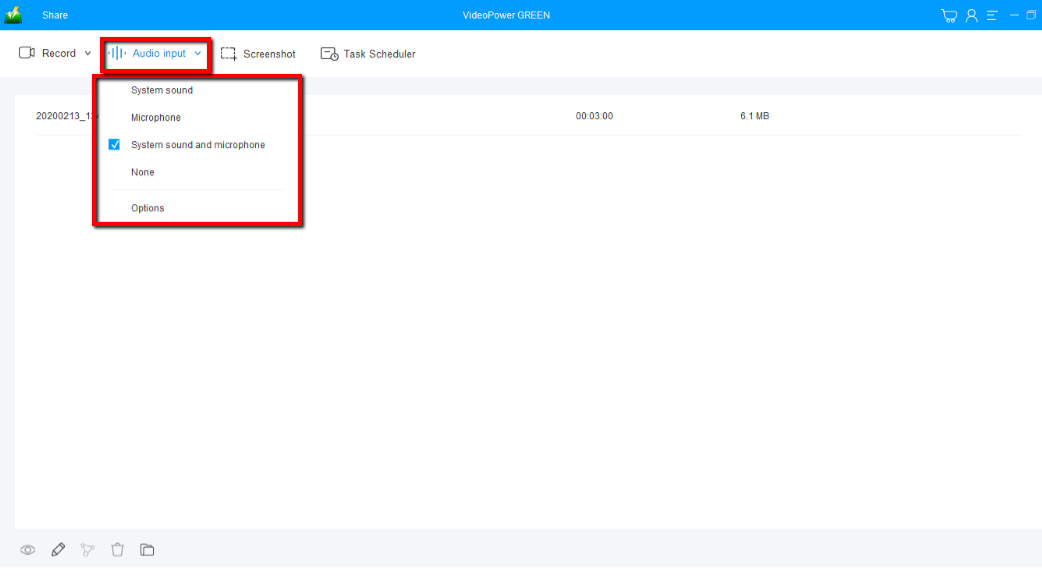
You can choose “System sound, Microphone, System sound, and microphone or None” by just clicking the “Audio input” drop-down button.
To record streaming video, you can select “System sound”.
Step 2: Select a Recording Mode
Click on the “Record” button to choose the recording mode from “Full screen, Region, Audio, Web camera, Around mouse”.
It is recommended to use “Fullscreen” or “Region” to capture live streaming videos.
Step 3: Start the Recording
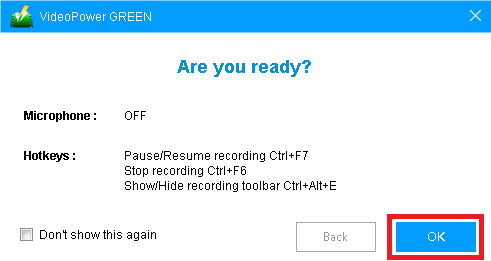
The pop-up window will ask whether you are ready to start recording, click “OK” to confirm when you are ready to record.
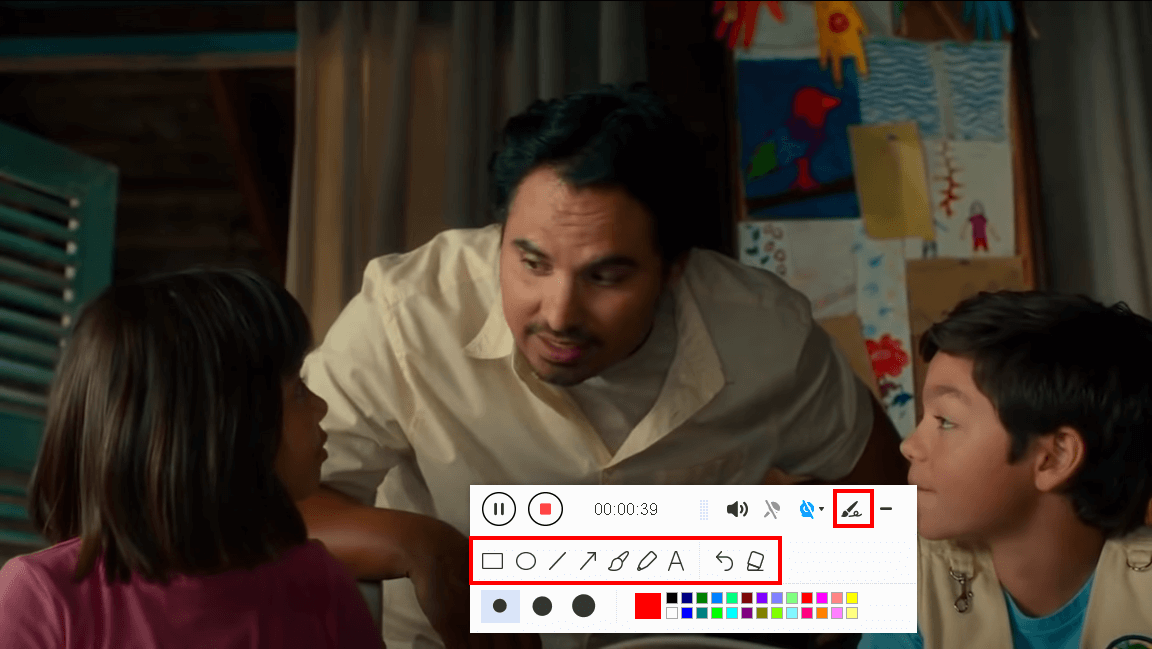
While recording you can add lines, arrows, shapes, texts, highlight, blur, etc. by clicking the edit button if necessary. You can also take control of your recording, adjust the volume, pause, and stop the record if you are done.
Step 4: Save and Edit the Recorded Video

Click the “Stop” button to stop recording.
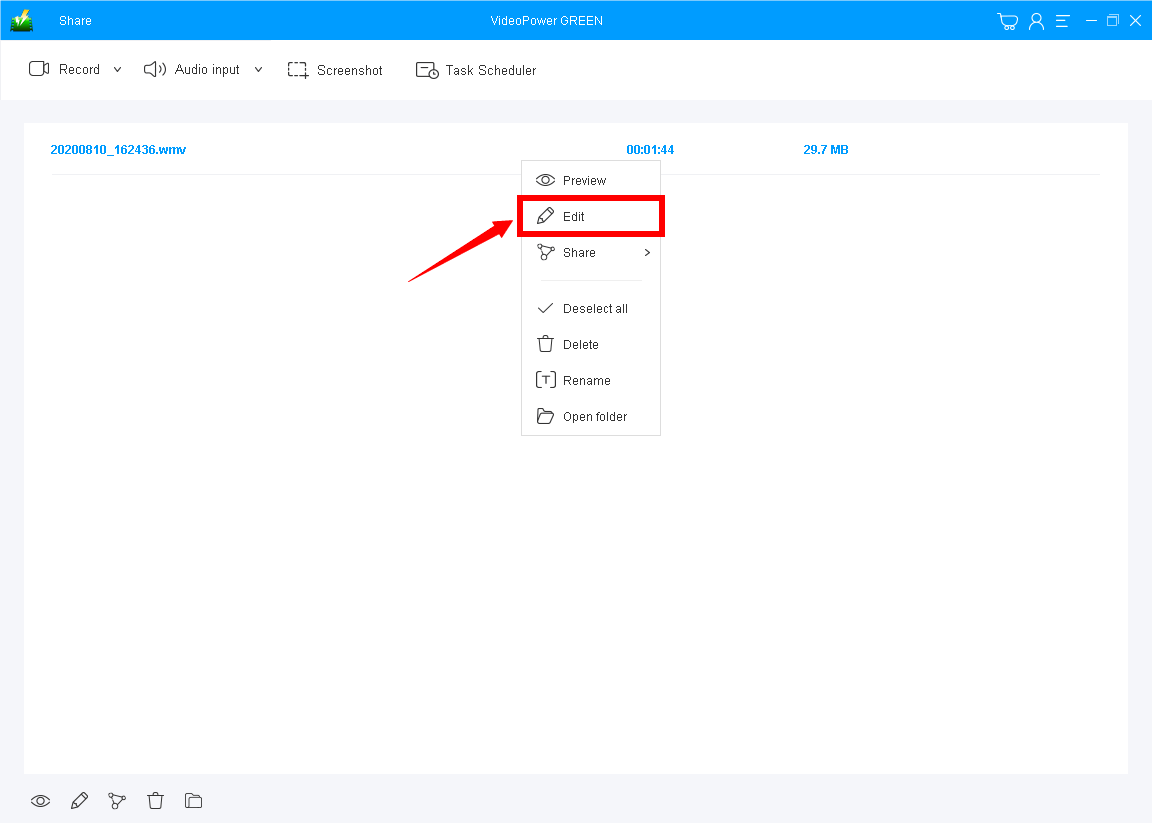
Once the recording is done, the recorded video file is automatically saved on your PC and listed on the main interface.
To check the saved video, right-click the video file and choose the “Open Folder” option. If you want to add enhancements to the recorded video, choose the “Edit” option.
Conclusion:
Whether you want to record your screen for personal consumption or professional use, VideoPower GREEN is just right for you. It lets you record live streaming video on Windows 10, 7, 8, and 8.1 in high quality. It has a task scheduler tool that helps you to be more efficient when you are not in front of your computer if you want to record streaming video.
It’s fast and flexible with a built-in video editor that will enable you to edit audio or videos, apply watermarks, effects and other basic video editing options such as trimming or cropping. VideoPower GREEN editor extension will let you convert files into various formats that you want.
ZEUS series can do everything that VideoPower series can do and more, the interface is almost the same.
Check out NOW! Start easier with more affordable prices!




ZEUS Series
VideoPower brother products, start easier with more affordable prices!
| ZEUS BUNDLE 1 Year License ⇒ $29.99 |
ZEUS BUNDLE LITE 1 Year License ⇒ $19.99 |
ZEUS RECORD LITE 1 Year License ⇒ $9.98 |
ZEUS DOWNLOAD LITE 1 Year License ⇒ $9.98 |
||
| Screen Recorder | Screen&Audio Recording | ✔ | ✔ | ✔ | |
| Duration Setting, Schedule Recording | ✔ | ||||
| Video Downloader | Paste URL to download, batch download | ✔ | ✔ | ✔ | |
| Search/download video,browser detector | ✔ | ||||
| Music Recorder | Record music and get music ID3 tag info | ✔ | ✔ | ||
| Music search/download/record, CD Ripper/Creator, Audio Editor | ✔ | ||||
| Video Editor | Edit and convert videos, create slideshow | ✔ | |||
| Screen Capture | Capture screen, image editor | ✔ | |||