











GoToMeeting is a conference system developed by Citrix, USA and it’s known for its features:
•Video: Multichannel HD video.
•Audio: Volume adjustment and mute.
•Sharing: Application sharing and desktop sharing.
•Conference recording: shared screen, voice, chat history, and path.
•User list: Display user name and user status. Drawing tool Brush, optional color. Pen and Highlighter or •Spotlight icons.
•Supported terminals: Desktop, notebook, Android, and iOS.
•Meeting arrangement: Meeting naming, recurring meeting, time setting, selecting to enter meeting mode, and conference password.
•Text chat: Send messages to all members or one of them.
GoToMeeting has a recorder but then, this function has limitations. If you are an attendee you can’t use the record function of the app. Only the presenter can be able to use it. So the best way is to use a 3rd party screen recorder.
Introducing a highly recommended recording software the VideoPower GREEN or ZEUS. It is the best alternative tool that helps you record GoToMeeting webinars with ease. It can record meetings on Windows 10, 8, 8.1, and 7. It produces great quality output. You can also set a schedule that automatically records your screen from your set date and time.
Just check this guide out and click the link below to download this app for free.
ZEUS can do what VideoPower series can do and more with an almost similar interface.
Check out NOW! Start easier with more affordable prices!
Record GoToMeeting as an Attendee
Step 1: Select sound source and area to record GoToMeeting
1) Choose the source of sound
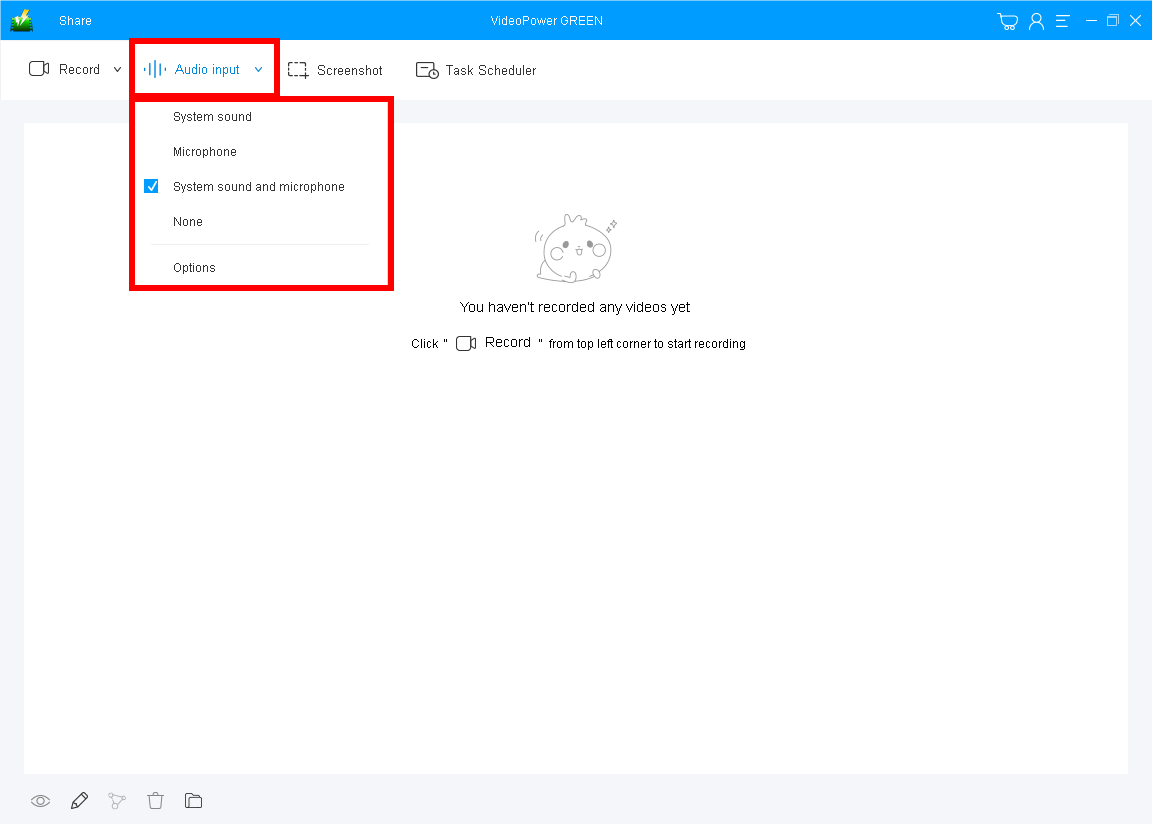
You can choose “System sound, Microphone, System sound, and microphone or None” from the ‘Audio input’ drop-down button. To record GoToMeeting meetings on PC, “System sound and microphone” is recommended to include both parties’ voices.
2) Select area that you want to record
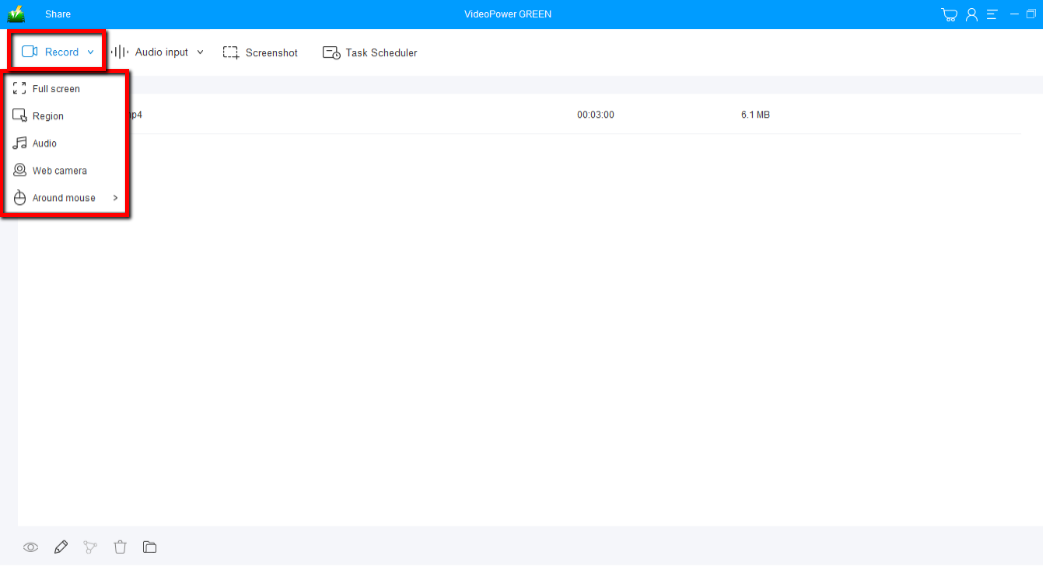
Join the GoToMeeting and click on the “Record” button to choose “Fullscreen” or “Region” to select a specific area of GoToMeeting.
To record GoToMeeting audio only, select “Audio” from the list instead.
3) Start to record your GoToMeeting video
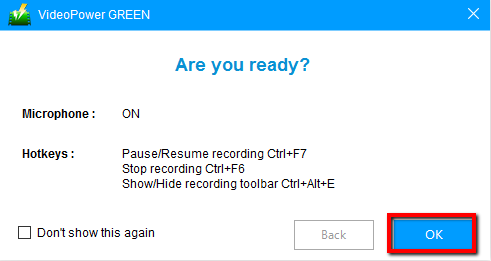
The pop-up window will ask whether you are ready to start recording, click “OK” to confirm when you are ready to record the meeting session.
If you will choose the “Audio” the recording will naturally start without this pop-up confirmation.
Step 2: Annotate and emphasize details (optional)
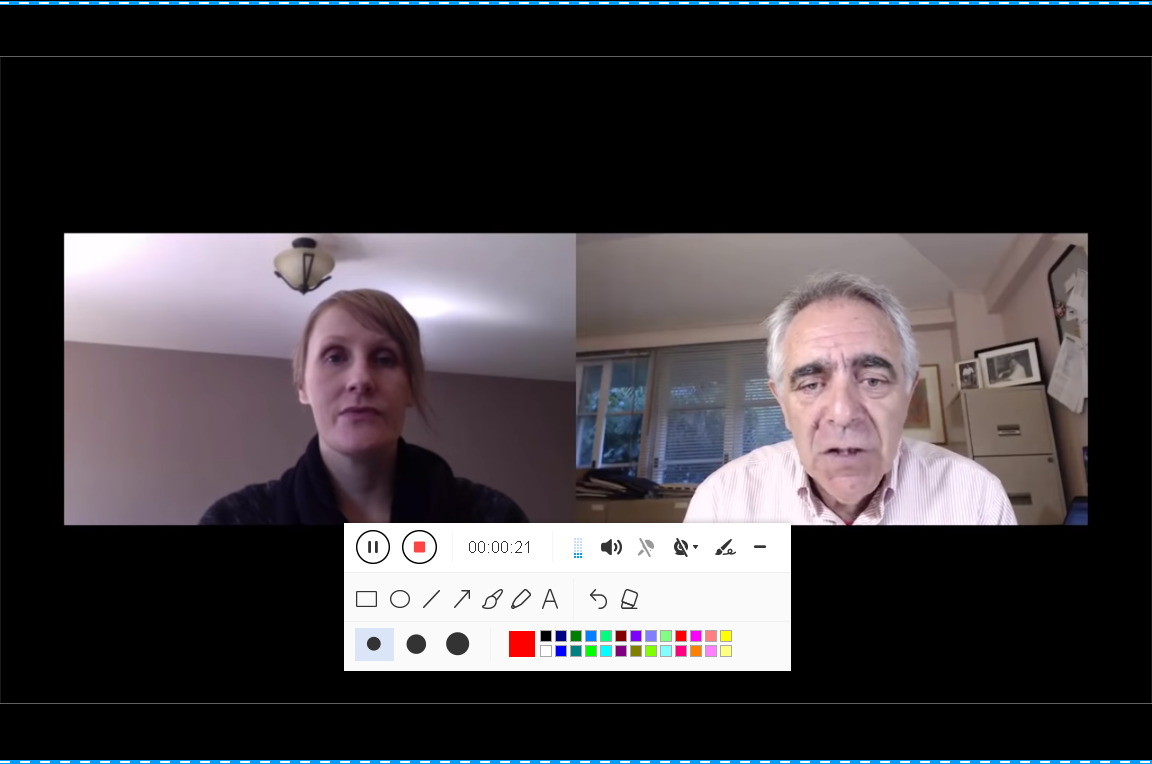
To emphasize important details and add beauty to your recording file, you can add shapes and texts by the toolbar.
Step 3: Stop and save the recorded GoToMeeting session and video

Click the “Stop” button to stop recording.
After that, the GoToMeeting recording file will be on the record list on its main interface.
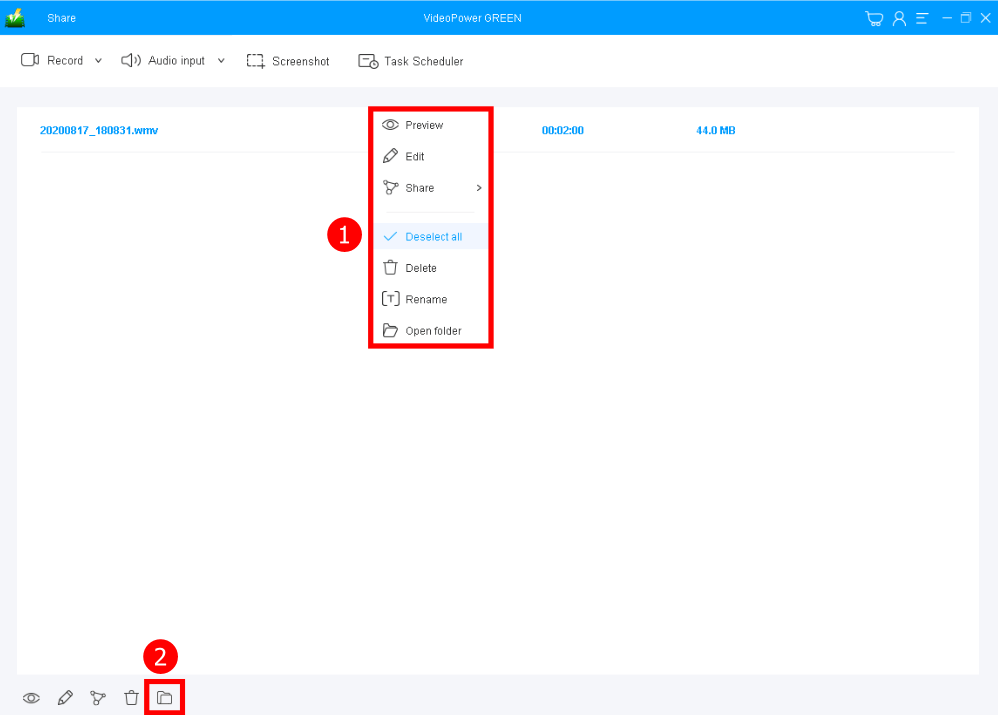
1. Your recorded file can be seen in the main interface. You can right-click the file and do more operations if you like.
2. Click the folder icon to view it in the pointed output folder.
Conclusion:
Recording online meetings is a great way to keep track of all the details that are talked about in the meeting. VideoPower GREEN is exactly what you needed with its smart interface and functionalities. It lets you record GoToMeeting video easily and in a hassle-free way.
It has an extension video editor that will enable you to edit audios and videos, apply watermarks, effects, and other basic video editing options such as trimming or cropping. Moreover, it has a screenshot tool that allows you to capture any on-screen activity on your computer, plus you can add texts, arrows, highlights, comments, etc. There’re so many advanced functions equipped in this program, which offer more options for you to convert media files into various formats.
ZEUS series can do everything that VideoPower series can do and more, the interface is almost the same.
Check out NOW! Start easier with more affordable prices!




ZEUS Series
VideoPower brother products, start easier with more affordable prices!
| ZEUS BUNDLE 1 Year License ⇒ $29.99 |
ZEUS BUNDLE LITE 1 Year License ⇒ $19.99 |
ZEUS RECORD LITE 1 Year License ⇒ $9.98 |
ZEUS DOWNLOAD LITE 1 Year License ⇒ $9.98 |
||
| Screen Recorder | Screen&Audio Recording | ✔ | ✔ | ✔ | |
| Duration Setting, Schedule Recording | ✔ | ||||
| Video Downloader | Paste URL to download, batch download | ✔ | ✔ | ✔ | |
| Search/download video,browser detector | ✔ | ||||
| Music Recorder | Record music and get music ID3 tag info | ✔ | ✔ | ||
| Music search/download/record, CD Ripper/Creator, Audio Editor | ✔ | ||||
| Video Editor | Edit and convert videos, create slideshow | ✔ | |||
| Screen Capture | Capture screen, image editor | ✔ | |||