











Most people nowadays are fond of using Facebook to have fun and communicate with other people who are far away from them. But most of the time, Facebook is activated to turn on entertainment.
On Facebook, you are sometimes making online video calls and catching high-quality videos that are entertaining and amazing to watch but some of them cannot be found on YouTube and any other video sites. So sometimes, when you suddenly think of converting it to a recorded video and saving it for later, you’d get frustrated because you can’t.
Thus, worry no more because we strongly recommend the best and easiest screen recorder software of all time called VideoPower GREEN or ZEUS.
Now, there is no need for you to be bothered about recording Facebook videos or video calls anymore since you have come to the right track.
ZEUS can do what VideoPower series can do and more with an almost similar interface.
Check out NOW! Start easier with more affordable prices!
Record Facebook Video Call with Sound
Step 1: Choose an audio input
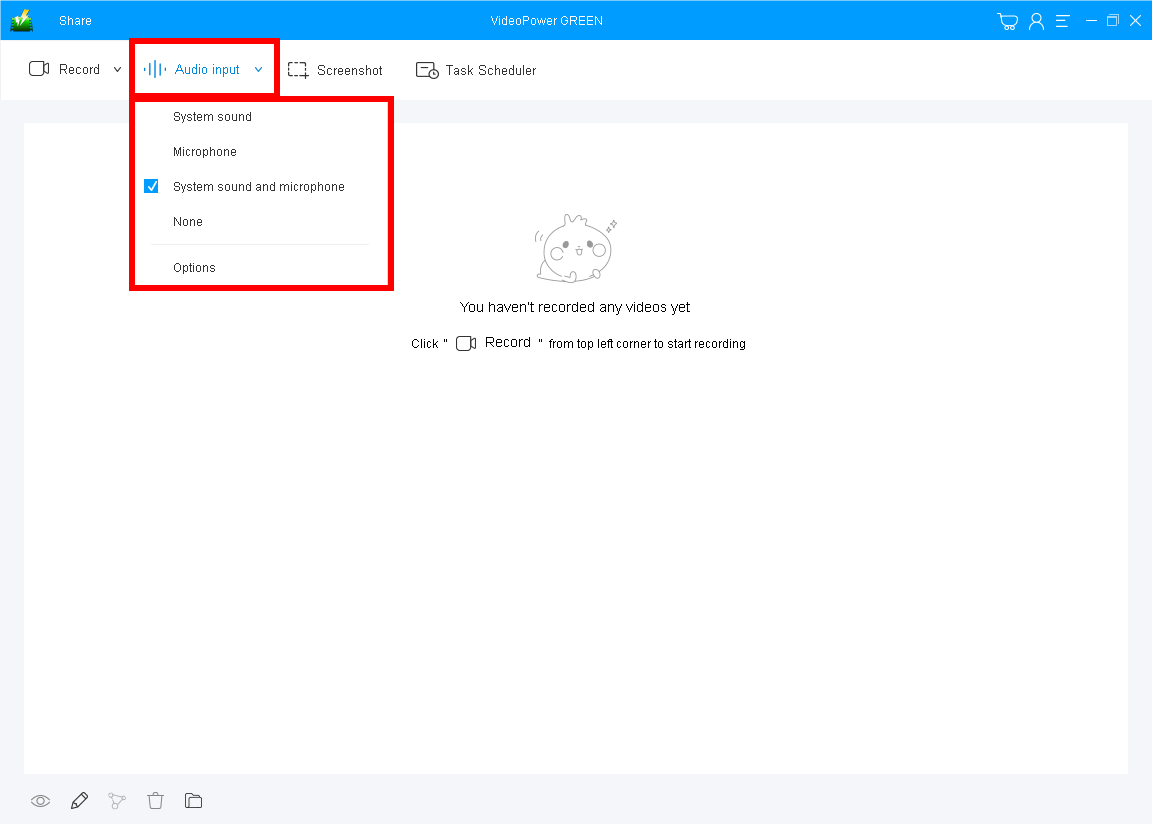
You can choose “System sound, Microphone, System sound, and microphone or None.” To record your Facebook video call with sound, you can select “System sound and microphone” to include both sides’ voices.
Step 2: Select a recording area
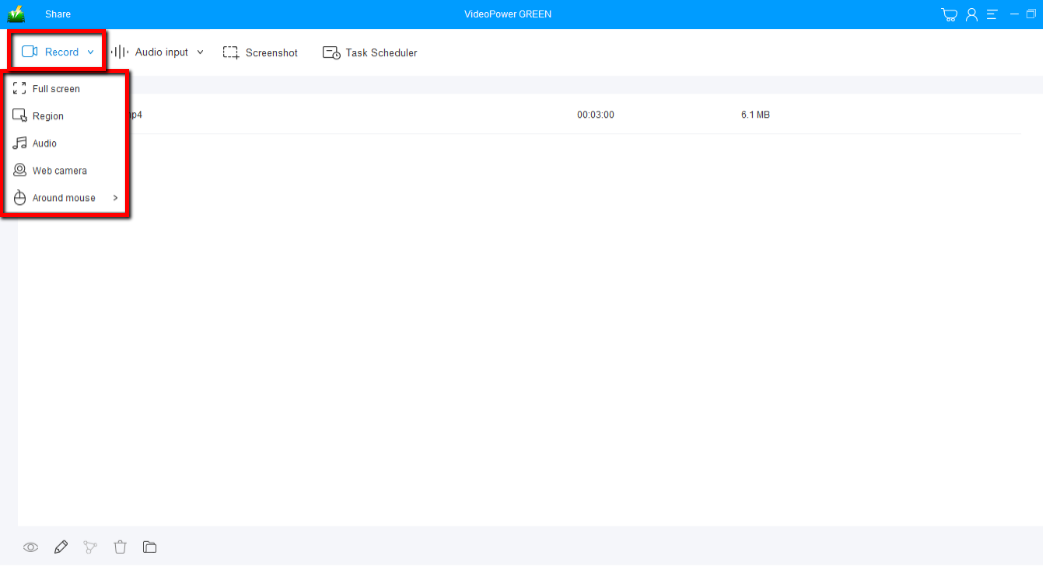
Click on the “Record” button to choose the recording mode from “Full screen, Region, Audio, Web camera, Around mouse”. Select the area you are going to record. ‘Region’ is recommended to capture the specific area.
If only to record Facebook audio, you should choose “Audio” to start.
Step 3: Record and annotate the video call
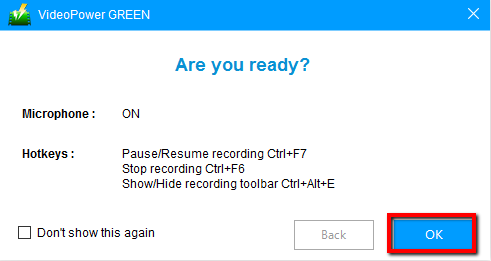
The pop-up window will ask whether you are ready to start recording, click “OK” to confirm when you are ready to record the Facebook video call.
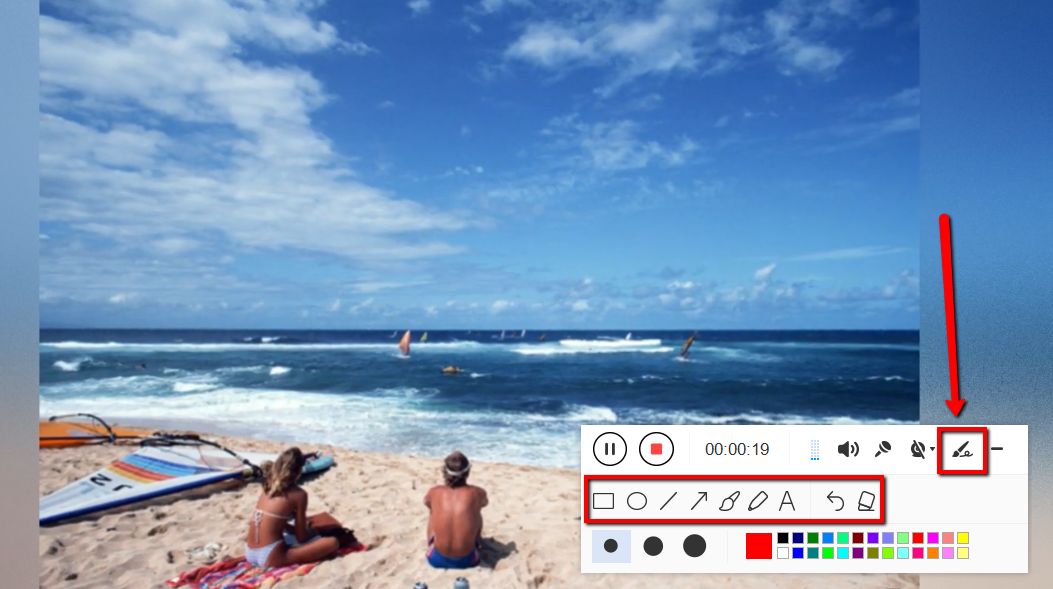
While recording you can add lines, arrows, shapes, texts, highlight, blur, etc. by clicking the edit button.
Step 4: Save the recorded Facebook video

Click the “Stop” button to stop recording.
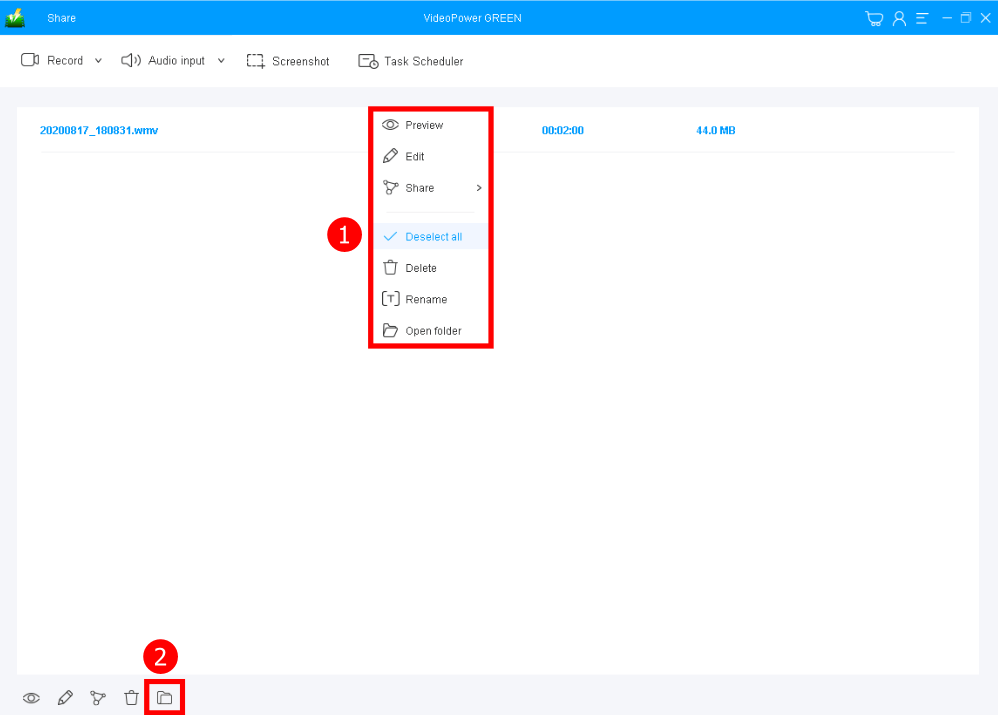
After that, the recorded file is already saved in the pointed output folder.
1. Your recorded file can be seen in the main interface. You can right-click the file and do more operations if you like.
2. Click the folder icon to view it in the pointed output folder.
Conclusion:
Almost everyone uses Facebook these days and videos on Facebook are not easily downloaded. So VideoPower GREEN to record Facebook videos is such an amazing thing to find out.
You can choose the area that you want to record, and you can edit it using the video editor where you can apply watermarks, effects, and other basic video editing options such as trimming or cropping. Adjust the speed, volume, contrast, brightness, and saturation of a video using VideoPower GREEN editor. Moreover, this video editor supports the conversion of files into various formats.
ZEUS series can do everything that VideoPower series can do and more, the interface is almost the same.
Check out NOW! Start easier with more affordable prices!




ZEUS Series
VideoPower brother products, start easier with more affordable prices!
| ZEUS BUNDLE 1 Year License ⇒ $29.99 |
ZEUS BUNDLE LITE 1 Year License ⇒ $19.99 |
ZEUS RECORD LITE 1 Year License ⇒ $9.98 |
ZEUS DOWNLOAD LITE 1 Year License ⇒ $9.98 |
||
| Screen Recorder | Screen&Audio Recording | ✔ | ✔ | ✔ | |
| Duration Setting, Schedule Recording | ✔ | ||||
| Video Downloader | Paste URL to download, batch download | ✔ | ✔ | ✔ | |
| Search/download video,browser detector | ✔ | ||||
| Music Recorder | Record music and get music ID3 tag info | ✔ | ✔ | ||
| Music search/download/record, CD Ripper/Creator, Audio Editor | ✔ | ||||
| Video Editor | Edit and convert videos, create slideshow | ✔ | |||
| Screen Capture | Capture screen, image editor | ✔ | |||