











Are you fed up with icons, screensavers, and taskbars while recording? Are you afraid that your recording will be interrupted by those unwanted screens? Worry no more! VideoPower GREEN allows you to hide icons screensaver and taskbar and anything else that gets in the way of your recordings.
It is a powerful application for screen capture and screen recording that allows you to hide unwanted icons and taskbars during the recording process. Follow the tips described below.
This article will guide you through the easiest steps to hide desktop icons when using VideoPower GREEN.
ZEUS can do what VideoPower series can do and more with an almost similar interface.
Check out NOW! Start easier with more affordable prices!
Guide
How to Hide Desktop Background, Icon and Taskbar in Recording
Instructions for hiding the screen saver, icons, and taskbar.
Step 1: Go to Settings
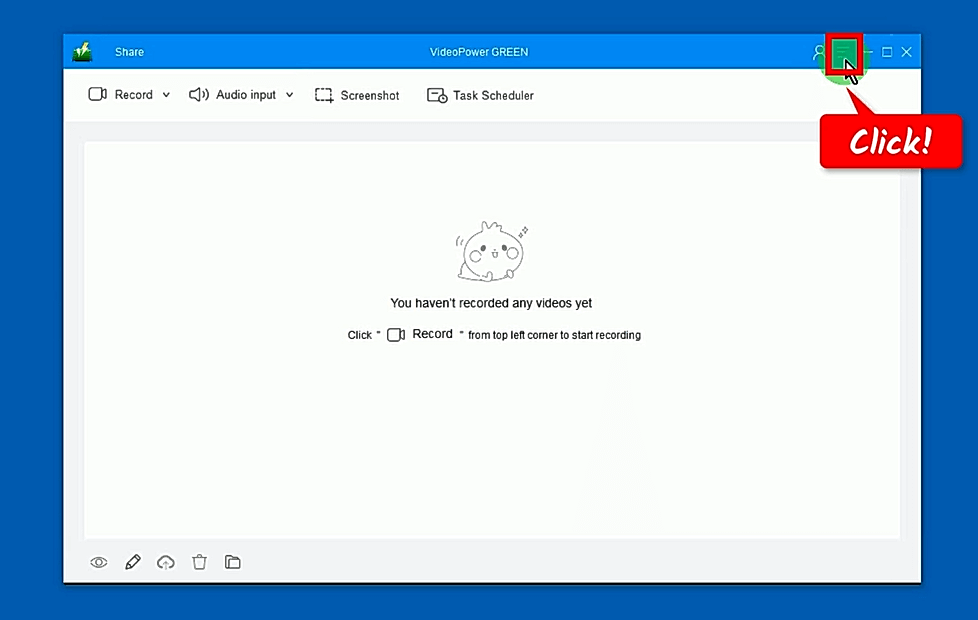
Click on “Menu” in the upper right corner of the interface.
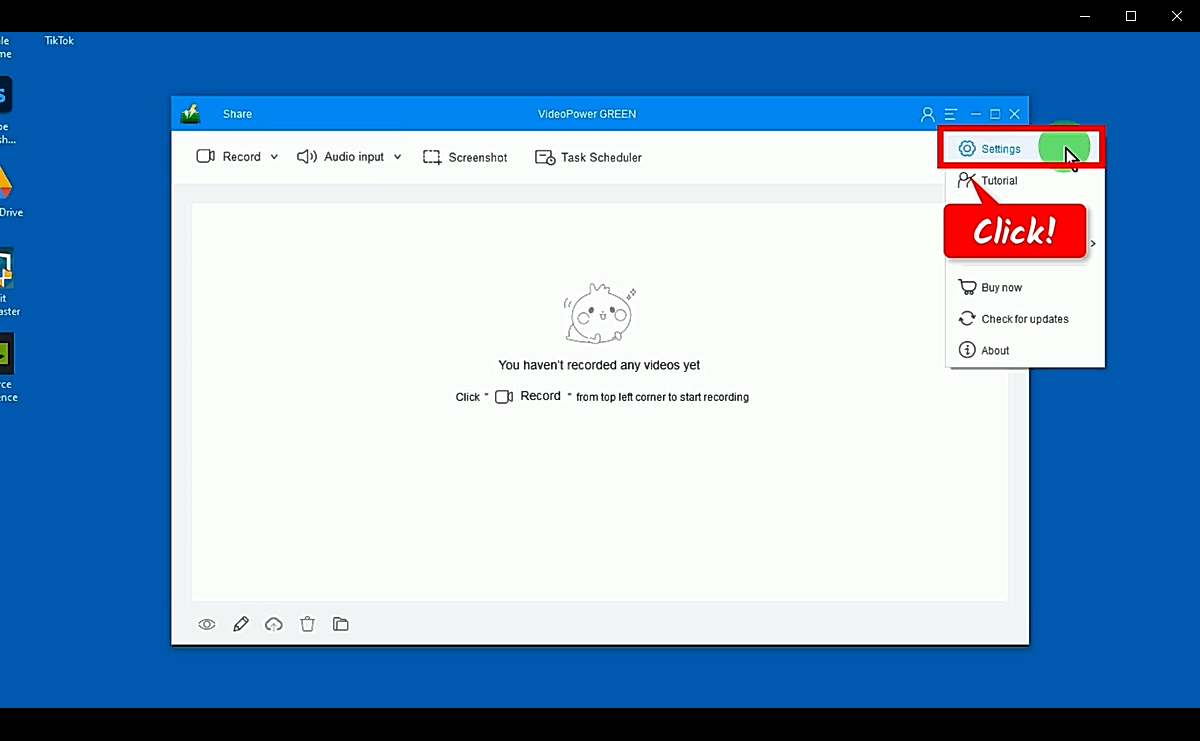
Select “Settings” from the drop-down menu.
Step 2: Adjust recording settings
Click on the “Records” tab on the left side of the interface.

and select “Disable Screen Saver, Hide Desktop Icons, Auto-Hide Taskbar“.
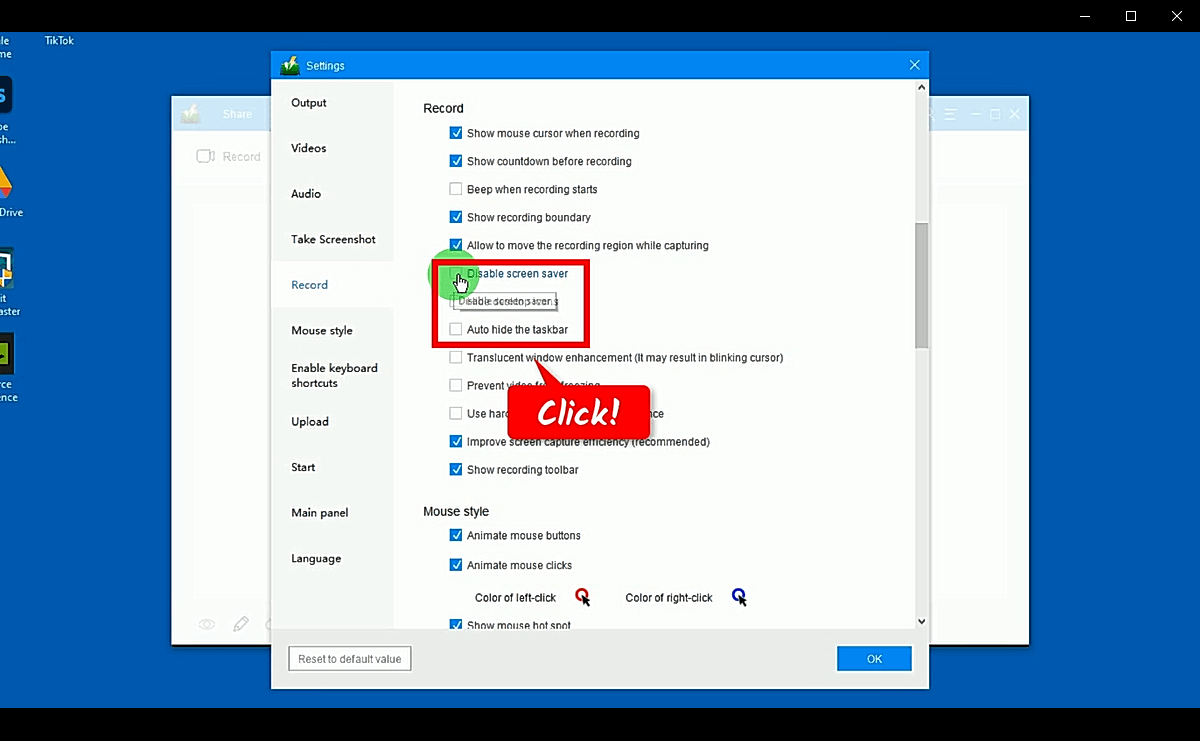
Click “OK” to save the settings.

Record screen
Step 1: Audio Settings
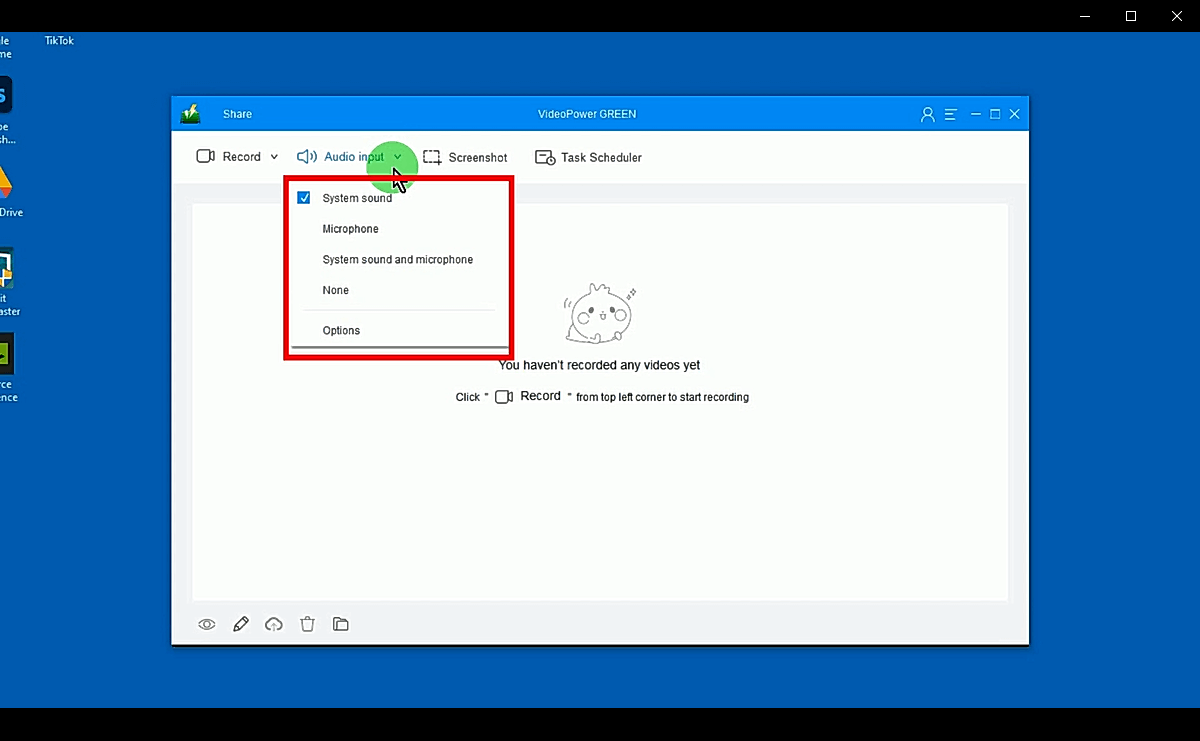
Click on the Audio Input button to see the available options.
Step 2: Recording Settings
Click on the Record button to see the available options.
We are going to set the recording mode to “Region” for today’s recording

Step 3: Start Recording
When the countdown finishes, a toolbar pops up. This indicates that recording has started.
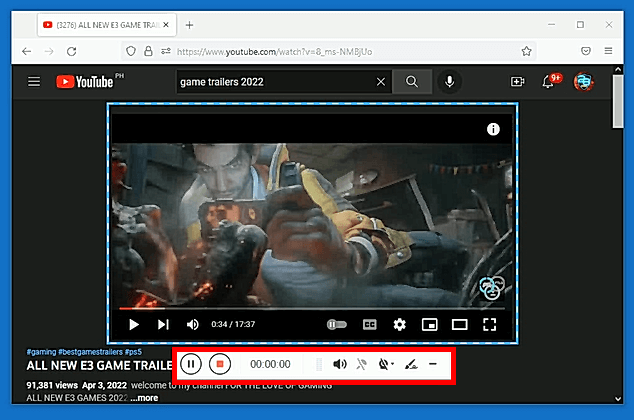
Step 4: End of recording
When recording of the episode is complete, click the “Stop” button on the toolbar to end the recording.

Conclusion:
Recording video of screen activity can be a bit of a pain, especially if there are icons or a cluttered screen background. Well, with VideoPower GREEN, we have found a solution that is easier and more convenient to use.
This is an impressive application for screen capture and screen recording, allowing you to hide icons screensavers and taskbars in the recording process.
You can also record what is happening on your desktop screen, such as live streaming video, webinars, webcams, etc. You have the option to enable or disable system sounds and microphones. Try it now!
ZEUS series can do everything that VideoPower series can do and more, the interface is almost the same.
Check out NOW! Start easier with more affordable prices!




ZEUS Series
VideoPower brother products, start easier with more affordable prices!
| ZEUS BUNDLE 1 Year License ⇒ $29.99 |
ZEUS BUNDLE LITE 1 Year License ⇒ $19.99 |
ZEUS RECORD LITE 1 Year License ⇒ $9.98 |
ZEUS DOWNLOAD LITE 1 Year License ⇒ $9.98 |
||
| Screen Recorder | Screen&Audio Recording | ✔ | ✔ | ✔ | |
| Duration Setting, Schedule Recording | ✔ | ||||
| Video Downloader | Paste URL to download, batch download | ✔ | ✔ | ✔ | |
| Search/download video,browser detector | ✔ | ||||
| Music Recorder | Record music and get music ID3 tag info | ✔ | ✔ | ||
| Music search/download/record, CD Ripper/Creator, Audio Editor | ✔ | ||||
| Video Editor | Edit and convert videos, create slideshow | ✔ | |||
| Screen Capture | Capture screen, image editor | ✔ | |||