











Follow the steps below on how to share the scenario and read on your Smartphone.
Part 1: Share the Scenario
Step 1: Select a Scenario and copy
Open the Video MGR file and select a scenario to share. Highlight the scenario and copy.
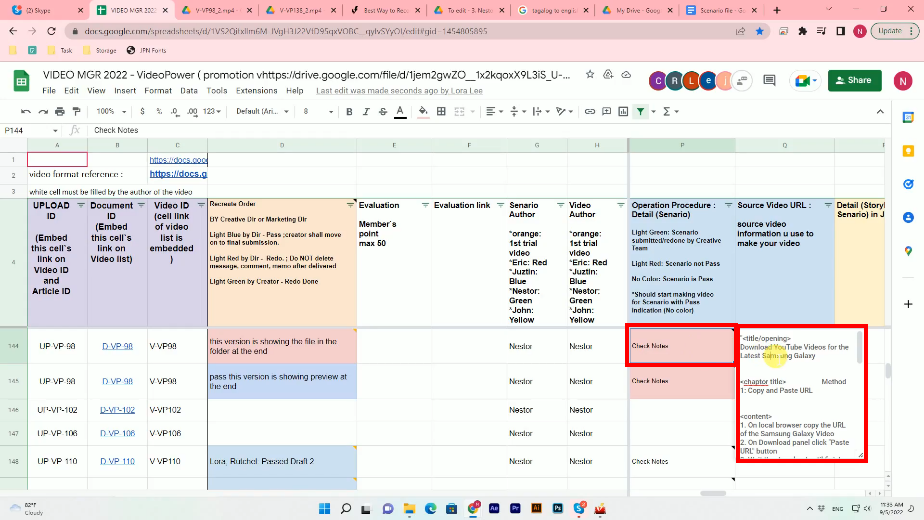
Step 2: Create a new Google Docs file on Google Drive
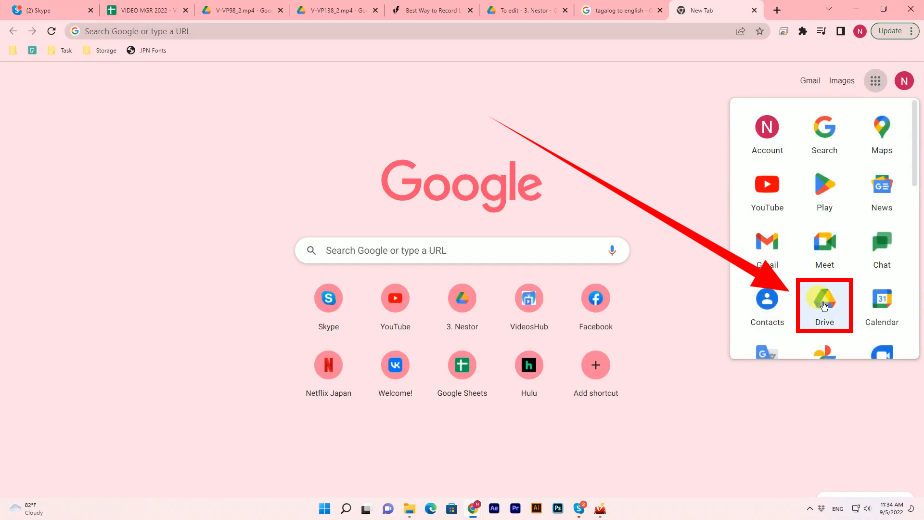
2.1. Using your PC browser, go to the Google Drive.
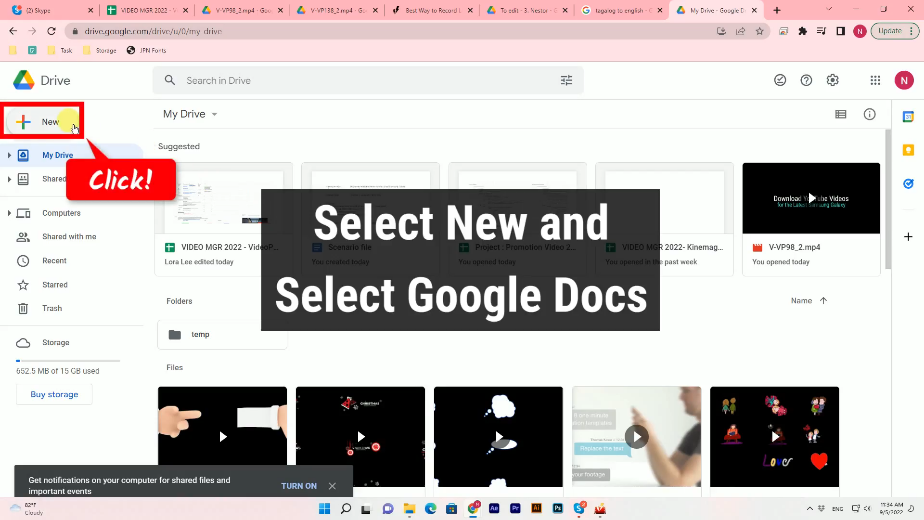
2.2. Then click the “New” button.
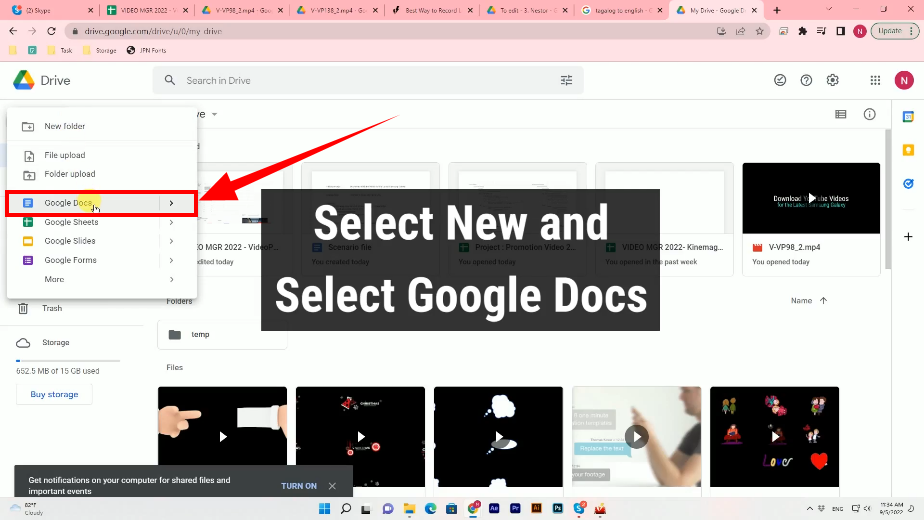
2.3. Select “Google Docs” from the options.
Step 3: Paste the copied scenario
Once the new Google docs file is open, paste the copied scenario.
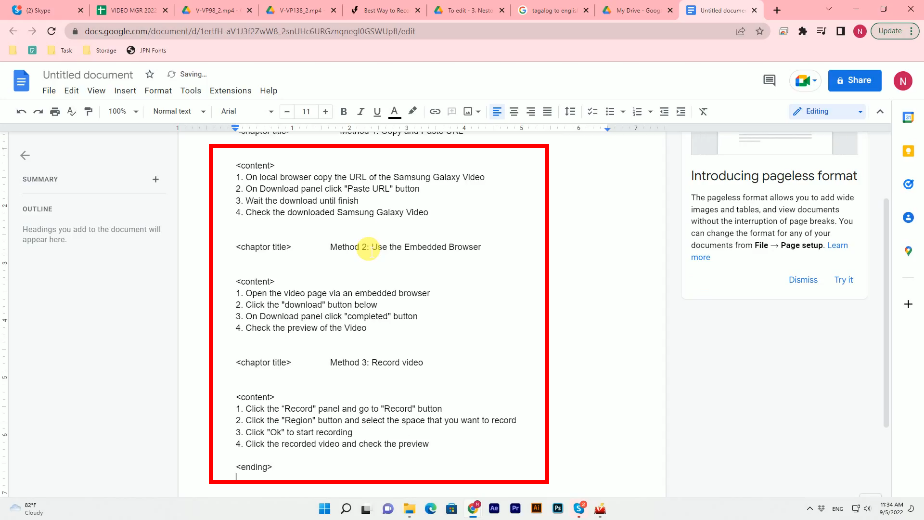
Step 4: Share the scenario
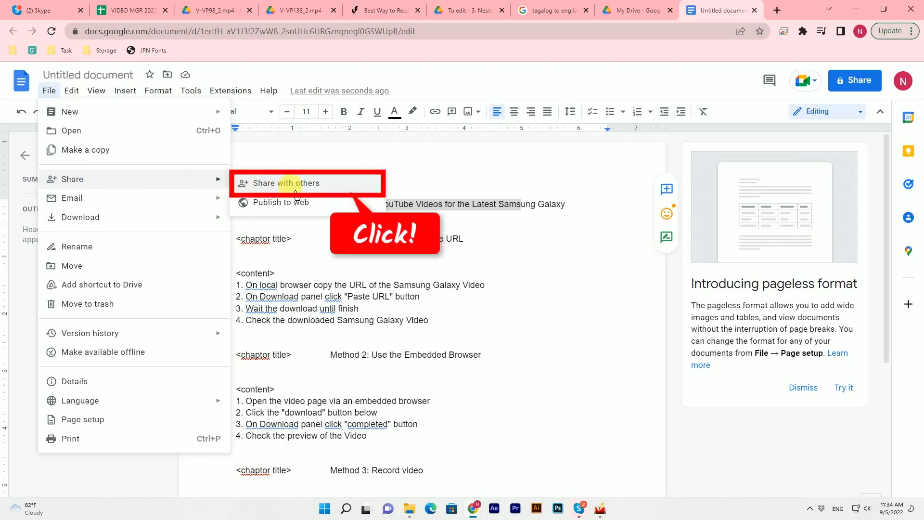
2.1. Click “File” from the top menu, select “Share” from the options, and click the “Share with others” option.
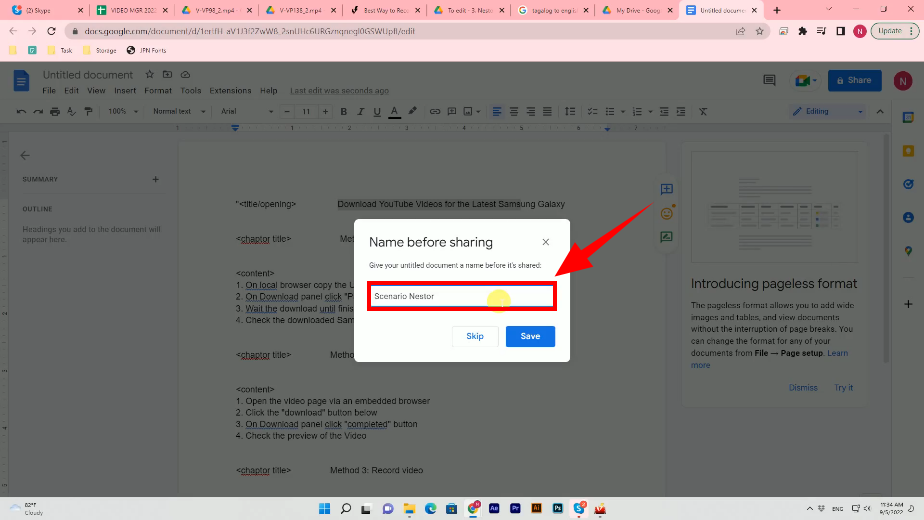
2.2. A new window will pop up. Fill in the name of the document and click “Save”.
2.3. Set the “General Access” to “Anyone with the link”.
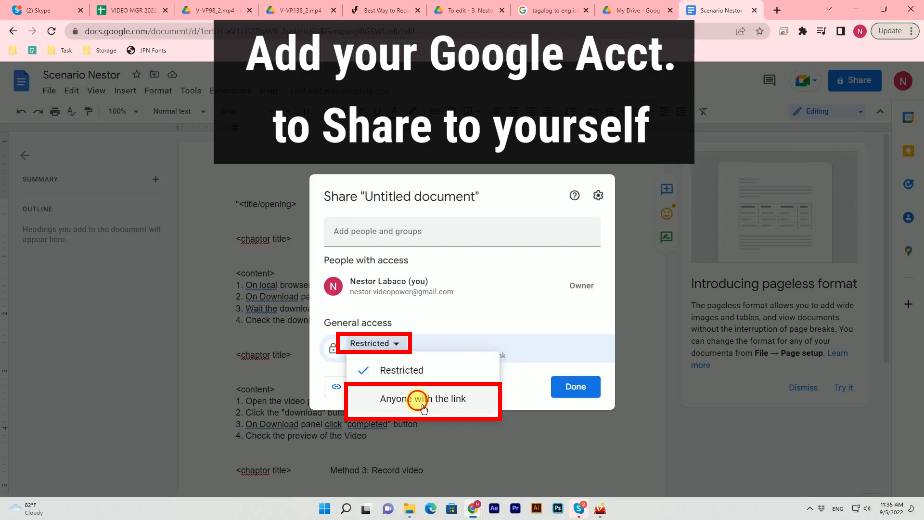
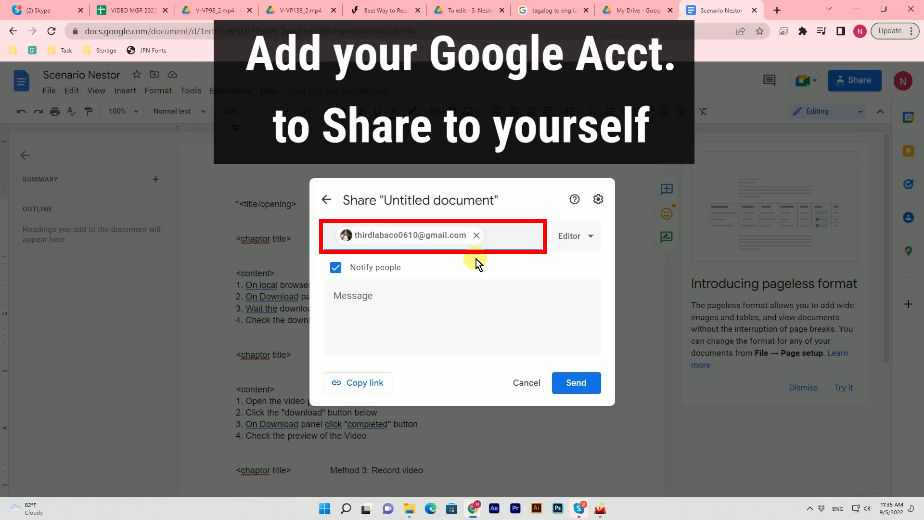
2.4. Add your Google account to share it to yourself and click “Send”.
Part 2: Check the Document in your Smartphone
Step 1: Check the Shared document using your Smartphone
Using your Smartphone, check the shared document and open it.
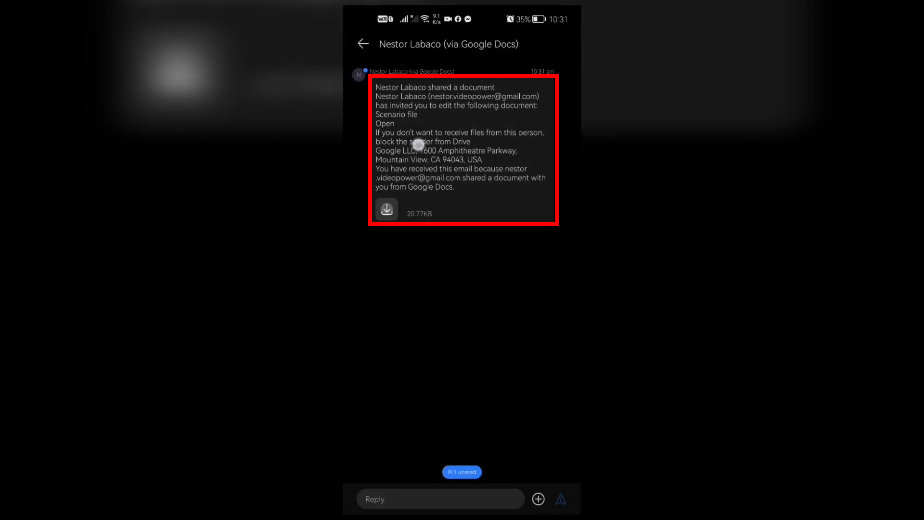
Step 2: Open the shared document
Click the “Open” button to open the document.
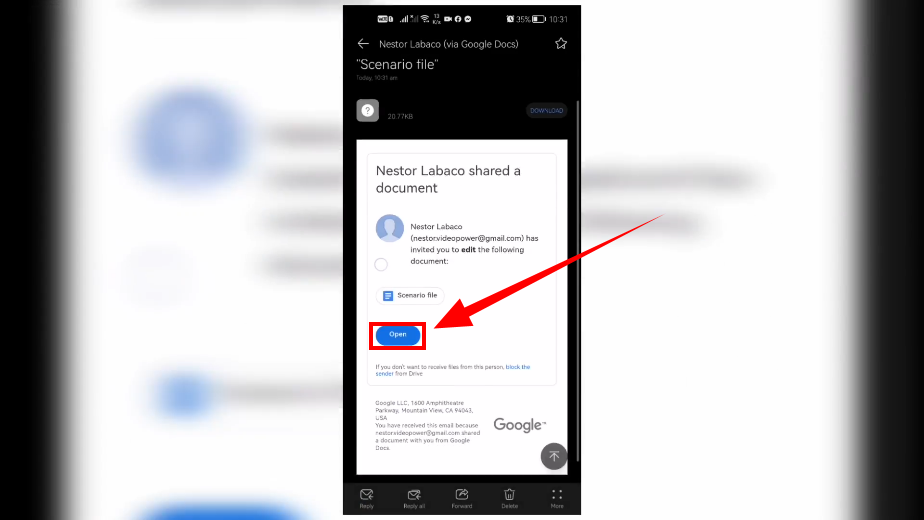
Alternatively, you can also open the shared document on Google drive using your smartphone.




ZEUS Series
VideoPower brother products, start easier with more affordable prices!
| ZEUS BUNDLE 1 Year License ⇒ $29.99 |
ZEUS BUNDLE LITE 1 Year License ⇒ $19.99 |
ZEUS RECORD LITE 1 Year License ⇒ $9.98 |
ZEUS DOWNLOAD LITE 1 Year License ⇒ $9.98 |
||
| Screen Recorder | Screen&Audio Recording | ✔ | ✔ | ✔ | |
| Duration Setting, Schedule Recording | ✔ | ||||
| Video Downloader | Paste URL to download, batch download | ✔ | ✔ | ✔ | |
| Search/download video,browser detector | ✔ | ||||
| Music Recorder | Record music and get music ID3 tag info | ✔ | ✔ | ||
| Music search/download/record, CD Ripper/Creator, Audio Editor | ✔ | ||||
| Video Editor | Edit and convert videos, create slideshow | ✔ | |||
| Screen Capture | Capture screen, image editor | ✔ | |||