











Below are the steps on how to add title and chapter title to the video.
Step 1: Add title to the video
1.1. Click the “T” icon and add a text to the video.
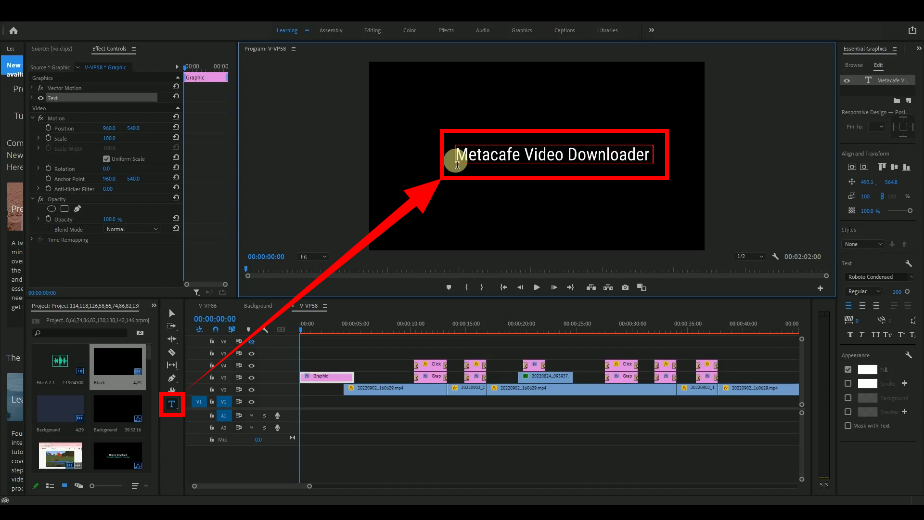
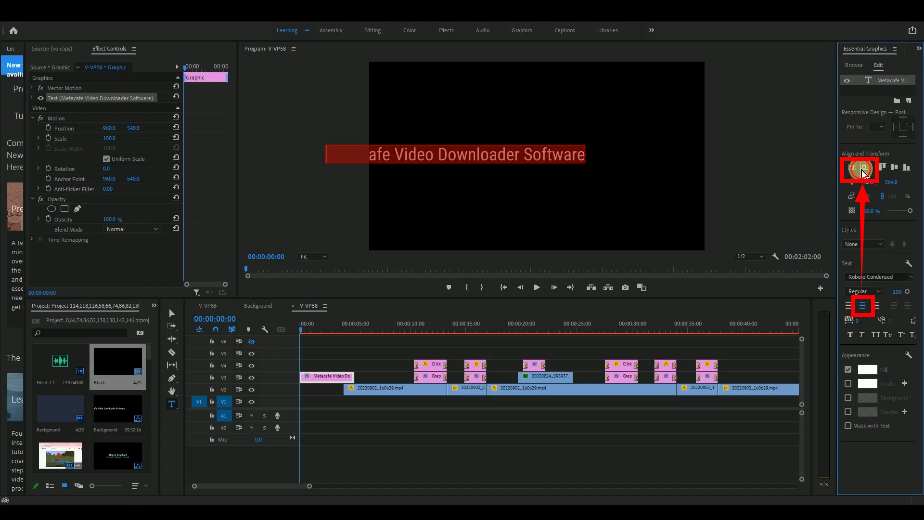
1.2. Change the font size and set the title’s position to the center.
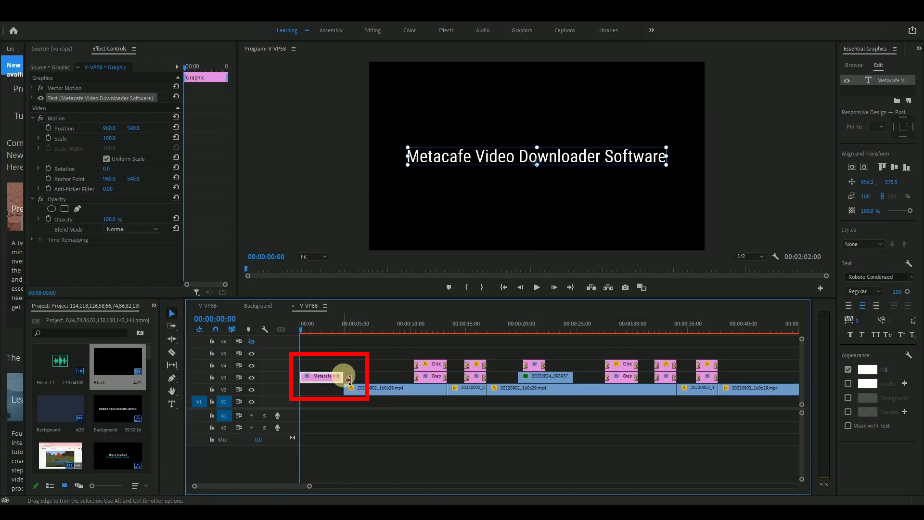
1.3. Trim/cut the title layer to fit in the video.
Step 2: Add Chapter/Method title background
Move your timeline to the next Chapter/Method of the video.
3.1. Hold press the “Alt” on your keyboard and drag it to the right side.
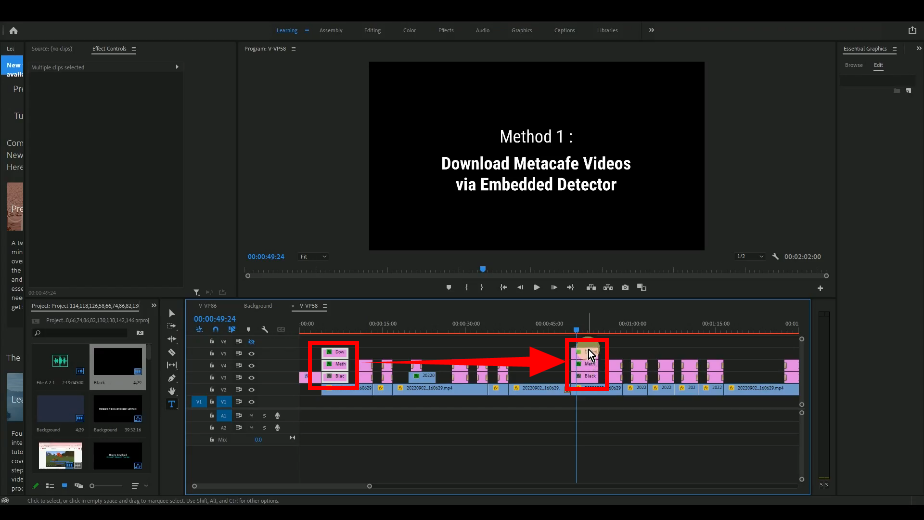
3.2. Change the Chapter/Method title of the duplicated layer.
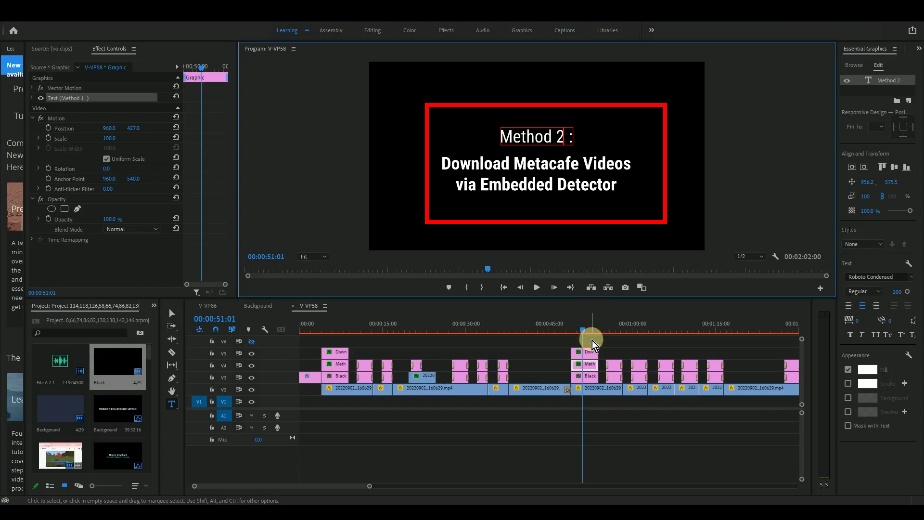
Layer Management Rule:
- Stick with the same layer for the same type of object.
- Do not mix the same type of object among different layers. This rule applies for highlights objects as well.
Example:
Subtitle: 1 layer of text, 1 layer for rectangle, if necessary, add 1 layer for title-text such as “method 1” like in this video.
Highlight objects: 1 layer for rectangle and another layer for talk bubble.




ZEUS Series
VideoPower brother products, start easier with more affordable prices!
| ZEUS BUNDLE 1 Year License ⇒ $29.99 |
ZEUS BUNDLE LITE 1 Year License ⇒ $19.99 |
ZEUS RECORD LITE 1 Year License ⇒ $9.98 |
ZEUS DOWNLOAD LITE 1 Year License ⇒ $9.98 |
||
| Screen Recorder | Screen&Audio Recording | ✔ | ✔ | ✔ | |
| Duration Setting, Schedule Recording | ✔ | ||||
| Video Downloader | Paste URL to download, batch download | ✔ | ✔ | ✔ | |
| Search/download video,browser detector | ✔ | ||||
| Music Recorder | Record music and get music ID3 tag info | ✔ | ✔ | ||
| Music search/download/record, CD Ripper/Creator, Audio Editor | ✔ | ||||
| Video Editor | Edit and convert videos, create slideshow | ✔ | |||
| Screen Capture | Capture screen, image editor | ✔ | |||