








Follow the steps below on how to add subtitle using the Adobe Premiere.

Step 1: Create subtitle background by using reactangle tool

1.1 Click the “rectangle” tool.
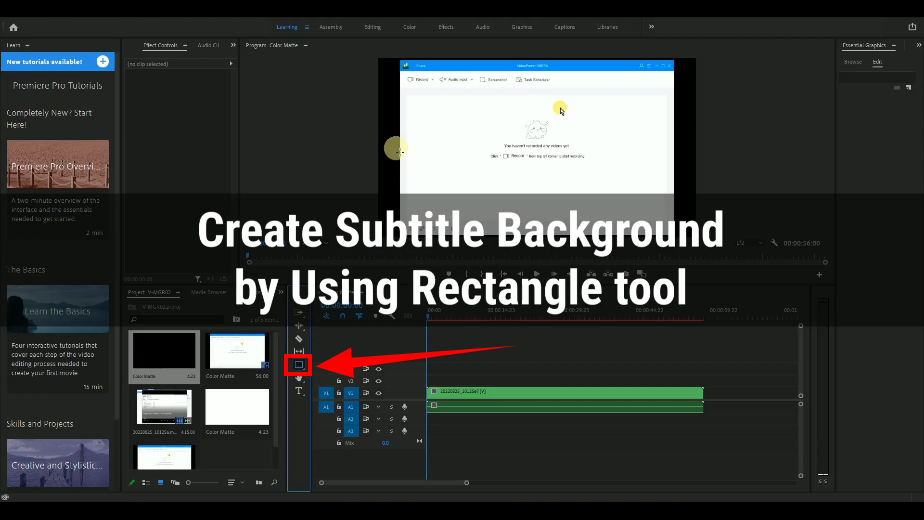
add subtitle, click the rectangle tool

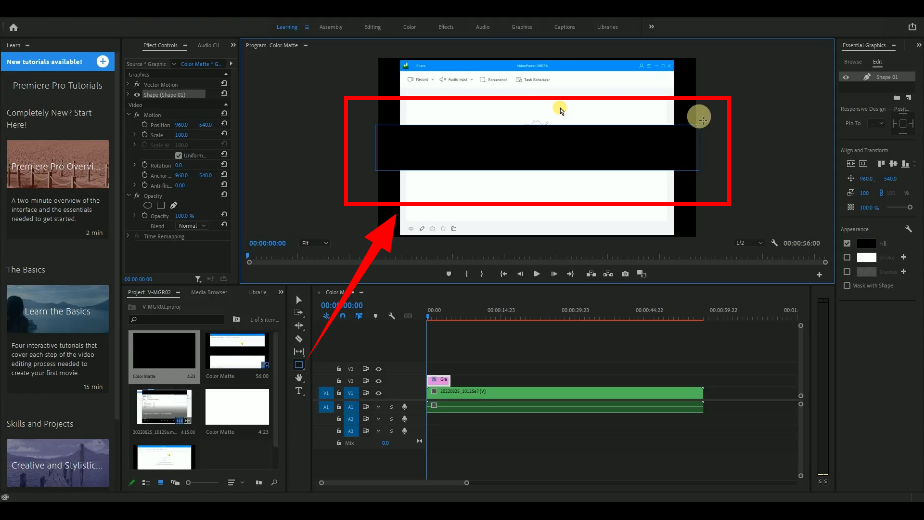
1.2. Add a rectangle in the video.

add subtitle, add a rectangle to the video

1.3. Adjust the subtitle background to center.
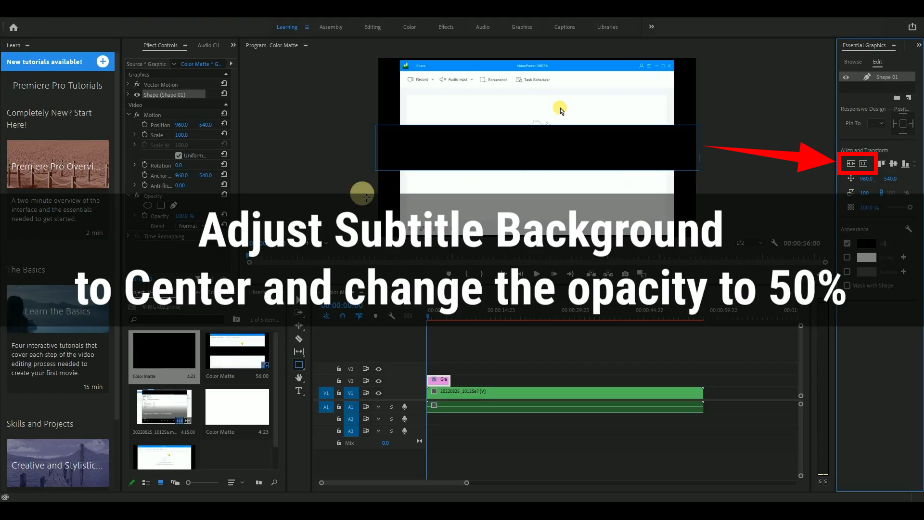
add subtitle, set the background to center

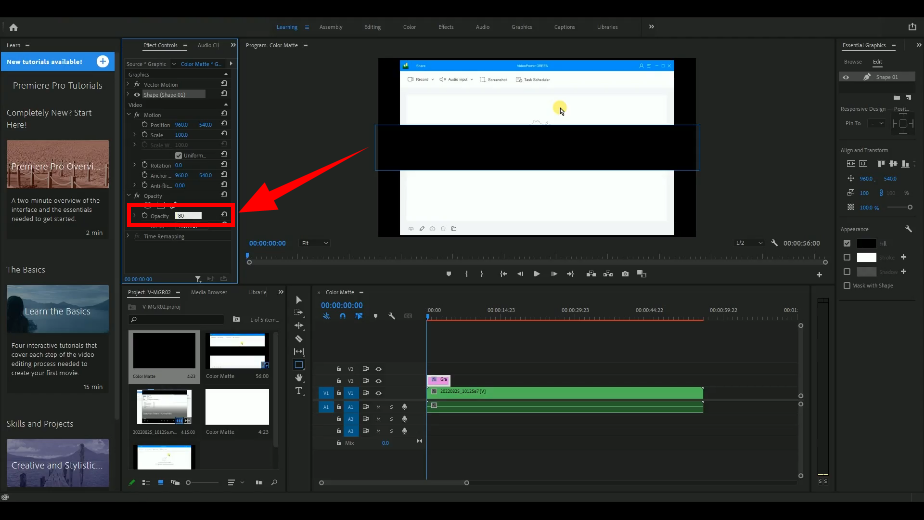
1.4. Change the opacity to 50%.

add subtitle, change the opacity

Step 2: Add a subtitle to the video

2.1. Click the “Text” icon and add a subtitle to the video.
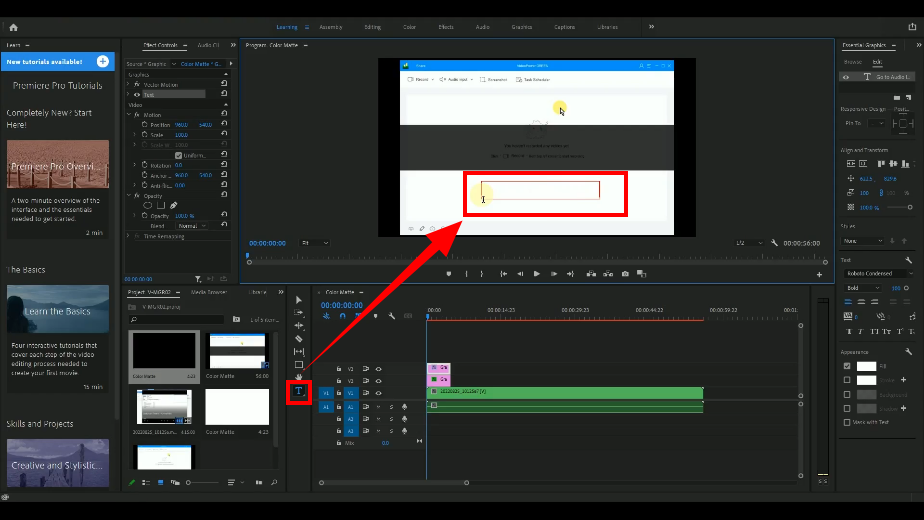
add subtitle, add a subtitle to the video

2.2. Highlight the the subtitle and place it to the center.
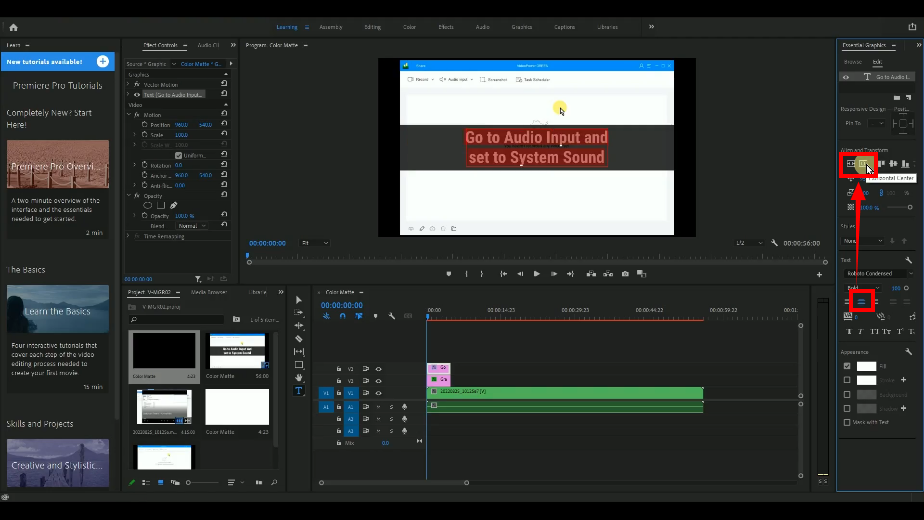
add subtitle, place the subtitle to center

2.3. Trim the subtitle and background to fit the action on the video. If the subtitle is disturbing an action, place it to somewhere safe.
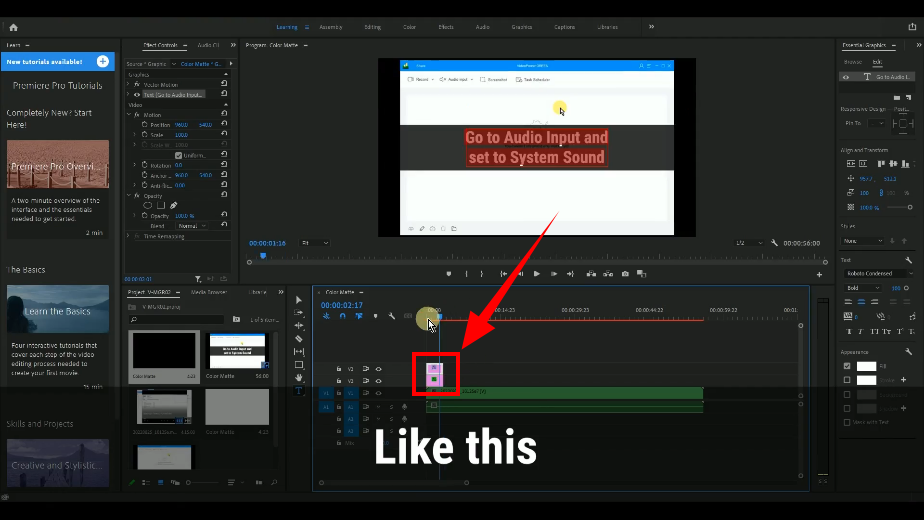
add subtitle, trim the subtitle

Step 3: Duplicate your subtitle and background

3.1. To duplicate the subtitle, highlight the subtitle, hold press “Alt”, and drag it to the right side.
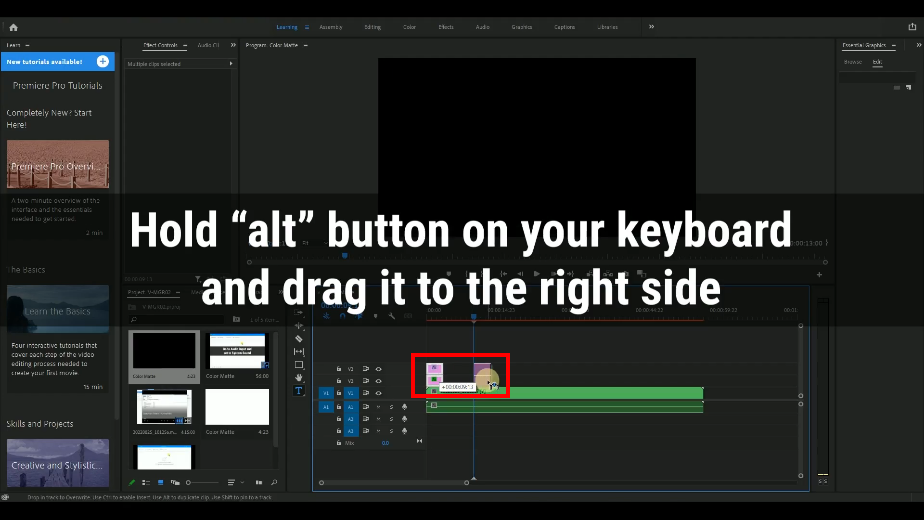
add subtitle, duplicate subtitle

3.2. Move the subtitle to fit in the video.
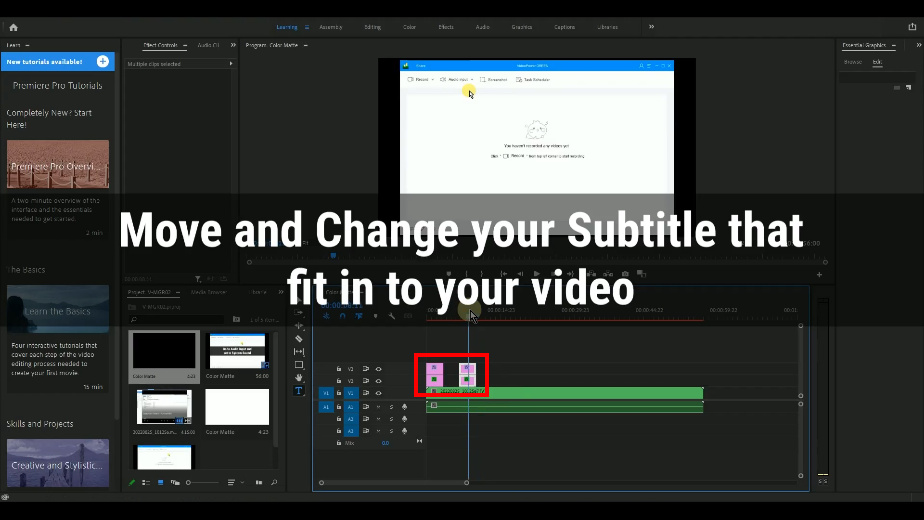
add subtitle, move the subtitle to fit in the video

Repeat the process to the other scenes.

Subtitle Duration Rule:

  • 2-3 sec. for 1 line.
  • 4 sec. for 2 lines.
  • 7 sec. for 3 lines.

Basically, the subtitle should be 2 lines or less.

Video Download
Record
Convert

videopower red icon

VideoPower
RED

  • Download video and audio from over 1000 video site
  • Batch download YouTube playlist
  • Record screen and audio with real-time annotation
  • Trim, crop, rotate video with a strong video editor
  • Windows 7, 8, 8.1, 10, 11 (32/64bits)

> DOWNLOAD <
LEARN MORE

Record Screen&Audio
Annotation, Schedule
Video Edit&Convert

videopower green icon

VideoPower
GREEN

  • Record screen and audio with real-time annotation
  • Create a scheduled task to record screen and webcam
  • Enrich your recorded video by powerful Video Editor
  • Capture and annotate your screen in the picture
  • Windows 7, 8, 8.1, 10, 11 (32/64bits)

> DOWNLOAD <
LEARN MORE

Video Convert
Slideshow Maker
Video Collage

videopower blue icon

VideoPower
BLUE

  • Convert video to various formats at super fast speed without quality loss

  • Make your own video clips or movies with fantastic themes
  • Transform multiple videos and photos in one frame as a collage
  • Trim, crop, rotate, effect, watermark, etc. video editing

  • Windows 7, 8, 8.1, 10, 11 (32/64bits)

> DOWNLOAD <
LEARN MORE

Music Search
Download
Record

videopower yellow icon

VideoPower
YELLOW

  • Records music and audio from various sources in lossless

  • Search and download music

  • Auto-add music ID3 tags for recorded music

  • ID3 Tag Identifier and Editor, Audio Editor/Converter, CD Ripper/Burner, Transfer to iTunes, etc

  • Windows 7, 8, 8.1, 10, 11 (32/64bits)

> DOWNLOAD <
LEARN MORE

ZEUS Series
VideoPower brother products, start easier with more affordable prices!

ZEUS FREE DOWNLOAD for Windows
ZEUS BUNDLE
1 Year License
$59.97 50%OFF
⇒ $29.99

Add to Cart

ZEUS BUNDLE
LITE
1 Year License
$39.97 50%OFF
⇒ $19.99

Add to Cart

ZEUS RECORD
LITE
1 Year License
$19.97 50%OFF
⇒ $9.98

Add to Cart

ZEUS DOWNLOAD LITE
1 Year License
$19.95 50%OFF
⇒ $9.98

Add to Cart

Screen Recorder Screen&Audio Recording ✔ ✔ ✔
Duration Setting, Schedule Recording ✔
Video Downloader Paste URL to download, batch download ✔ ✔ ✔
Search/download video,browser detector ✔
Music Recorder Record music and get music ID3 tag info ✔ ✔
Music search/download/record, CD Ripper/Creator, Audio Editor ✔
Video Editor Edit and convert videos, create slideshow ✔
Screen Capture Capture screen, image editor ✔

Whatever fits your needs,it’s here.
Which one would you choose?

> VideoPower Series Comparison <