











ASUS is currently the world’s largest motherboard manufacturer and the world’s third-largest graphics card manufacturer. It is also one of the world’s leading providers of 3C solutions, which is dedicated to providing individuals and business users with the most innovative value of products and applications. In this guide, you will learn how to screenshot on Asus laptop.
Asus laptops are very popular for their high performance and low cost. There is a large number of Asus users that use it for photography and video editing. Taking a screenshot is also essential for Asus users. It really plays a big role and a big help to the users.
However, Asus is only capable of taking the whole screen and has a limited annotation option. You can’t edit the screenshot right away. With that, we’ll discuss how to use a third-party app to make a better screenshot output on an Asus laptop.
Use VideoPower GREEN or ZEUS, reliable software in taking a screenshot. It is free of charge and allows you to edit the screenshot instantly. You can add annotations, arrows and etc. You can also select various formats like .png or .jpg, to be saved.
It is very handy and useful especially if you encounter a problem on your screen and just simply take a screenshot of it, highlight the problem by editing a screenshot, and send it to easily identify what’s wrong.
Download it by clicking the download button below and follow these steps on how to take a screenshot on Asus.
ZEUS can do what VideoPower series can do and more with an almost similar interface.
Check out NOW! Start easier with more affordable prices!
How to Take a Screenshot on an Asus Laptop
Step 1: Go to “Screenshot”
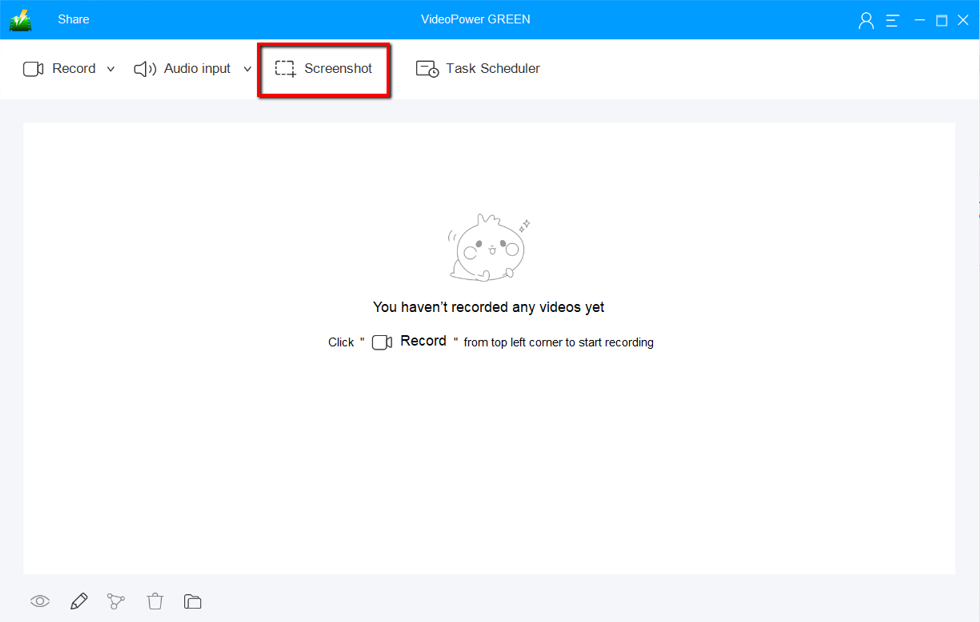
Launch VideoPower GREEN, and then click on the “Screenshot” tab.
Step 2: Select the region on the Asus screen
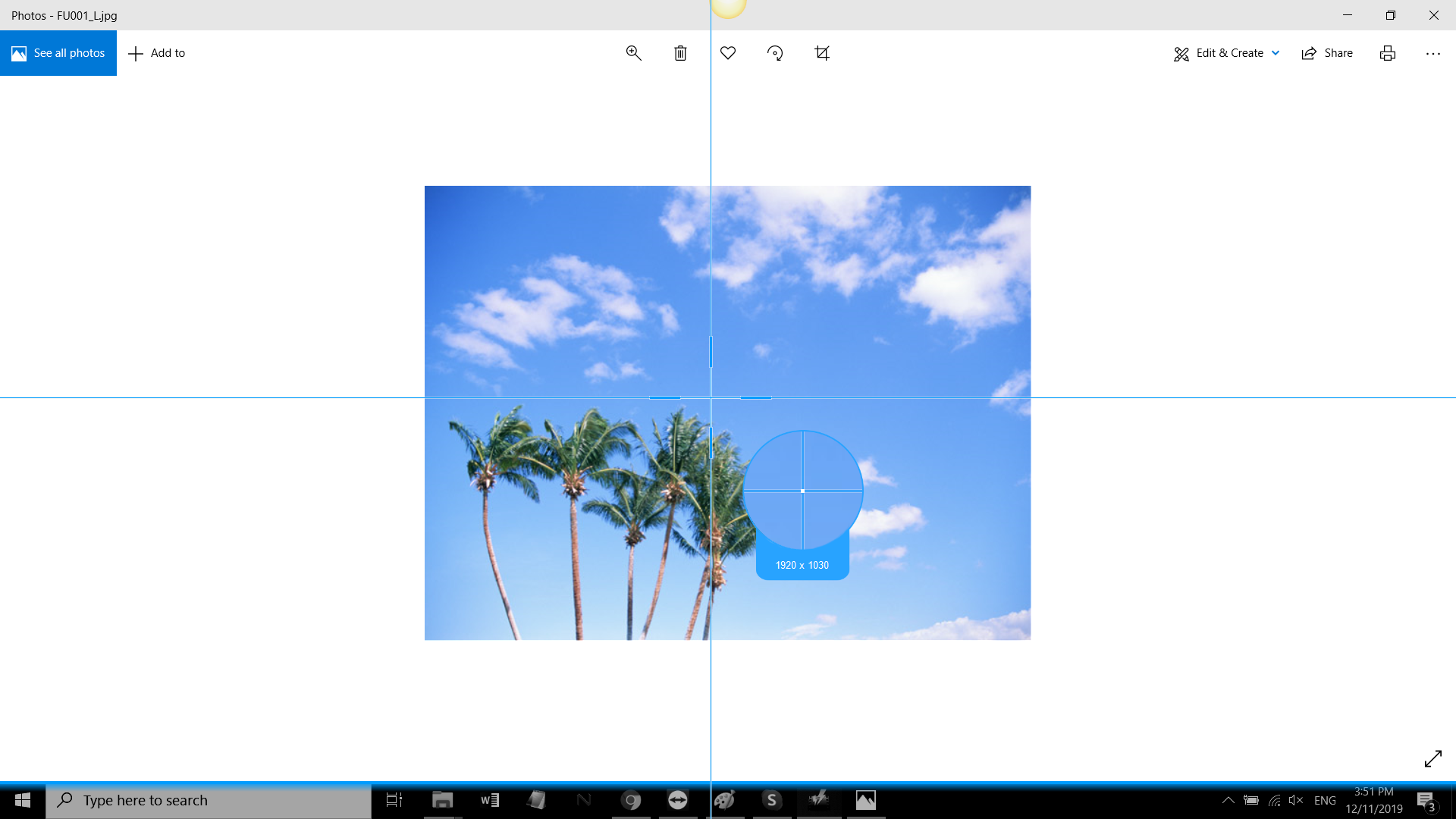
Select the region you want to take a screenshot of. Hold and drag your mouse to do this.
Step 3: Edit and save the screenshot
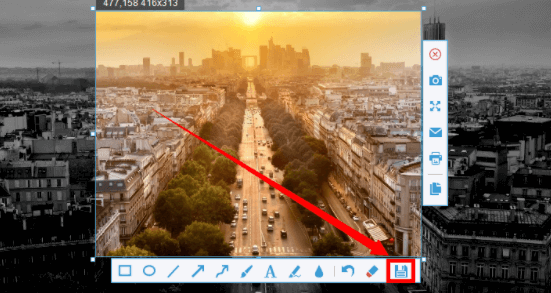
Release the mouse to get a screenshot on the Asus screen. You can add annotations, lines, arrows, shapes, blurring out and etc to highlight or keep important details by the toolbar. Click the save button and the folder will pop-up. Select your desired format and location.
Conclusion:
The screen capture tool in an Asus laptop is only capable of taking a full-screen screenshot. But with VideoPower GREEN, you can take a screenshot on your Asus laptop in different ways. There are instances when you need to select different formats for the image or highlight important details in taking a screenshot. Those shortcomings can be fulfilled by this software.
In addition, VideoPower GREEN does not only support screen capturing, but it also has multiple functions and features such as screen and audio recording and task scheduler.
ZEUS series can do everything that VideoPower series can do and more, the interface is almost the same.
Check out NOW! Start easier with more affordable prices!




ZEUS Series
VideoPower brother products, start easier with more affordable prices!
| ZEUS BUNDLE 1 Year License ⇒ $29.99 |
ZEUS BUNDLE LITE 1 Year License ⇒ $19.99 |
ZEUS RECORD LITE 1 Year License ⇒ $9.98 |
ZEUS DOWNLOAD LITE 1 Year License ⇒ $9.98 |
||
| Screen Recorder | Screen&Audio Recording | ✔ | ✔ | ✔ | |
| Duration Setting, Schedule Recording | ✔ | ||||
| Video Downloader | Paste URL to download, batch download | ✔ | ✔ | ✔ | |
| Search/download video,browser detector | ✔ | ||||
| Music Recorder | Record music and get music ID3 tag info | ✔ | ✔ | ||
| Music search/download/record, CD Ripper/Creator, Audio Editor | ✔ | ||||
| Video Editor | Edit and convert videos, create slideshow | ✔ | |||
| Screen Capture | Capture screen, image editor | ✔ | |||