











Total Recorder is a well-known audio and video recording software with various editing and sound processing capabilities. It allows you to record any sounds from your PC or websites online. The only disadvantage of using Total Recorder is that it only gives files generic names, and it does not have any title lookup engine, so you’ll need to manually tag tracks by hand.
Some users may be fond of this software however, some may be having trouble using it. If you are looking for a good Total Recorder alternative, then it is recommended that you use VideoPower YELLOW.
ZEUS can do what VideoPower series can do and more with an almost similar interface.
Check out NOW! Start easier with more affordable prices!
Guide
How to Use Total Recorder Alternative to Record Audio
VideoPower YELLOW is one of the best Audio recorders that are capable of recording audio from your computer and online websites in lossless quality. What makes it at par with other audio recorders is its ID3 Tags Identifier function. It has the capability to automatically identify the audio or music recording and adds its ID3 tag once recognized. This comes in handy when organizing your playlists or audio files.
Method 1: Record the Audio or Music
Step 1: Set the audio input
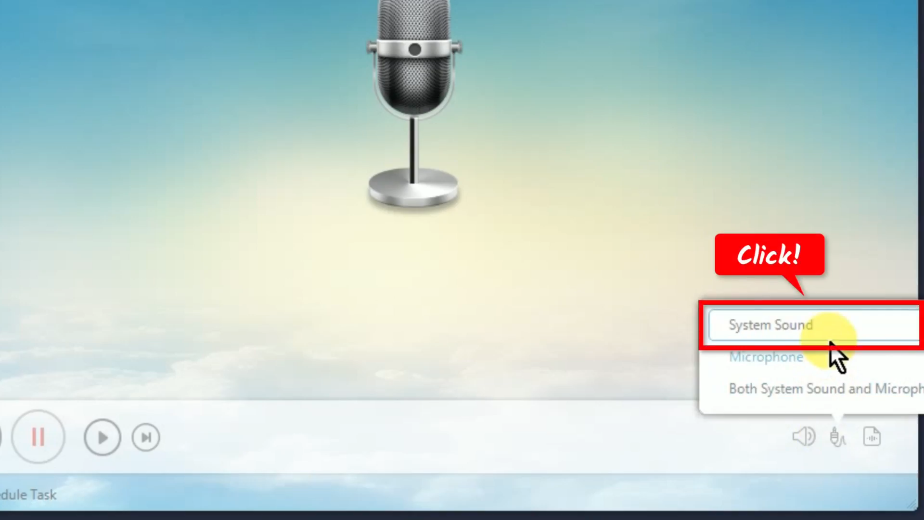
Open the VideoPower YELLOW and click the “audio input” icon.

Then select your preferred audio input from the options. In this example, we will set the audio input to “System sound” to avoid external noises when recording.
Step 2: Specify the output format
Click the “Format” icon.
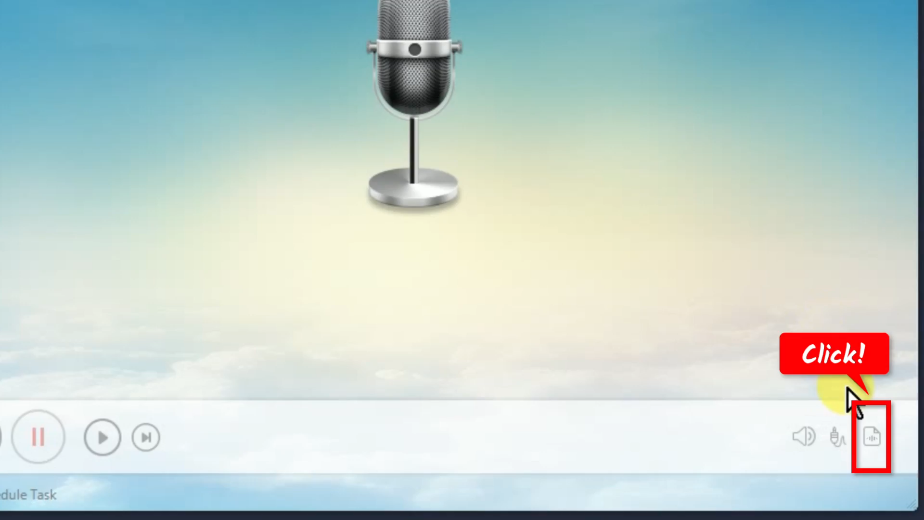
A list of options will be displayed for your selection. In this example, we will set the output format to “MP3”.

Step 3: Begin the recording
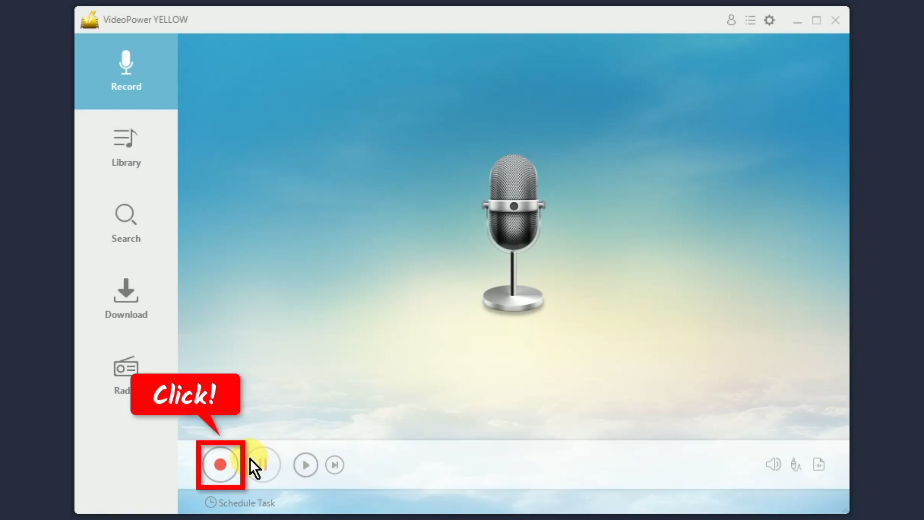
To begin the recording, click the “Record” button.
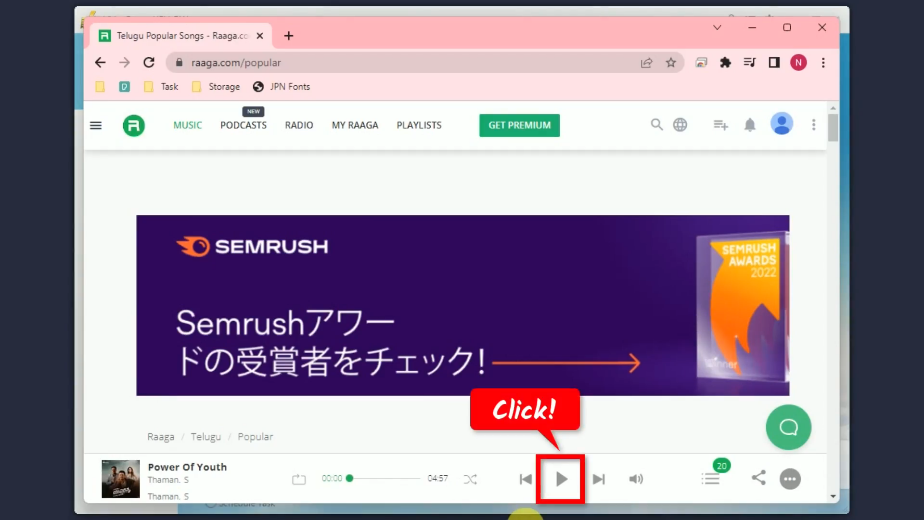
Go to the audio on your computer or website and play it to have it recorded.
When the recording is finished, click “Stop” to end the recording.
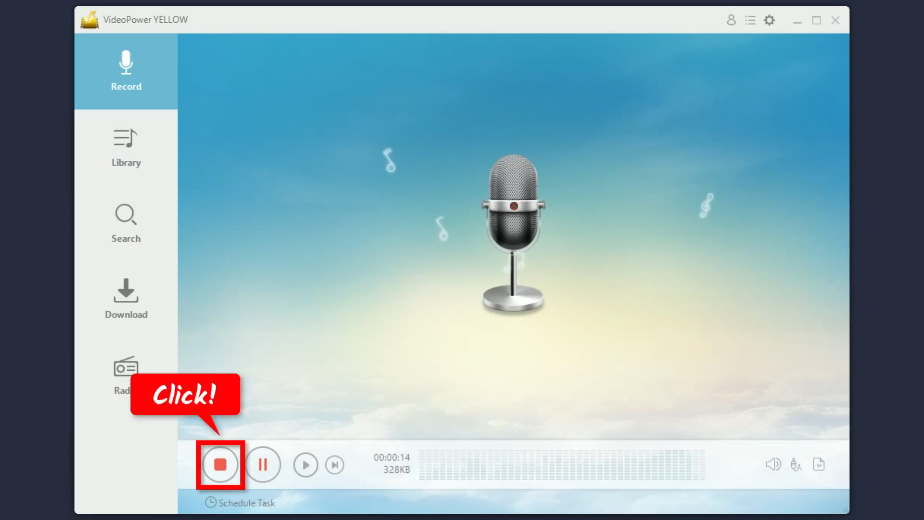
Step 4: ID3 tags identified
The ID3 Tags identifier function will automatically try to identify the audio or music recorded. Once recognized, it will automatically add its ID3 tags such as album cover art, title, artist, year, etc.
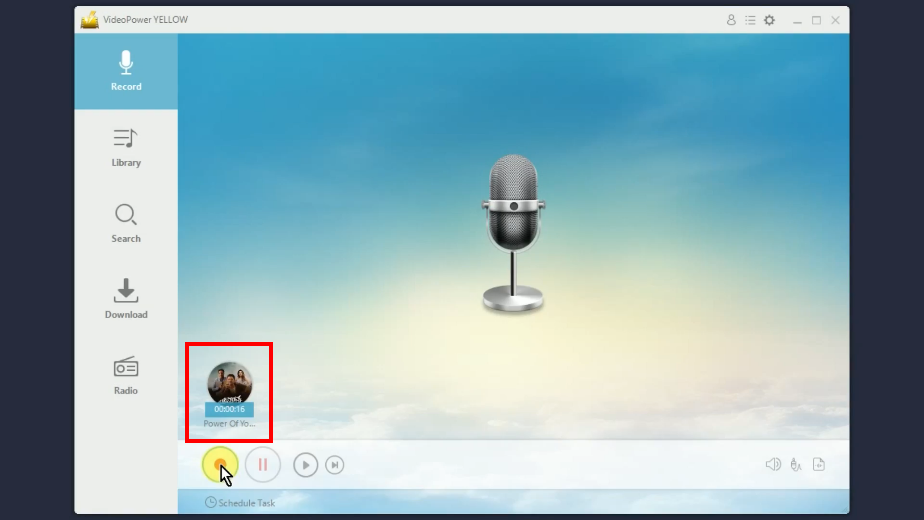
Step 5: Check the recorded audio or music
Go to the “Library” function screen.
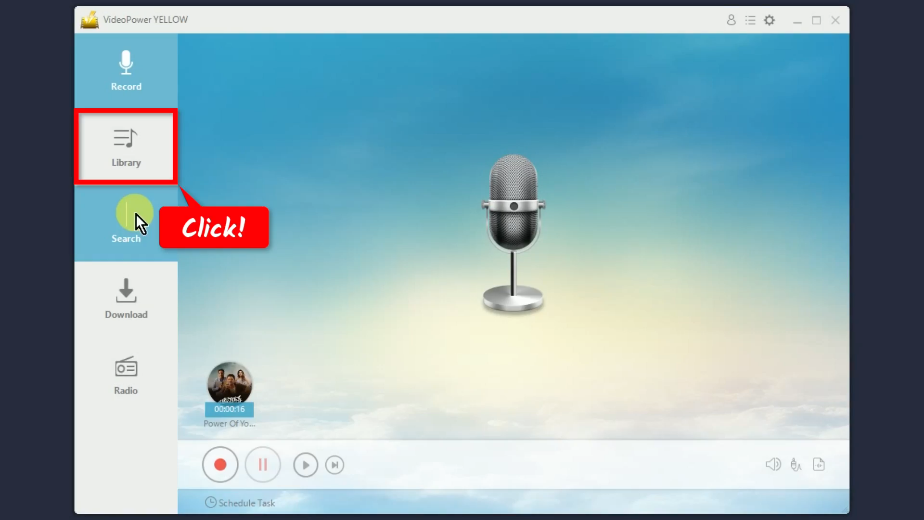
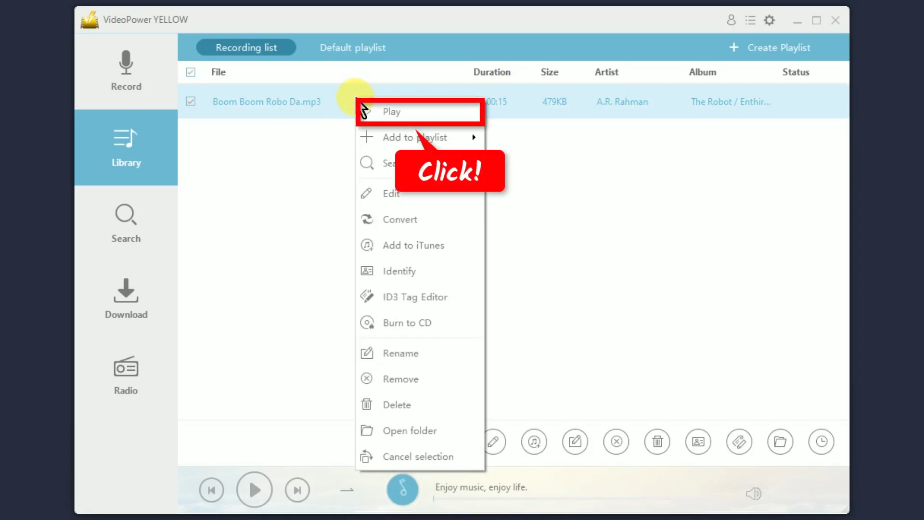
You will see the recorded audio under the recording list. You may right-click the recorded file to see more options or select “Play” to playback.

Method 2: Automate the audio recording
Step 1: Open the Task Scheduler
Under the “Record” function screen, click the “Scheduled Task” option below the “Record” button.
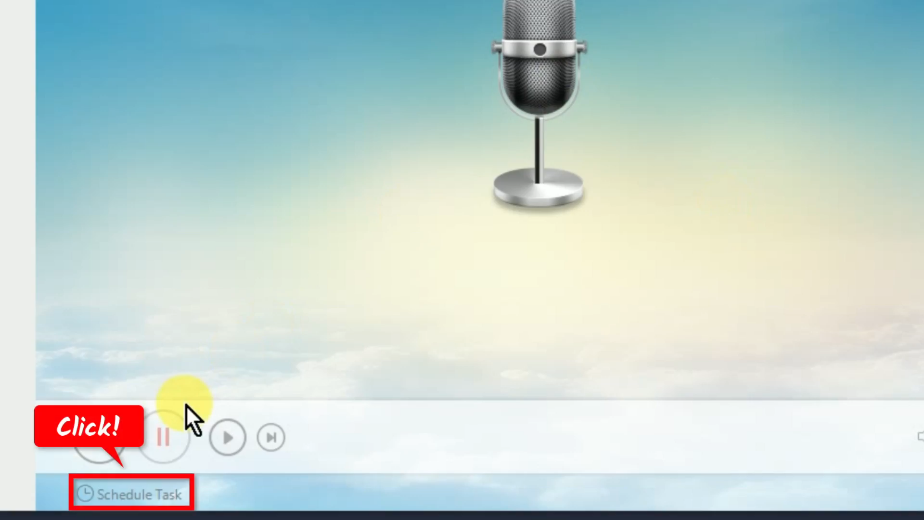
Step 2: Create a scheduled task
Set the schedule of the recording by specifying the start time and duration.
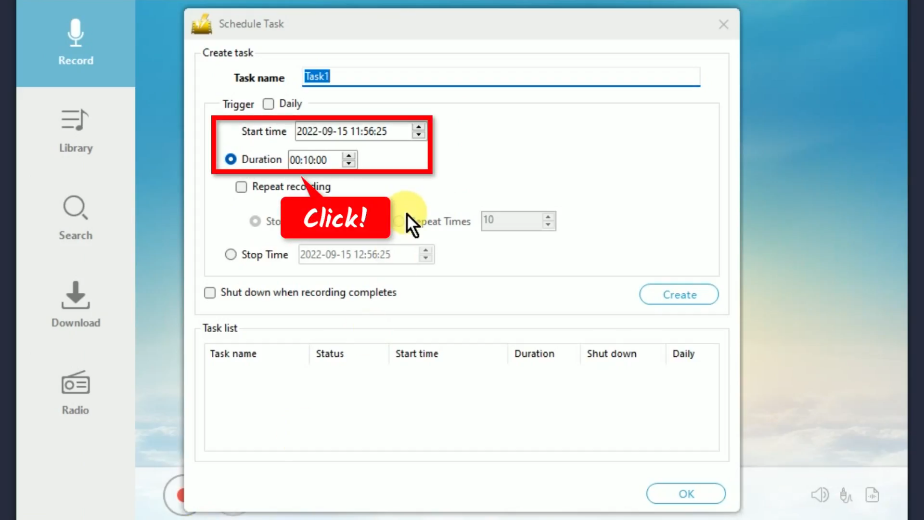
Click the “Create” button to create a task based on the specified schedule.
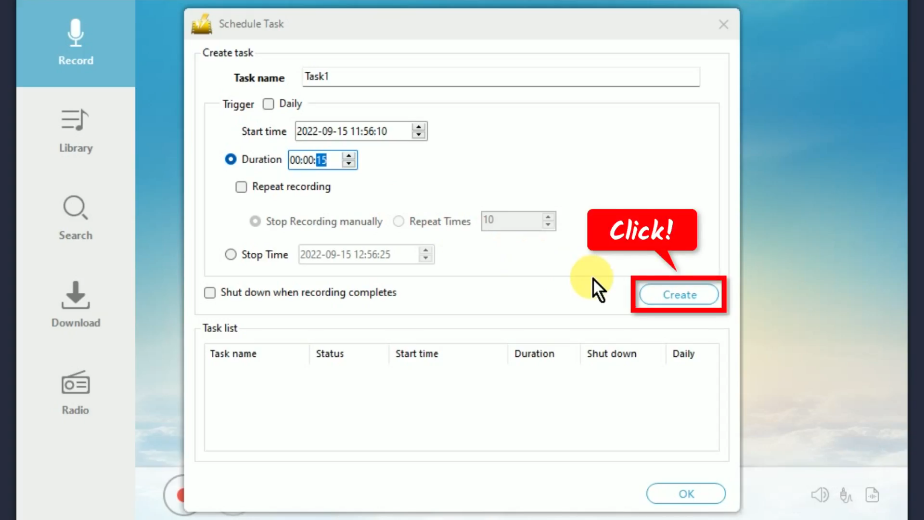
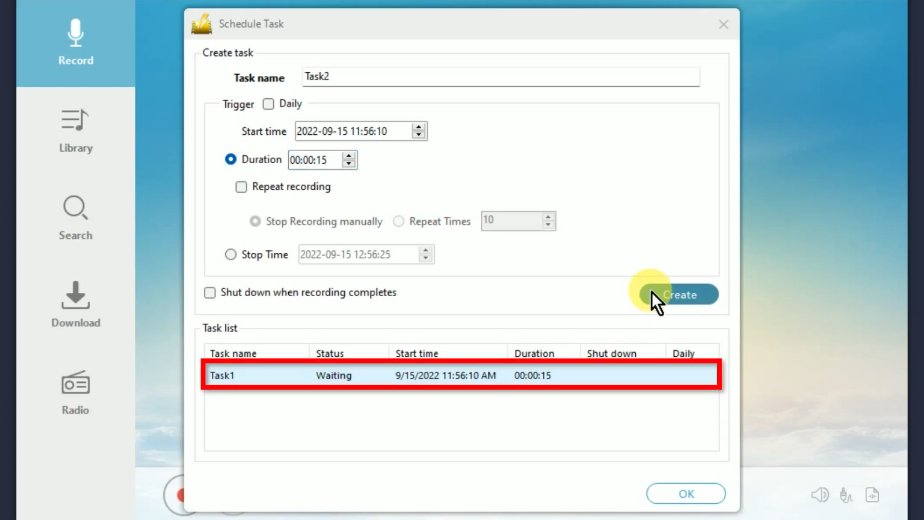
You will see all created tasks under the Task list.
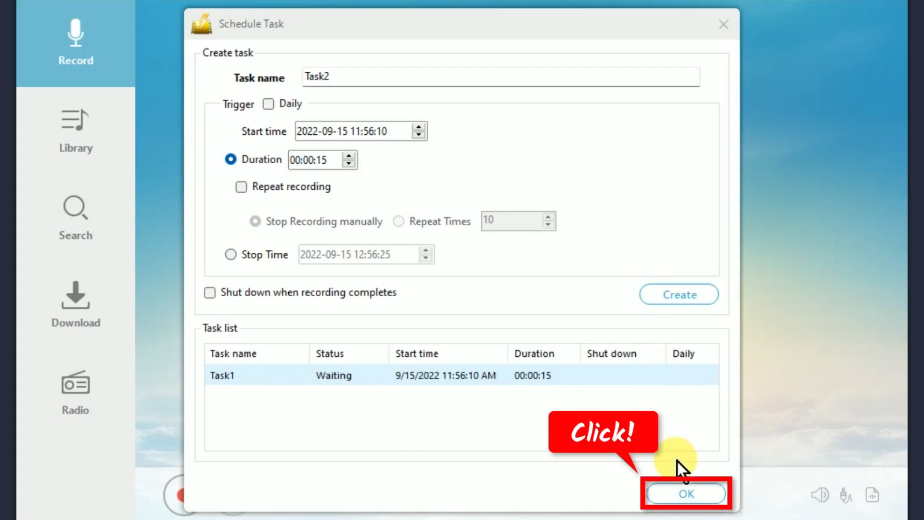
If all is set, click “OK”.
Step 3: Scheduled recording begins
You will see the countdown below the “Record” button for the closest scheduled recording.
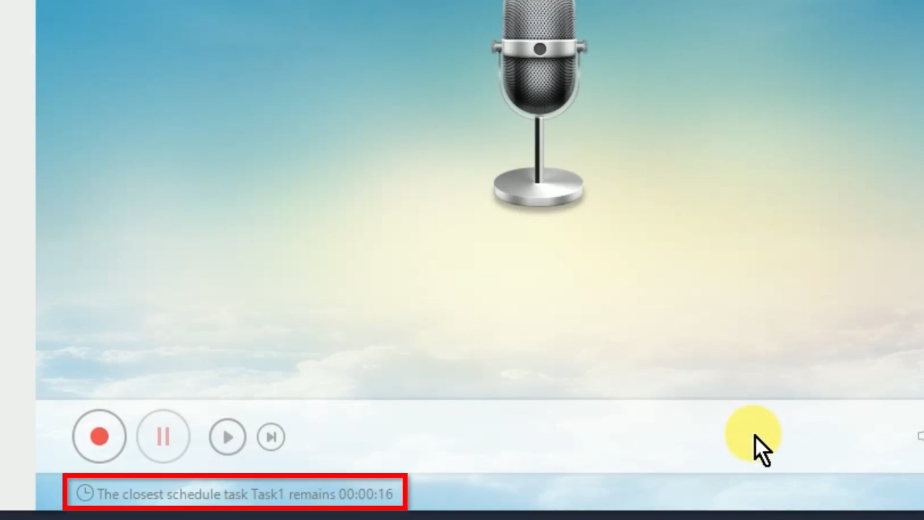
When the countdown reaches zero, it will automatically begin the recording. You can then play the audio or music to have it recorded. For live streaming, you may tune in to the station beforehand.
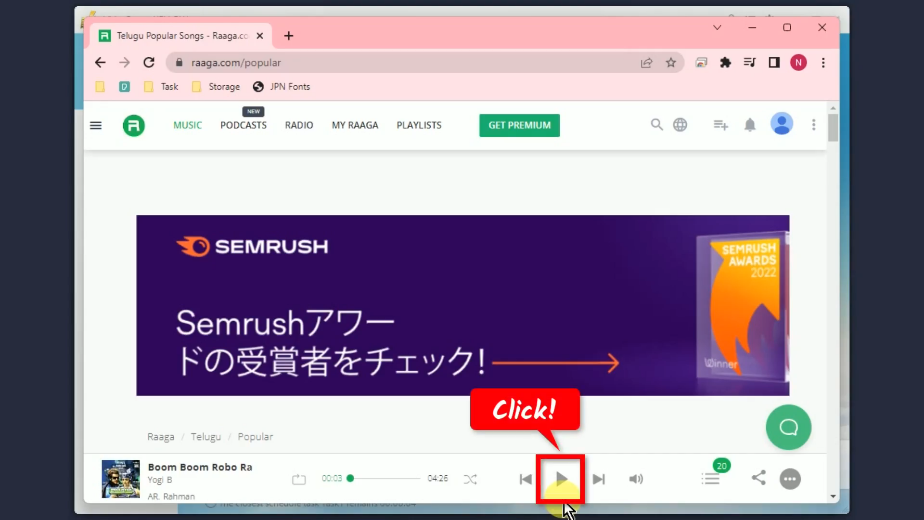
To confirm that the recording is running, you can check the options from the image below.
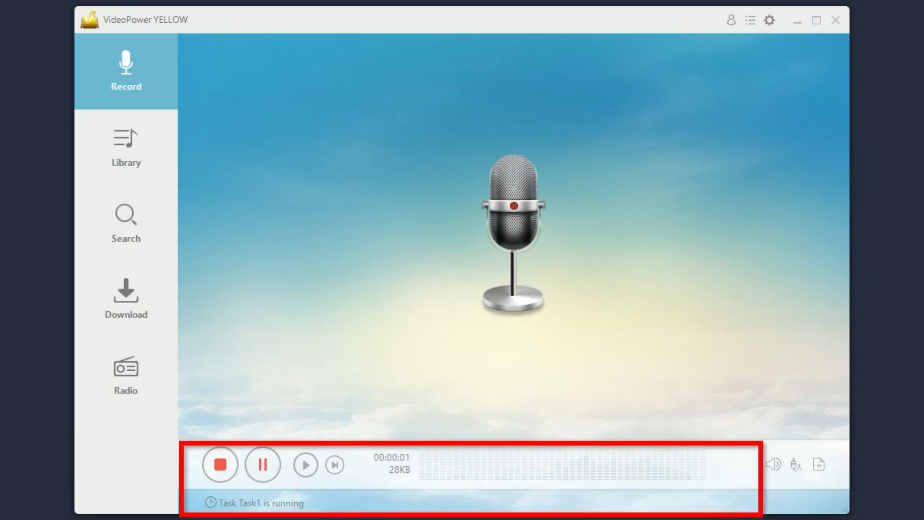
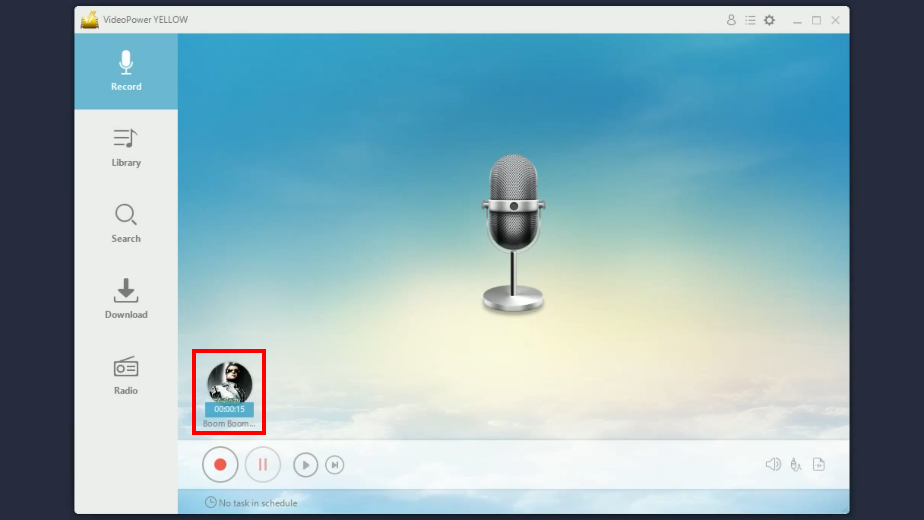
Step 4: ID3 Tags added
After the recording, the software will try to identify the audio recorded and will add the ID3 tags automatically once recognized. It will add the audio or music information such as the album cover art, title, artist, etc.
Step 5: Check the recorded audio
To check the recorded audio, go to the “Library” function screen.
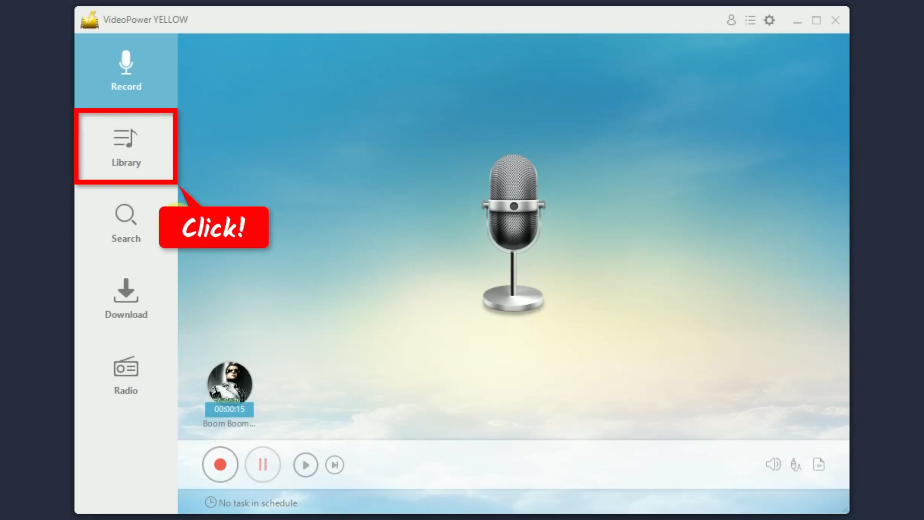
You will see the recorded audio files under the “Recording list”. Right-click the recorded file to see more options or select “Play” to playback the audio.
Conclusion:
If you want to record music, skype calls, live streams, online radio, class, etc., then Total Record is a good tool to use. Its built-in editing tools are also impressive to improve your recordings.
If you are looking for the best Total Recorder alternative, then you need to try the VideoPower YELLOW. Same with the Total Recorder, it has a built-in editor and can capture lossless quality audio. Unlike other software, VideoPower YELLOW offers not only that. It is equipped with much more exciting tools, advanced functions, and useful features such as ID3 tags identifier, music library, online radio, and more!
ZEUS series can do everything that VideoPower series can do and more, the interface is almost the same.
Check out NOW! Start easier with more affordable prices!




ZEUS Series
VideoPower brother products, start easier with more affordable prices!
| ZEUS BUNDLE 1 Year License ⇒ $29.99 |
ZEUS BUNDLE LITE 1 Year License ⇒ $19.99 |
ZEUS RECORD LITE 1 Year License ⇒ $9.98 |
ZEUS DOWNLOAD LITE 1 Year License ⇒ $9.98 |
||
| Screen Recorder | Screen&Audio Recording | ✔ | ✔ | ✔ | |
| Duration Setting, Schedule Recording | ✔ | ||||
| Video Downloader | Paste URL to download, batch download | ✔ | ✔ | ✔ | |
| Search/download video,browser detector | ✔ | ||||
| Music Recorder | Record music and get music ID3 tag info | ✔ | ✔ | ||
| Music search/download/record, CD Ripper/Creator, Audio Editor | ✔ | ||||
| Video Editor | Edit and convert videos, create slideshow | ✔ | |||
| Screen Capture | Capture screen, image editor | ✔ | |||