











Nowadays, many people are not content by just recording only computer screen activity. They now wanted to record and add themselves to the recorded video. Sometimes they need to add external cameras like a webcam to show their expression comments and movements toward the screen activity. For example, game anchors, online-class teachers, or vloggers have a great demand for recording screen and webcam simultaneously.
It’s really difficult to capture and record screen and webcam simultaneously without the help of third-party tools. In this article, we will provide an easy-to-use but practical screen and webcam recorder to all of you.
VideoPower GREEN or ZEUS is the best desktop tool for basic video/audio recording and screen capturing. It has multiple functions but easy to use with no tech knowledge required at all. It enables you to record movies, video tutorials, games, live streams, calls, and more. It also enables you to easily and hassle-free record screen activities and webcam visual images at the same time.
ZEUS can do what VideoPower series can do and more with an almost similar interface.
Check out NOW! Start easier with more affordable prices!
Record Video and Webcam at the same time
Step 1: Set up sound source and area
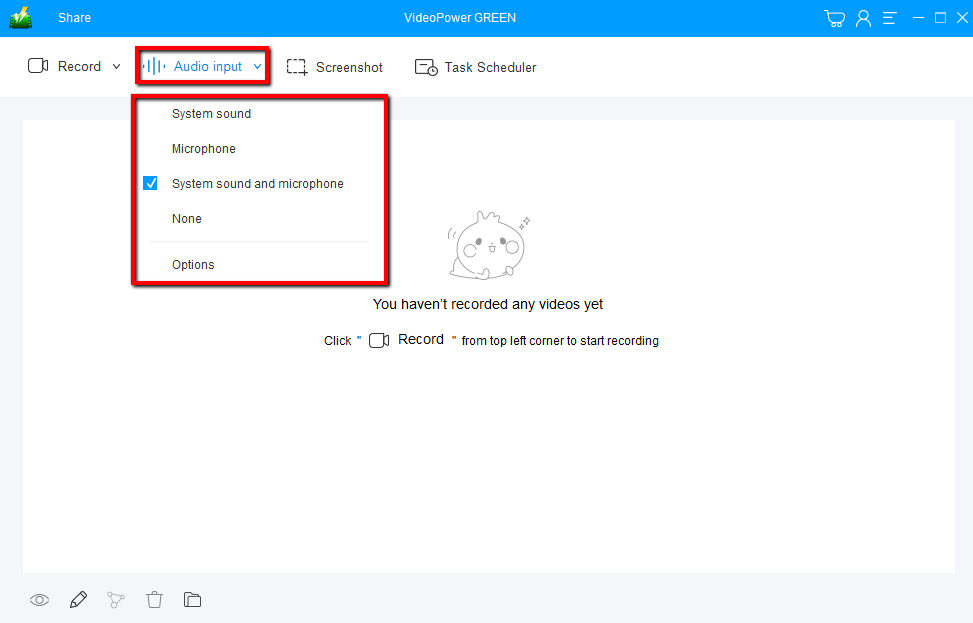
Click the drop-down “Audio input” button and choose the sound source between “System sound”, “Microphone”, both or “None”. In recording your screen with your web camera, “System sound and microphone” is recommended.
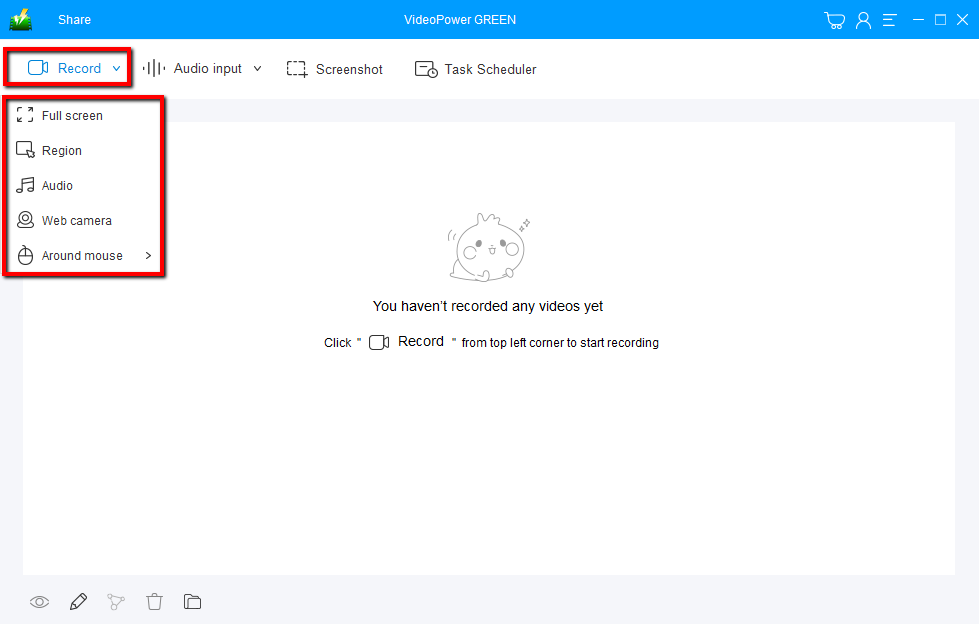
Click on the “Record” button to choose the recording mode. If you are going to record both a webcam and screen, you need to select a screen like “Full-screen” or “Region”. Then, open a webcam after starting recording.
Step 2: Record screen with a webcam on
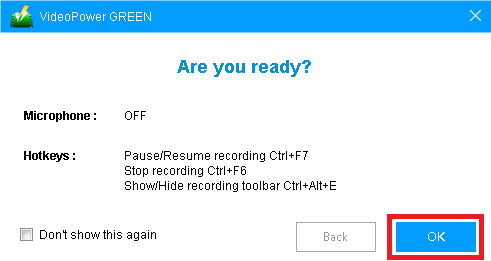
The pop-up window will ask whether you are ready to start recording. It also informs you about your microphone if it is on or off and the hotkeys. Click “OK” to confirm when you are ready to record.

Click the webcam icon on the toolbar to overlay your webcam in the recording area.

Click the “Stop” button to end the recording. After that, the recorded file is already saved in the pointed output folder.
Step 3: Check the recorded video file
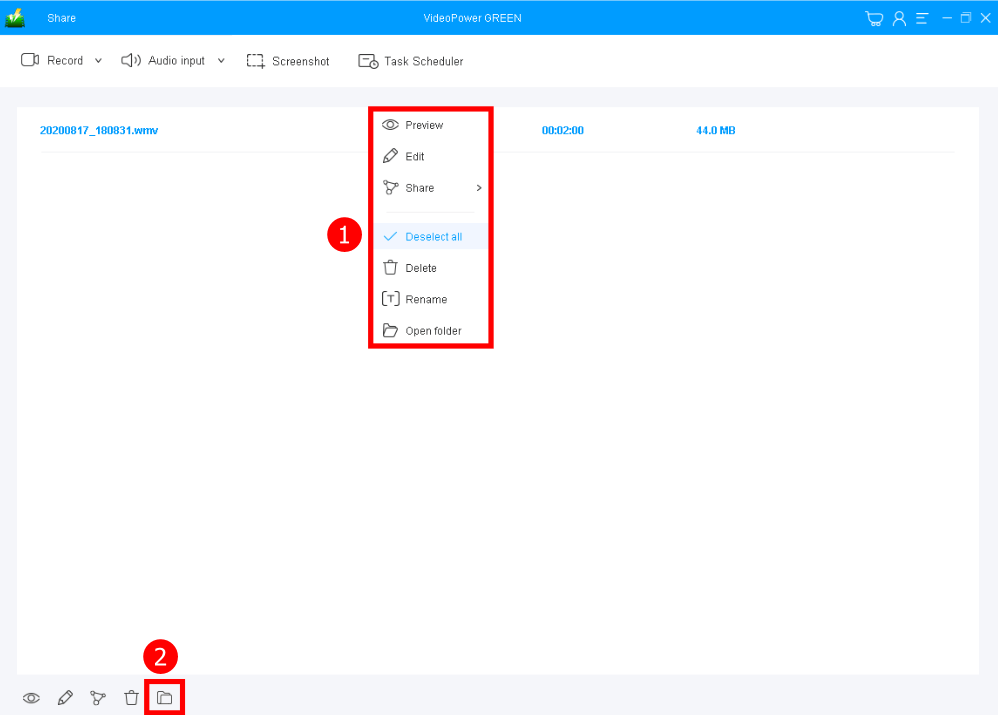
After recording, you will be directed to its main interface. Right-click the recorded screen file to play and check the file. You can also click the folder icon below to open where the file is located.
Conclusion:
VideoPower GREEN, an easy to access and trusted recording application software would be a great help for those who are in need of a tool in recording both screen and webcam moving visual images.
You are able to perform scheduled recordings since it comes with a task scheduler. This is perfectly useful for webcam monitoring your baby and pet.
ZEUS series can do everything that VideoPower series can do and more, the interface is almost the same.
Check out NOW! Start easier with more affordable prices!




ZEUS Series
VideoPower brother products, start easier with more affordable prices!
| ZEUS BUNDLE 1 Year License ⇒ $29.99 |
ZEUS BUNDLE LITE 1 Year License ⇒ $19.99 |
ZEUS RECORD LITE 1 Year License ⇒ $9.98 |
ZEUS DOWNLOAD LITE 1 Year License ⇒ $9.98 |
||
| Screen Recorder | Screen&Audio Recording | ✔ | ✔ | ✔ | |
| Duration Setting, Schedule Recording | ✔ | ||||
| Video Downloader | Paste URL to download, batch download | ✔ | ✔ | ✔ | |
| Search/download video,browser detector | ✔ | ||||
| Music Recorder | Record music and get music ID3 tag info | ✔ | ✔ | ||
| Music search/download/record, CD Ripper/Creator, Audio Editor | ✔ | ||||
| Video Editor | Edit and convert videos, create slideshow | ✔ | |||
| Screen Capture | Capture screen, image editor | ✔ | |||