











Recording screen activities is one of the ways of producing outputs for videos like online tutorials, gameplay commentaries, product advertisements, and educational presentations that are essential in today’s generation.
Having this kind of video file can surely record screen activities that require external sounds like your own speaking voice. Thus, audio recording software that records microphone audio source is best suited for it.
VideoPower GREEN or ZEUS is an audio recorder that’s easy to use, hassle-free, and trusted application software is best for this kind of screen recording activity. This voice recorder for PC is supported by an audio source like a microphone.
Thus, using VideoPower GREEN as your audio recorder software, you can easily add and record microphone sound to your video recording to add clarity to the content of your recorded file. To download and try this product, just click the link below.
You can try to use the software for free by downloading its trial version below.
ZEUS can do what VideoPower series can do and more with an almost similar interface.
Check out NOW! Start easier with more affordable prices!
How to Record Microphone with VideoPower GREEN
Step 1: Ready the Sound Source and Record Area
1.1 Set the Sound Source
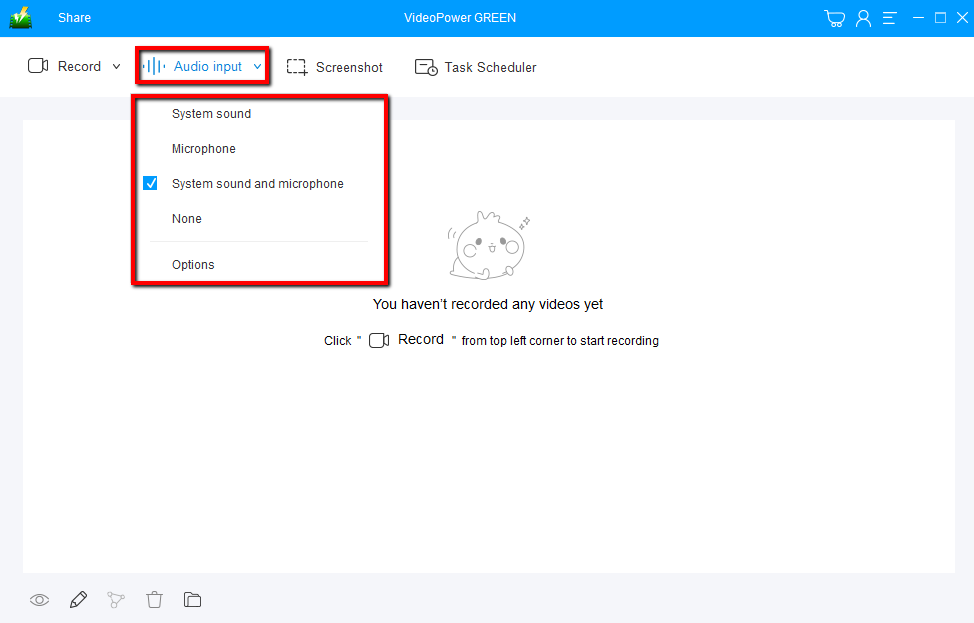
Sound source options for recording are “System sound”, “Microphone”, “System sound and microphone” or “None”.
choose “Microphone” in this case.
1.2 Select a Recording Mode
Click on the “Record” button to choose a recording mode from “Full screen, Region, Audio, Web camera, Around mouse”.
If you want to record the microphone sound alone, it is recommended to choose “Audio”.
Step 2: Start the Recording

After selecting “Audio”, the software will start recording immediately. To end the recording, click the “Stop” button. The recording will automatically be saved in the local storage of your PC.
Step 3: Check the Recorded Audio File
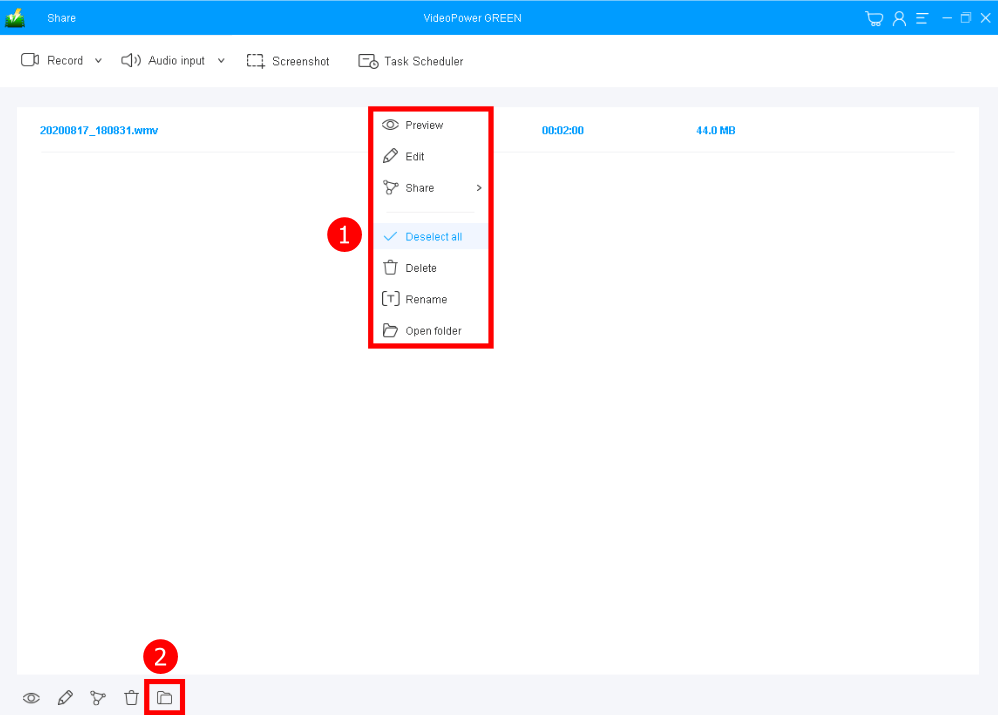
After that, you can check the recorded file list in the interface.
1. You can do more operations if you like, such as playback, edit, or open folder by right-clicking on the file name of the recorded file.
2. Or if you want to open the file in the output folder, click the folder icon to view.
Conclusion:
Online tutorials, gameplay commentaries, product advertisements, and educational presentations are essential in today’s generation where digital technologies and applications are on the veins of every human being’s life.
VideoPower GREEN isn’t only best in recording microphones but also helps you create different modes and moods in your files. Also, it helps you to save some time and effort by activating its task scheduler feature to make the computer do the job for you in your absence.
ZEUS series can do everything that VideoPower series can do and more, the interface is almost the same.
Check out NOW! Start easier with more affordable prices!




ZEUS Series
VideoPower brother products, start easier with more affordable prices!
| ZEUS BUNDLE 1 Year License ⇒ $29.99 |
ZEUS BUNDLE LITE 1 Year License ⇒ $19.99 |
ZEUS RECORD LITE 1 Year License ⇒ $9.98 |
ZEUS DOWNLOAD LITE 1 Year License ⇒ $9.98 |
||
| Screen Recorder | Screen&Audio Recording | ✔ | ✔ | ✔ | |
| Duration Setting, Schedule Recording | ✔ | ||||
| Video Downloader | Paste URL to download, batch download | ✔ | ✔ | ✔ | |
| Search/download video,browser detector | ✔ | ||||
| Music Recorder | Record music and get music ID3 tag info | ✔ | ✔ | ||
| Music search/download/record, CD Ripper/Creator, Audio Editor | ✔ | ||||
| Video Editor | Edit and convert videos, create slideshow | ✔ | |||
| Screen Capture | Capture screen, image editor | ✔ | |||