











Some users ask the same questions. “How do I record my screen on windows 10? Are there any free screen recording software out there to record my paid online classes for future use?”
After the official release of Windows 10, some of the users may notice that there is a toolbar labeled as “Game Bar” in the app.
Game Bar is a screen capture tool that comes with the operating system. Microsoft offers gamers this tool in order to record high scores or great game clips easily.
Since it is an app that comes with Windows 10, of course, it’s free to use. But to achieve video recording, you need the support your Graphics Card. Otherwise, the Game Bar won’t be enabled.
If you don’t have a supported Graphics Card, I suggest the best and easiest screen recorder software of all time called VideoPower GREEN or ZEUS. It is the best and easiest screen recorder for Windows 10 that makes you worry no more about your Graphics Card.
Stop thinking twice. Take a look at it and download the software with the link below.
ZEUS can do what VideoPower series can do and more with an almost similar interface.
Check out NOW! Start easier with more affordable prices!
Step 1: Customize video settings before recording on your windows 10
1.1 Open Settings
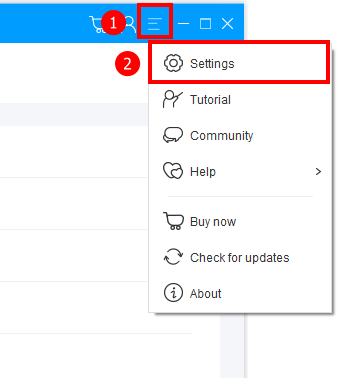
1) Click the menu on the upper right corner of the interface.
2) Choose “Settings” from the drop-down menu.
1.2 Change video settings
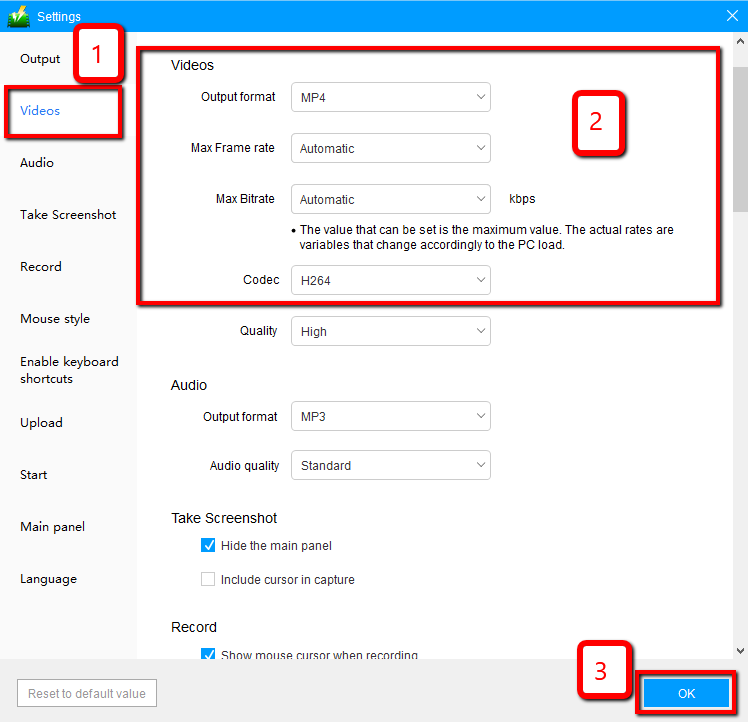
1) Click the “Video” tab on the left side of the interface.
2) You are now able to customize the Output format, Codec, Bitrate, and Frame rate of the recording video as per need.
3) Click “OK” to save settings.
Step 2: Record screen activities on your windows 10
2.1 Choose a sound source
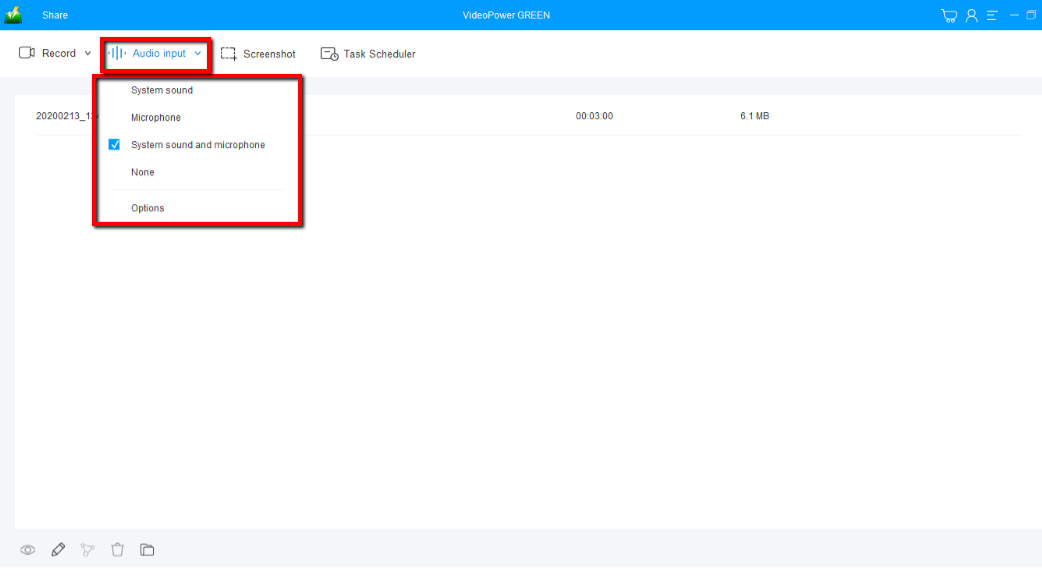
You can choose “System sound, Microphone, System sound and microphone or None.” To record streaming video, you can select “System sound”.
2.2 Select a recording area
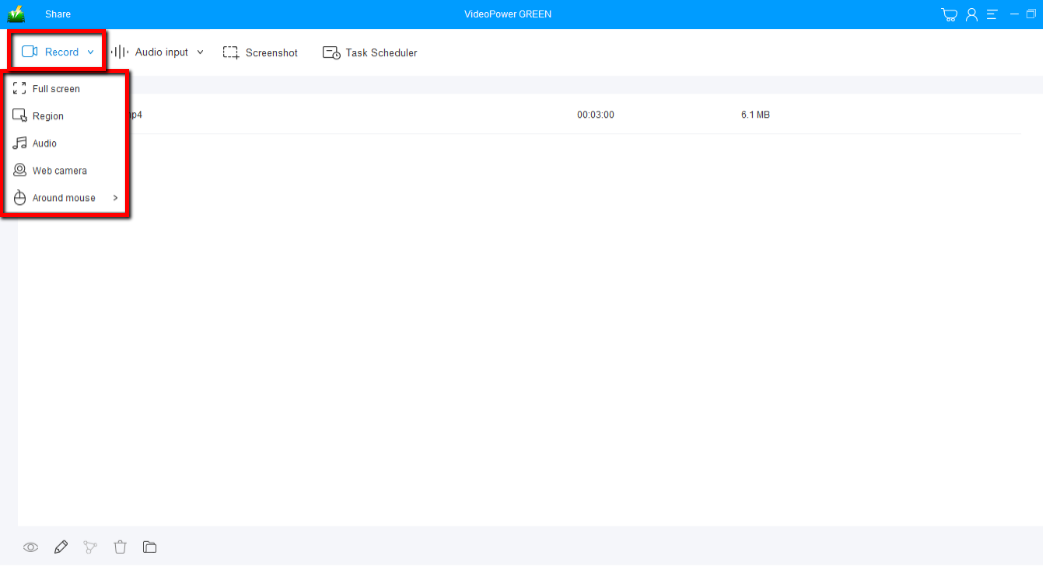
Click on the “Record” button to choose the recording mode from “Full screen, Region, Audio, Web camera, Around mouse”. Select the area you are going to record.
2.3 Start to record
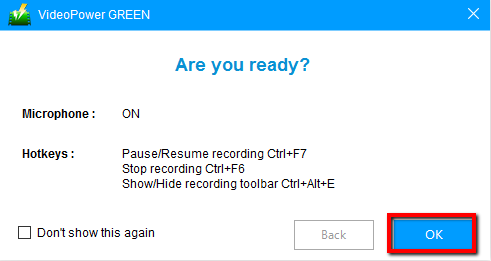
The pop-up window will ask whether you are ready to start recording, click “OK” to confirm when you are ready to record.
2.4 Edit video while recording
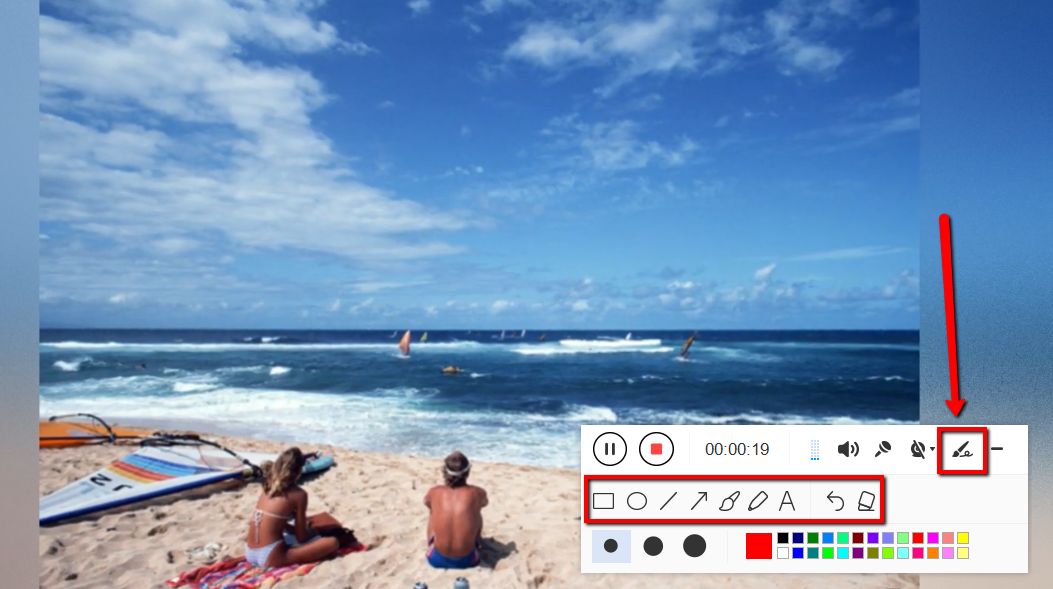
While recording you can add lines, arrows, shapes, texts, highlight, blur, etc. by clicking the edit button.
2.5 End the recording
Click the “Stop” button to stop recording.

Step 3: Manage your recorded video on windows 10
After that, the recorded file is already saved in the pointed output folder.
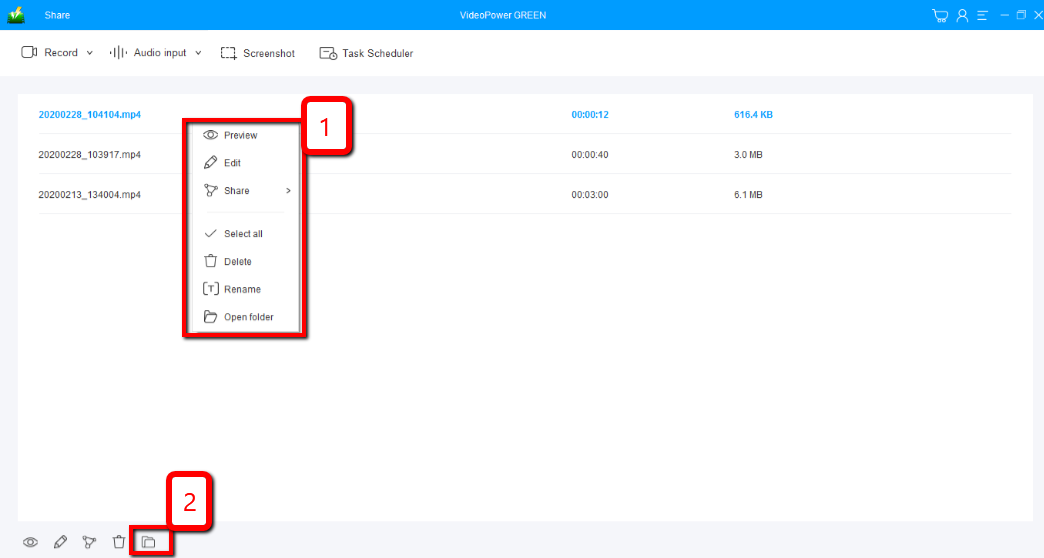
1) Your recorded file can be seen in the main interface. You can right-click the file and do more operations if you like.
2) Click the folder icon to view it in the pointed output folder.
Conclusion:
There are lots of free screen recorder software that is great to use in Windows 10, however, VideoPower GREEN could give you more features unlike any other. It enables you to record your screen & audio, or automatically whenever you want to, even if you are not around. Record it in full screen, a specific window or a specific area. VideoPower GREEN takes screenshots in high quality and lets you choose different ways to do it.
VideoPower GREEN is totally perfect for you. It’s fast and reliable with a built-in video editor that will enable you to merge multiple videos into one single file.
ZEUS series can do everything that VideoPower series can do and more, the interface is almost the same.
Check out NOW! Start easier with more affordable prices!




ZEUS Series
VideoPower brother products, start easier with more affordable prices!
| ZEUS BUNDLE 1 Year License ⇒ $29.99 |
ZEUS BUNDLE LITE 1 Year License ⇒ $19.99 |
ZEUS RECORD LITE 1 Year License ⇒ $9.98 |
ZEUS DOWNLOAD LITE 1 Year License ⇒ $9.98 |
||
| Screen Recorder | Screen&Audio Recording | ✔ | ✔ | ✔ | |
| Duration Setting, Schedule Recording | ✔ | ||||
| Video Downloader | Paste URL to download, batch download | ✔ | ✔ | ✔ | |
| Search/download video,browser detector | ✔ | ||||
| Music Recorder | Record music and get music ID3 tag info | ✔ | ✔ | ||
| Music search/download/record, CD Ripper/Creator, Audio Editor | ✔ | ||||
| Video Editor | Edit and convert videos, create slideshow | ✔ | |||
| Screen Capture | Capture screen, image editor | ✔ | |||