











Netflix is a famous provider of online streaming videos with monthly-basis payment for its subscribers. With this, it is recommended for subscribers to make use of a screen recorder to record videos from Netflix in order for them not to miss the shows or episodes that they want to watch anytime and anywhere.
Offline watching is much more convenient for a lot of users because not all the time, internet connection is stable and present. So what is the best video recorder?
VideoPower GREEN or ZEUS is highly recommended for users who want to save Netflix content for later viewing and offline purposes. Using this best and easy to access screen recording application software can help users record any on-screen activities with professional results.
This recorder software is the best Netflix recorder you can find as such videos downloader out there cannot directly download videos from this site because of its high-restrictions. But with VideoPower GREEN, you’ll never go wrong in saving your favorite Netflix videos and watch them on the go.
Just click the download button below to try this software for free!
ZEUS can do what VideoPower series can do and more with an almost similar interface.
Check out NOW! Start easier with more affordable prices!
Save Netflix Movie by Recording
Step 1: Settings to Record Netflix Movies
1.1 Choose a sound source
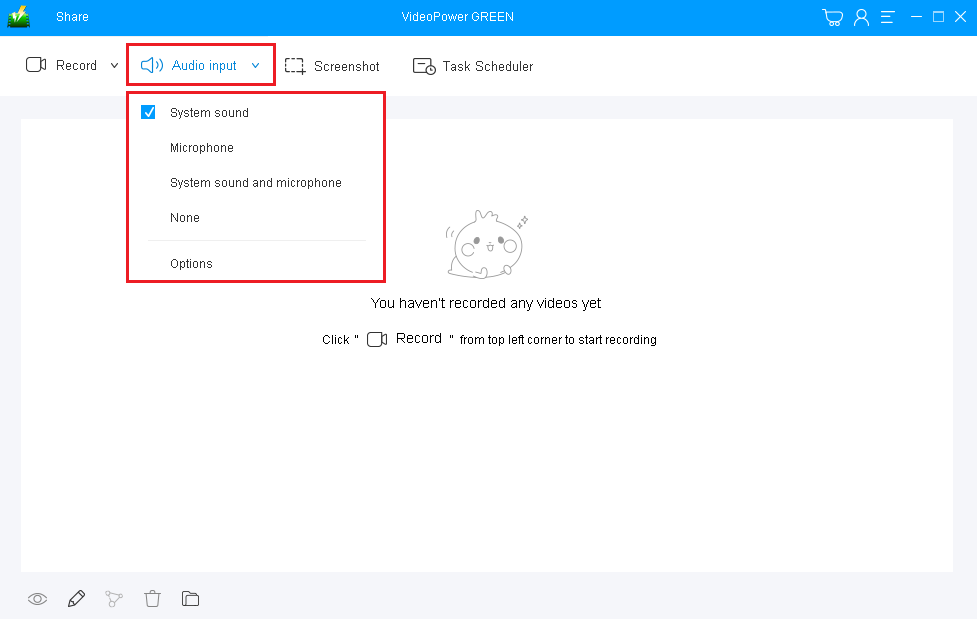
If audio is needed in recording, choose the desired sound source among “System sound, Microphone or System sound and microphone” on the “Audio Input” menu. If audio isn’t needed, just choose “None”.
To record streaming videos like videos on Netflix, select “System sound” as recommended.
1.2 Select a recording area.
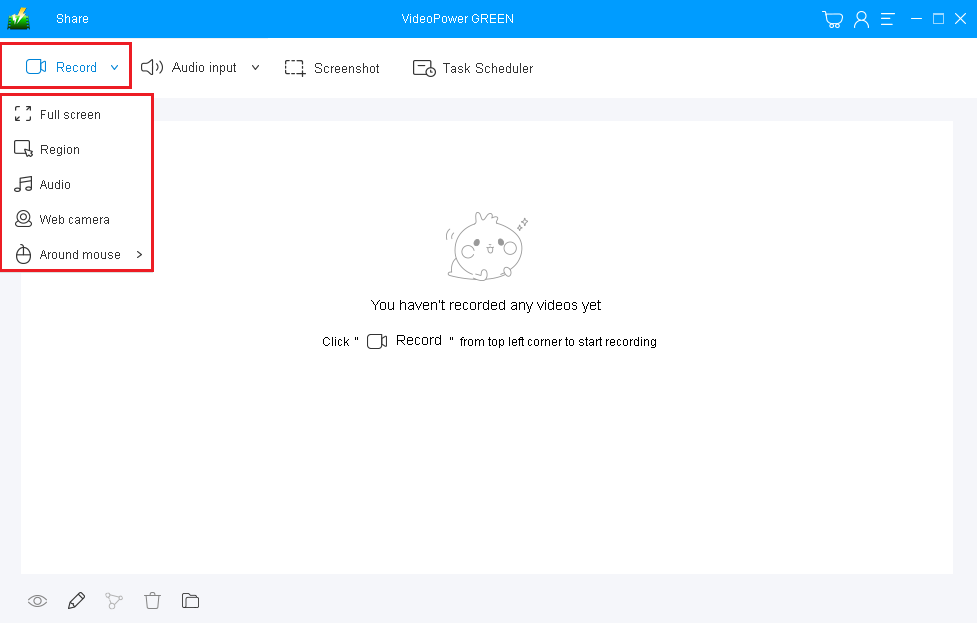
Click on the “Record” button to choose the recording mode among “Full screen, Region, Audio, Web camera, and Around mouse.”
To record Netflix movies, it’s best to set the recording mode to “Fullscreen” or “Region”, ensuring a great, wide, and uncut playback.
1.3 Start to Record Netflix Movies
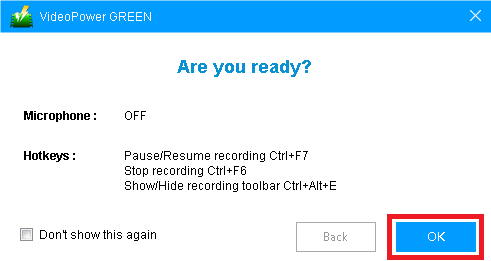
A pop-up window will show to confirm whether to start the recording or not. Click “OK” to start the recording.
Step 2: Edit while recording (Optional)
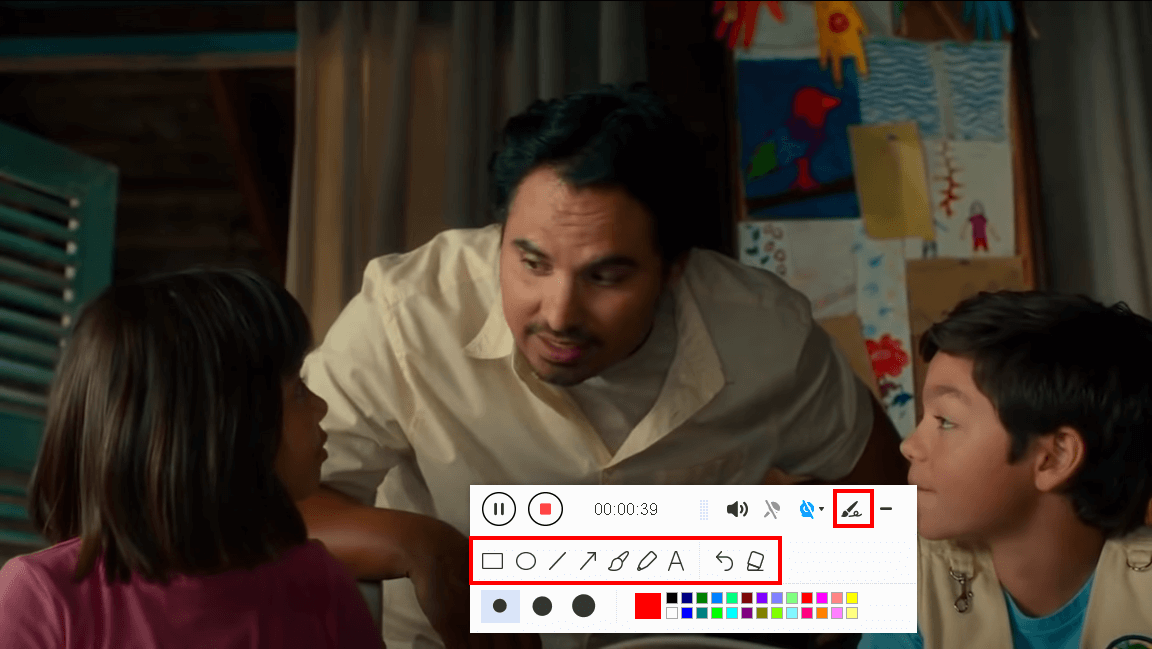
While recording you can annotate, add text, shapes, and arrows to emphasize important details. On the other hand, you can blur out personal details if you want to keep it by the toolbar.
Step 3: Save the recorded Netflix movie file

Click the “Stop” button to end the recording. After that, the recorded Netflix video file is already saved in the pointed output folder.
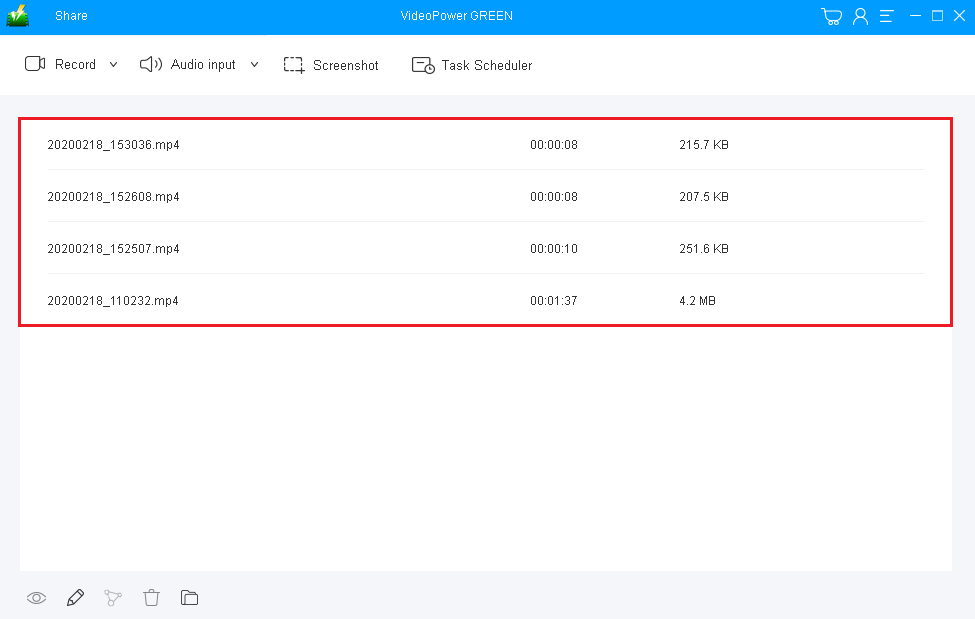
Your recorded Netflix movie files can now be seen in the main interface. You can right-click it to do further operations if you like.
Conclusion:
Netflix users who wish to have a personal copy of their favorite movies and shows will find this software very useful. This is not exclusive for Netflix users alone, this is for everyone who has purposes in recording videos most especially those copyrighted and restricted ones. This would only be possible with the help of an amazing and trusted screen recording application software like VideoPower GREEN.
Moreover, this app doesn’t only offer a screen recording feature but it also offers other various useful features such as a screenshot for capturing images and a task scheduler for scheduling a task recording.
ZEUS series can do everything that VideoPower series can do and more, the interface is almost the same.
Check out NOW! Start easier with more affordable prices!




ZEUS Series
VideoPower brother products, start easier with more affordable prices!
| ZEUS BUNDLE 1 Year License ⇒ $29.99 |
ZEUS BUNDLE LITE 1 Year License ⇒ $19.99 |
ZEUS RECORD LITE 1 Year License ⇒ $9.98 |
ZEUS DOWNLOAD LITE 1 Year License ⇒ $9.98 |
||
| Screen Recorder | Screen&Audio Recording | ✔ | ✔ | ✔ | |
| Duration Setting, Schedule Recording | ✔ | ||||
| Video Downloader | Paste URL to download, batch download | ✔ | ✔ | ✔ | |
| Search/download video,browser detector | ✔ | ||||
| Music Recorder | Record music and get music ID3 tag info | ✔ | ✔ | ||
| Music search/download/record, CD Ripper/Creator, Audio Editor | ✔ | ||||
| Video Editor | Edit and convert videos, create slideshow | ✔ | |||
| Screen Capture | Capture screen, image editor | ✔ | |||