











Screen recording became popular nowadays, it really helps people to easily instruct, describe, and explain something. Using this, you can record your screen that teaches how to do something in a step by step process.
If you are looking for a free, useful, and best video capture software for Windows 10 to make a video tutorial, individual video, presentation, or record live streaming video, you are on the right track.
Here is VideoPower GREEN or ZEUS, the best screencast application software of all time. It is very easy to use with various professional and trusted features that are recommended for you.
This video capture software lets users experience multiple functions such as customize recording region, record audio only, capture webcam activities, edit while recording, create scheduled recording tasks, take a screenshot, share recorded videos to YouTube, etc.
Get this excellent Screen Recorder for YouTube and gaming now and make your own video style and enjoy your favorite movies, talk shows for later viewing.
Check this guide out and learn how to record and make videos creatively and undoubtedly easy and fast.
ZEUS can do what VideoPower series can do and more with an almost similar interface.
Check out NOW! Start easier with more affordable prices!
How to Record Screen Using the Best Video Capture Software on Windows 10
Step 1: Set up a recording source
1.1 Choose a sound source
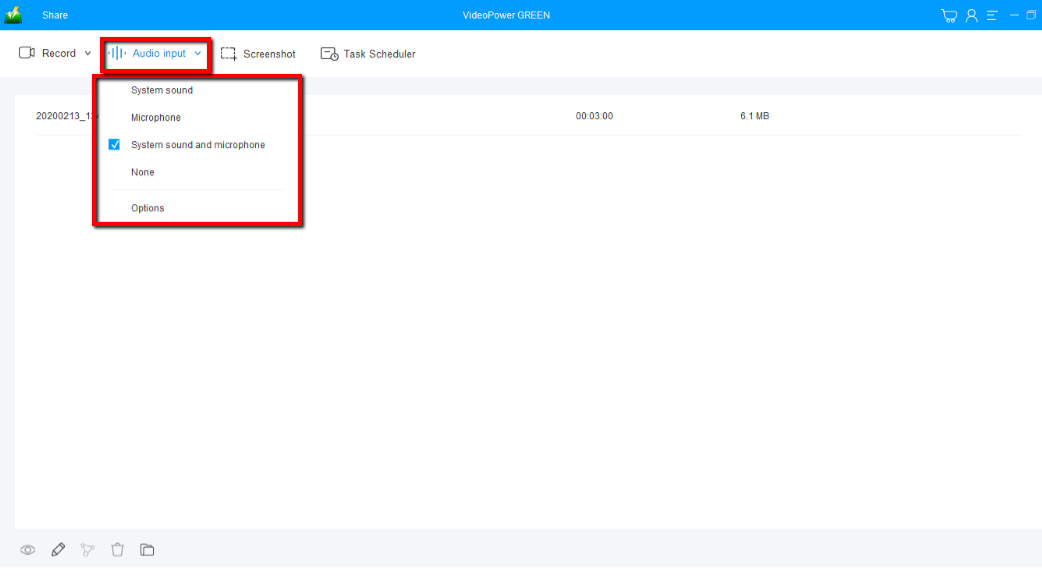
You can choose “System sound, Microphone, System sound, and microphone or None.” To record your screen, you can select “System sound and microphone” to do tutorials or guides or gameplay videos.
1.2 Select a recording area
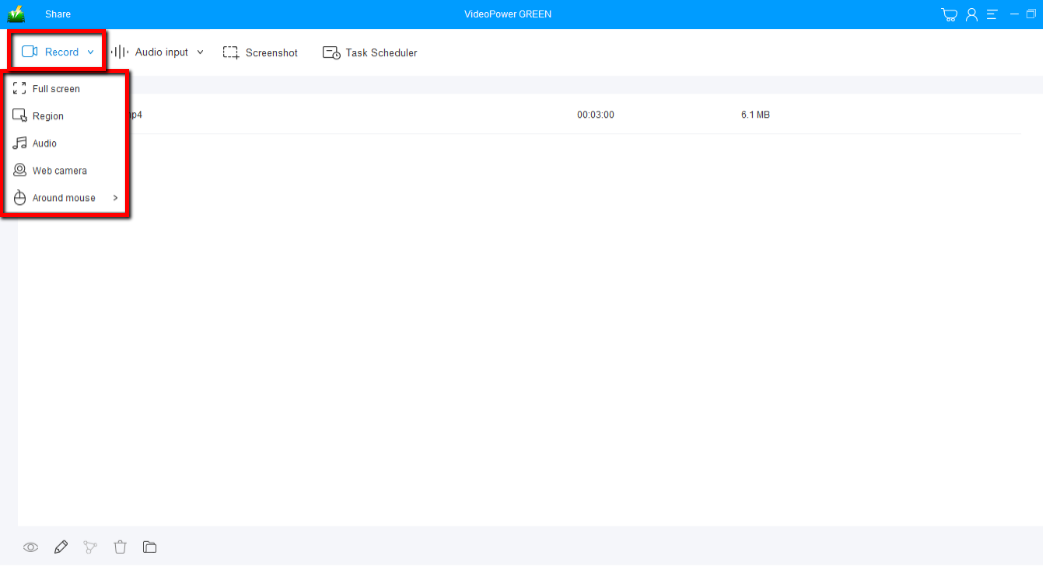
Click on the “Record” button to choose the recording mode from “Full screen, Region, Audio, Web camera, Around mouse”.
1.3 Start to record screen activities
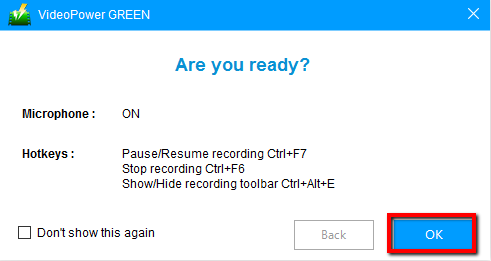
The pop-up window will ask whether you are ready to start recording, click “OK” to confirm when you are ready to record the selected screen.
Step 2: Add annotations while recording (optional)
While recording using this best video capture software you can add lines, arrows, shapes, texts, highlight, blur, etc. by clicking the edit button.
Step 3: Save and check the recorded video file

Click the “Stop” button to stop recording.
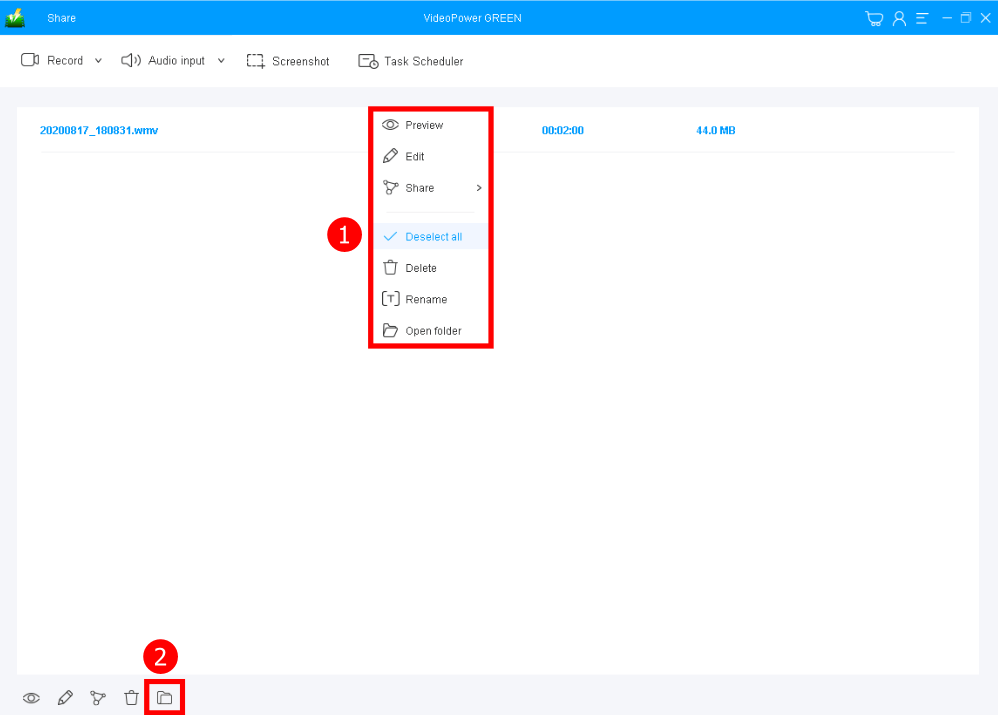
After that, the recorded video file is already saved in the pointed output folder.
1. Your recorded file can be seen in the main interface. You can right-click the file and do more operations if you like.
2. Click the folder icon to view it in the pointed output folder.
Conclusion:
VideoPower GREEN is the best video capture software to record on your Windows 10, 7, 8, and 8.1. This software is capable of recording your screen with great quality. It has a built-in editor to enhance your video, this video editor lets you apply watermarks, effects, and other basic video editing options such as trimming or cropping. Adjust the speed, volume, contrast, brightness, and saturation of a video.
ZEUS series can do everything that VideoPower series can do and more, the interface is almost the same.
Check out NOW! Start easier with more affordable prices!




ZEUS Series
VideoPower brother products, start easier with more affordable prices!
| ZEUS BUNDLE 1 Year License ⇒ $29.99 |
ZEUS BUNDLE LITE 1 Year License ⇒ $19.99 |
ZEUS RECORD LITE 1 Year License ⇒ $9.98 |
ZEUS DOWNLOAD LITE 1 Year License ⇒ $9.98 |
||
| Screen Recorder | Screen&Audio Recording | ✔ | ✔ | ✔ | |
| Duration Setting, Schedule Recording | ✔ | ||||
| Video Downloader | Paste URL to download, batch download | ✔ | ✔ | ✔ | |
| Search/download video,browser detector | ✔ | ||||
| Music Recorder | Record music and get music ID3 tag info | ✔ | ✔ | ||
| Music search/download/record, CD Ripper/Creator, Audio Editor | ✔ | ||||
| Video Editor | Edit and convert videos, create slideshow | ✔ | |||
| Screen Capture | Capture screen, image editor | ✔ | |||