











Digital technologies and applications are now enhanced. You don’t have to use other equipment like a camera to capture videos from your screen. You can now control and record video and audio from a video capture software. Whatever device you’re using such as a laptop or PC, you can achieve to record your screen.
However, there are still questions such as how to successfully capture the best videos from your computer and what would be the excellent and trusted recording software that can offer you the functions you need and desire.
VideoPower GREEN or ZEUS is a video capture software on Windows 7, 8, and 10 that will help you get all these things done for you. Since screen recording is now commonly used in our daily activities and makes it easier for us to do a video tutorial and demonstration. This software is the best that you can use and it produces a high-quality video output.
Well, without further ado, let’s get started. Download VideoPower GREEN’s trial version and follow the steps below.
ZEUS can do what VideoPower series can do and more with an almost similar interface.
Check out NOW! Start easier with more affordable prices!
Record Screen Using the Best Video Capture Software
Step 1: Choose a sound source

If necessary, before you start the recording, set first the sound source you need.
1) None: no sound will be recorded.
2)System Sound: used to record the sound produced by the PC or laptop.
3)Microphone: used to record the user’s narration or voice.
4)System Sound and Microphone: used to record both the sound produced by the device or the user’s voice.
It is recommended to use “System Sound” to record screen activities.
Step 2: Select a recording area
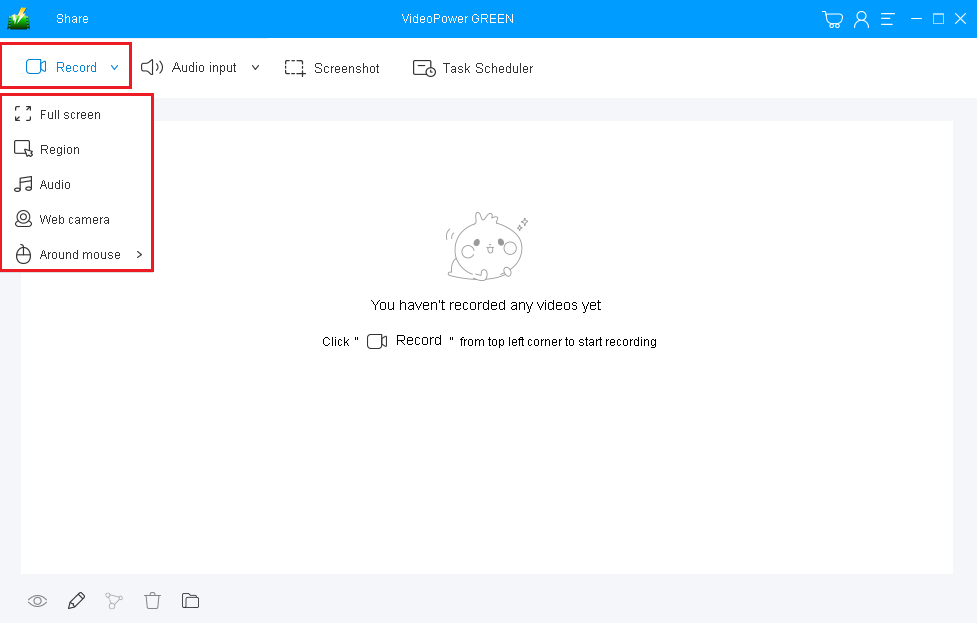
After setting the sound source, set the recording mode to capture the exact range of the screen you desired to record.
Fullscreen: records your whole screen.
Region: allows you to customize the exact range that you need to record.
Audio: records only the audio.
Web camera: records you using a webcam.
Around mouse: records partial part of your screen with the mouse movement.
Here, you can use “Full-screen”. After selecting one from the given modes, the recording will start after a countdown.

While recording you can add lines, arrows, shapes, texts, highlight, blur, etc. by clicking the edit button. This is a great way to note specific details and makes use of the tools to make the recording better.
Step 3: Save and edit the recorded video

Click the “Stop” button to end and automatically save the video recording.
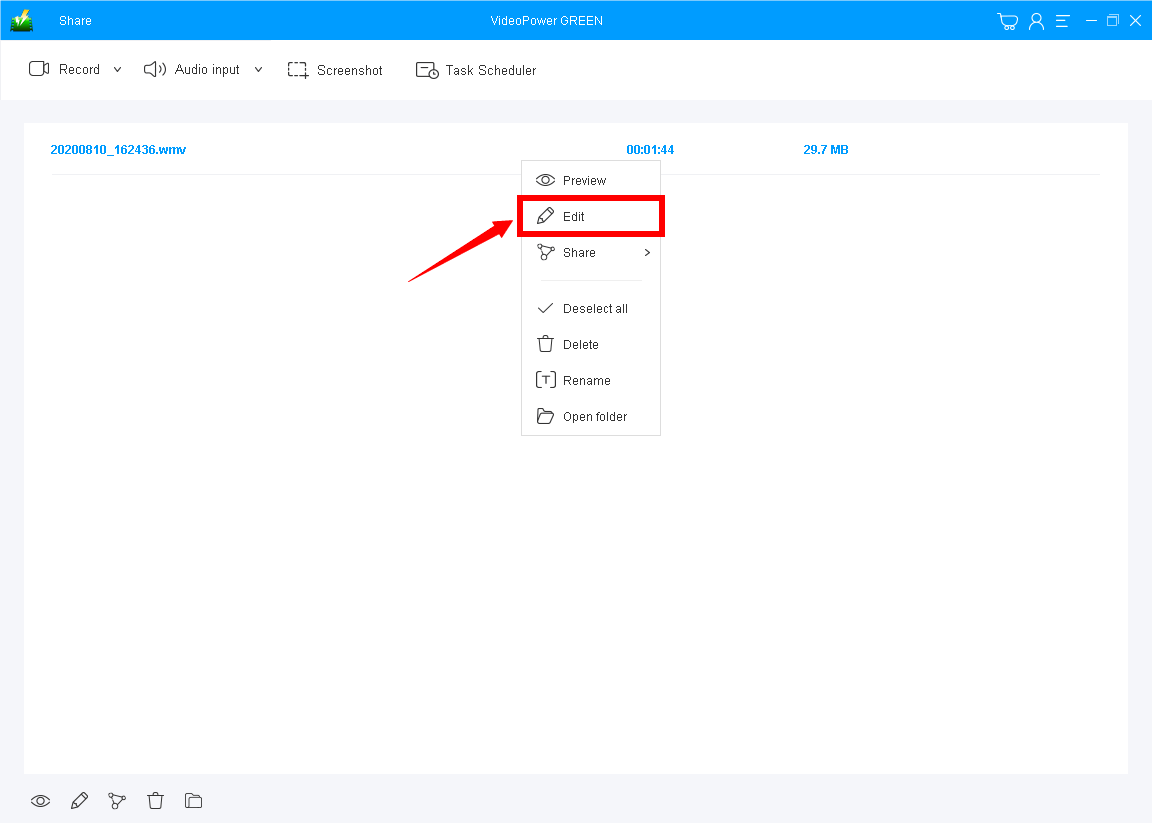
After that, the recorded video file is saved in the pointed output folder on your PC. The recorded files are listed on the main interface. You can right-click on the file name to check the right menu. Click “Open folder “ to check the video file on PC, or you can click “Edit” for enhancing your video by trimming, cropping, adding watermark, etc.
Conclusion:
What’s great about this video capture software is that it has additional features that are not seen on any other software. Its video editor tool lets you apply watermarks, effects, and other basic video editing options such as trimming or cropping. Adjust the speed, volume, contrast, brightness, and saturation of a video.
VideoPower GREEN
captures videos in any format that you set, takes screenshots of specific areas, and adds annotations, text, arrows, highlights, and many more while recording.
ZEUS series can do everything that VideoPower series can do and more, the interface is almost the same.
Check out NOW! Start easier with more affordable prices!




ZEUS Series
VideoPower brother products, start easier with more affordable prices!
| ZEUS BUNDLE 1 Year License ⇒ $29.99 |
ZEUS BUNDLE LITE 1 Year License ⇒ $19.99 |
ZEUS RECORD LITE 1 Year License ⇒ $9.98 |
ZEUS DOWNLOAD LITE 1 Year License ⇒ $9.98 |
||
| Screen Recorder | Screen&Audio Recording | ✔ | ✔ | ✔ | |
| Duration Setting, Schedule Recording | ✔ | ||||
| Video Downloader | Paste URL to download, batch download | ✔ | ✔ | ✔ | |
| Search/download video,browser detector | ✔ | ||||
| Music Recorder | Record music and get music ID3 tag info | ✔ | ✔ | ||
| Music search/download/record, CD Ripper/Creator, Audio Editor | ✔ | ||||
| Video Editor | Edit and convert videos, create slideshow | ✔ | |||
| Screen Capture | Capture screen, image editor | ✔ | |||