











Whether you are a gamer who creates your own video channel or an entrepreneur who tries to update your page by making videos for your latest projects and products or even just a simple blogger, you sometimes have moments like talking to yourself saying “I hope I can record them better!”
There are computers in today’s generation that are equipped with screen recording applications and tools but they are not absolute to capture and record your desired computer screen activities. But everything would be fine if you know what to use.
In this case, a screen recording tool is a good choice to record any activities you need to be recorded on your Windows 10 screen.
Check out VideoPower GREEN or ZEUS recording software and see how you can record the on-screen activities of your Windows 10 computer in your own way with this free professional Screen Recorder.
ZEUS can do what VideoPower series can do and more with an almost similar interface.
Check out NOW! Start easier with more affordable prices!
How to Record Video on Windows PC
Step 1: Set up audio input

You can choose “System sound, Microphone, System sound, and microphone or None.” To do so click the ‘Audio input’ drop-down button. You can select “System sound” to record video being played on the PC browser.
Step 2: Select a recording mode
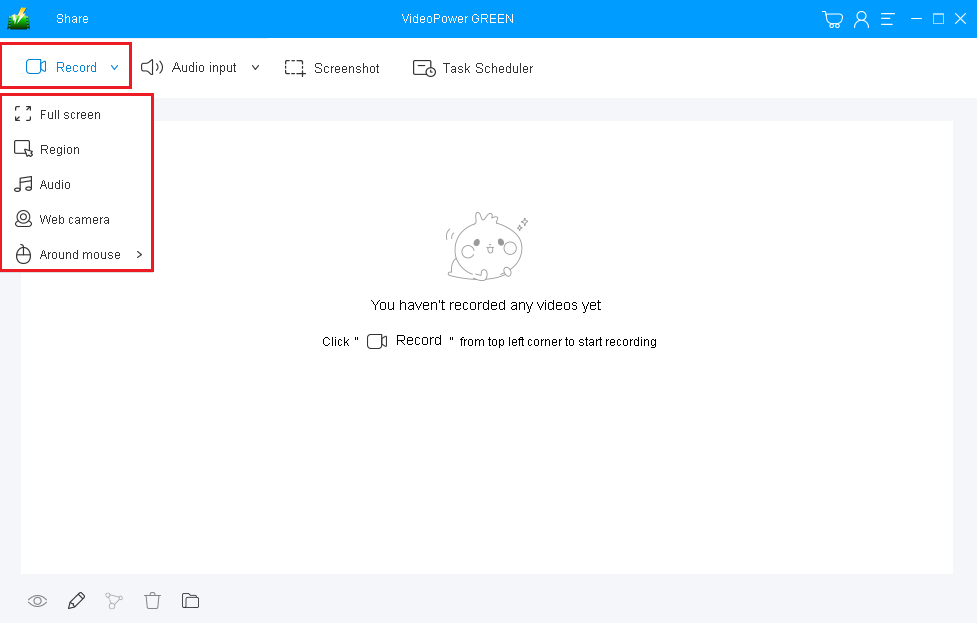
Click on the “Record” drop-down button to choose the recording mode from “Full screen, Region, Audio, Web camera, Around mouse”. “Fullscreen” can record a better quality video.
Step 3: Start to record screen activities with audio
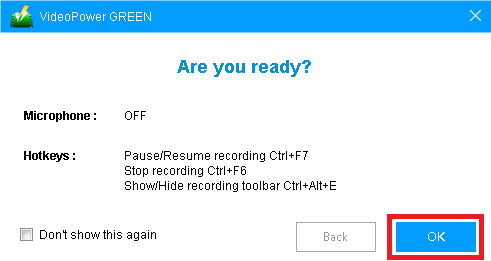
The pop-up window will ask whether you are ready to start recording, click “OK” to confirm when you are ready to record everything you see on your Windows 10.
Step 4: End the recording and check the file

Click the “Stop” button to stop recording.
After that, the screen recording video file will be on the record list on its main interface.
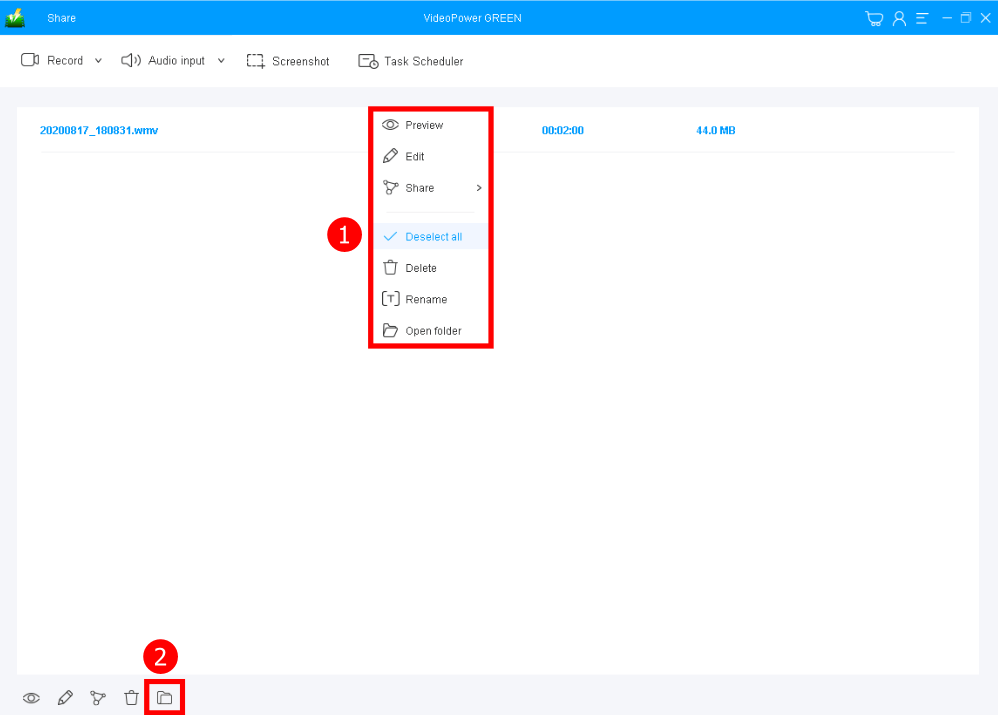
1. Your recorded video file can be seen in the main interface. You can right-click the file and do more operations if you like.
2. Click the folder icon to view it in the pointed output folder.
Conclusion:
This software records your screen in great quality and what’s great about VideoPower GREEN is its video editor. From recording your screen to editing needs, it’s all in the same software and could save you lots of time. It lets you record on your Windows 10, 7, 8, and 8.1 in a hassle-free way.
The video editor lets you apply watermarks, effects, and other basic video editing options such as trimming or cropping. Adjust the speed, volume, contrast, brightness, and saturation of a video.
Moreover, the video editing tool supports any video formats and also the conversion of video and audio formats.
ZEUS series can do everything that VideoPower series can do and more, the interface is almost the same.
Check out NOW! Start easier with more affordable prices!




ZEUS Series
VideoPower brother products, start easier with more affordable prices!
| ZEUS BUNDLE 1 Year License ⇒ $29.99 |
ZEUS BUNDLE LITE 1 Year License ⇒ $19.99 |
ZEUS RECORD LITE 1 Year License ⇒ $9.98 |
ZEUS DOWNLOAD LITE 1 Year License ⇒ $9.98 |
||
| Screen Recorder | Screen&Audio Recording | ✔ | ✔ | ✔ | |
| Duration Setting, Schedule Recording | ✔ | ||||
| Video Downloader | Paste URL to download, batch download | ✔ | ✔ | ✔ | |
| Search/download video,browser detector | ✔ | ||||
| Music Recorder | Record music and get music ID3 tag info | ✔ | ✔ | ||
| Music search/download/record, CD Ripper/Creator, Audio Editor | ✔ | ||||
| Video Editor | Edit and convert videos, create slideshow | ✔ | |||
| Screen Capture | Capture screen, image editor | ✔ | |||