











Zoom is a free multi-user cloud video conference software that provides users with both high-definition video conferencing and mobile network conferencing functions.
Users can communicate with their partners through mobile phones, tablets, PCs, video and voice calls, screen sharing, conference reservation management, etc.
Zoom supports up to 25 participants to hold a meeting by making a video call for free. It is also the leading video conferencing tool until now.
Zoom is available for Windows, iOS, and Android systems. No expensive hardware is needed, just install Zoom software on your computer to initiate video conferencing at one click.
The emergence of platforms such as Zoom paved the way for remote work and remote meetings which means more people who have different time zones can meet at the same time. If you want to record Zoom meetings, here is a guide using software called VideoPower GREEN or ZEUS.
ZEUS can do what VideoPower series can do and more with an almost similar interface.
Check out NOW! Start easier with more affordable prices!
How to Record Zoom Meeting on PC
Step 1: Set up sound source and area
Run VideoPower GREEN if you have installed it on your PC.
1) Choose a sound source
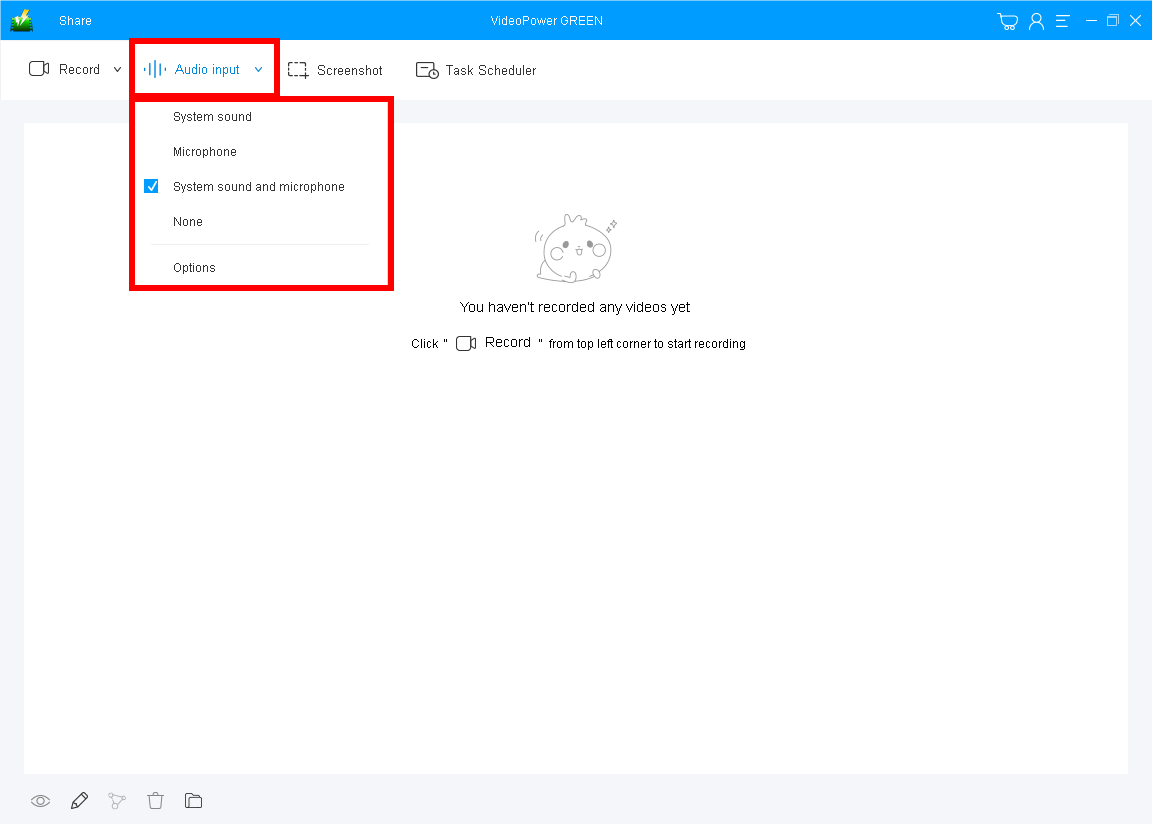
You can choose “System sound, Microphone, System sound, and microphone or None.” To record the Zoom meeting. You may select “System sound and microphone” to include both sides’ sound.
2) Select a recording area
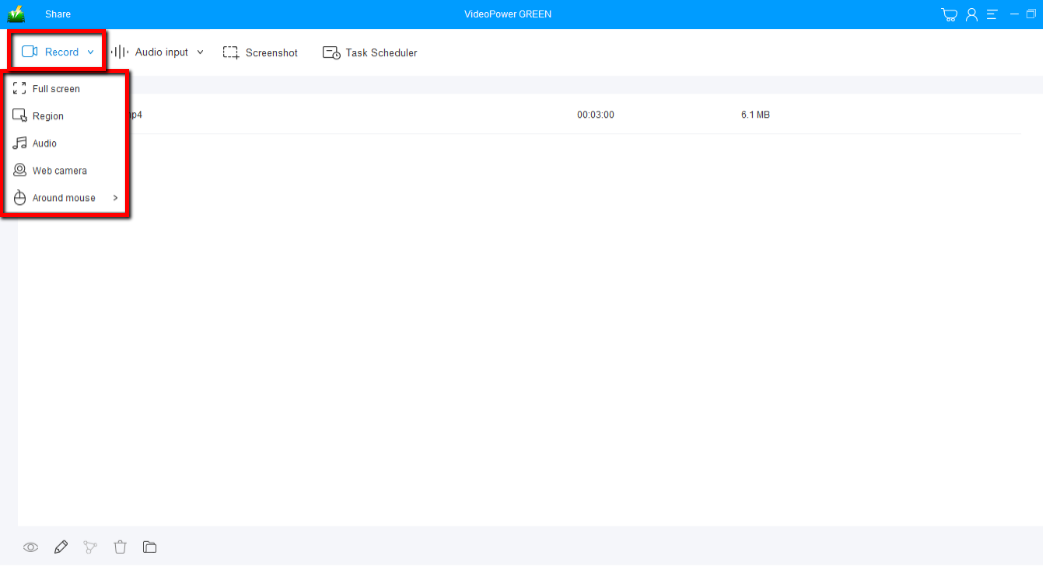
Click on the “Record” button to choose the recording mode from “Full screen, Region, Audio, Web camera, Around mouse”. To record the Zoom meeting on PC, “Fullscreen” or “Region” is the recommended mode.
3) Start recording Zoom meeting on Windows
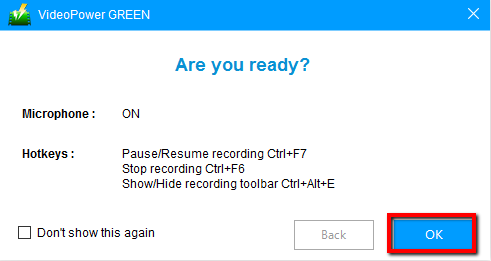
The pop-up window will ask whether you are ready to start recording, click “OK” to confirm when you are ready to record the meeting on Zoom.
Step 2: Add annotation and highlight important details (optional)
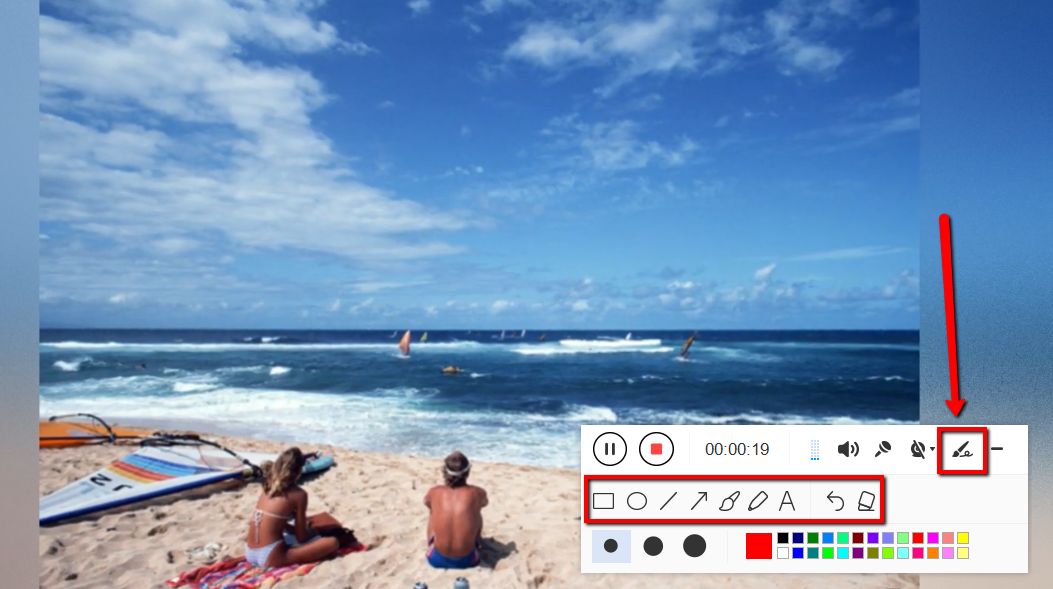
While recording you can add lines, arrows, shapes, texts, highlight, blur, etc. by clicking the edit button.
Step 3: Save and check the recorded Zoom meeting

Click the “Stop” button to stop recording.
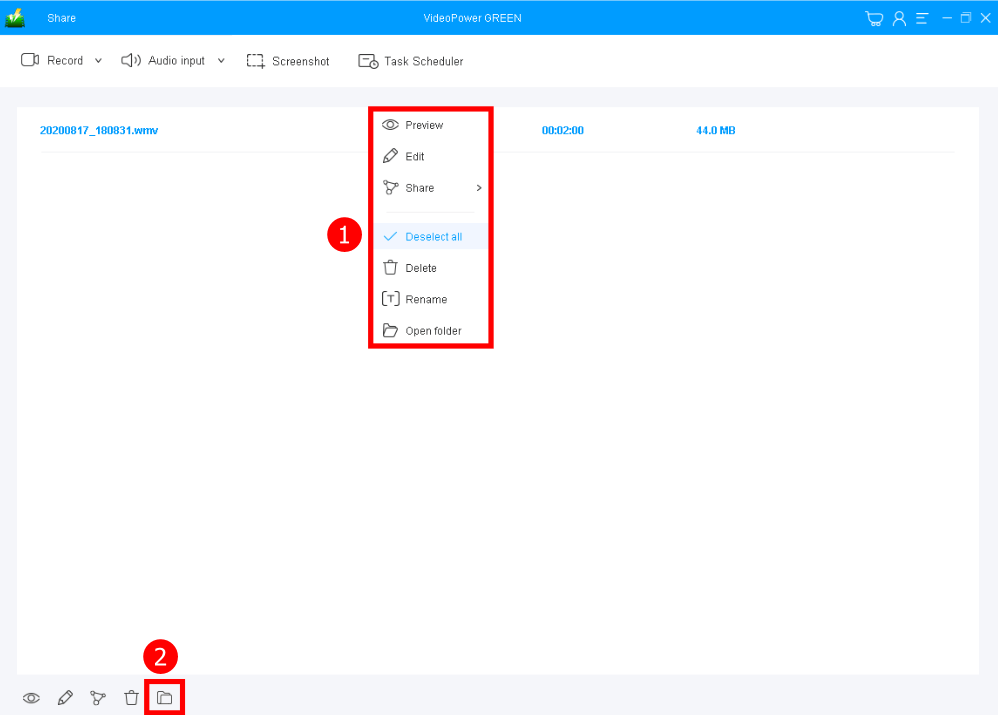
After that, the recorded file is already saved in the pointed output folder.
Your recorded Zoom conference meeting video files can be seen in the main interface.
1. You can right-click the file and do more operations if you like. Select “Edit” to remove the unnecessary section of the recorded video.
2. Click the folder icon to view it in the pointed output folder.
Conclusion:
Using this software you can record zoom meetings without permission. VideoPower GREEN is also able to convert all video and audio files into common formats and devices easily. It’s handy and reliable that you can even convert in batches simultaneously while preserving good quality.
It has an extension video editor that will enable you to edit slideshows or videos, apply watermarks, effects, and other basic video editing options such as trimming or cropping.
ZEUS series can do everything that VideoPower series can do and more, the interface is almost the same.
Check out NOW! Start easier with more affordable prices!




ZEUS Series
VideoPower brother products, start easier with more affordable prices!
| ZEUS BUNDLE 1 Year License ⇒ $29.99 |
ZEUS BUNDLE LITE 1 Year License ⇒ $19.99 |
ZEUS RECORD LITE 1 Year License ⇒ $9.98 |
ZEUS DOWNLOAD LITE 1 Year License ⇒ $9.98 |
||
| Screen Recorder | Screen&Audio Recording | ✔ | ✔ | ✔ | |
| Duration Setting, Schedule Recording | ✔ | ||||
| Video Downloader | Paste URL to download, batch download | ✔ | ✔ | ✔ | |
| Search/download video,browser detector | ✔ | ||||
| Music Recorder | Record music and get music ID3 tag info | ✔ | ✔ | ||
| Music search/download/record, CD Ripper/Creator, Audio Editor | ✔ | ||||
| Video Editor | Edit and convert videos, create slideshow | ✔ | |||
| Screen Capture | Capture screen, image editor | ✔ | |||