











WeChat is a cross-platform communication tool. It supports both single-person and multi-person participation. Users can send voice messages, videos, pictures, emoji, and text messages over mobile networks.
WeChat provides a public platform, message notification, and other functions. Users can add friends and follow the public platform through “shake”, “search number”, “people nearby”, scan QR code, and share content by WeChat. It is really a very interesting communication software. Some users may wonder “Can I record a Wechat video call? Or Does Wechat record video calls?”
Unfortunately, Wechat itself doesn’t provide the recording feature. However, VideoPower GREEN or ZEUS is here to help you out. It is the best desktop tool for basic video/audio recording and screen capturing. It has multiple functions but easy to use with no tech knowledge required at all. It enables you to record movies, video tutorials, games, live streams, calls, and more. You can use this screen recording software to record WeChat video calls and save it to your computer within a few steps.
ZEUS can do what VideoPower series can do and more with an almost similar interface.
Check out NOW! Start easier with more affordable prices!
How to Record Wechat Video Call on PC
Step 1: Set up a sound source and mode.
Run VideoPower GREEN, you will be on the record interface already.
1.1 Choose the sound source
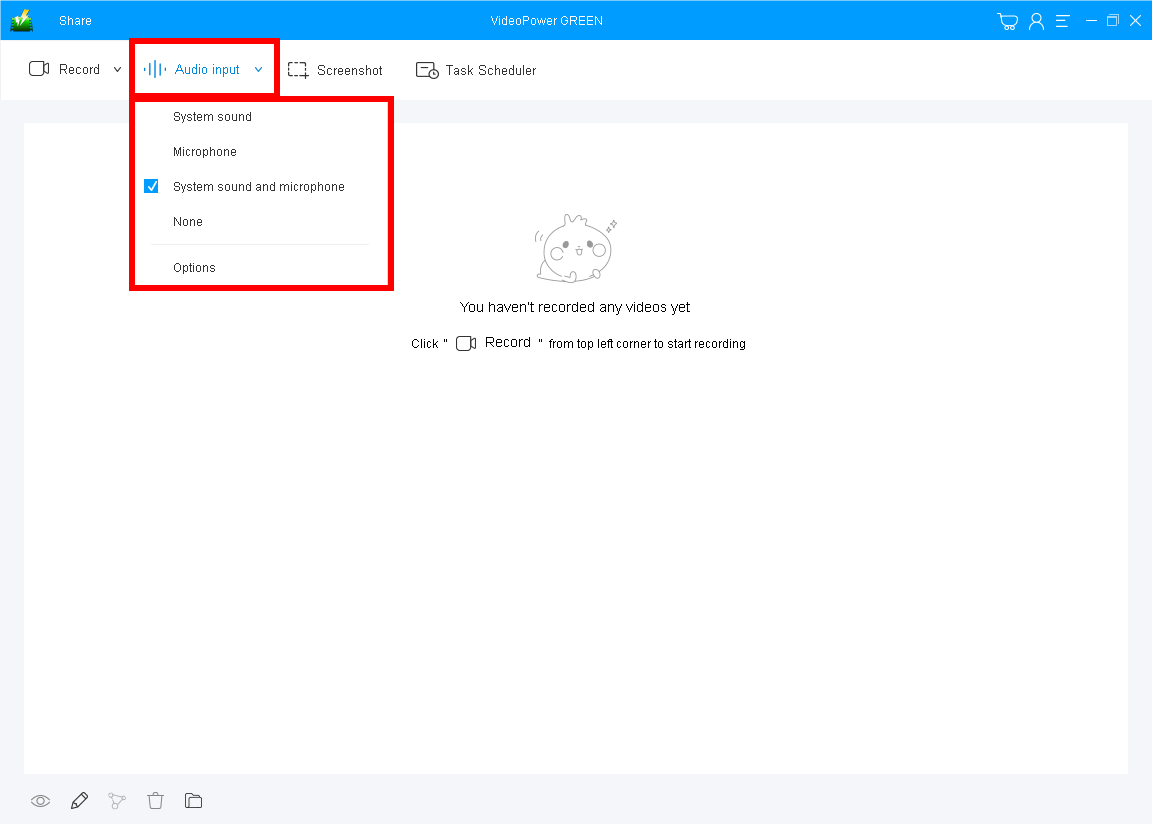
You can choose system sound, microphone, or both by clicking “Audio input”. To record the WeChat video call, you should select “System sound and microphone” to include both sides’ voices.
1.2 Select a recording mode
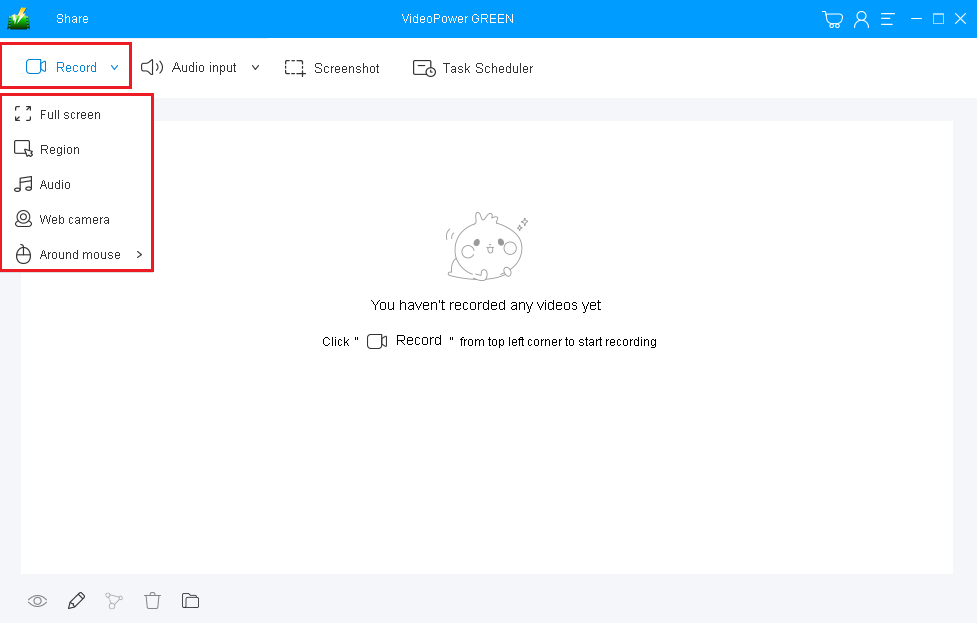
Click on the “Record” drop-down button to choose the recording mode from “Full screen, Region, Audio, Web camera, Around mouse”. To record Wechat online video calls, “Fullscreen” or “Region” is recommended.
1.3 Start recording Wechat calls
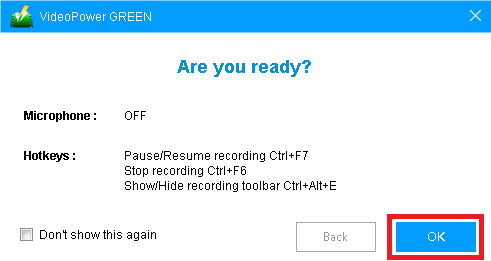
The pop-up window will ask whether you are ready to start recording, click “OK” to confirm when you are ready to record.
Step 2: Highlight important details (optional)
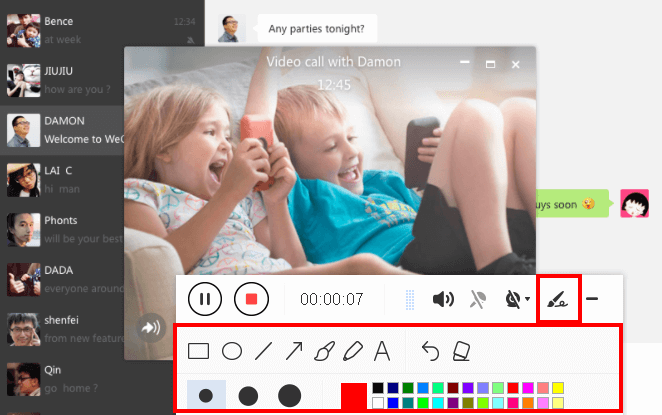
While recording you can add lines, arrows, shapes, texts, highlight, blur, etc. by clicking the edit button by the toolbar
Step 3: Save the recorded Wechat call.

Click the “Stop” button to stop recording. Then the recorded video is already saved in the pointed output folder.
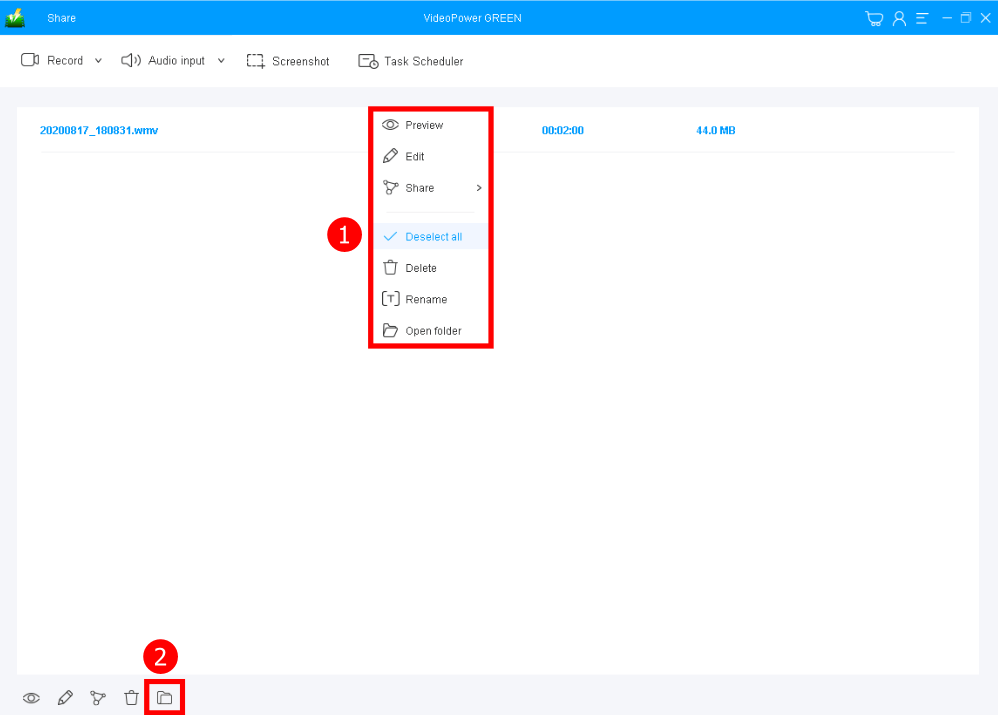
Your recorded Wechat calls video files can be seen in the main interface as well.
1. You can right-click the file and do more operations if you like.
2. Click the folder icon to view it in the pointed output folder.
Conclusion:
Communicating online with this application wasn’t still enough for some of the users. Sometimes they wanted to record WeChat video calls because of some reasons and varied purposes.
VideoPower GREEN, a powerful and trusted recording application software is best suited for recording WeChat video calls along with a webcam video for later viewing purposes. This product has a particular feature in capturing screen activities that can capture videos for offline viewing. Thus, online videos would be easily recorded without any hassle.
Moreover, this product doesn’t only record screen activities for later viewing but also beautifies the recordings by using its editing feature. It can also help you save some time and effort by setting its task scheduler feature.
ZEUS series can do everything that VideoPower series can do and more, the interface is almost the same.
Check out NOW! Start easier with more affordable prices!




ZEUS Series
VideoPower brother products, start easier with more affordable prices!
| ZEUS BUNDLE 1 Year License ⇒ $29.99 |
ZEUS BUNDLE LITE 1 Year License ⇒ $19.99 |
ZEUS RECORD LITE 1 Year License ⇒ $9.98 |
ZEUS DOWNLOAD LITE 1 Year License ⇒ $9.98 |
||
| Screen Recorder | Screen&Audio Recording | ✔ | ✔ | ✔ | |
| Duration Setting, Schedule Recording | ✔ | ||||
| Video Downloader | Paste URL to download, batch download | ✔ | ✔ | ✔ | |
| Search/download video,browser detector | ✔ | ||||
| Music Recorder | Record music and get music ID3 tag info | ✔ | ✔ | ||
| Music search/download/record, CD Ripper/Creator, Audio Editor | ✔ | ||||
| Video Editor | Edit and convert videos, create slideshow | ✔ | |||
| Screen Capture | Capture screen, image editor | ✔ | |||