











Viber is a cross-platform network telephone and instant messaging application for mobile phones and computers running Mac, Windows, Linux, and Android operating systems. When connected to the Internet, users can interact with other users through free text messages, voice calls, video calls, and sharing funny emojis and video clips.
Viber is one of the most used platforms of communication in the world. Whether it’s for work or catching up with friends. Also, with its great feature of a video call, users can communicate with people for presentations, training, teamwork, business negotiation, and many other purposes.
Therefore, many people would want to record Viber calls for their own use such as taking important notes, saving important information, and reviewing details from the call.
But the question is, what would be the best and trusted recording tool for it?
VideoPower GREEN or ZEUS – an easy to access and powerful app that would be the best and the fittest answer to this question.
Download VideoPower GREEN by clicking on the link below.
ZEUS can do what VideoPower series can do and more with an almost similar interface.
Check out NOW! Start easier with more affordable prices!
Record Viber Video Calls on PC
Step 1: Settings to record Viber calls
1.1 Choose an audio input
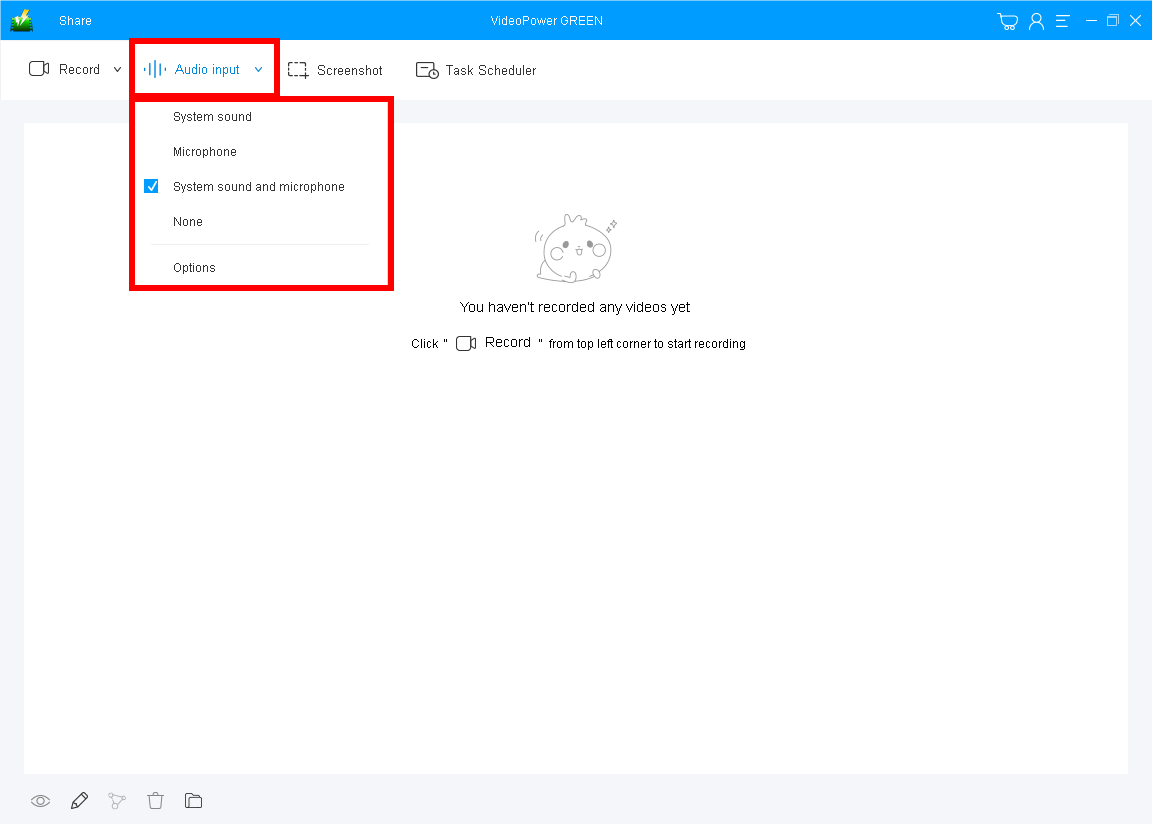
Run VideoPower GREEN if you have installed it on your PC. You will be on the record interface already.
Click “Audio input” to choose among “System sound, Microphone, System sound, and microphone or None.”
To record the Viber video calls, you should select “System sound and microphone” to include both sides’ voices.
1.2 Select a recording mode
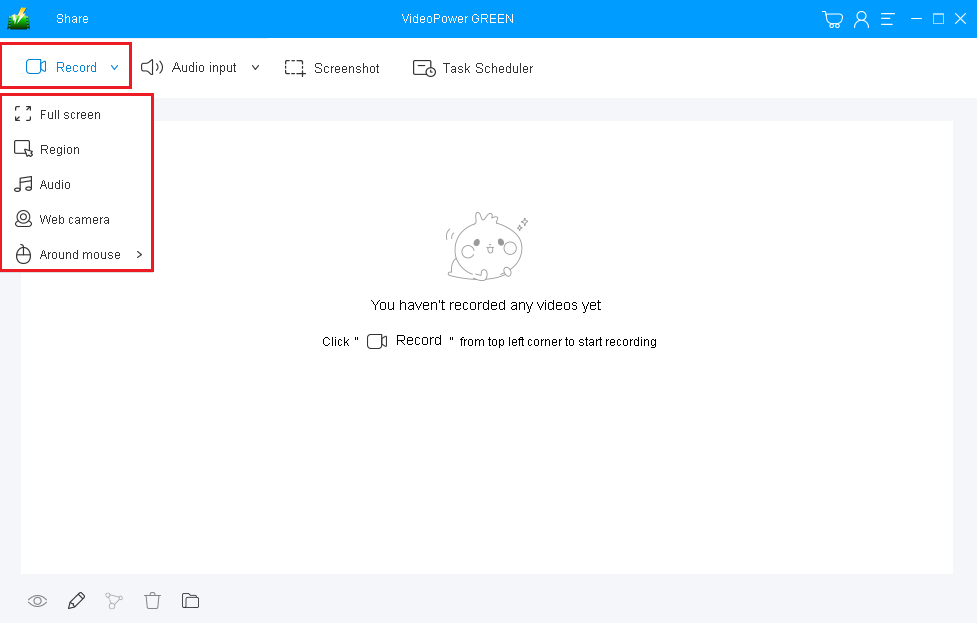
Click on the “Record” button to choose the recording mode from “Full screen, Region, Audio, Web camera, Around mouse”. To record, Viber calls on PC, “Full-screen” or “Region” is recommended.
1.3 Start recording Viber video conversation
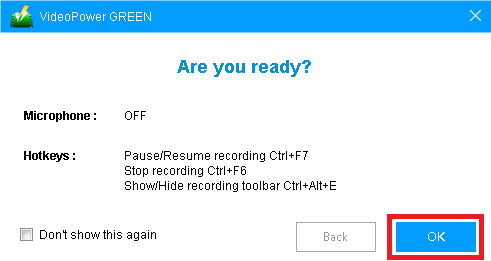
The pop-up window will ask whether you are ready to start recording, click “OK” to confirm when you are ready to record Viber ongoing calls.
Step 2: Annotate video while recording (optional)
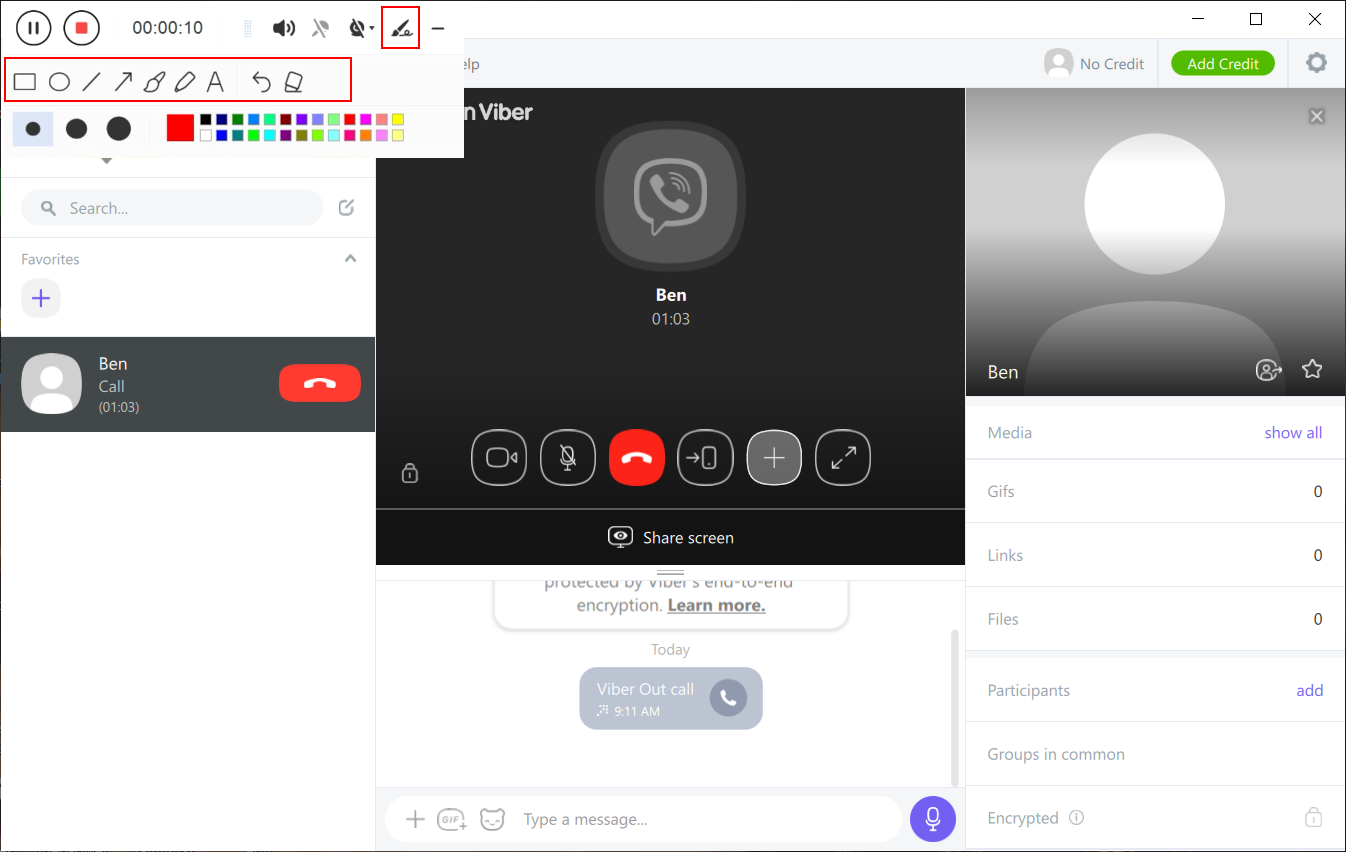
While recording you can add lines, arrows, shapes, texts, highlight, blur, etc. by clicking the edit button by the toolbar.
Step 3: End recording and manage your recorded file

Click the “Stop” button to stop recording.
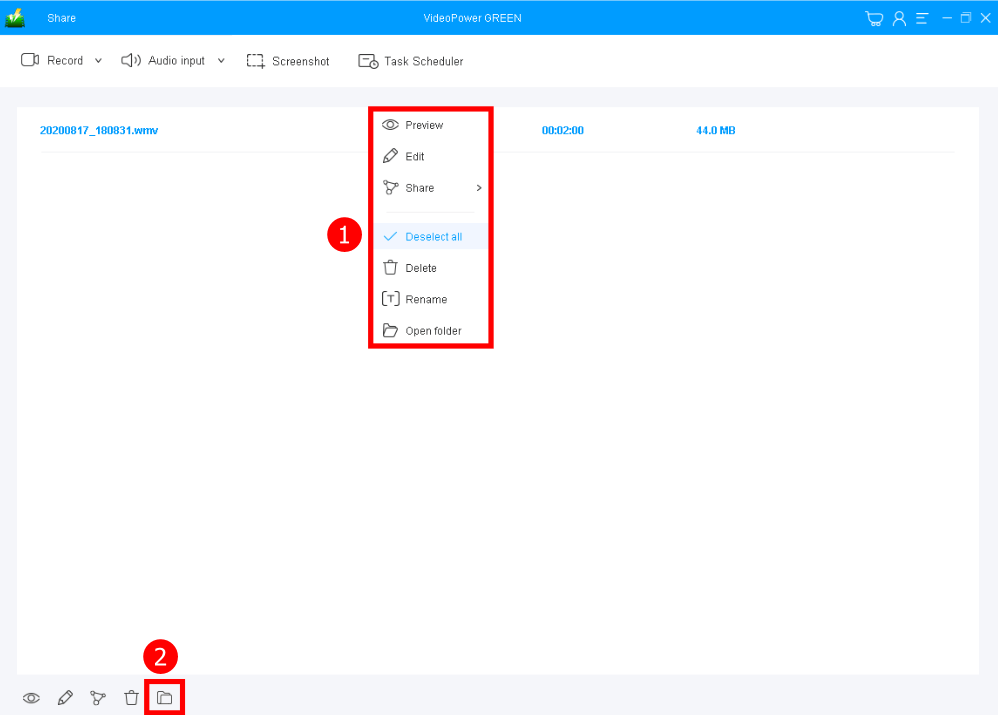
After that, the recorded Viber call video is already saved in the pointed output folder.
1. You can see the recorded file list in the main interface. Right-click the file and do more operations if you like.
2. Click the folder icon to view it in the pointed output folder.
Conclusion:
Recording, keeping, and preserving important details and information from a Viber call on PC is a bit of a problem. But then, it is not that impossible when you know what to use and when you have an exact application for it.
VideoPower GREEN is easy to use and trusted application software would be the best answer for this kind of concern. It can help users to take footage of their Viber activities most especially those important ones that they wanted to keep for later use.
ZEUS series can do everything that VideoPower series can do and more, the interface is almost the same.
Check out NOW! Start easier with more affordable prices!




ZEUS Series
VideoPower brother products, start easier with more affordable prices!
| ZEUS BUNDLE 1 Year License ⇒ $29.99 |
ZEUS BUNDLE LITE 1 Year License ⇒ $19.99 |
ZEUS RECORD LITE 1 Year License ⇒ $9.98 |
ZEUS DOWNLOAD LITE 1 Year License ⇒ $9.98 |
||
| Screen Recorder | Screen&Audio Recording | ✔ | ✔ | ✔ | |
| Duration Setting, Schedule Recording | ✔ | ||||
| Video Downloader | Paste URL to download, batch download | ✔ | ✔ | ✔ | |
| Search/download video,browser detector | ✔ | ||||
| Music Recorder | Record music and get music ID3 tag info | ✔ | ✔ | ||
| Music search/download/record, CD Ripper/Creator, Audio Editor | ✔ | ||||
| Video Editor | Edit and convert videos, create slideshow | ✔ | |||
| Screen Capture | Capture screen, image editor | ✔ | |||