











Recording screen activities is actually a basic thing in most of the human digital tasks nowadays most especially in making commentaries and tutorials. Therefore, many people want to make their recordings to be better and clear than normal and plain recordings. To help viewers clearly follow your instructions, including your mouse cursor while recording is the best way.
So how to record the mouse cursor on the screen?
VideoPower GREEN or ZEUS is a powerful and trusted application software that is best in recording moving visual images and screen activities. You can choose to include your mouse cursor and adjust the mouse style before the recording that can help recorded content be more understandable and clear to the viewers.
To experience this reliable and satisfying feature, download VideoPower GREEN through the link below.
ZEUS can do what VideoPower series can do and more with an almost similar interface.
Check out NOW! Start easier with more affordable prices!
Start Recording with Mouse Cursor
Step 1: Configure the settings for the mouse cursor
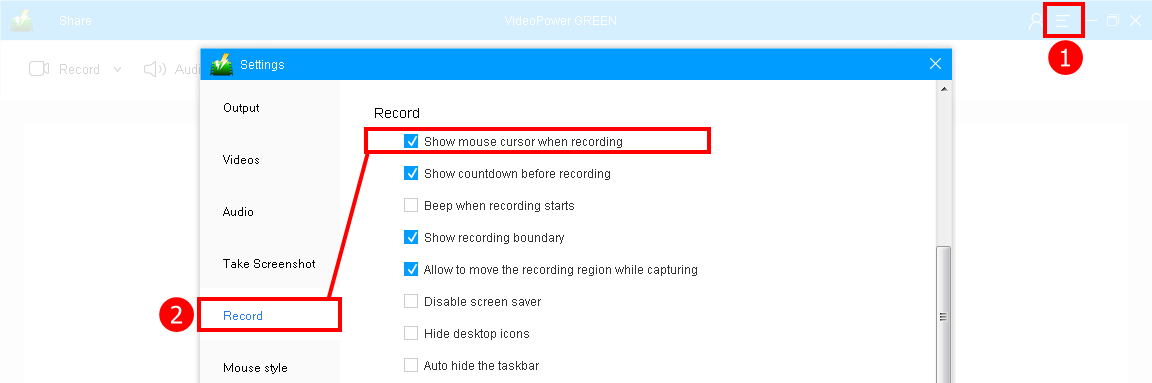
1. After you launch the program, go to the settings.
2. Navigate to the “Record” window and enable the “Show mouse cursor when recording” to the checklist.
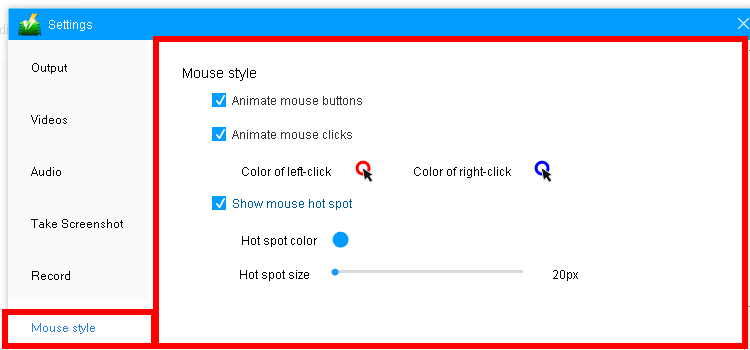
Click on “Mouse style”. Adjust the settings by checking the list as preferred.
1. Animate mouse buttons
Turning this on and off will allow you to enable the setting for animation in the mouse buttons including the following settings.
2. Animate mouse clicks
Check “Animate mouse clicks” to circle the mouse with color when clicked.
Clicking on the “Color of left-clicking” will allow you to change the color of the designated click while clicking on the “Color of right-clicking” will allow you to change the color of the other one.
3. Show mouse hot spot
Check “Show mouse hot spot” to add a circular background around the mouse cursor. You can also change the color and size.
Note: These effects are not displayed on the screen during recording, which only shows up in the recorded video.
The appearance of the recorded mouse cursor with the default settings is as below.
From the left to right of the image indicates normal status, left-click effect, right-click effect.

Step 2: Set the output format to recording
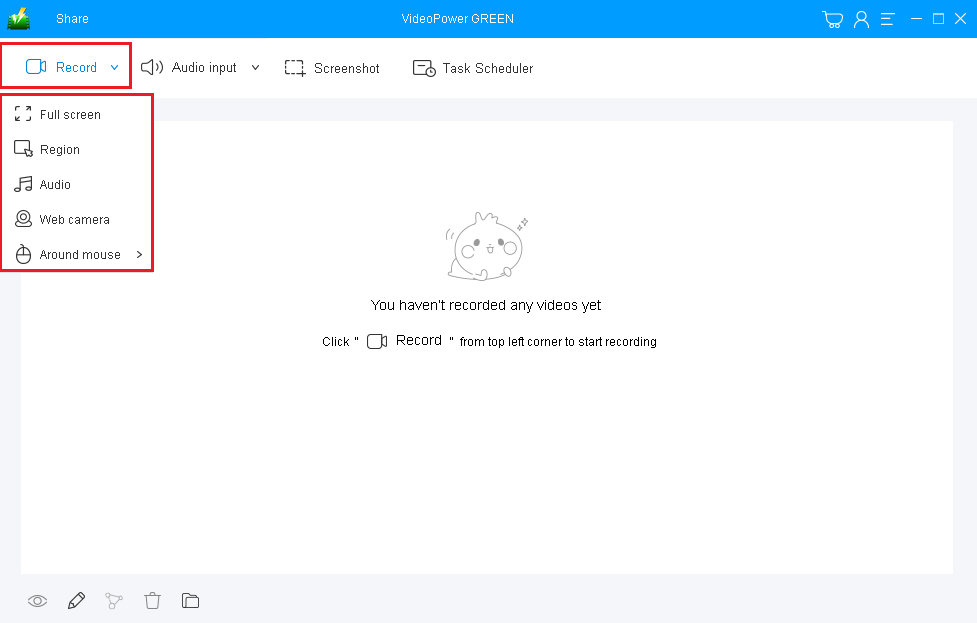
Click on the “Record” drop-down button to select the recording mode. In recording your screen with a mouse cursor, you may select “Full-screen” to capture the whole screen or “Region” to select a specific area of your screen.
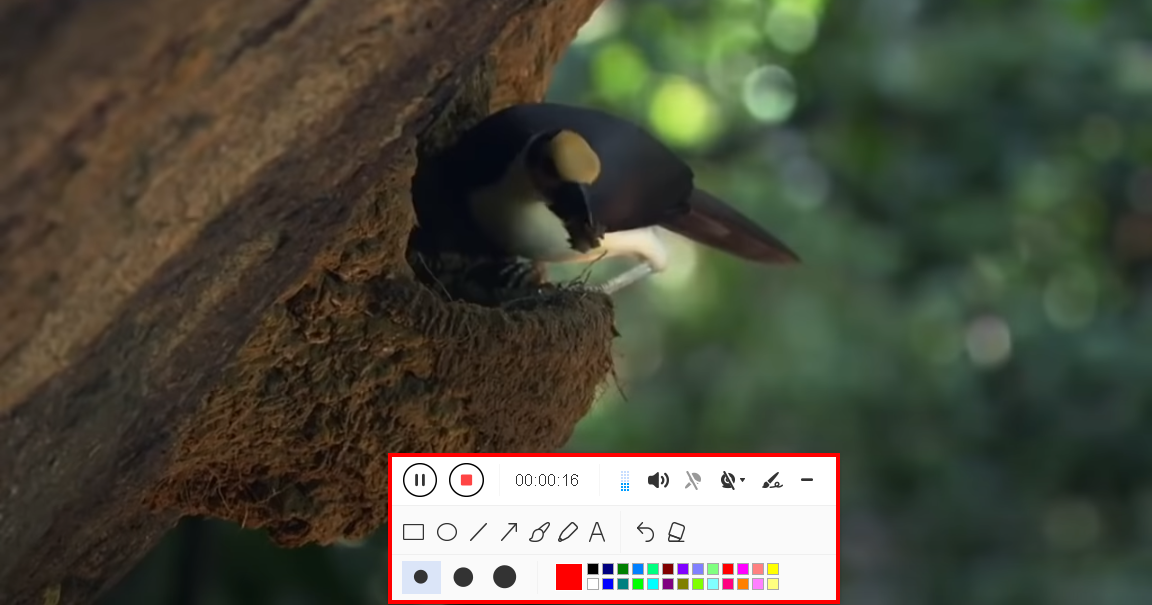
After a countdown, the recording will start. You can add annotations and arrows to highlight important details. The toolbar will help you control your recording.
Click the “Stop” button if you are done.
Step 3: Preview the recorded video
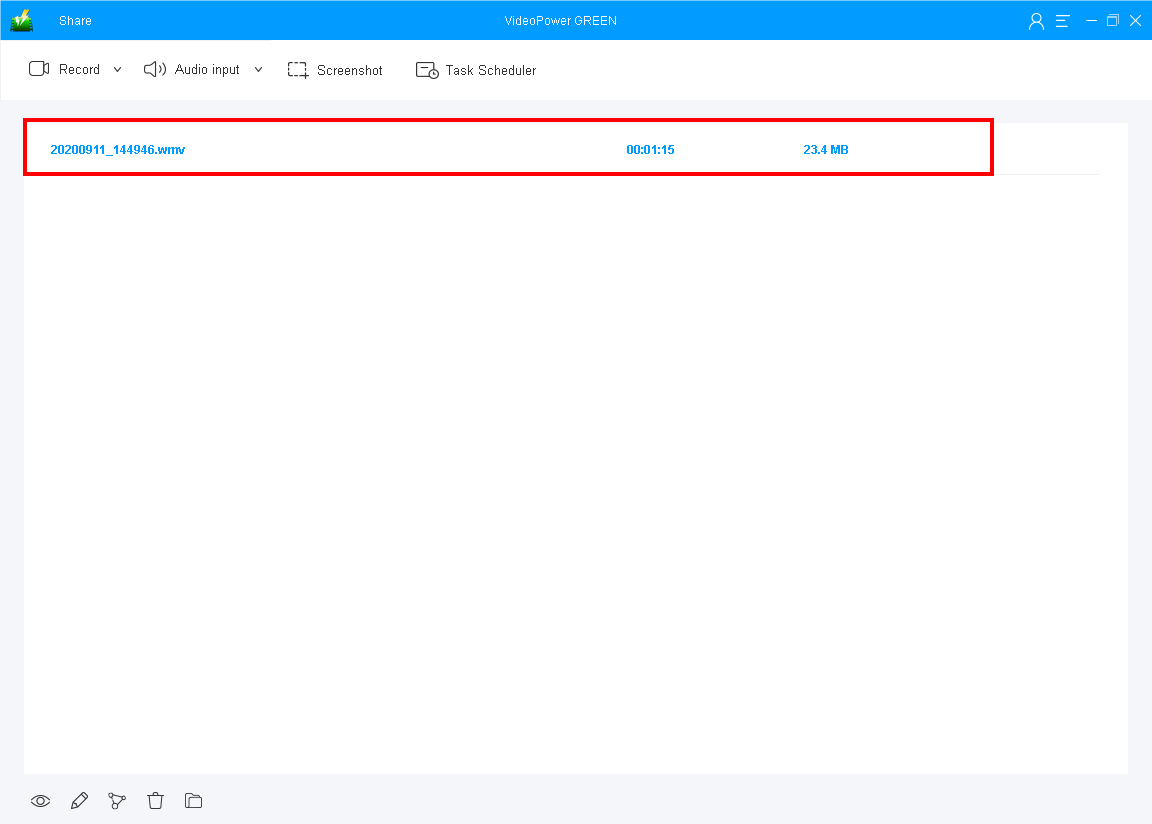
After the recording, the file will be on the program’s main interface. Double-click the file to preview the recorded video.
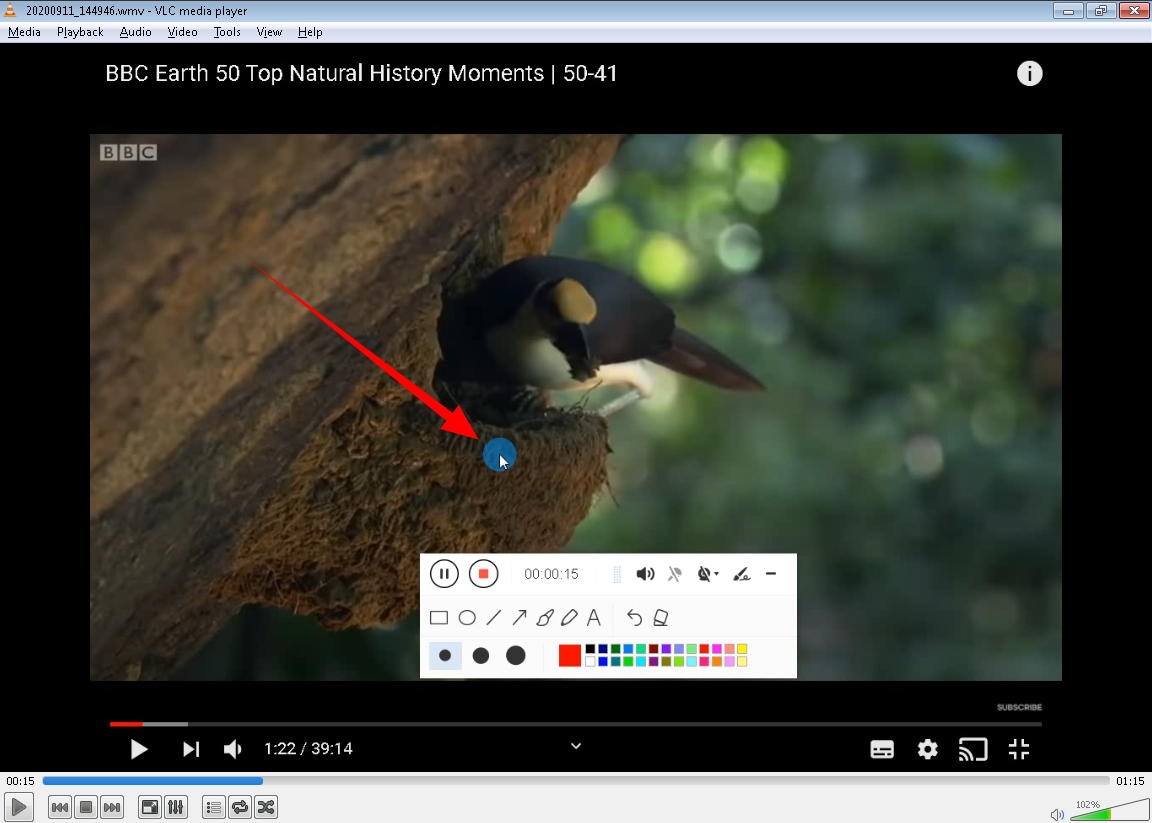
Check and watch the recorded video file to see if the mouse cursor is included.
Conclusion:
Many people wanted to make their recordings to be better than normal and plain recordings. VideoPower GREEN, a highly recommended recording application software is best and suited for this kind of concern. It has a particular feature, screen records with a mouse cursor that can help recorded files content be more understandable and clear.
Moreover, this product doesn’t only cure ambiguous content and save your hassle in recording the audio and video or screen activities but also beautifies the recordings by using its editing feature. It can also help you save some time and effort by setting its task scheduler feature.
ZEUS series can do everything that VideoPower series can do and more, the interface is almost the same.
Check out NOW! Start easier with more affordable prices!




ZEUS Series
VideoPower brother products, start easier with more affordable prices!
| ZEUS BUNDLE 1 Year License ⇒ $29.99 |
ZEUS BUNDLE LITE 1 Year License ⇒ $19.99 |
ZEUS RECORD LITE 1 Year License ⇒ $9.98 |
ZEUS DOWNLOAD LITE 1 Year License ⇒ $9.98 |
||
| Screen Recorder | Screen&Audio Recording | ✔ | ✔ | ✔ | |
| Duration Setting, Schedule Recording | ✔ | ||||
| Video Downloader | Paste URL to download, batch download | ✔ | ✔ | ✔ | |
| Search/download video,browser detector | ✔ | ||||
| Music Recorder | Record music and get music ID3 tag info | ✔ | ✔ | ||
| Music search/download/record, CD Ripper/Creator, Audio Editor | ✔ | ||||
| Video Editor | Edit and convert videos, create slideshow | ✔ | |||
| Screen Capture | Capture screen, image editor | ✔ | |||