











League of Legends is a multiplayer online battle arena video game developed and published by Riot Games for Microsoft Windows and macOS. The game follows a freemium model and is supported by microtransactions, and was inspired by the Warcraft III: The Frozen Throne mod, Defense of the Ancients.
After the popularity of Minecraft, League of Legends ranked first in the list of popular games. You will find many LoL gameplay videos on YouTube that are uploaded by gamers. They record LoL games online to show their excellent skills and techniques in the game. Also, video-streaming is popular nowadays to earn money.
In particular, some well-known gamers whose videos have attracted many LoL fans. It’s very cool to have so many like-minded fans through the gameplay videos.
However, some LoL lovers are still asking how do you record LoL games? In such a case, the best tool to help you record the LoL gameplay video is within your fingertips.
VideoPower GREEN or ZEUS, an easy to use, hassle-free, trusted, and professional recording application software, but can also record LoL games, Ustream videos, YouTube videos, or any screen activities on your desktop. It offers a different mode of action in recording and the file can be converted into different formats.
You can try to use the software for free by downloading its trial version below.
ZEUS can do what VideoPower series can do and more with an almost similar interface.
Check out NOW! Start easier with more affordable prices!
Step 1: Record LoL Gameplay
1.1 Choose a sound source.
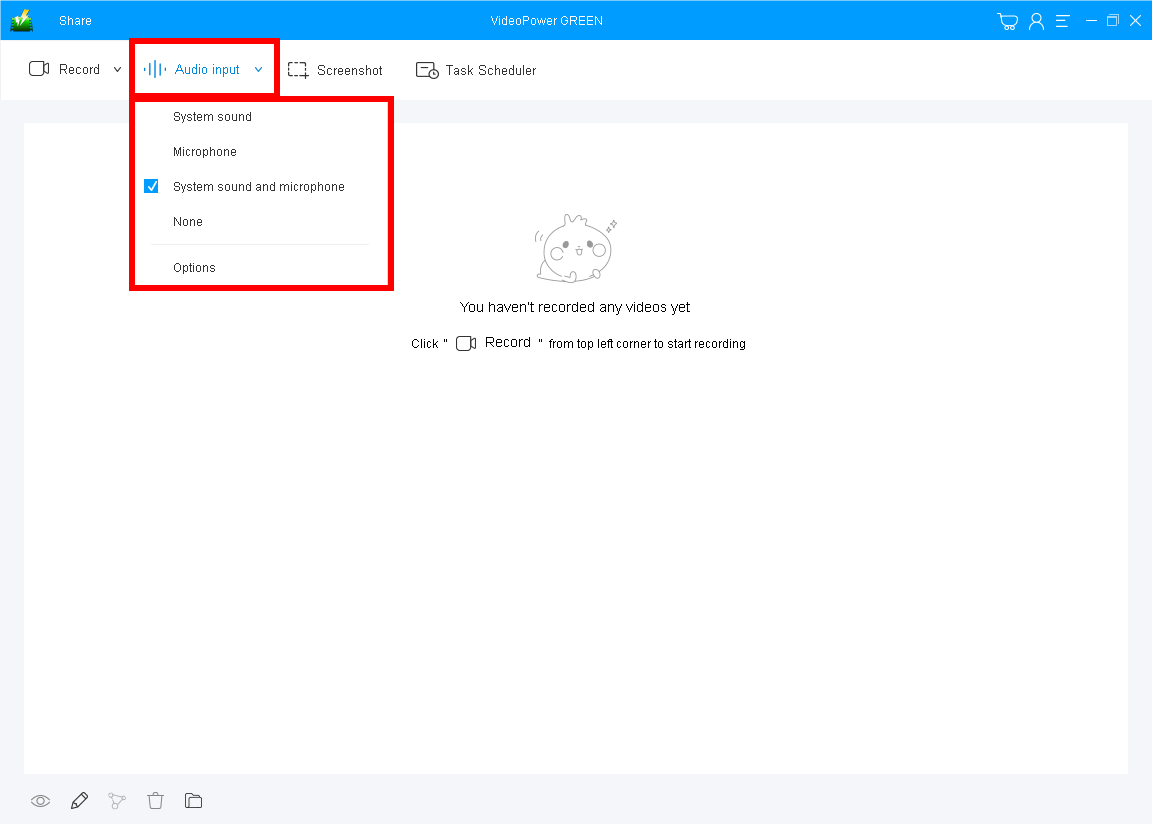
You can use “System sound”, “Microphone”, Both, or “None” as preferred.
To record the LoL game, choose “System Sound and Microphone” to overlay your voice is recommended.
1.2 Select a recording area
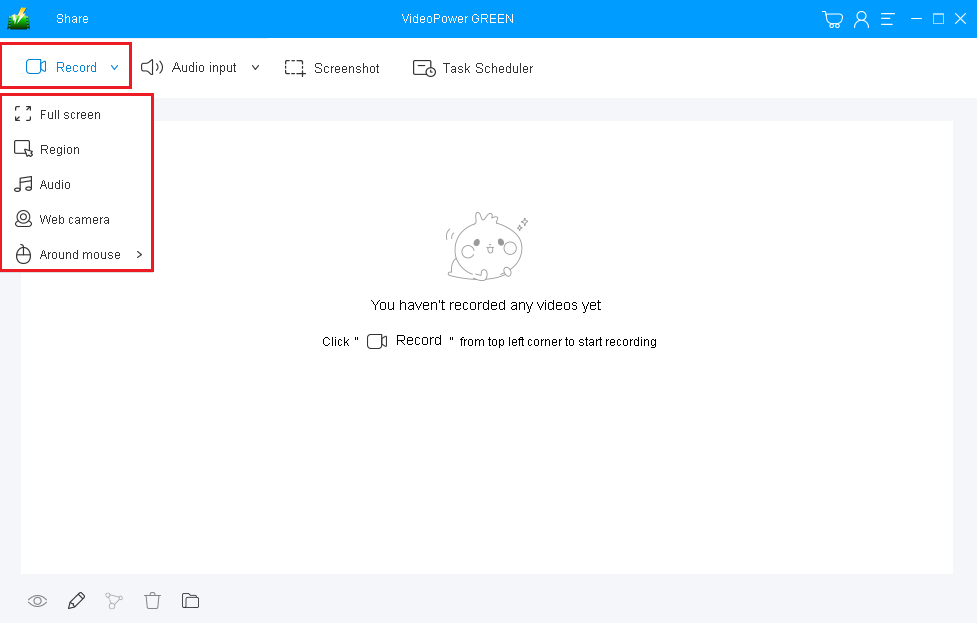
Click on the “Record” drop-down button to choose the recording mode between “Full-screen”, “Region”, “Audio”, “Web camera”, and “Around mouse”.
To record LoL gameplay video, ‘Full screen’ or ‘Region’ is recommended.
1.3 Start to record LoL Gameplay on PC
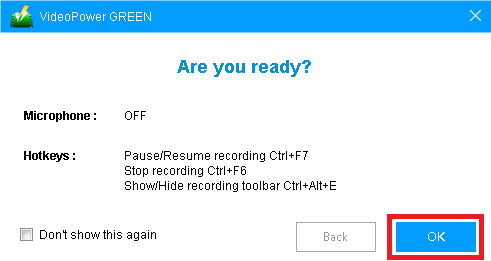
The pop-up window will ask whether you are ready to start recording, click “OK” to confirm when you are ready to record LoL actual gameplay.
Step 2: Annotate while recording (optional)
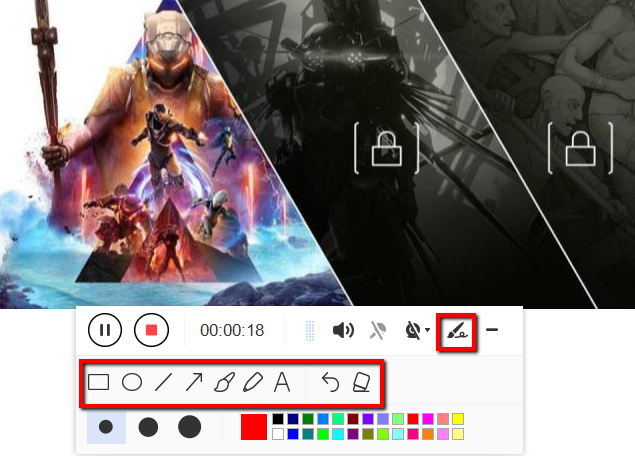
While recording you can annotate, add text, shapes, and arrows to emphasize important details. On the other hand, you can blur out personal details if you want to keep it by the toolbar.
Step 3: Save the recorded file
3.1 End the recording

Click the “Stop” button to end the recording.
3.2 Check the recorded file
After that, the recorded file is already saved in the pointed output folder.
Your recorded LoL Gameplay video can be seen in the main interface.
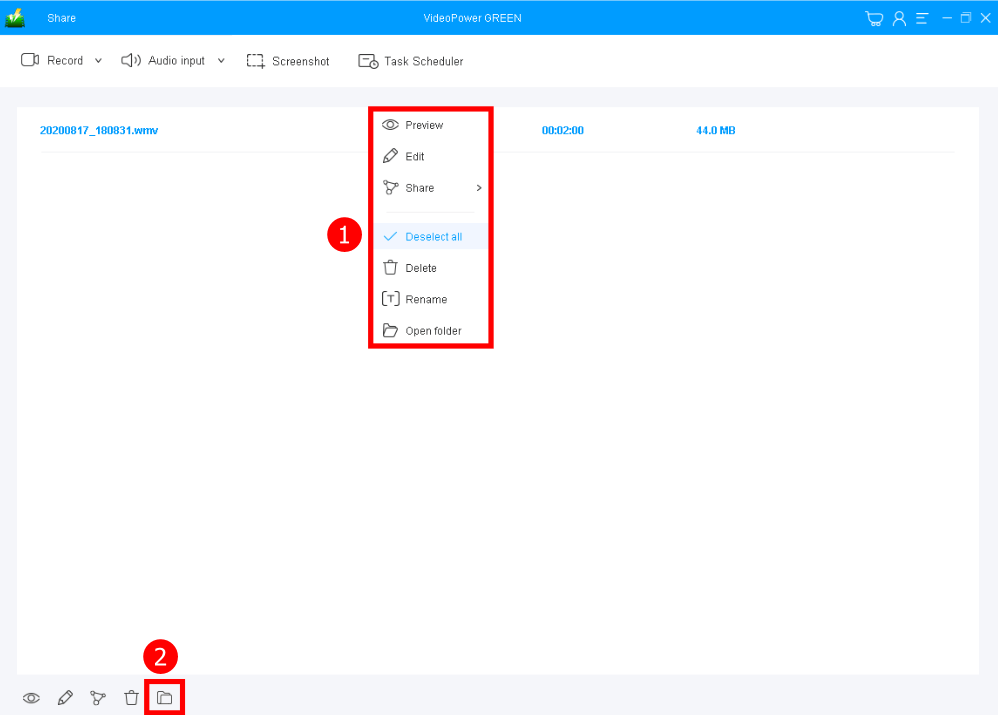
1. You can right-click the file and do more operations if you like.
2. Click the folder icon to view it in the pointed output folder.
Conclusion:
From the time where technologies and applications were discovered and developed, many online games like LoL or League of Legends are gradually rising and becoming popular not only to the children but also to adults.
As gaming slowly rises to the top, gamers also follow it’s steps because of online live streaming. Thus, making that possible for most of the gamers, an impressive recording application software to record LoL gameplay should be needed and VideoPower Green is the right application for it.
VideoPower GREEN, an easy to use, hassle-free, trusted, and has professional features recording application software is best suited in LoL gameplay.
ZEUS series can do everything that VideoPower series can do and more, the interface is almost the same.
Check out NOW! Start easier with more affordable prices!




ZEUS Series
VideoPower brother products, start easier with more affordable prices!
| ZEUS BUNDLE 1 Year License ⇒ $29.99 |
ZEUS BUNDLE LITE 1 Year License ⇒ $19.99 |
ZEUS RECORD LITE 1 Year License ⇒ $9.98 |
ZEUS DOWNLOAD LITE 1 Year License ⇒ $9.98 |
||
| Screen Recorder | Screen&Audio Recording | ✔ | ✔ | ✔ | |
| Duration Setting, Schedule Recording | ✔ | ||||
| Video Downloader | Paste URL to download, batch download | ✔ | ✔ | ✔ | |
| Search/download video,browser detector | ✔ | ||||
| Music Recorder | Record music and get music ID3 tag info | ✔ | ✔ | ||
| Music search/download/record, CD Ripper/Creator, Audio Editor | ✔ | ||||
| Video Editor | Edit and convert videos, create slideshow | ✔ | |||
| Screen Capture | Capture screen, image editor | ✔ | |||