











HBO Go is a cable TV network media company, whose parent company is Time Warner Inc. HBO Go is a television service provided by HBO, which was first launched on February 18, 2010. It lets users watch HBO productions such as movies, TV shows, documentaries, and more on its online streaming website.
This service was phased out in the United States in 2020 as it launches HBO Max. It is a new type of subscription which features content from both HBO and WarnerMedia. However, HBO Go is still available in Asia and other countries. If you are looking to watch offline, you can record HBO Go videos on PC with VideoPower GREEN.
ZEUS can do what VideoPower series can do and more with an almost similar interface.
Check out NOW! Start easier with more affordable prices!
Guide
How to Record HBO Go Videos on PC for Offline Viewing
VideoPower GREEN is a straightforward software that offers a powerful and flexible screen recorder. It allows you to record HBO Go videos while keeping the quality. You may also add annotation while recording such as adding highlights, texts, etc. Moreover, it has many added functions such as a Task scheduler to automate and schedule recordings, a video editor, screenshots, and more!
How to Record HBO Go Videos for Offline Viewing
Step 1: Set the audio input
Open the VideoPower GREEN and click the “Audio input” menu.
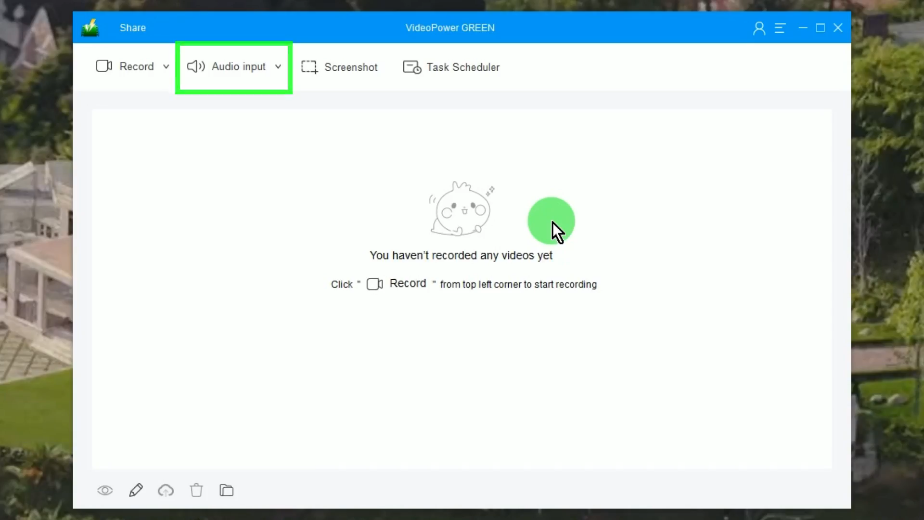
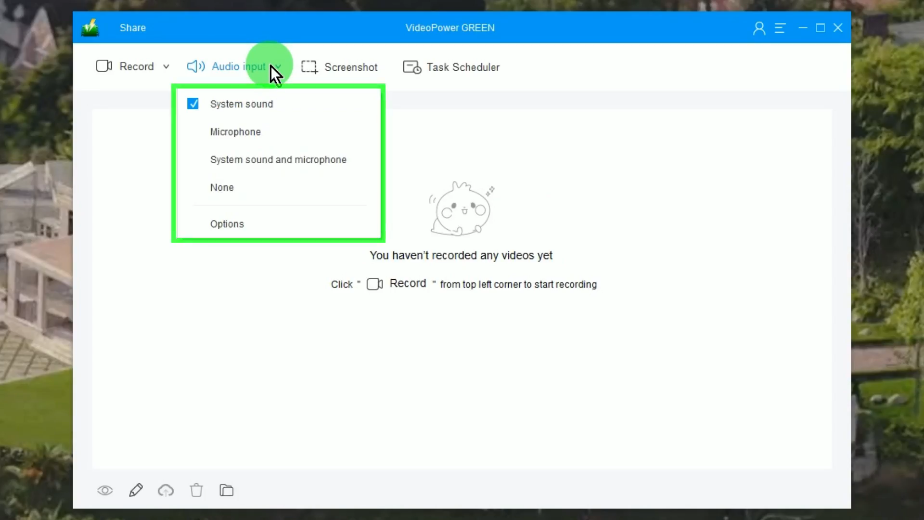
A list of options will drop down for your selection. By default, it is set to “System sound”.
Step 2: Choose a recording mode
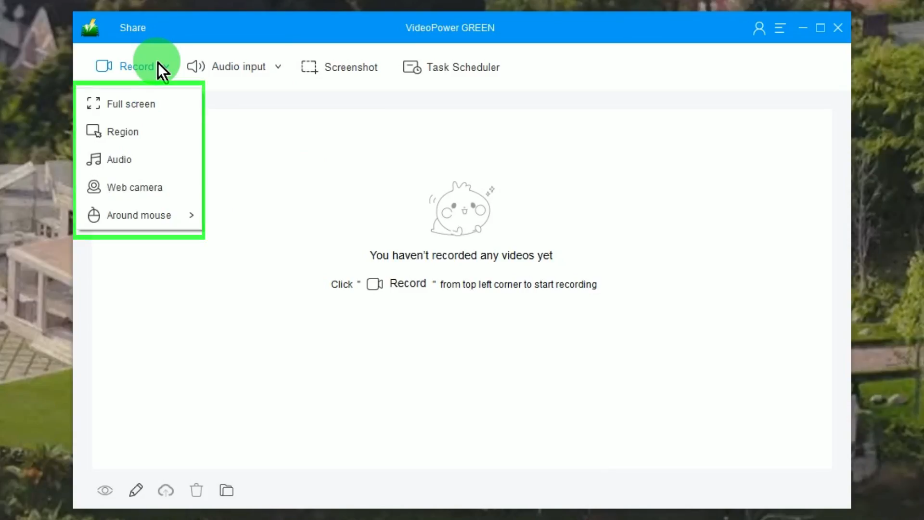
Click the “Record” menu to choose a recording mode.

A list of available recording modes will drop down for your selection. In this example, we will set the recording mode to “Fullscreen”.
Step 3: Begin the recording
A notification will prompt asking if you are ready to begin the recording. Click “OK” to proceed.
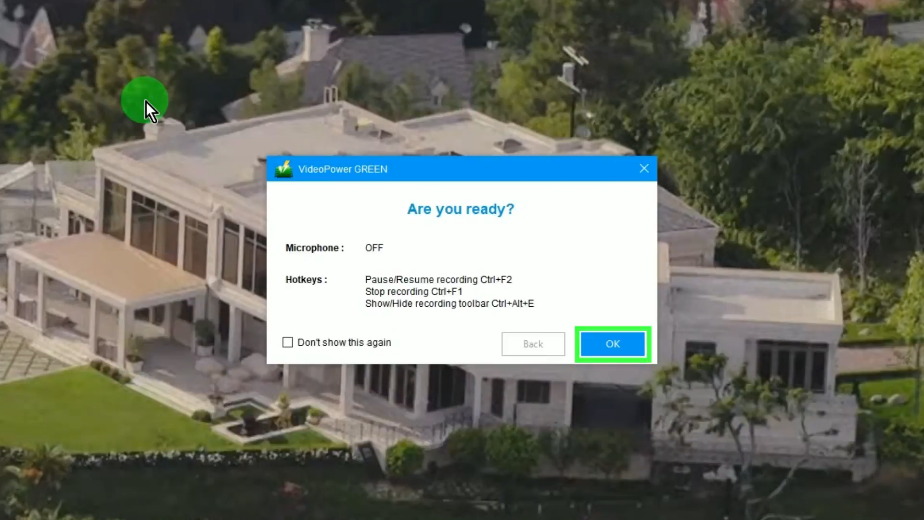
After the countdown, the recording toolbar will pop up which indicates that the recording has begun. You may press Ctrl+Alt+E on your keyboard to show/hide the recording toolbar.
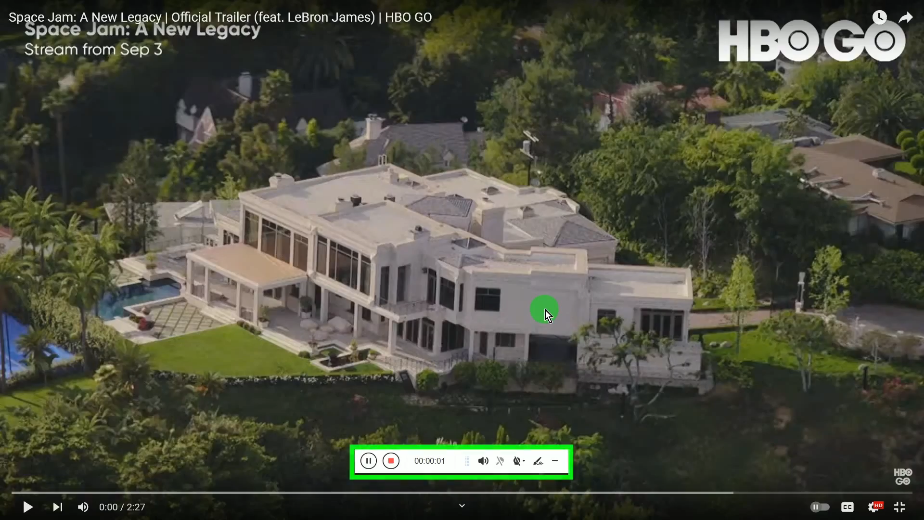
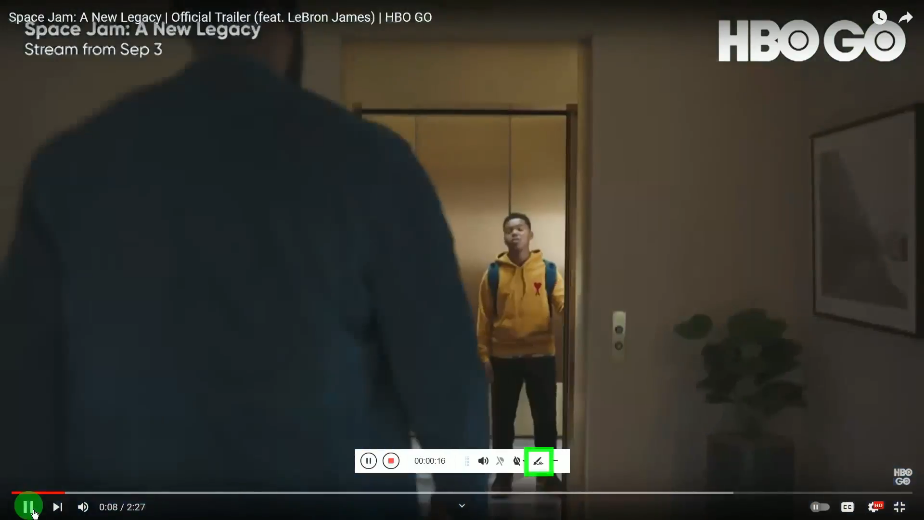
You may add annotations while recording to add highlights, texts, etc. To enable the annotation, click the “Pencil” icon on the recording toolbar.
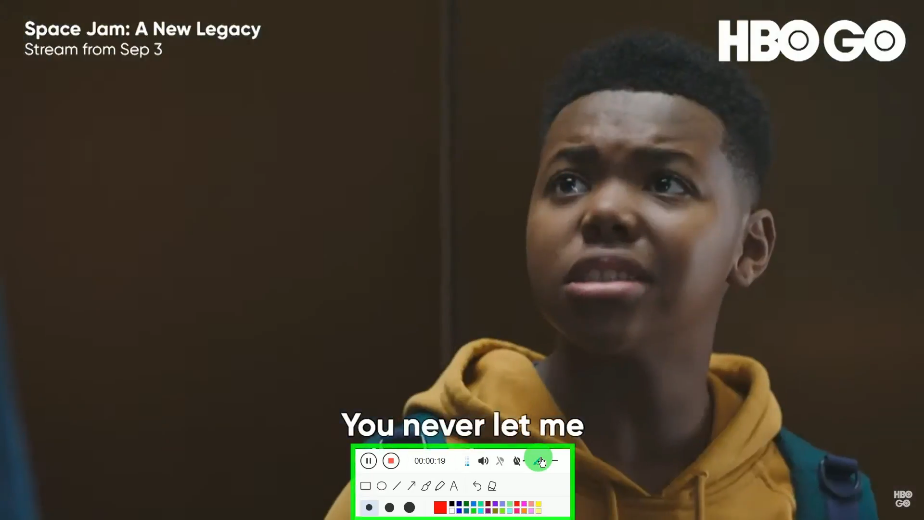
The annotation tools will be shown. Select the tools you want to use and add them to the recording video.
When the recording is finished, click “Stop” to end the recording.
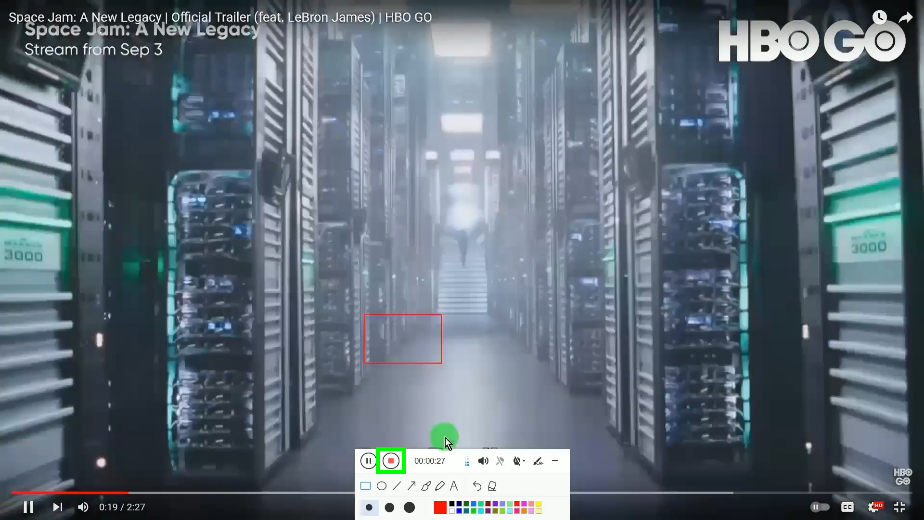
Step 4: Finished recording the HBO Go video
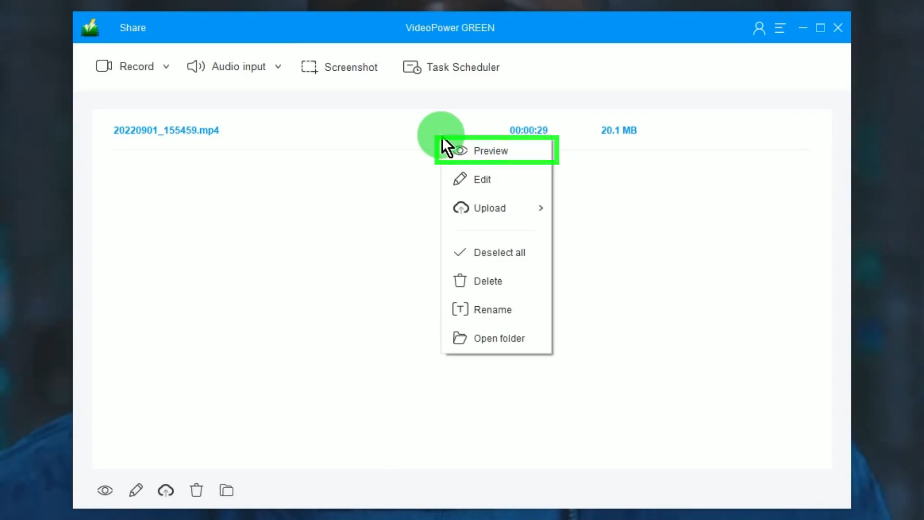
The recorded video will be added to your recording list. You may right-click the recorded file to see more options or select “Preview” to playback.
Conclusion:
Watching the HBO Go videos from its website is one of the ways to help many people be entertained and have fun.
You can continue to catch up with your favorite movies by watching offline with the help of VideoPower GREEN to record HBO Go videos. It’s an easy-to-use software that produces high-quality output. Plus, it has plenty of cool features added. Make sure to get the latest HBO movies on your local storage and share them with your family and friends!
ZEUS series can do everything that VideoPower series can do and more, the interface is almost the same.
Check out NOW! Start easier with more affordable prices!




ZEUS Series
VideoPower brother products, start easier with more affordable prices!
| ZEUS BUNDLE 1 Year License ⇒ $29.99 |
ZEUS BUNDLE LITE 1 Year License ⇒ $19.99 |
ZEUS RECORD LITE 1 Year License ⇒ $9.98 |
ZEUS DOWNLOAD LITE 1 Year License ⇒ $9.98 |
||
| Screen Recorder | Screen&Audio Recording | ✔ | ✔ | ✔ | |
| Duration Setting, Schedule Recording | ✔ | ||||
| Video Downloader | Paste URL to download, batch download | ✔ | ✔ | ✔ | |
| Search/download video,browser detector | ✔ | ||||
| Music Recorder | Record music and get music ID3 tag info | ✔ | ✔ | ||
| Music search/download/record, CD Ripper/Creator, Audio Editor | ✔ | ||||
| Video Editor | Edit and convert videos, create slideshow | ✔ | |||
| Screen Capture | Capture screen, image editor | ✔ | |||