











Google officially launched its unified cross-platform chat software Hangouts at the I/O conference. Computer, Android, and iOS users can use it for free, supporting text, pictures, expressions, videos, one-to-one, and multi-people chat.
Google Hangouts makes chatting livelier and interesting – you can send pictures and have a video group chat. Also, it is completely free whether it is one-to-one or multi-group chat.
Using Google Hangouts communication software is surely amusing but it’s less fun without someone to share with. Thus, many users wanted to record their Google Hangouts activities. But the question is, what would be the best tool for it?
VideoPower GREEN or ZEUS, a powerful and trusted recording application software is best for recording Google Hangouts video. With the help of this product, you can rewatch your meetings, take notes of important details, and replay it anytime and anywhere you want.
You can try to use the software for free by downloading its trial version below.
ZEUS can do what VideoPower series can do and more with an almost similar interface.
Check out NOW! Start easier with more affordable prices!
Steps on How to Record Google Hangouts Video and Audio
Step 1: Settings to Record Google Hangouts Video Call
1.1 Choose a sound source
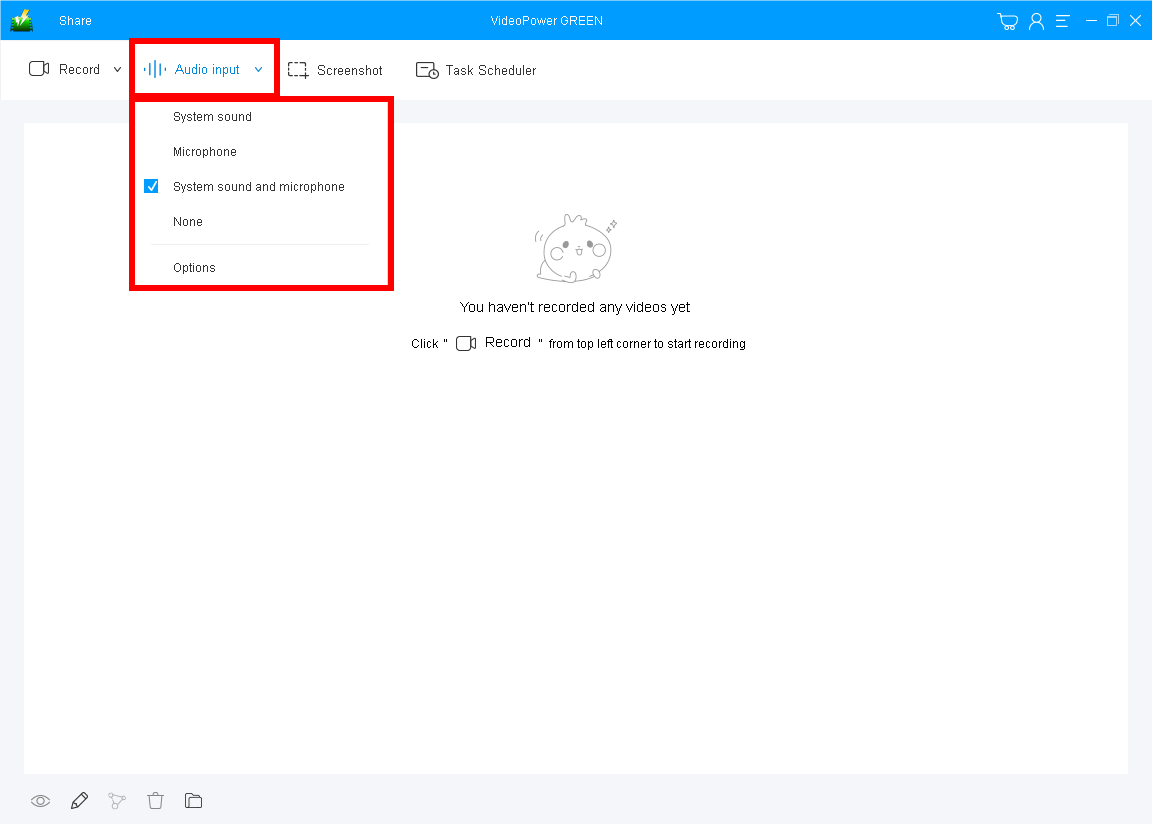
You can choose your sound source among the “System sound, Microphone, System sound and microphone or None” on the “Audio Input” menu.
To record a Google Hangouts video and audio, select the “System sound and Microphone” as your sound source.
1.2 Select a recording area.
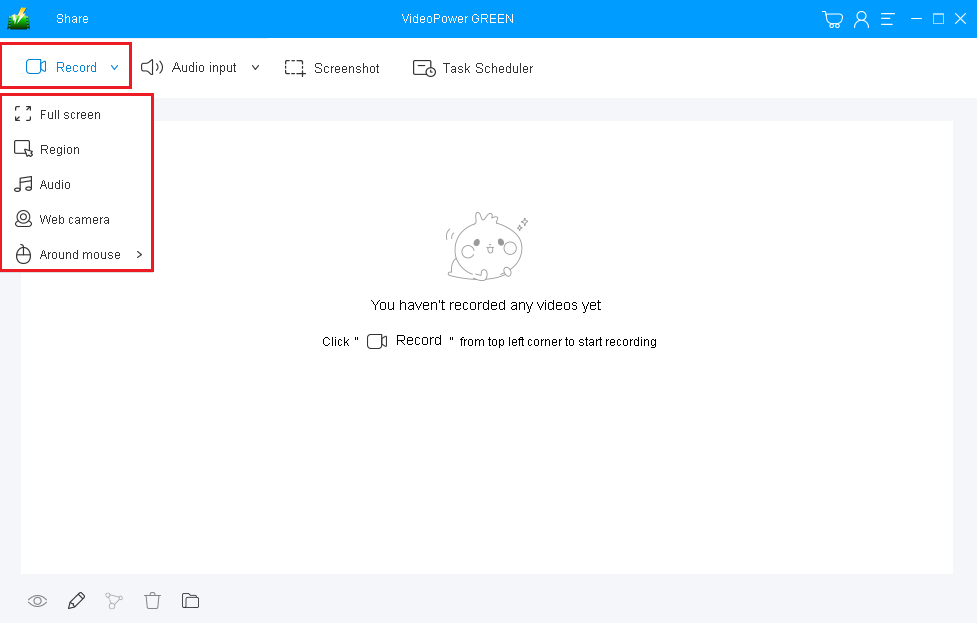
Click on the “Record” button to choose the recording mode from “Full screen, Region, Audio, Web camera, Around mouse”.
You can choose among “Fullscreen” or “Region” and then select the window of the Google Hangouts video as the recording area.
1.3 Start to record Google Hangouts Video
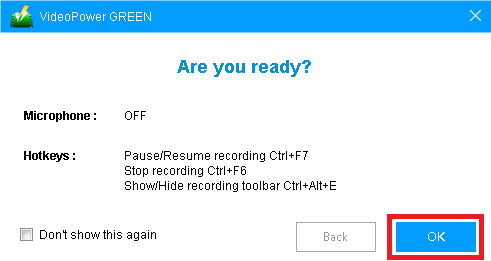
The pop-up window will ask whether you are ready to start recording the Google Hangouts video and audio, click “OK” to confirm when you are ready to record.
Step 2: Edit while recording (Optional)
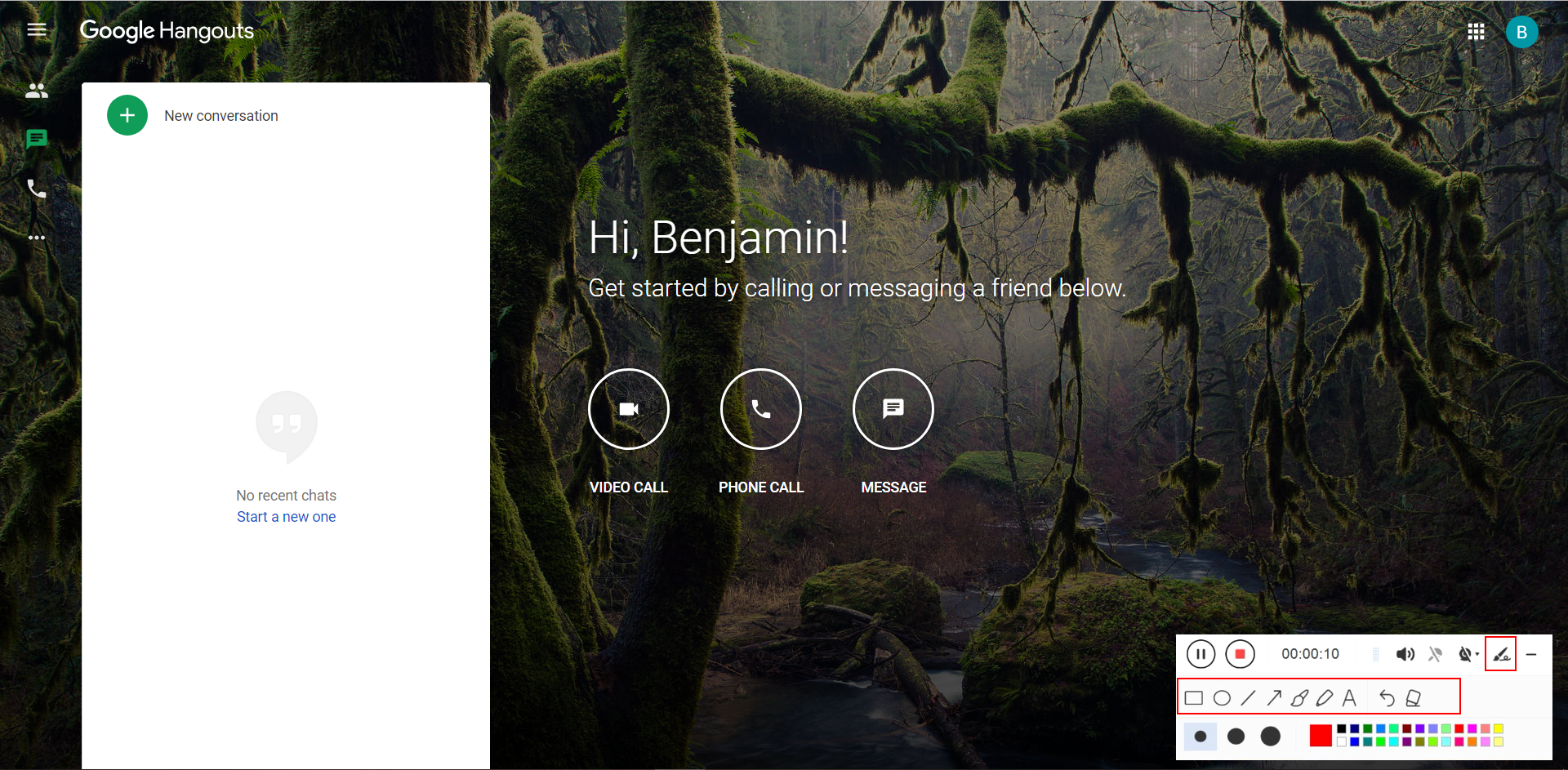
While recording the Google Hangouts video call, you can add lines, arrows, shapes, texts, highlight, blur, etc. by clicking the “Edit” button.
Step 3: Save the Recorded Google Hangouts file

Click the “Stop” button to end the recording.
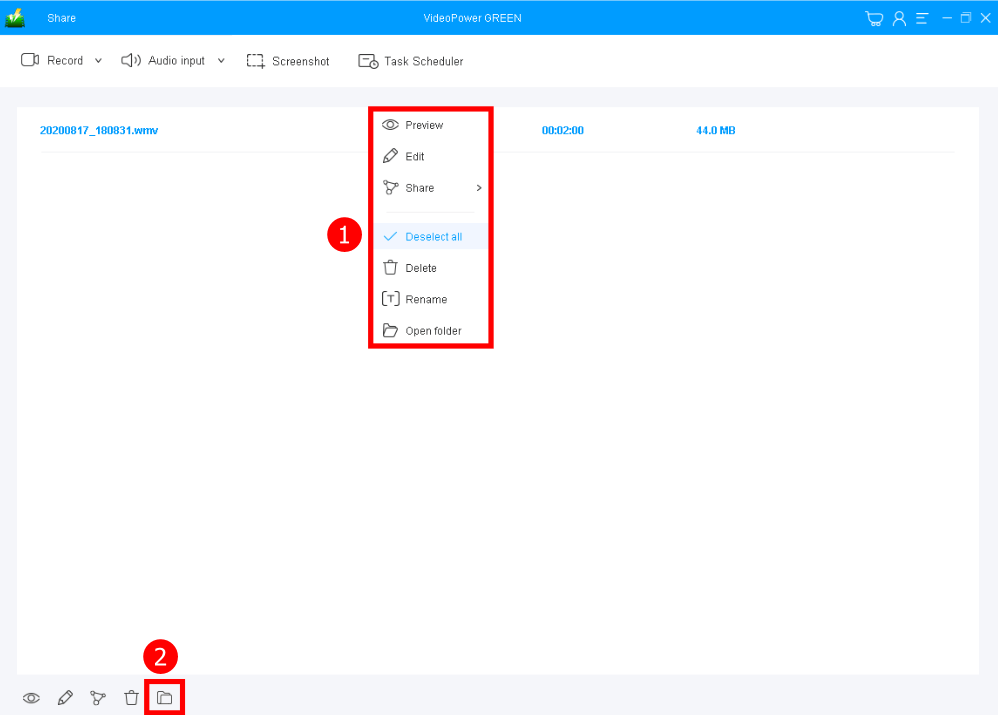
After that, the recorded Google Hangouts video calls file is already saved in the pointed output folder.
1. Your recorded file can be seen in the main interface. You can right-click the file and do more operations if you like.
2. Click the folder icon to view it in the pointed output folder.
Conclusion:
Google Hangouts communication software is another kind of communication site that is surely amusing but of course less fun without someone to share with. Sharing the content of what happened online is troublesome. Screen recording is the only way that would be best for it.
VideoPower GREEN, an easy to use, hassle-free and trusted recording application would be an awesome tool to record Google Hangouts video activities. It wouldn’t only record the moving visual images from the Google Hangouts communication site but also the supporting audio coming from it.
This product doesn’t only save your hassle in recording the audio and video but it also beautifies the recordings by using its editing feature. It can also help you save some time and effort by utilizing the task scheduler feature.
ZEUS series can do everything that VideoPower series can do and more, the interface is almost the same.
Check out NOW! Start easier with more affordable prices!




ZEUS Series
VideoPower brother products, start easier with more affordable prices!
| ZEUS BUNDLE 1 Year License ⇒ $29.99 |
ZEUS BUNDLE LITE 1 Year License ⇒ $19.99 |
ZEUS RECORD LITE 1 Year License ⇒ $9.98 |
ZEUS DOWNLOAD LITE 1 Year License ⇒ $9.98 |
||
| Screen Recorder | Screen&Audio Recording | ✔ | ✔ | ✔ | |
| Duration Setting, Schedule Recording | ✔ | ||||
| Video Downloader | Paste URL to download, batch download | ✔ | ✔ | ✔ | |
| Search/download video,browser detector | ✔ | ||||
| Music Recorder | Record music and get music ID3 tag info | ✔ | ✔ | ||
| Music search/download/record, CD Ripper/Creator, Audio Editor | ✔ | ||||
| Video Editor | Edit and convert videos, create slideshow | ✔ | |||
| Screen Capture | Capture screen, image editor | ✔ | |||