











A gamer always wanted to make the best out of their gaming experience. Sharing victories and tutorials of their game with their friends and family like game streams. Online games can make people grasp entertainment and pleasure, a sense of accomplishment, and satisfy the desire of a conquer. Playing alone wasn’t enough for most of the users now, they also make streamings and commentary videos of computer games to share online on social media sharing sites.
VideoPower GREEN or ZEUS makes it possible to record your gameplay on a PC. You can record your game such as Valorant, Minecraft, League of Legends, and many more. It captures your screen in a high-quality resolution and you can overlay your voice and webcam while recording.
Just click the link below to download the app and use the free trial version.
ZEUS can do what VideoPower series can do and more with an almost similar interface.
Check out NOW! Start easier with more affordable prices!
Record Gameplay on PC using VideoPower GREEN
Step 1: Choose a sound source
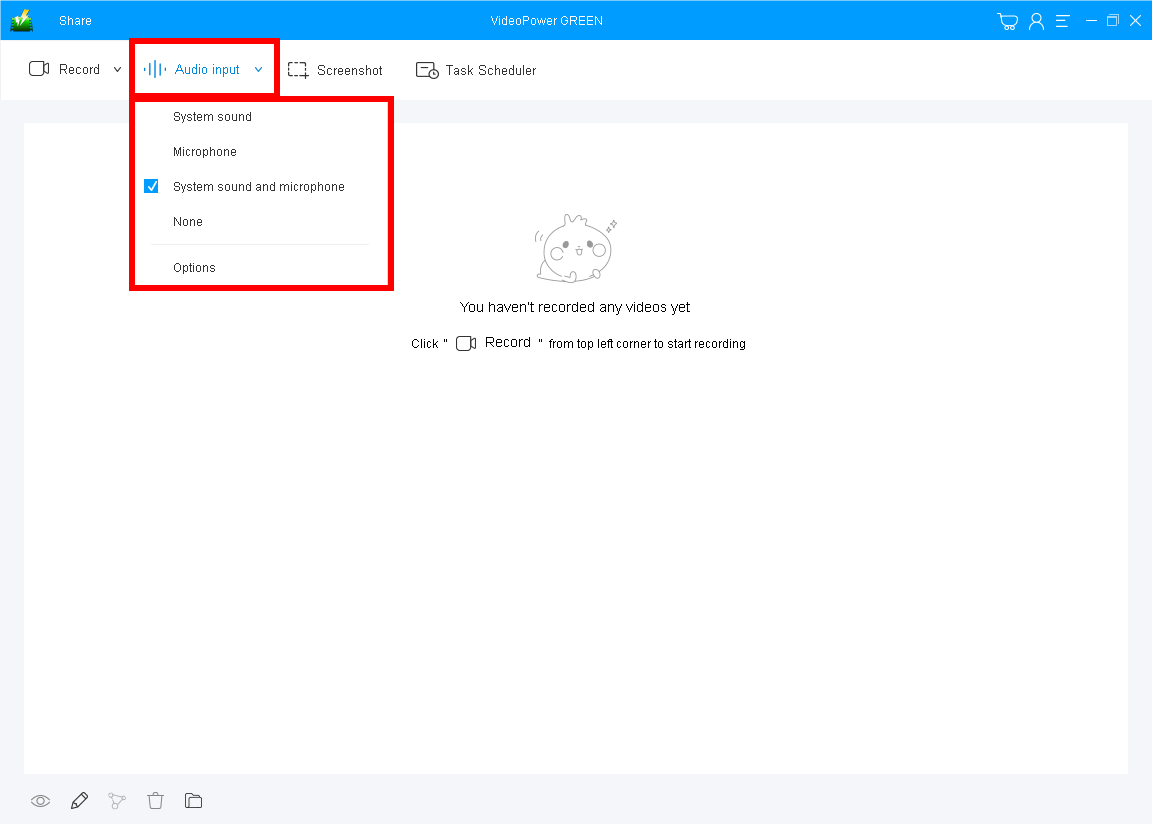
Click the “Audio Input” drop-down button and select the sound source. In recording games, it is recommended “System sound and microphone” so you can overlay your voice while recording.
Step 2: Select a recording mode
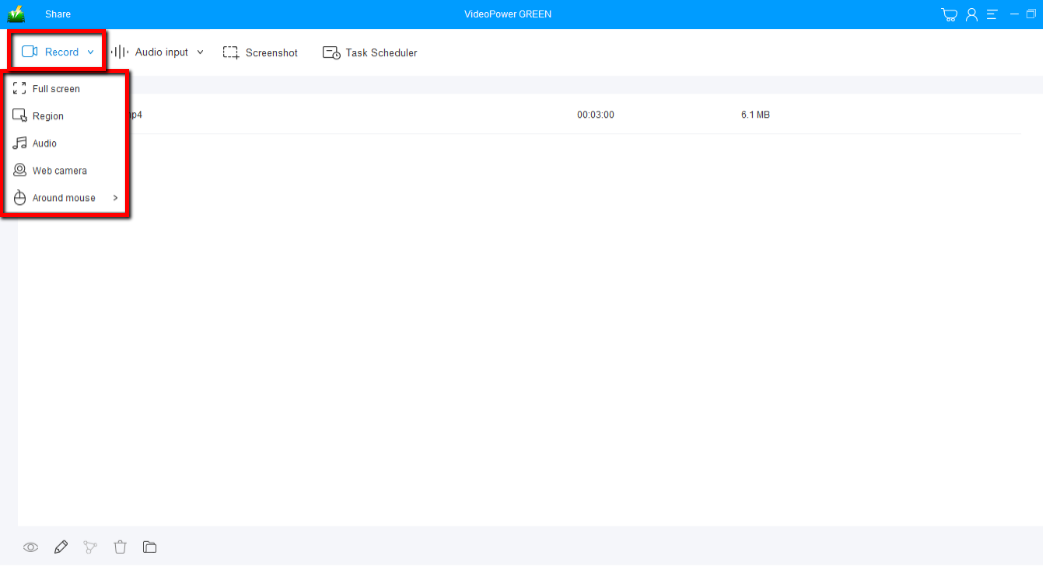
Run the game you want to record and set the recording mode by clicking the “Record” button. In recording gameplay on PC, you can use “Fullscreen” to capture your whole screen.
Step 3: Start recording your gameplay
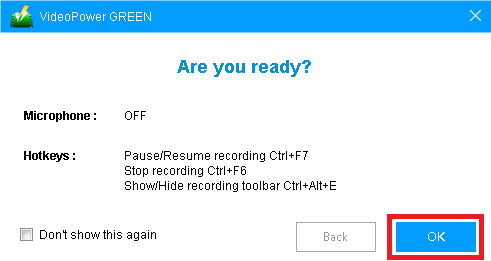
The pop-up window will ask whether you are ready to start recording, click “OK” to confirm when you are ready to record.
Step 4: Save and check the recorded file

Click the “Stop” button to end the recording. After that, the recorded file is already saved in the pointed output folder.
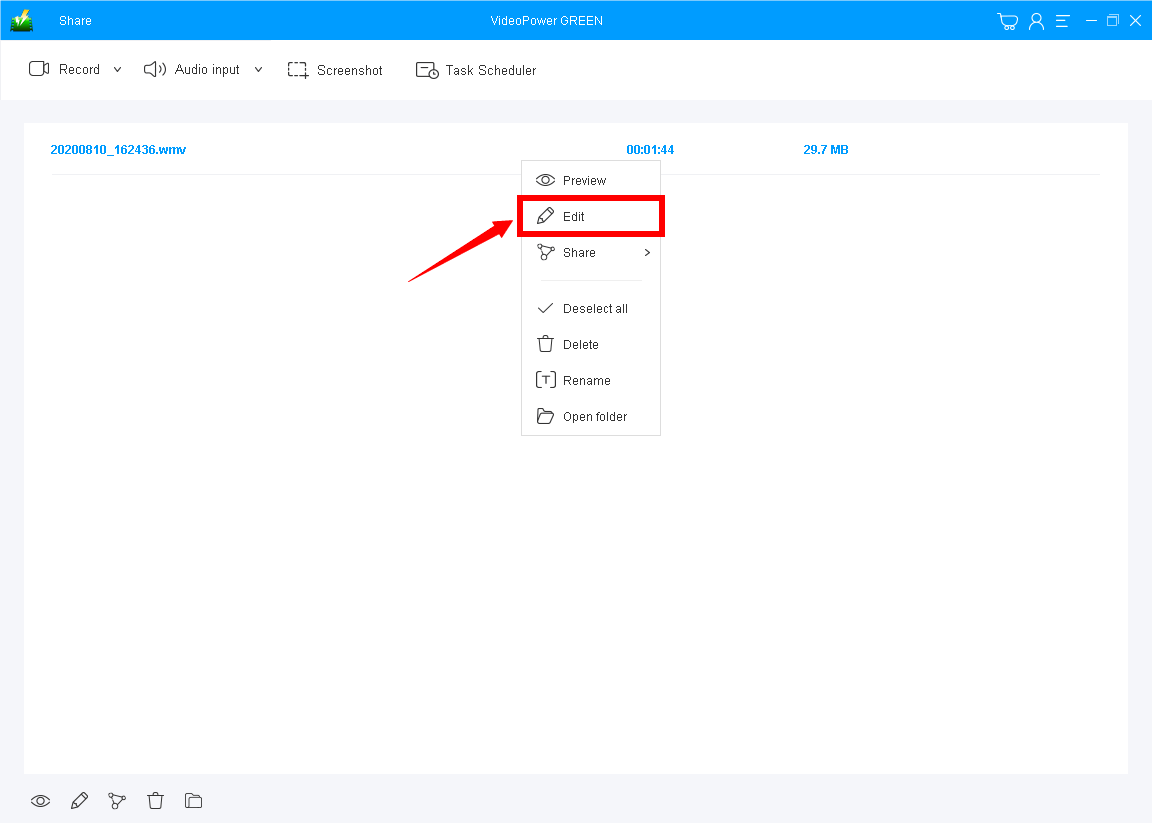
You can check and see the file on the main interface. You are able to edit the recorded video. Just right-click the file and choose “Edit” from the dropdown list. You can double-click to preview the recorded video.
Conclusion:
VideoPower GREEN enables you to record gameplay screens with audio. Record it in full screen, a specific window, or a specific area.
Furthermore, a task scheduler tool is helpful if you want to record your screen at a specific time and date, it will automatically record what’s going on on your screen may it be streaming videos, webinars, web cameras, etc.
Finally, it has a video editor that lets you apply watermarks, effects, and other basic video editing options such as trimming or cropping. Adjust the speed, volume, contrast, brightness, and saturation of a video.
ZEUS series can do everything that VideoPower series can do and more, the interface is almost the same.
Check out NOW! Start easier with more affordable prices!




ZEUS Series
VideoPower brother products, start easier with more affordable prices!
| ZEUS BUNDLE 1 Year License ⇒ $29.99 |
ZEUS BUNDLE LITE 1 Year License ⇒ $19.99 |
ZEUS RECORD LITE 1 Year License ⇒ $9.98 |
ZEUS DOWNLOAD LITE 1 Year License ⇒ $9.98 |
||
| Screen Recorder | Screen&Audio Recording | ✔ | ✔ | ✔ | |
| Duration Setting, Schedule Recording | ✔ | ||||
| Video Downloader | Paste URL to download, batch download | ✔ | ✔ | ✔ | |
| Search/download video,browser detector | ✔ | ||||
| Music Recorder | Record music and get music ID3 tag info | ✔ | ✔ | ||
| Music search/download/record, CD Ripper/Creator, Audio Editor | ✔ | ||||
| Video Editor | Edit and convert videos, create slideshow | ✔ | |||
| Screen Capture | Capture screen, image editor | ✔ | |||