











Is it possible to record the screen content of my computer? Can I record the video playing on my computer screen? Recording the games I play or any activities I do on a computer including sounds from the computer itself and the microphone can be recorded? These are common questions that are commonly heard from users.
Of course yes! You only need a screen recording software to solve all these problems. Luckily, VideoPower GREEN or ZEUS, a powerful, reliable, and easiest screencast software of all time is best for this kind of worry. Now, capturing gameplay is just a piece of cake. There is now a solution to your problems on how to record gaming videos for YouTube.
Check out this article to learn more and click the link below to download and install this game recording software. It can record microphone sound and system sound as well.
Now, you can try recording gaming videos using this awesome screen recorder.
ZEUS can do what VideoPower series can do and more with an almost similar interface.
Check out NOW! Start easier with more affordable prices!
Step 1: Set Sound Source and Record Area to Record Gaming Videos
1.1 Choose a sound source
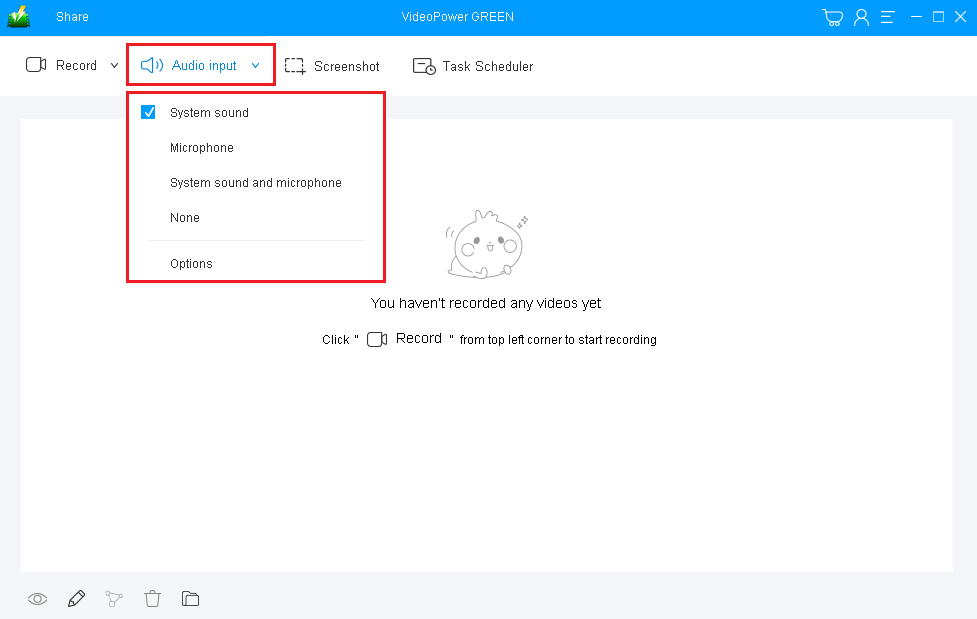
You can choose “System sound”, “Microphone”, “System sound and microphone” or “None”. In recording a gaming video, it’s best to choose “System sound and microphone”.
System sound: only records the sound on the computer without the external sound source like a microphone.
System sound and microphone: records both the system sound and microphone sounds.
1.2 Select a Recording Area
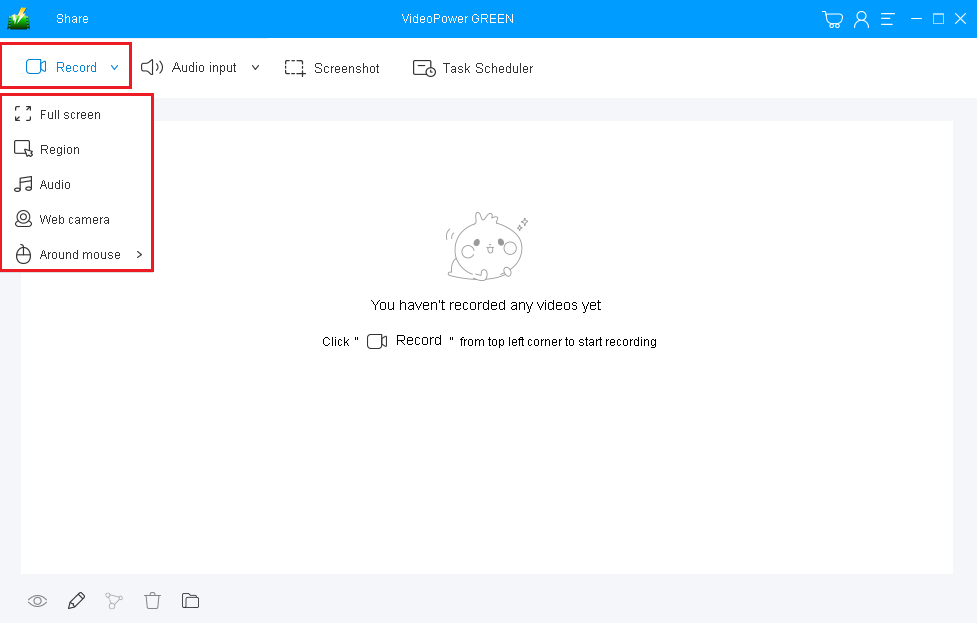
Click on the “Record” button to choose a recording mode from “Full screen, Region, Audio, Web camera, Around mouse”. Select the area you are going to record.
It is highly recommended to choose “Fullscreen” mode as video games have higher resolution requirements.
Step 2: Start Recording Gameplay Video
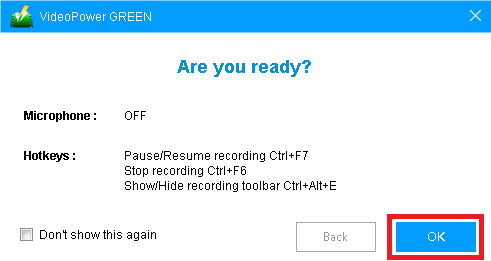
The pop-up window will ask whether you are ready to start recording, click “OK” to confirm when you are ready to record. A 3-second countdown will appear after clicking “OK”.
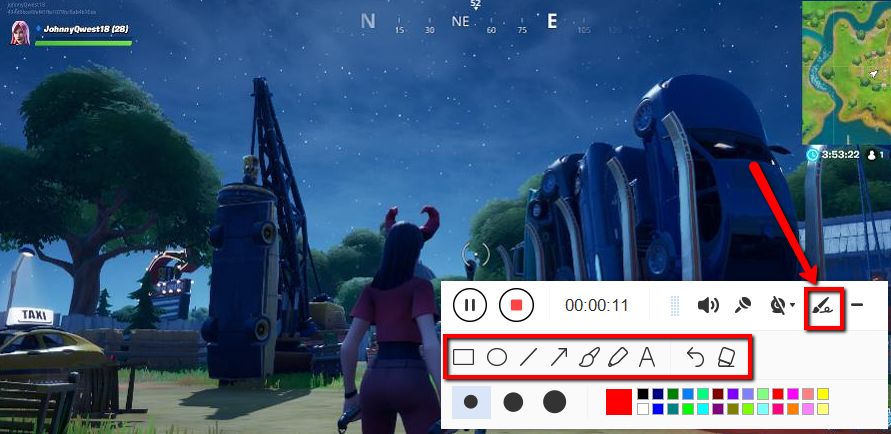
While recording you can add lines, arrows, shapes, texts, highlight, blur, etc. by clicking the edit button.
Step 3: Save and Check the Recorded Game Video

Click the “Stop” button to end the recording.
After that, the recorded game video will be on the list that you can see in its main interface.
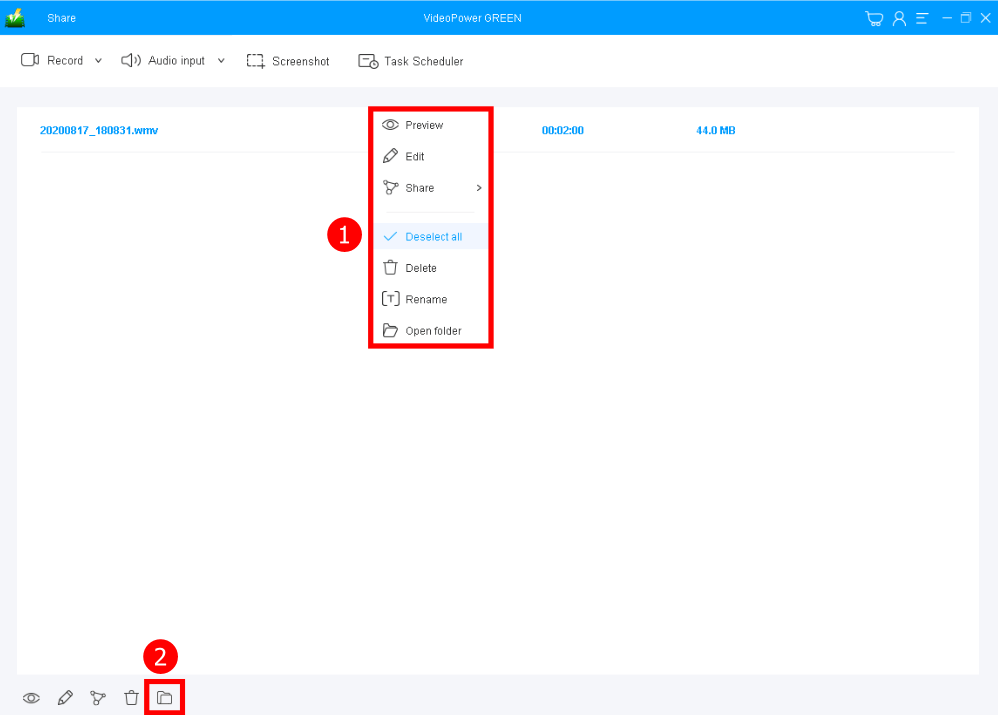
1. Your recorded file can be seen in the main interface. You can right-click the file and do more operations if you like.
2. Click the folder icon to view it in the pointed output folder.
Conclusion:
As technologies continue to evolve, applications are also evolving along with it. In line with this, gaming videos are also making some noise on the internet. But then, most of the gamers are wondering about what would be the best recording software that can record a good and professional gaming video.
VideoPower GREEN, a hassle-free, trusted, and amazing recording application software would be best suited for the job. Users can easily record their desired games and make a video of it for some purposes.
ZEUS series can do everything that VideoPower series can do and more, the interface is almost the same.
Check out NOW! Start easier with more affordable prices!




ZEUS Series
VideoPower brother products, start easier with more affordable prices!
| ZEUS BUNDLE 1 Year License ⇒ $29.99 |
ZEUS BUNDLE LITE 1 Year License ⇒ $19.99 |
ZEUS RECORD LITE 1 Year License ⇒ $9.98 |
ZEUS DOWNLOAD LITE 1 Year License ⇒ $9.98 |
||
| Screen Recorder | Screen&Audio Recording | ✔ | ✔ | ✔ | |
| Duration Setting, Schedule Recording | ✔ | ||||
| Video Downloader | Paste URL to download, batch download | ✔ | ✔ | ✔ | |
| Search/download video,browser detector | ✔ | ||||
| Music Recorder | Record music and get music ID3 tag info | ✔ | ✔ | ||
| Music search/download/record, CD Ripper/Creator, Audio Editor | ✔ | ||||
| Video Editor | Edit and convert videos, create slideshow | ✔ | |||
| Screen Capture | Capture screen, image editor | ✔ | |||