











Digital technologies develop dramatically nowadays so do applications and tools. Thus, work and game presentations also developed its quality. It suggests highlighting the mouse cursor to show more clarity and beauty to the recordings sometimes.
VideoPower GREEN or ZEUS, an easy to use, hassle-free, and trusted recording application software would be best for it. You can choose certain regions where the recording will occur on the screen. You can choose to have the settings set in such a way where the recording with mouse cursor highlight is on.
To download the software, just click the link below and install the program.
ZEUS can do what VideoPower series can do and more with an almost similar interface.
Check out NOW! Start easier with more affordable prices!
Step 1: Setup the settings.
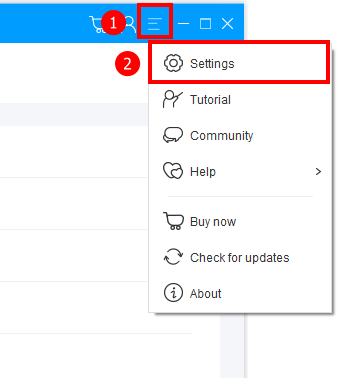
1) Click the menu icon in the upper right of the interface.
2) Choose “Settings” to open the setting screen.
Step 2: Set the mouse cursor effect
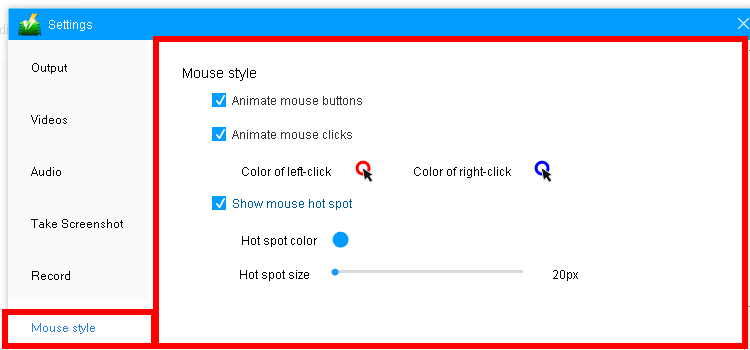
Click on “Mouse style” and here you’ll see the settings. Adjust the settings by checking the list as preferred.
1. Animate mouse buttons
Turning this on and off will allow you to enable the setting for animation in the mouse buttons including the following settings.
2. Animate mouse clicks
Check “Animate mouse clicks” to circle the mouse with color when clicked.
Clicking on the “Color of left-clicking” will allow you to change the color of the designated click while clicking on the “Color of right-click” will allow you to change the color of the other one.
3. Show mouse hot spot
Check “Show mouse hot spot” to add a circular background around the mouse cursor. You can also change the color and size.
Note: These effects are not displayed on the screen during recording, which only shows up in the recorded video.

The appearance of the recorded mouse cursor with the default settings is as below.
From the left to right of the image indicates normal status, left-click effect, right-click effect.
Conclusion:
As technologies unfold, so do applications and tools. Presentations in work, online tutorials, game commentaries, and much more needs excellent recorded visual images and audios.
As technologies, applications, and tools are now developed, presentations at work, tutorials and commentaries should also be developed. Users should specify and show clarity in their presentations by highlighting the mouse cursor. Therefore, users need a recording software that can also capture and highlight the mouse cursor.
VideoPower GREEN, an easy to use, hassle-free, and trusted recording application software would be best for highlighting the mouse cursor in the recording.
ZEUS series can do everything that VideoPower series can do and more, the interface is almost the same.
Check out NOW! Start easier with more affordable prices!




ZEUS Series
VideoPower brother products, start easier with more affordable prices!
| ZEUS BUNDLE 1 Year License ⇒ $29.99 |
ZEUS BUNDLE LITE 1 Year License ⇒ $19.99 |
ZEUS RECORD LITE 1 Year License ⇒ $9.98 |
ZEUS DOWNLOAD LITE 1 Year License ⇒ $9.98 |
||
| Screen Recorder | Screen&Audio Recording | ✔ | ✔ | ✔ | |
| Duration Setting, Schedule Recording | ✔ | ||||
| Video Downloader | Paste URL to download, batch download | ✔ | ✔ | ✔ | |
| Search/download video,browser detector | ✔ | ||||
| Music Recorder | Record music and get music ID3 tag info | ✔ | ✔ | ||
| Music search/download/record, CD Ripper/Creator, Audio Editor | ✔ | ||||
| Video Editor | Edit and convert videos, create slideshow | ✔ | |||
| Screen Capture | Capture screen, image editor | ✔ | |||