











Pandora is one of the most recognizable names in the music streaming industry. It offers free radio and different kinds of music to listen to. You can pay a subscription to listen to music without any ads.
However, Pandora relies on internet speed for music listening. That’s why many users opt to record Pandora music to MP3 and listen to it offline. For this, it is highly recommended to use VideoPower YELLOW.
VideoPower YELLOW is a professional music/audio recorder that is capable of recording music in high quality and saving it to various formats like MP3, AAC, WMA, FLAC, etc. It is also equipped with an ID3 tags identifier which tries to identify the music recorded and automatically adds the ID3 tags once recognized. The fun part is that you will get to enjoy its many additional features like creating your own playlist, music library, online radio, and so much more!
ZEUS can do what VideoPower series can do and more with an almost similar interface.
Check out NOW! Start easier with more affordable prices!
Guide
How to Record Pandora Music to MP3
How to Record Pandora Music to MP3
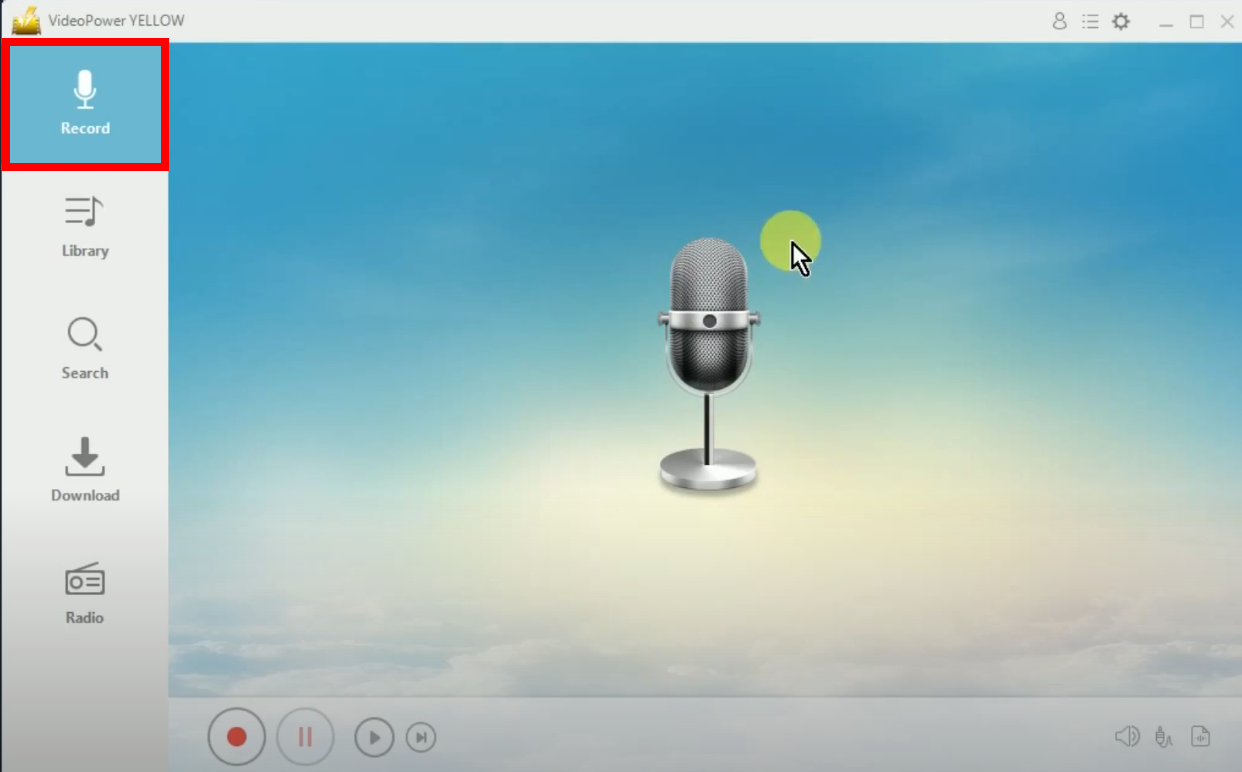
Step 1: Go to the “Record” function screen
Open the VideoPower YELLOW and click the “Record” function menu.
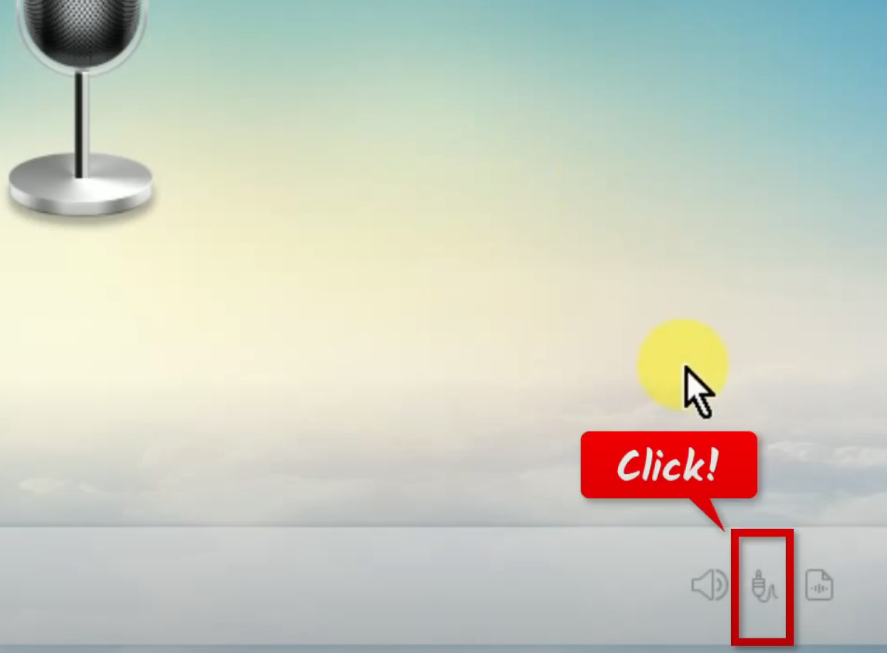
Step 2: Set the audio input
At the bottom, click the “Audio input” icon to select a sound source.
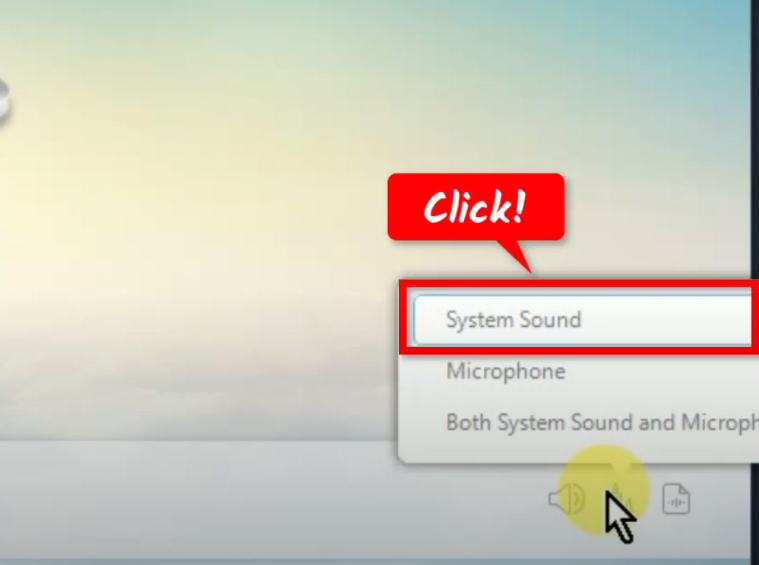
A list of options will be shown. Select your preferred sound source. In this example, we will set the audio input to “System sound”.
Step 3: Select the output format
Beside the audio input, click the “Format” icon.
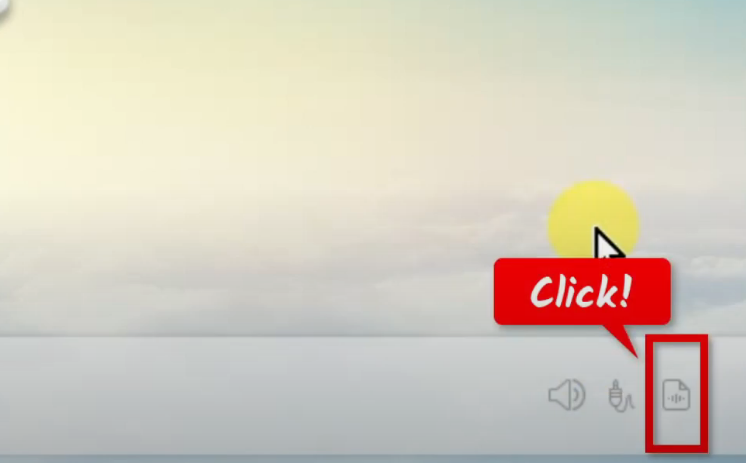
A list of available formats will be shown. Select “MP3” from the options.
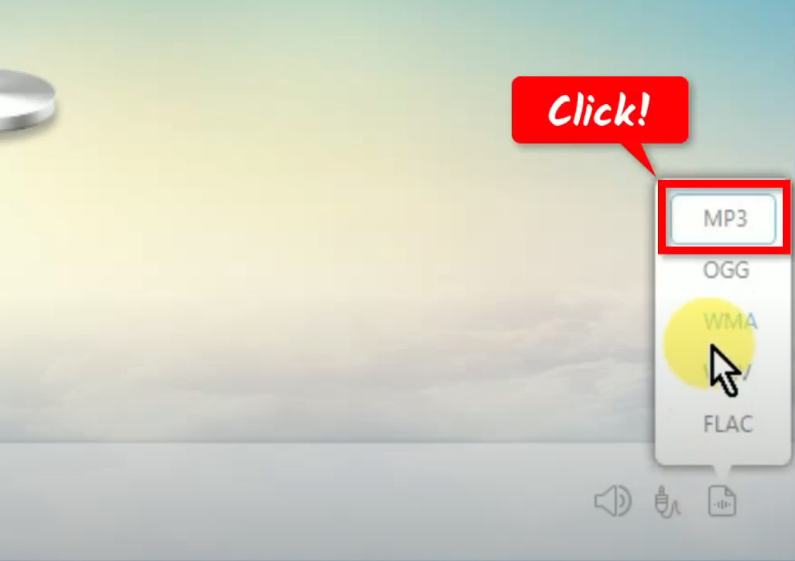
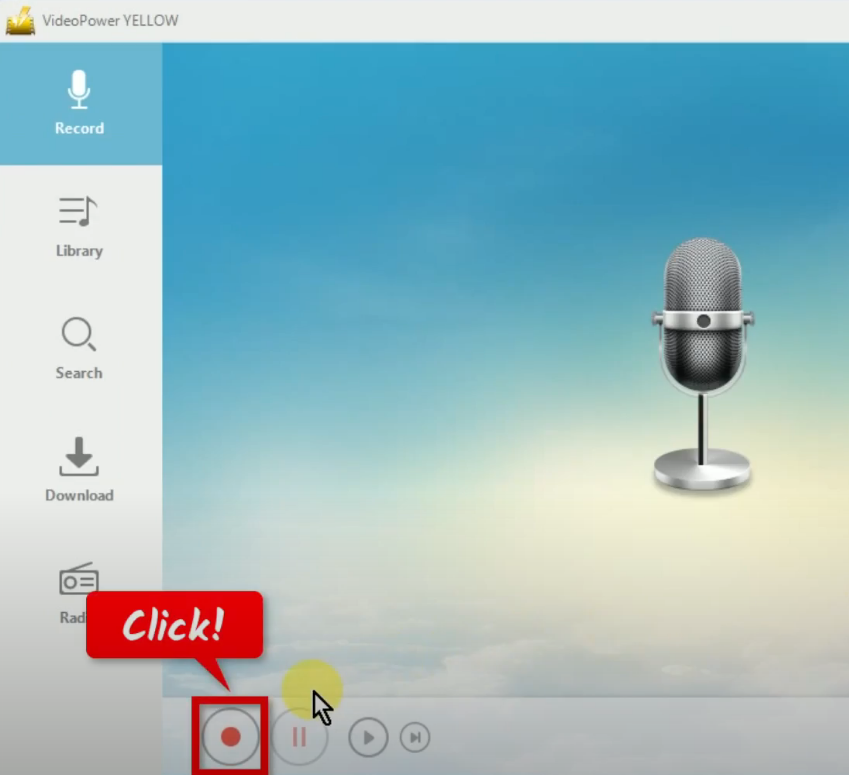
Step 4: Begin the Pandora music recording
To begin the recording, click the “Record” button.
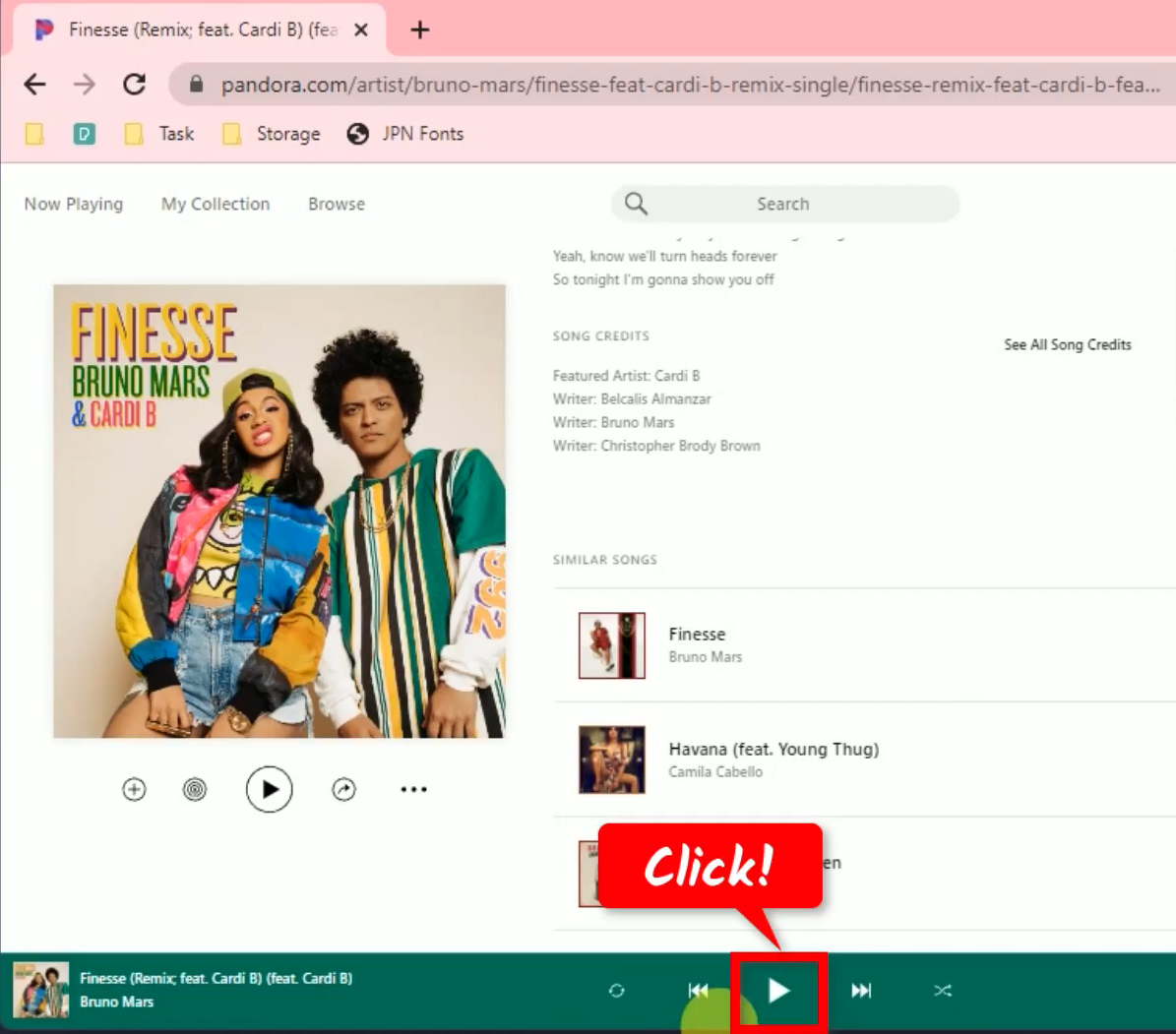
Go back to the Pandora website and play the music to have it recorded.
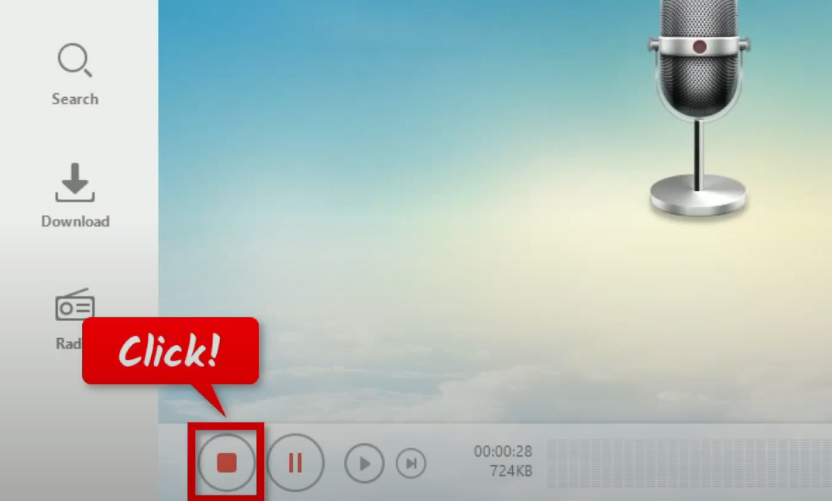
Step 5: Finished recording the Pandora music
When the recording is finished, go back to the VideoPower YELLOW and click “Stop” to end the recording.
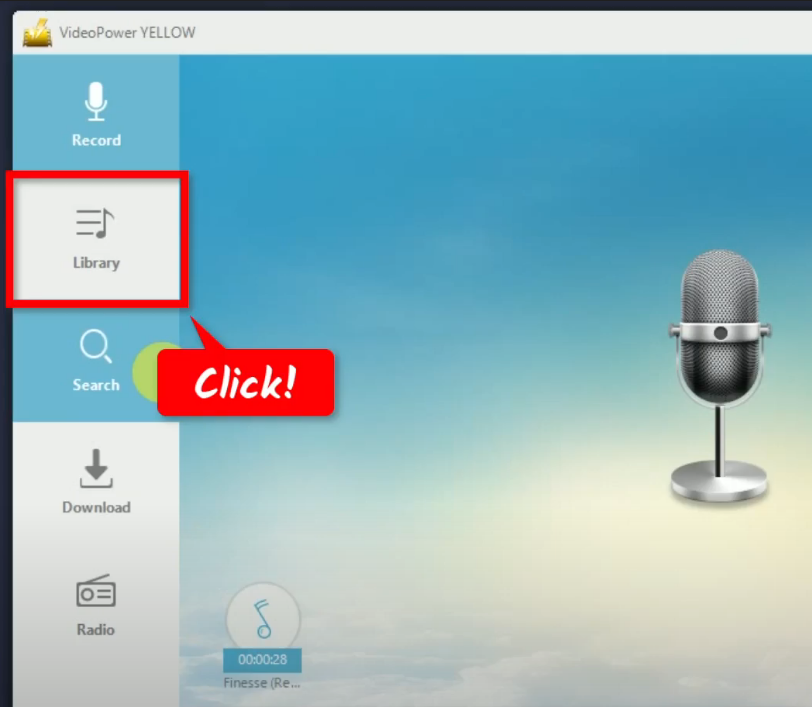
To check the recorded file, go to the “Library” function screen.
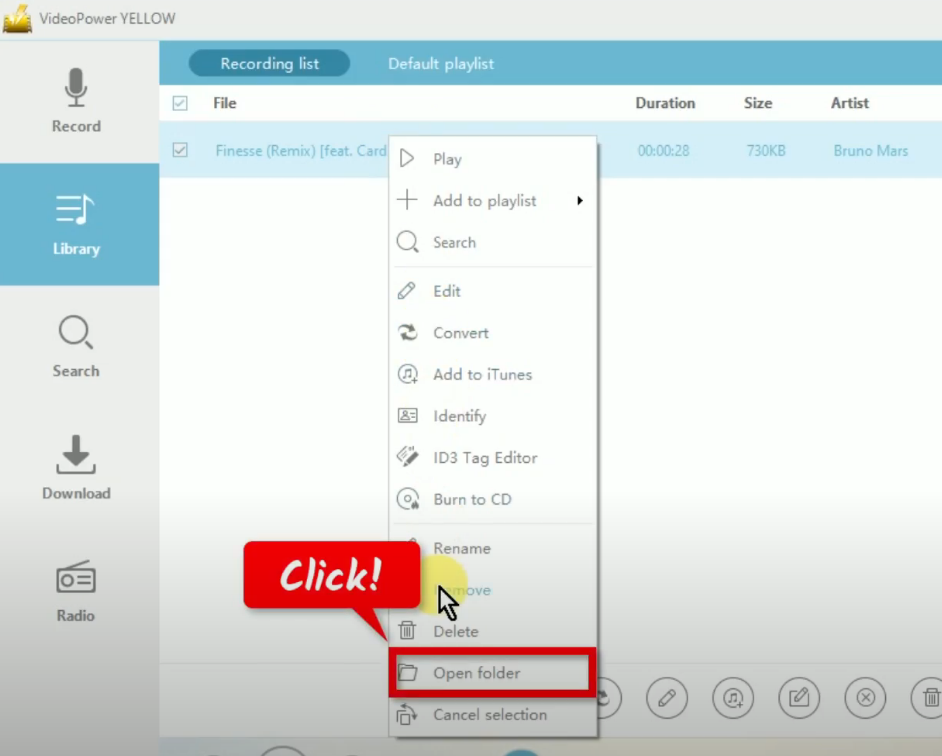
You will see the recorded file under the “Recording list”. You may right-click the recorded file and select “Open folder” from the options to check its destination folder.
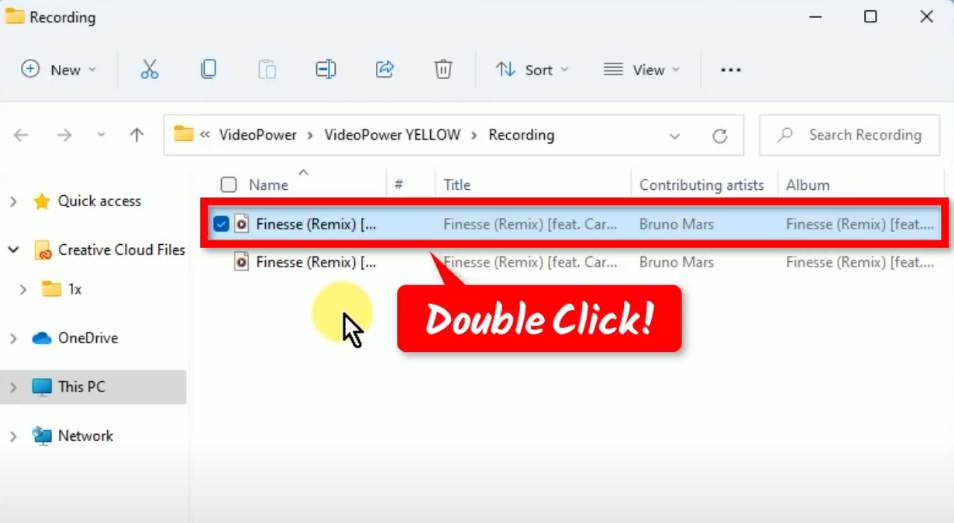
Double-click the recorded music file to playback.
Conclusion:
The emergence of digital music and streaming platforms pushed physical copies and downloads to almost non-existence. However, for people in areas with a slow internet connection, offline consumption is sometimes the only way to listen to music. Pandora, like most music platforms, does not provide an offline feature.
Using VideoPower YELLOW, you can record Pandora music and listen to them offline. With its flexible and wide range of options, it is undoubtedly top-notch. Its capability to record in lossless quality is what makes it at par with other music recorders. Through this, you get to experience listening to premium music wherever you go!
ZEUS series can do everything that VideoPower series can do and more, the interface is almost the same.
Check out NOW! Start easier with more affordable prices!




ZEUS Series
VideoPower brother products, start easier with more affordable prices!
| ZEUS BUNDLE 1 Year License ⇒ $29.99 |
ZEUS BUNDLE LITE 1 Year License ⇒ $19.99 |
ZEUS RECORD LITE 1 Year License ⇒ $9.98 |
ZEUS DOWNLOAD LITE 1 Year License ⇒ $9.98 |
||
| Screen Recorder | Screen&Audio Recording | ✔ | ✔ | ✔ | |
| Duration Setting, Schedule Recording | ✔ | ||||
| Video Downloader | Paste URL to download, batch download | ✔ | ✔ | ✔ | |
| Search/download video,browser detector | ✔ | ||||
| Music Recorder | Record music and get music ID3 tag info | ✔ | ✔ | ||
| Music search/download/record, CD Ripper/Creator, Audio Editor | ✔ | ||||
| Video Editor | Edit and convert videos, create slideshow | ✔ | |||
| Screen Capture | Capture screen, image editor | ✔ | |||