











Steam is a game platform developed by Bram Cohen. It is one of the largest comprehensive digital distribution platforms in the world. Players can purchase, download, discuss, upload, and share games and software on the platform.
One of the most popular videos on YouTube are gameplay walkthroughs – garnering millions of views, these are the go-to videos for new players alike in solving new game encounters. You may wonder how do those gamers make such videos? How do they record gameplay on steam in the easiest way?
Simple, a Screen Recorder tool can get that job done. If you want to create your own game videos, VideoPower GREEN or ZEUS an easy-to-access and trusted application software can help you achieve that.
To install VideoPower GREEN, just click on the link below to download the file.
ZEUS can do what VideoPower series can do and more with an almost similar interface.
Check out NOW! Start easier with more affordable prices!
How to Record Steam GamePlay on Windows
Step 1: Configure sound source and area
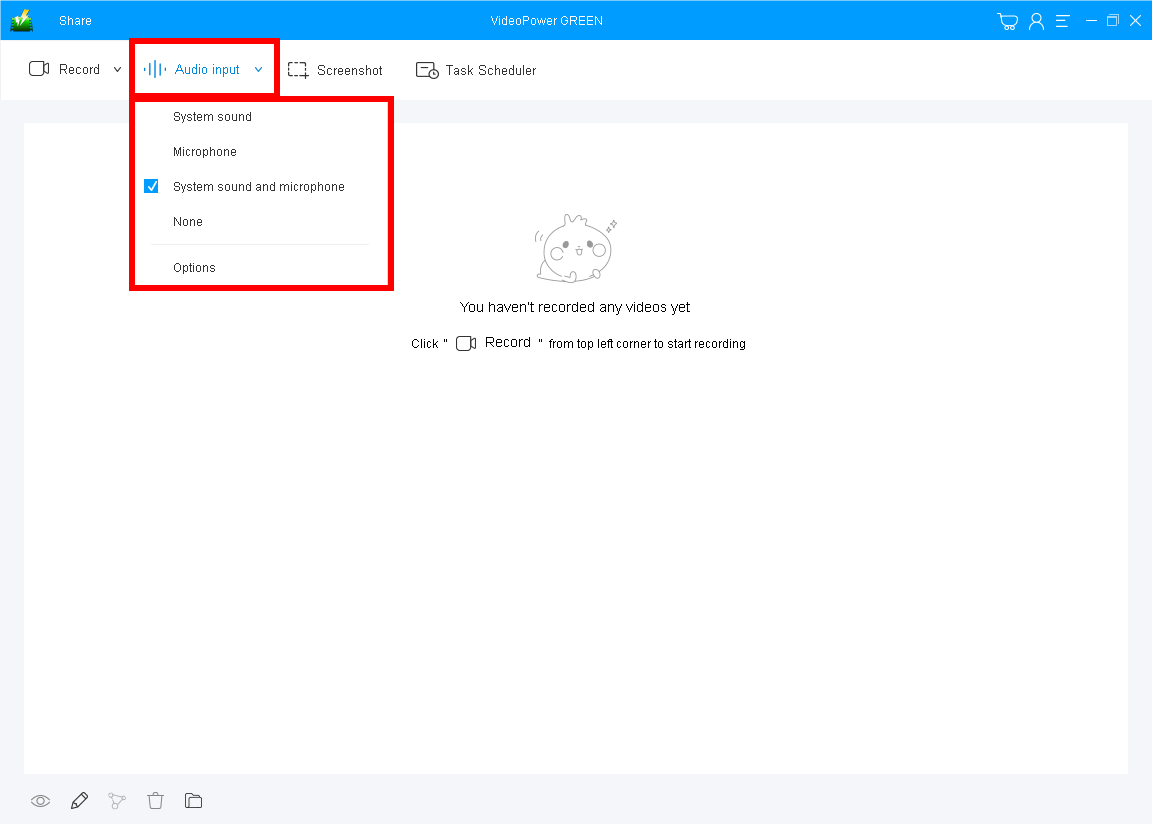
You can choose “System sound, Microphone, System sound, and microphone or None” just click the “Audio input” drop-down button. Most of the gamers record their gameplay for streams. It is recommended to use “System sound and Microphone” to overlay your voice.
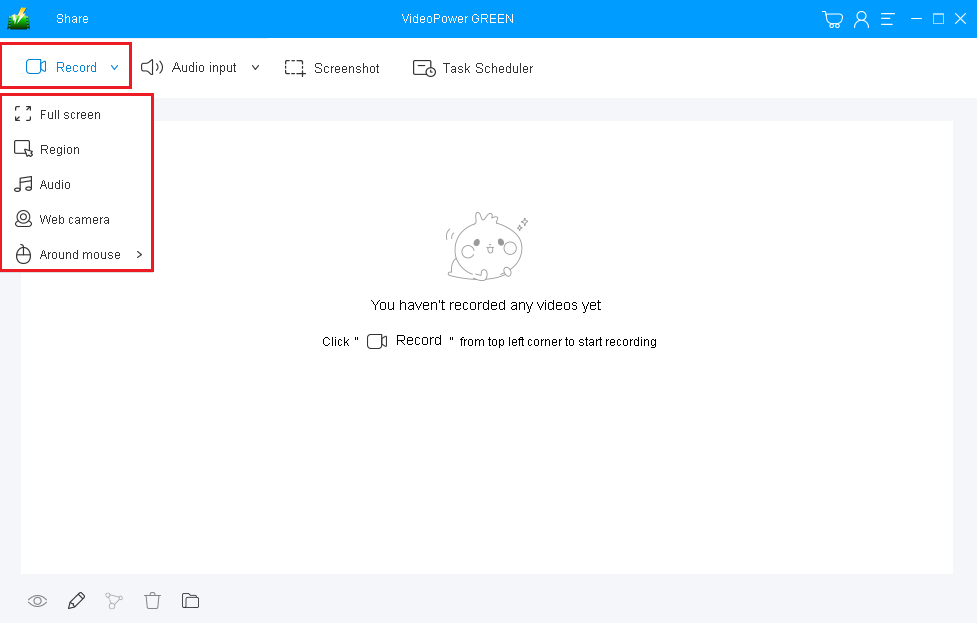
Click on the “Record” button to choose the recording mode from “Full screen, Region, Audio, Web camera, Around mouse”. It is recommended to use “Fullscreen” to capture the whole screen of your gameplay.
Step 2: Record steam gameplay on PC
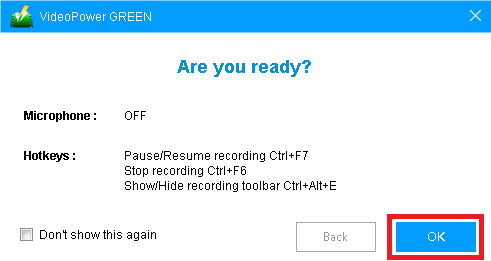
The pop-up window will ask whether you are ready to start recording, click “OK” to confirm when you are ready to record.
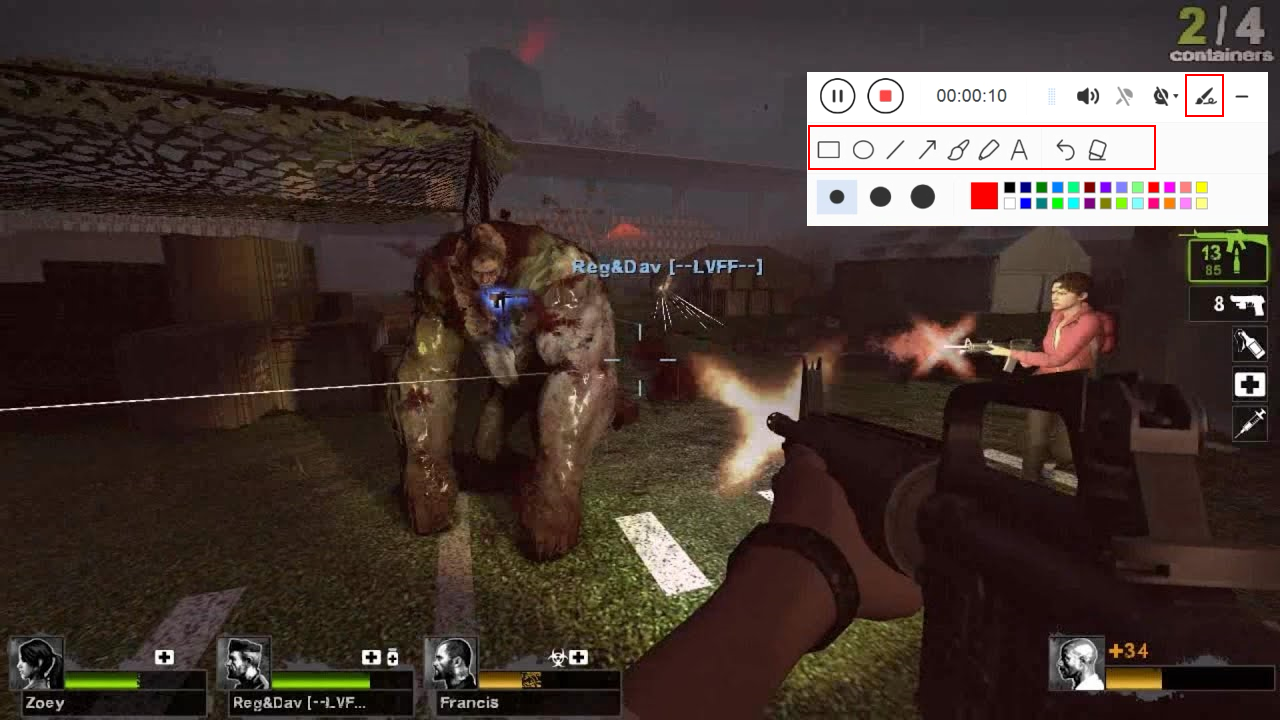
While recording, you can add arrows and annotations by the toolbar if you need it.

Click the “Stop” button to stop recording.
Step 3: Manage your recorded gameplay video
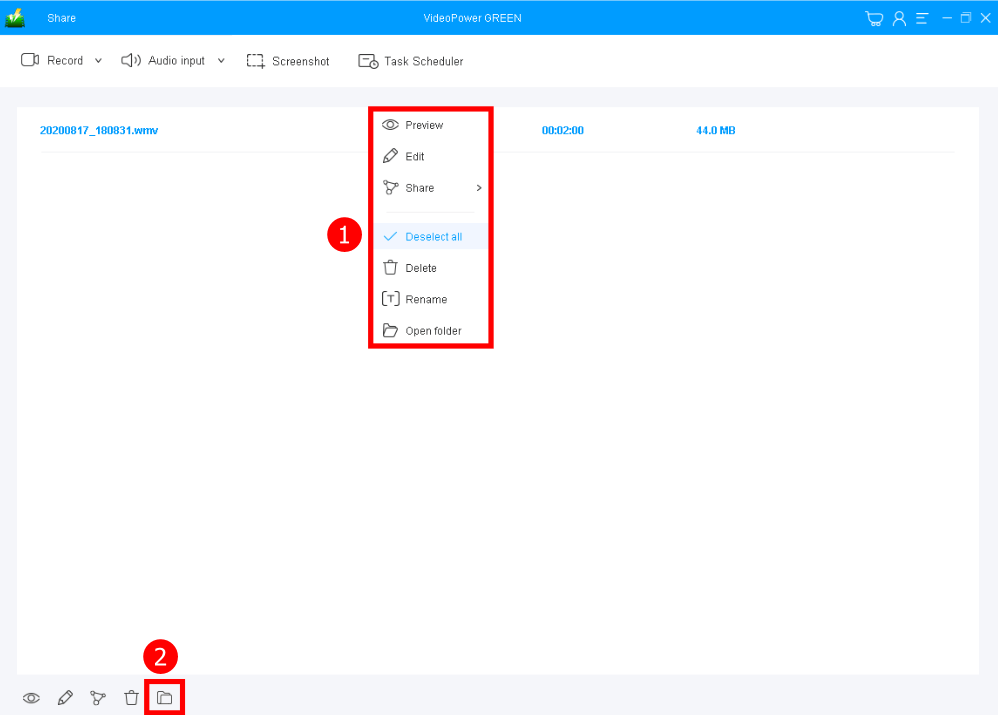
After the recording, you will be in the record main interface. You will see the list of recorded files.
1. Right-click the file to do further operations such as preview or edit.
2. Open the file by clicking the folder icon at the bottom.
Conclusion:
Steam is a video game digital distribution service platform that can be used to provide automatic updates for online games. This can also be used by gamers to do many things in their online games.
Many online gamers are now in connection with this platform because of their different purposes. Many of them use steam to develop their experience and to add more entertainment in playing games. There are also players who used this to earn money by taking and posting a video of their games online as they pull it out to a new and improved one as it offers basic DRM for games as well as multiplayer capabilities and more. With that, gamers and other people tend to record gameplay on steam.
VideoPower GREEN an easy to access and trusted application software would be the best solution in taking a video of a game on steam. This will answer your concerns on how to share with other people the excitement, joy, and knowledge, and skills that your game would offer. By just downloading and installing it, you will have the best video recording tool for your gameplay on steam.
ZEUS series can do everything that VideoPower series can do and more, the interface is almost the same.
Check out NOW! Start easier with more affordable prices!




ZEUS Series
VideoPower brother products, start easier with more affordable prices!
| ZEUS BUNDLE 1 Year License ⇒ $29.99 |
ZEUS BUNDLE LITE 1 Year License ⇒ $19.99 |
ZEUS RECORD LITE 1 Year License ⇒ $9.98 |
ZEUS DOWNLOAD LITE 1 Year License ⇒ $9.98 |
||
| Screen Recorder | Screen&Audio Recording | ✔ | ✔ | ✔ | |
| Duration Setting, Schedule Recording | ✔ | ||||
| Video Downloader | Paste URL to download, batch download | ✔ | ✔ | ✔ | |
| Search/download video,browser detector | ✔ | ||||
| Music Recorder | Record music and get music ID3 tag info | ✔ | ✔ | ||
| Music search/download/record, CD Ripper/Creator, Audio Editor | ✔ | ||||
| Video Editor | Edit and convert videos, create slideshow | ✔ | |||
| Screen Capture | Capture screen, image editor | ✔ | |||