











With the development of the Internet and multimedia, many users are dedicated to online video sharing. You can find a lot of teaching videos, gameplay videos, music videos, and more on the Internet.
All kinds of videos are being uploaded every day by users all around the world. One of the most frequently uploaded video types is a teaching video or instructional video. Are you also wondering how they make this kind of video including screen animation and sound?
In this article, you will learn how to record PC screen with audio synchronously using the best and easiest screen recorder software of all time called VideoPower GREEN.
ZEUS can do what VideoPower series can do and more with an almost similar interface.
Check out NOW! Start easier with more affordable prices!
Guide
How to Record PC Screen with Audio
How to Record PC Screen with Audio
Step 1: Set the audio input
Open the VideoPower GREEN and click the “Audio input” menu.
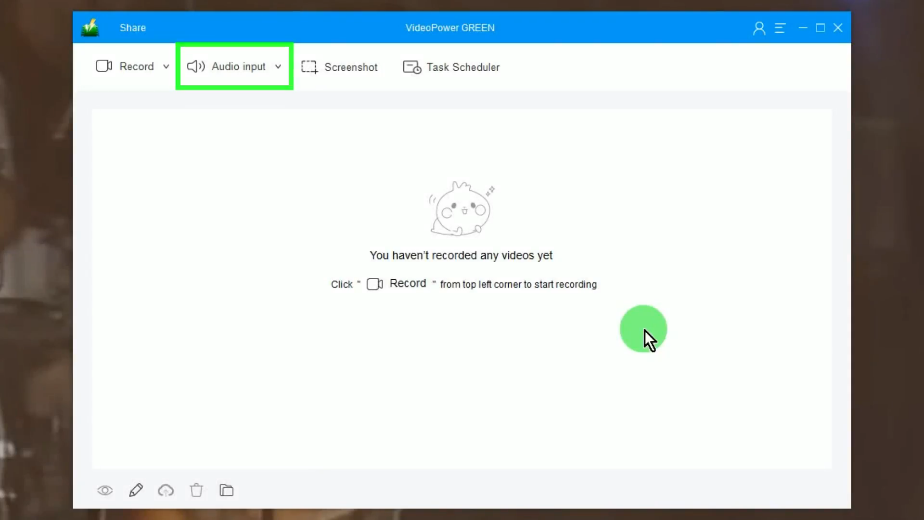
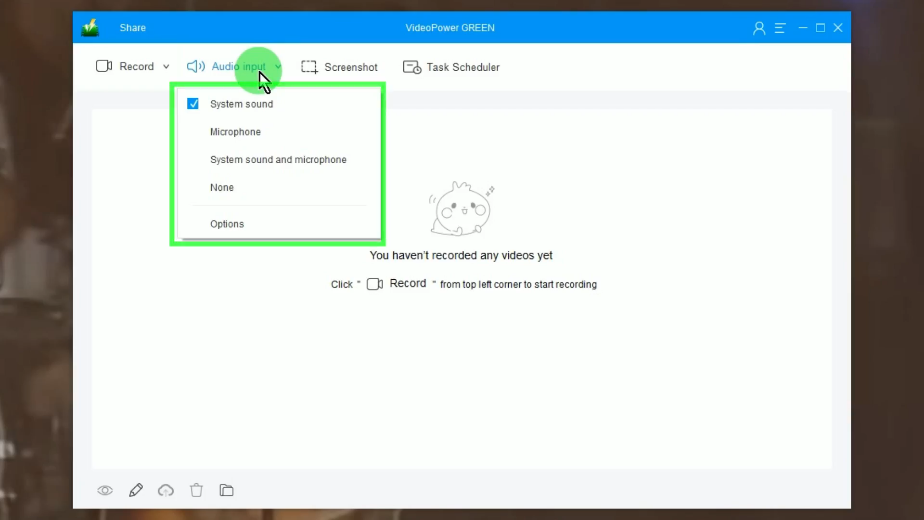
A list of options will drop down for your selection. In this example, we will set the audio input to “System sound” to record sounds from the PC only.
Step 2: Choose a recording mode
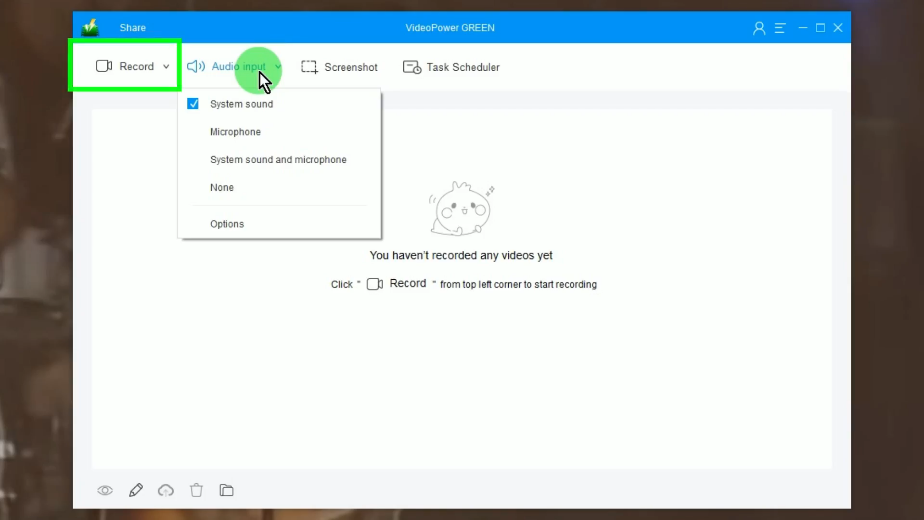
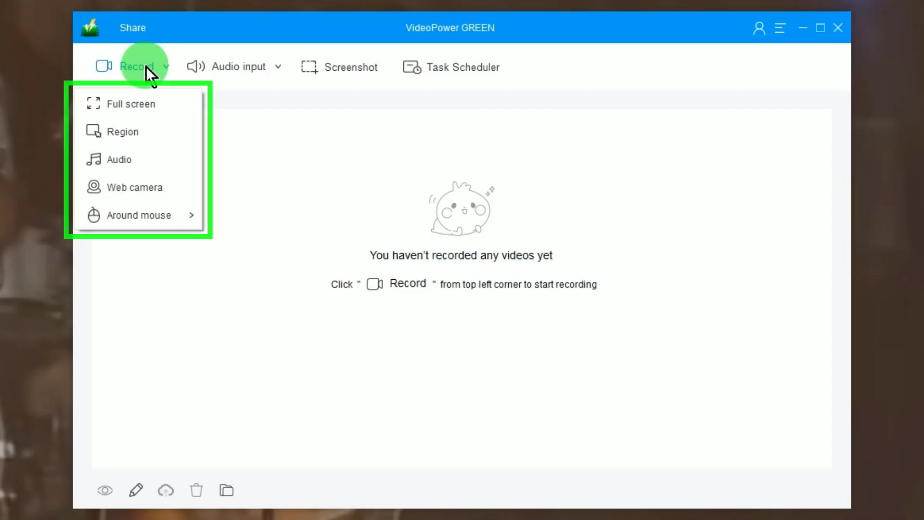
Click the “Record” menu to choose a recording mode.
A list of options will drop down for your selection. In this example, we will set the recording mode to full screen.
Step 3: PC recording with audio begins
A confirmation will prompt asking if you are ready to begin. Click “OK” to continue.
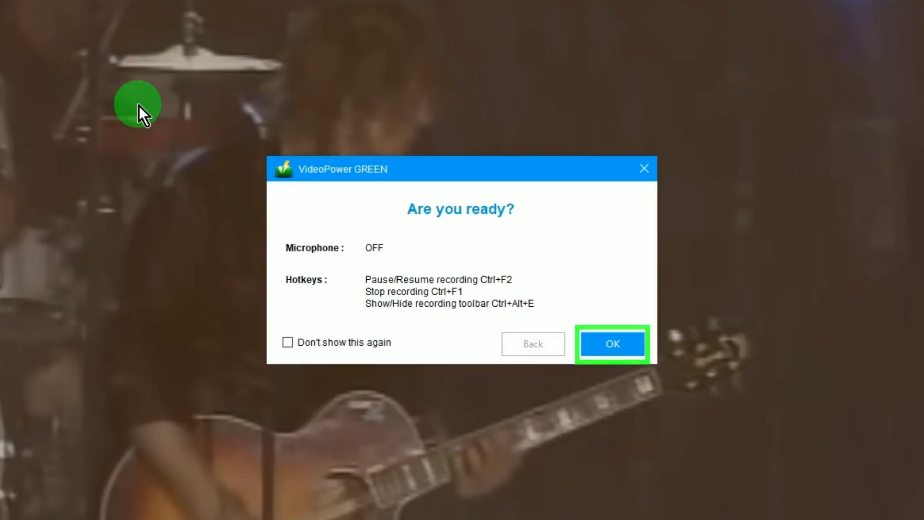
Then a 3-second countdown will begin.
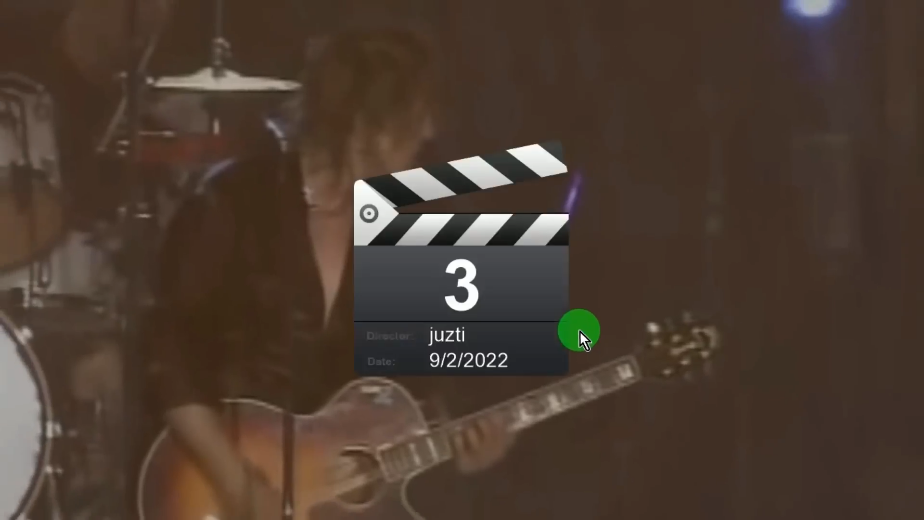
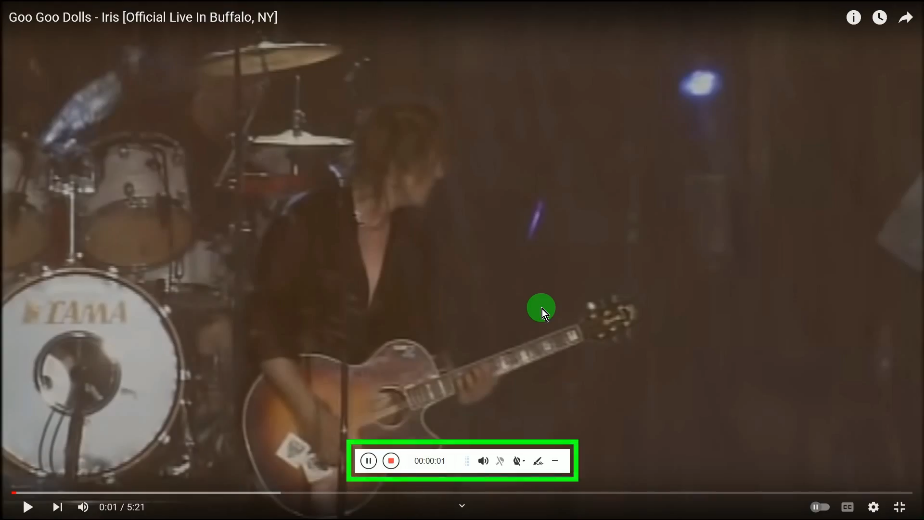
When the countdown reaches zero, the recording toolbar will pop up which indicates that the recording has begun. You may press Ctrl+Alt+E on your keyboard to show/hide the recording toolbar.
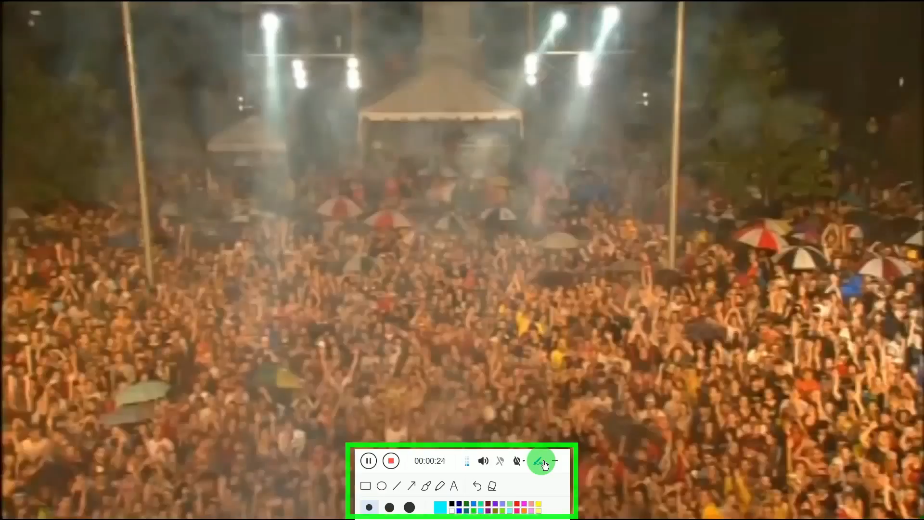
You can also annotate while recording. To enable the annotation, click the “Pencil” icon on the recording toolbar.
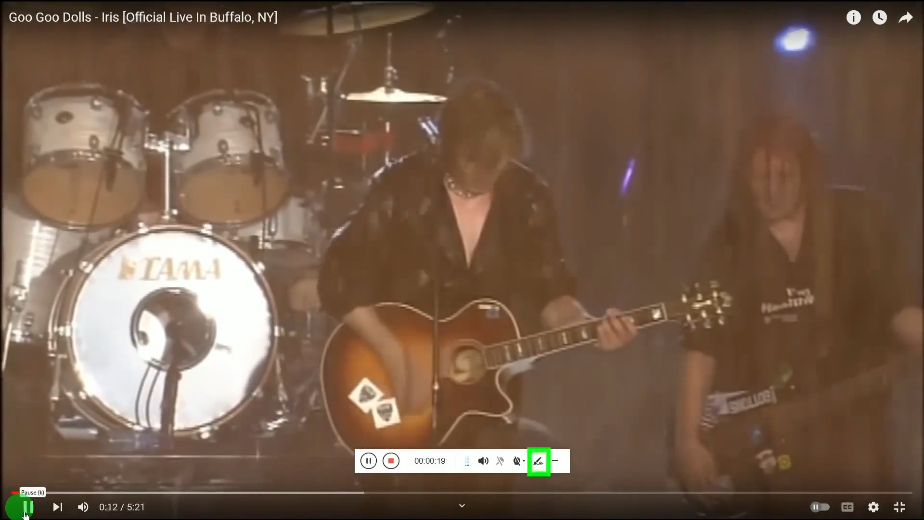
The annotation tools will be shown. Select the tool you want to use and add to the recording video.
Step 4: Video recording completed
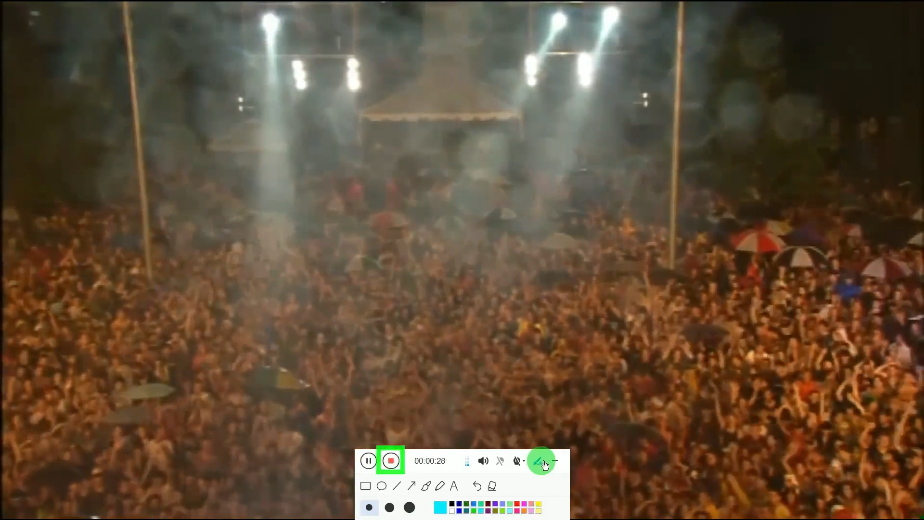
When the recording is finished, click “Stop” to end the recording.
A list of options will drop down for your selection. In this example, we will set the recording mode to full screen.
Step 5: Preview the recorded video
The recorded video will be added to your recording list. Right-click the recorded file and select “Preview” to watch the recorded video.

Conclusion:
Screen recording with VideoPower GREEN is a total package. It lets you record PC screen with audio synchronously. This software features a screen-capturing tool, video editor, converter, and many more!
This software records your screen in great quality and what’s great about VideoPower GREEN is its video editor. You can apply watermarks, and effects, trimming or cropping, adjust the speed, volume, contrast, brightness, and saturation of a video. You can merge multiple files into one file as well and convert it to any audio or video format that you like.
ZEUS series can do everything that VideoPower series can do and more, the interface is almost the same.
Check out NOW! Start easier with more affordable prices!




ZEUS Series
VideoPower brother products, start easier with more affordable prices!
| ZEUS BUNDLE 1 Year License ⇒ $29.99 |
ZEUS BUNDLE LITE 1 Year License ⇒ $19.99 |
ZEUS RECORD LITE 1 Year License ⇒ $9.98 |
ZEUS DOWNLOAD LITE 1 Year License ⇒ $9.98 |
||
| Screen Recorder | Screen&Audio Recording | ✔ | ✔ | ✔ | |
| Duration Setting, Schedule Recording | ✔ | ||||
| Video Downloader | Paste URL to download, batch download | ✔ | ✔ | ✔ | |
| Search/download video,browser detector | ✔ | ||||
| Music Recorder | Record music and get music ID3 tag info | ✔ | ✔ | ||
| Music search/download/record, CD Ripper/Creator, Audio Editor | ✔ | ||||
| Video Editor | Edit and convert videos, create slideshow | ✔ | |||
| Screen Capture | Capture screen, image editor | ✔ | |||