











Brief Screencast-O-Matic Review
Screencast-O-Matic is a popular screen recording and video editing software that can be launched directly from a browser. It is a software that is widely used in the education sector that helps schools’ classrooms to support student’s digital presentations.
In addition, this product can also record webcam activities, or simultaneously record screen and webcam, so that the camera screen can be displayed along with the main screen.
Awesome Alternative to Screencast-O-Matic
In cases where Screen-O-Matic isn’t available or cannot be downloaded, VideoPower GREEN is the best alternative for it. This software is the finest choice in recording screen activities with audio support. It can record various games, YouTube videos, online chat in a window, PPT, and so on.
The advantage of VideoPower GREEN software lies in its low requirement for the user’s computer configuration. Some video recording software always has the problem of not synchronizing when recording, which can be avoided with the right software.
VideoPower GREEN or ZEUS is the best desktop tool for basic video/audio recording and screen capturing. It has multiple functions but easy to use with no advanced tech knowledge required at all. It enables you to record movies, video tutorials, games, live streams, calls, and more.
This software is indeed the best Screencast-O-Matic alternative, although they almost have the same features, VideoPower GREEN’s are most advanced and easy to use especially for beginners.
They also differ a lot when it comes to free trial functions, like recording in an unlimited time but Screencast-O-Matic only offers screen recording with audio in a premium or paid version and limited editing tools.
| Free Trial
Functions/ Features |
Screencast-O-Matic | VideoPower GREEN |
| Record screen | ✅ | ✅ |
| Record audio | 🆇 | ✅ |
| Conversion tool | 🆇 | ✅ |
| Screenshot tool | 🆇 | ✅ |
| Saves recorded file in various video and audio format | 🆇 | ✅ |
| Multiple recording modes | ✅ | ✅ |
| Task scheduler | 🆇 | ✅ |
| Sound source options | 🆇 | ✅ |
| Unlimited recording time | ✅ | ✅ |
| Advanced video editor | 🆇 | ✅ |
| Compatible to Windows | ✅ | ✅ |
ZEUS can do what VideoPower series can do and more with an almost similar interface.
Check out NOW! Start easier with more affordable prices!
Step 1: Prepare Sound Source and Recording Mode
1.1 Set the Sound Source
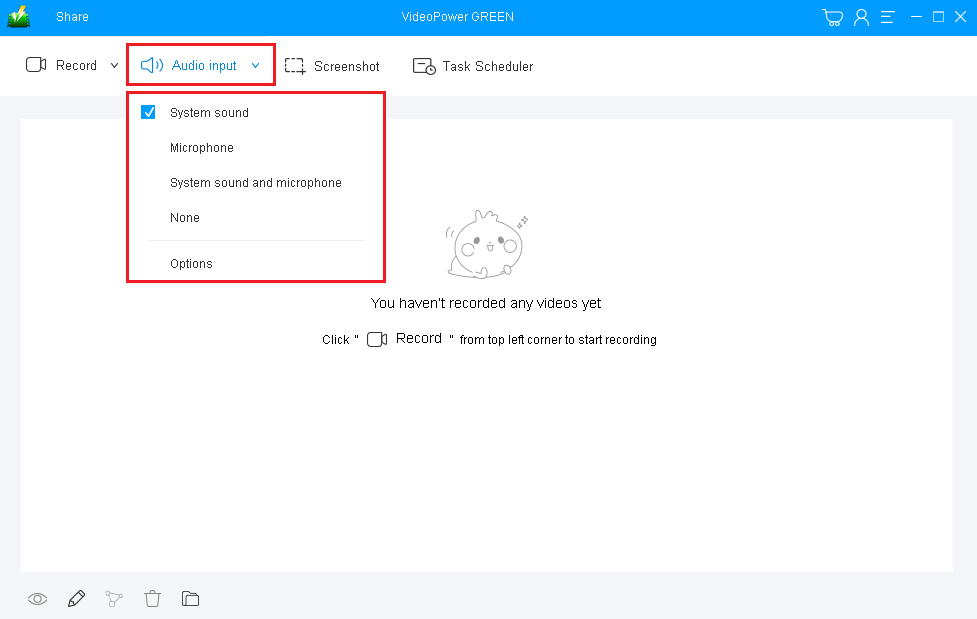
This video recording software enables users to set the sound source before recording. Choose among “System sound”, “Microphone”, “System sound and microphone” or “None”.
System sound- record the sound made by running programs or videos played on your computer.
Microphone- records any sound picked up by the microphone
1.2 Choose a Recording Mode
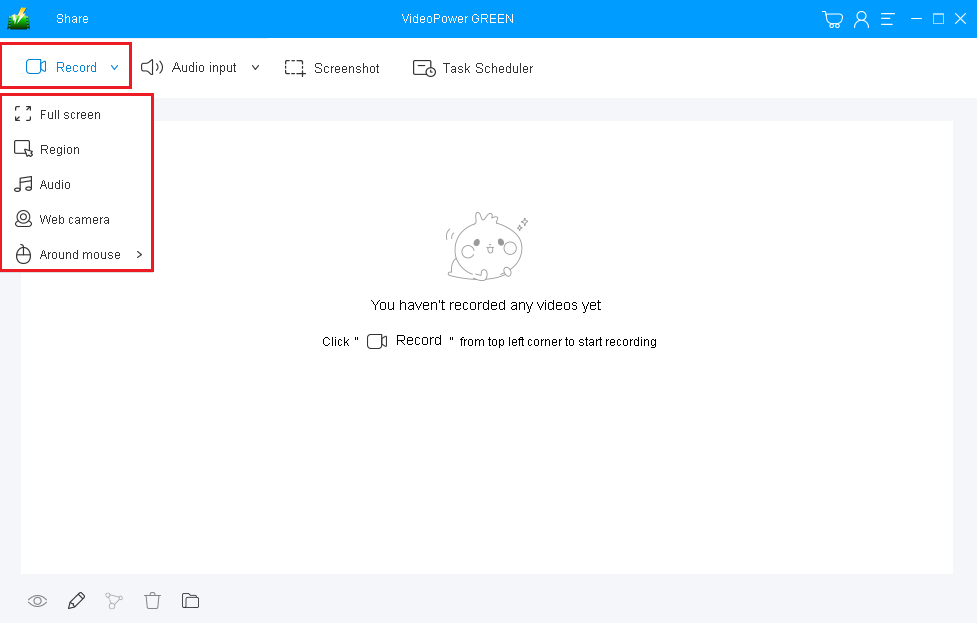
Setting the recording mode means to set the recording area on the screen that you want to save as a video recording.
Choose among “Region”, “Fullscreen”, “Around Mouse”, “Web Camera”, modes and you can also choose “Audio Only” if you want to record only the audio playing.
Region- records a specific screen area you have chosen
Full screen- records activities on the whole screen
Web camera- records web camera activities only
Step 2: Start the Recording
2.1 Confirmation Prompt
The pop-up window will ask whether you are ready to start recording, click “OK” to confirm when you are ready to record.
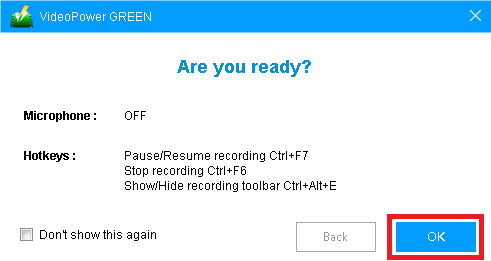
A prompt pop-up will appear after you have chosen a recording mode. Click “OK” to start the recording.
2.2 Annotations Feature
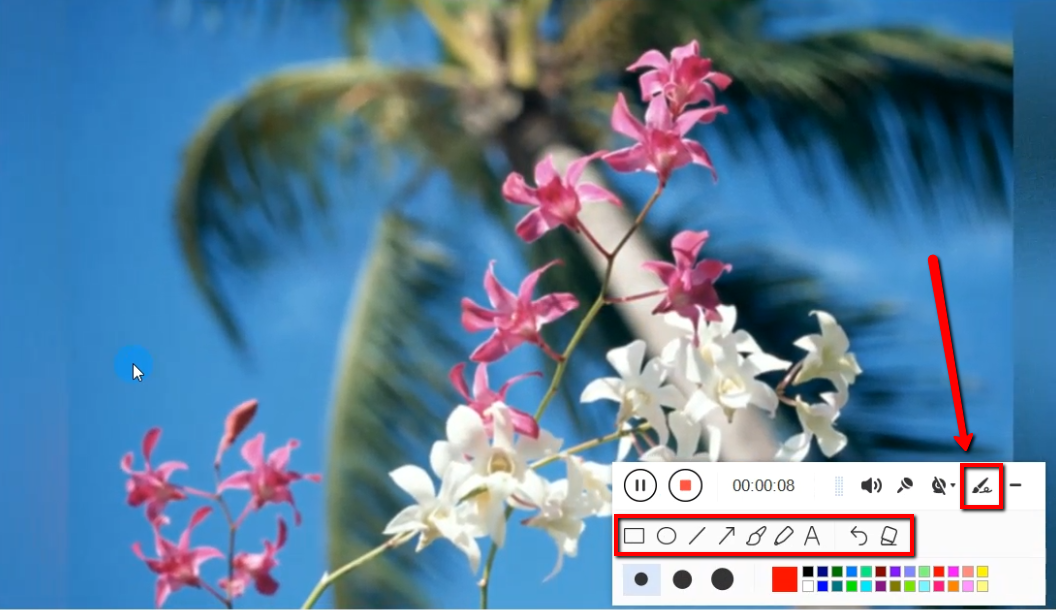
This is optional but very useful. While recording you can add lines, arrows, shapes, texts, highlight, blur, etc. by clicking the edit button. This is a great way to record screen activities if you want to note specific details and make use of the tools, like
Step 3: Save and Check the Recording

Click the “Stop” button to end and automatically save the video recording.
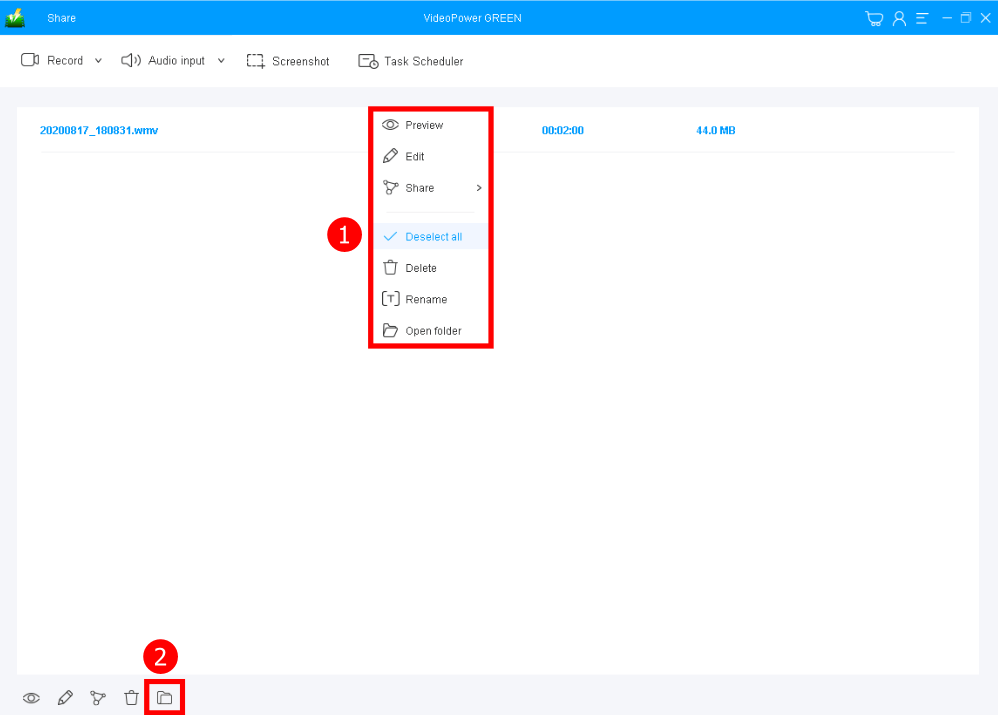
After that, the recorded video file is saved in the pointed output folder on your PC.
1. Recorded files are listed in the main interface. To do more operations, right-click on the file name.
2. Click the folder icon to view it in the pointed output folder.
Conclusion:
Video recording application software isn’t already available for any computers. Some may have a problem in synchronizing their features and some are heavy for the device. Thus, simple and hassle-free software is in demand.
VideoPower GREEN, a powerful and trusted recording application software is best suited for screencasting and video editing most especially for educational purposes. In addition, this product can easily synchronize most of the devices and can also capture webcam activities along with screen activities.
Moreover, this product doesn’t only record screen activities for later viewing but also beautifies and shows an emphasis on the content of the recordings by using its editing feature. It can also help you save some time and effort by setting its task scheduler feature.
ZEUS series can do everything that VideoPower series can do and more, the interface is almost the same.
Check out NOW! Start easier with more affordable prices!




ZEUS Series
VideoPower brother products, start easier with more affordable prices!
| ZEUS BUNDLE 1 Year License ⇒ $29.99 |
ZEUS BUNDLE LITE 1 Year License ⇒ $19.99 |
ZEUS RECORD LITE 1 Year License ⇒ $9.98 |
ZEUS DOWNLOAD LITE 1 Year License ⇒ $9.98 |
||
| Screen Recorder | Screen&Audio Recording | ✔ | ✔ | ✔ | |
| Duration Setting, Schedule Recording | ✔ | ||||
| Video Downloader | Paste URL to download, batch download | ✔ | ✔ | ✔ | |
| Search/download video,browser detector | ✔ | ||||
| Music Recorder | Record music and get music ID3 tag info | ✔ | ✔ | ||
| Music search/download/record, CD Ripper/Creator, Audio Editor | ✔ | ||||
| Video Editor | Edit and convert videos, create slideshow | ✔ | |||
| Screen Capture | Capture screen, image editor | ✔ | |||