









Follow the steps below on how to add highlights to the video.

Step 1: Drop all talk bubble to your project

1.1. Right click on your project file and select “Import” from the options.
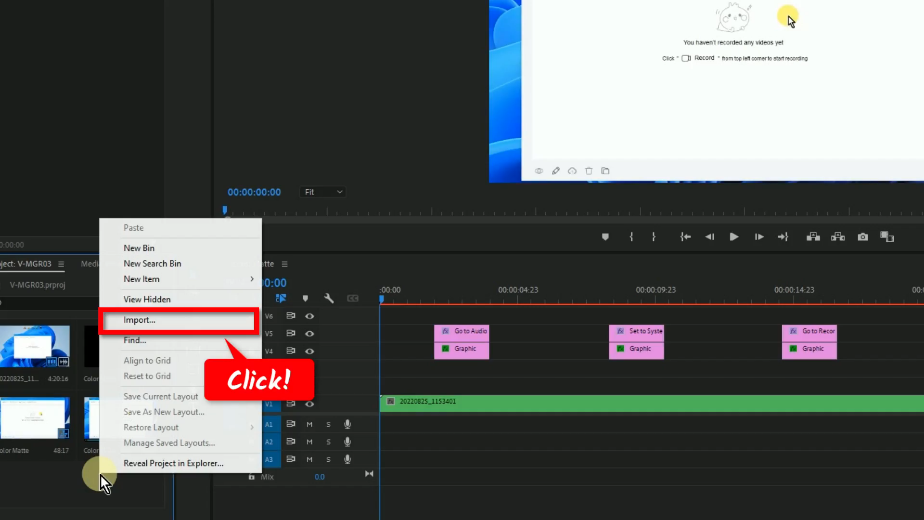
add highlights, import all talk bubble

1.2. A folder will open, find and select all talk bubbles. Then click “Open.
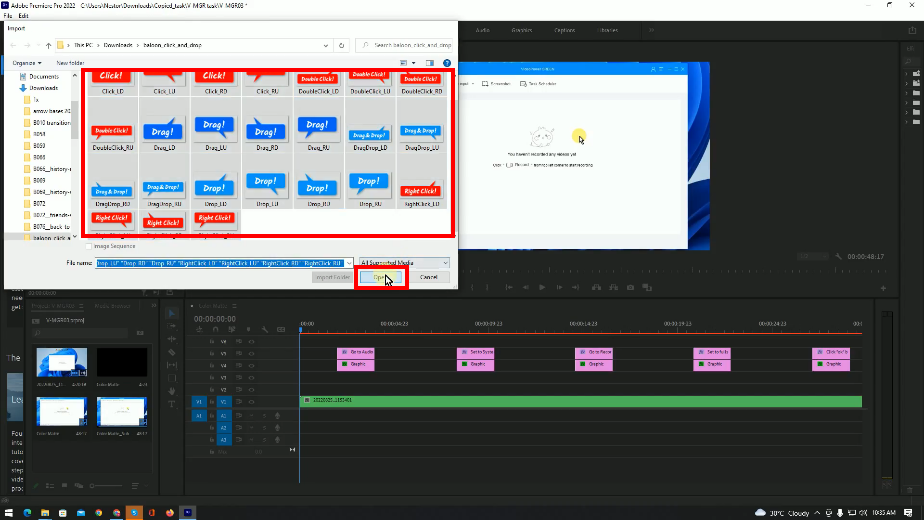
add highlights, select all talk bubbles

1.3. Check the preview of your video.
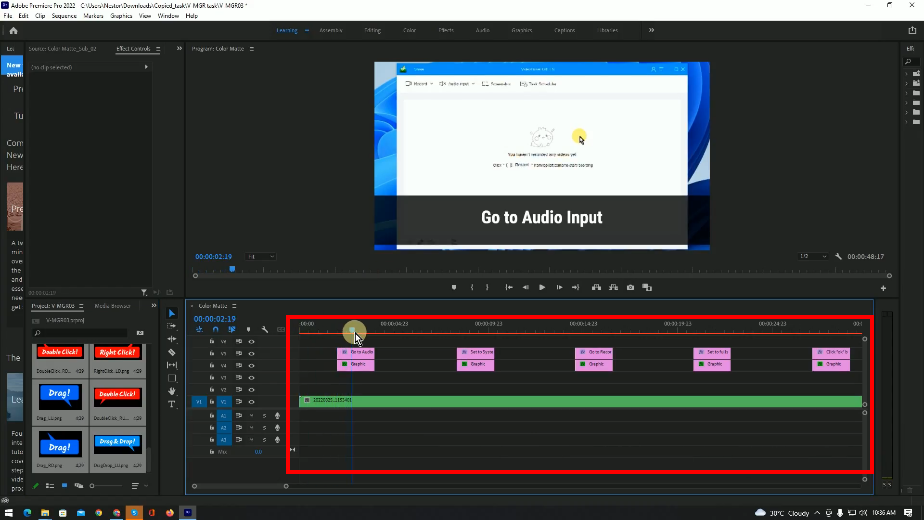
add highlights, check teh preview

Step 2: Create a highlight using the rectangle tool

2.1. Click the “Rectangle” icon.
Note: Set the duration of highlight objects to be 1.2 seconds.
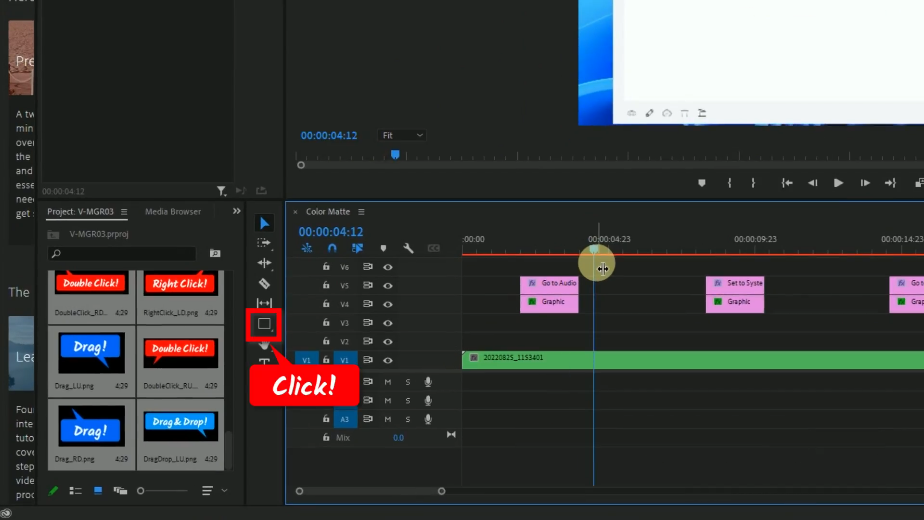
add highlights, click the rectangle icon

2.2. Add a rectangle to highlight an object.
Note: Set the duration of highlight objects to be 1.2 seconds.
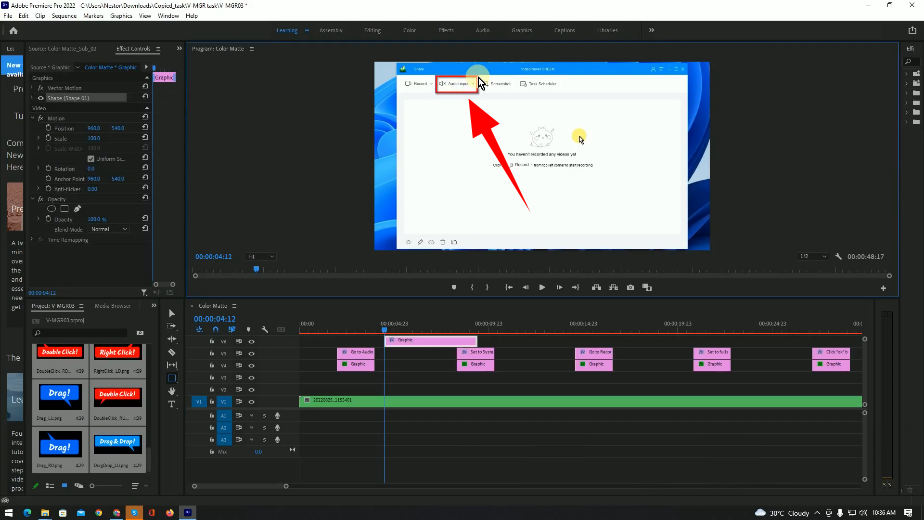
add highlights, add a rectangle to on object

Step 3: Add a talk bubble to the video

3.1. Select and drag 1 talk bubble to the video.
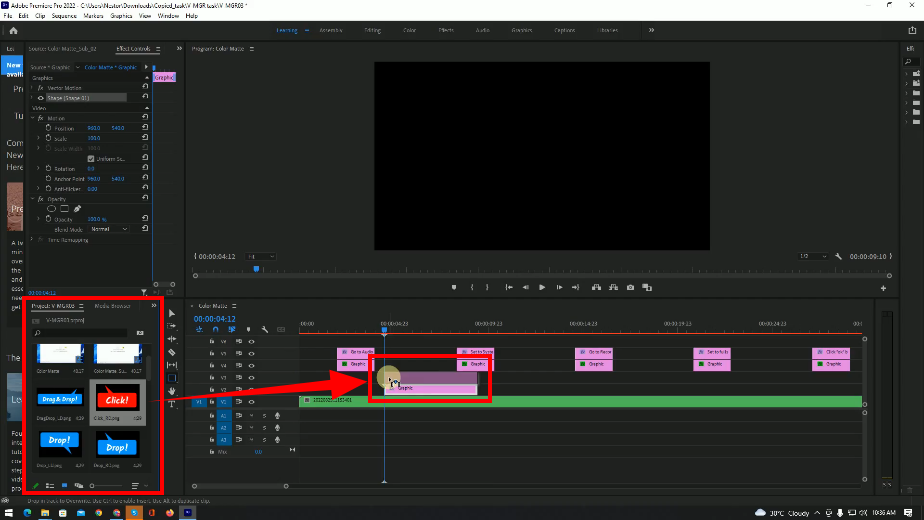
add highlights, add talkbubble to the video

3.2. Change the size of the talk bubble.
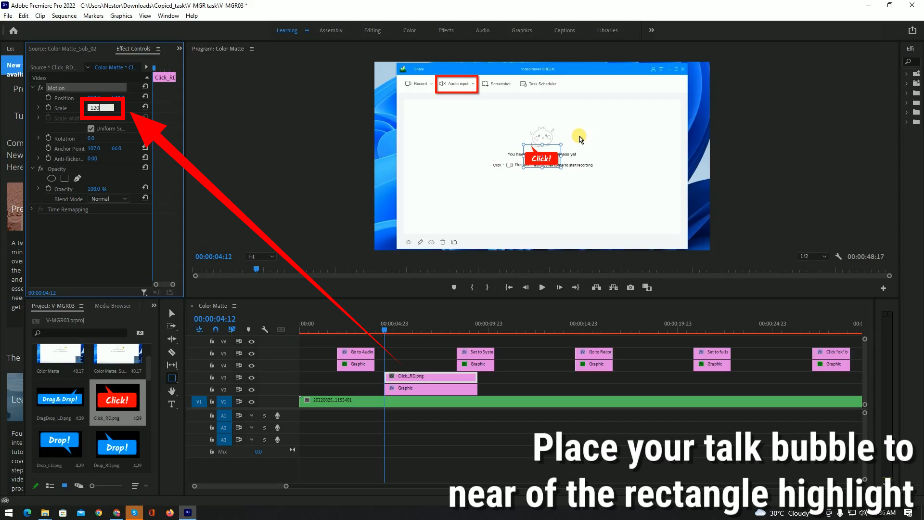
add highlights, change the size of the talk bubble

3.3. Place the talke bubble near the rectangle highlight.
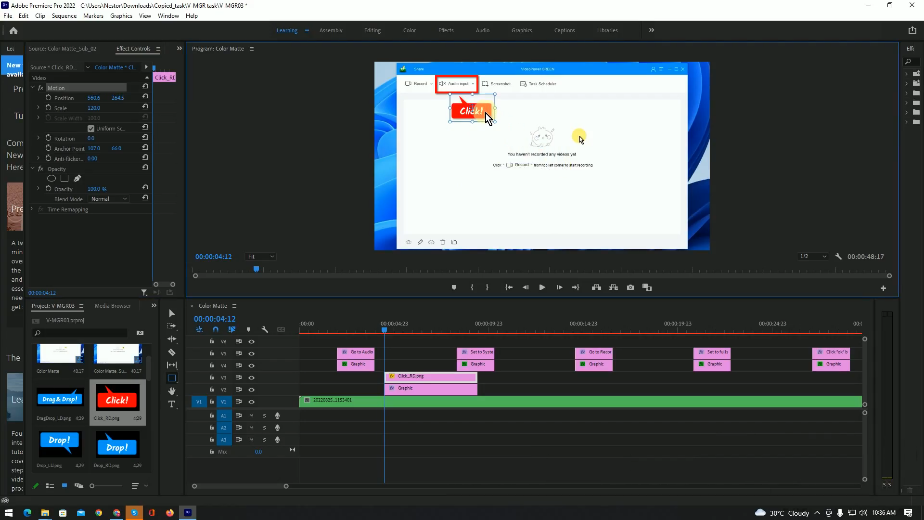
add highlights, place the talk bubble near the rectangle

3.4. Trim the talk bubble and highlight based on the video timing.
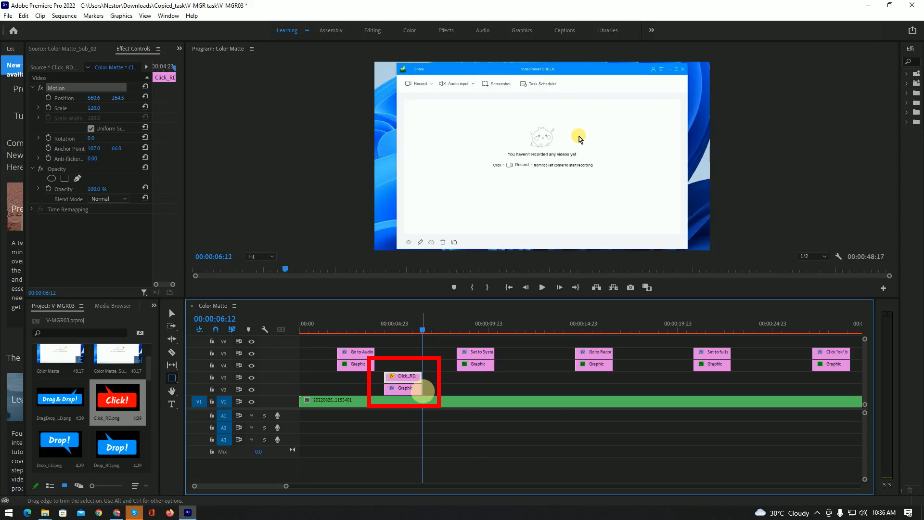
add highlights, trim the talk bubble

Step 4: Duplicate the talk bubble and rectangle highlight

4.1. Drag your trim marker to the next scene.
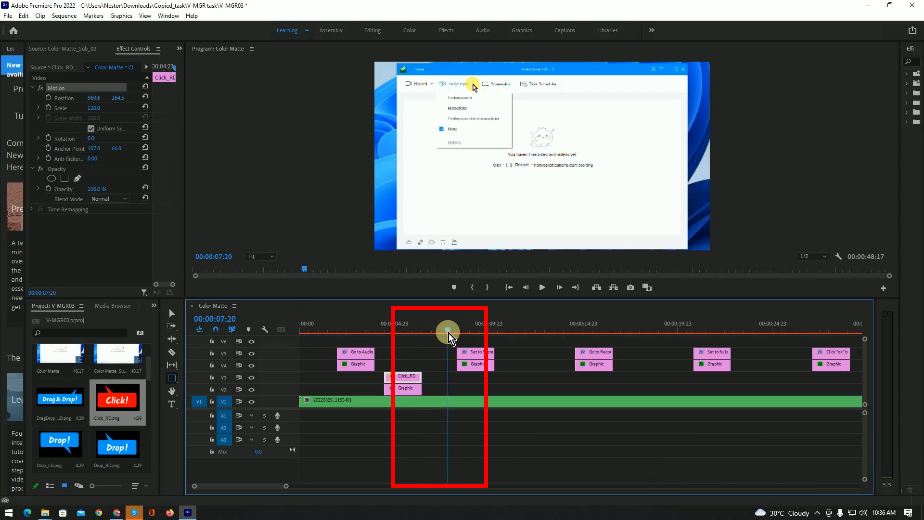
add highlights, drag the trim marker

4.2. Highlight the talk bubble and rectangle highlight, then hold press “Alt” and drag it to the right.
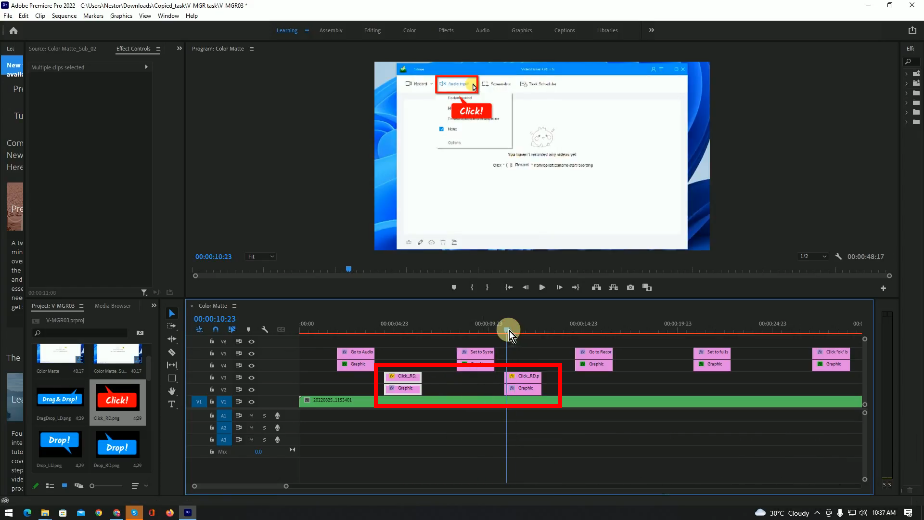
add highlights, duplicate talk bubble and highlight

Repeat process to the other scenes.

Step 5: Preview the video

Click the “Play” button to preview the video.
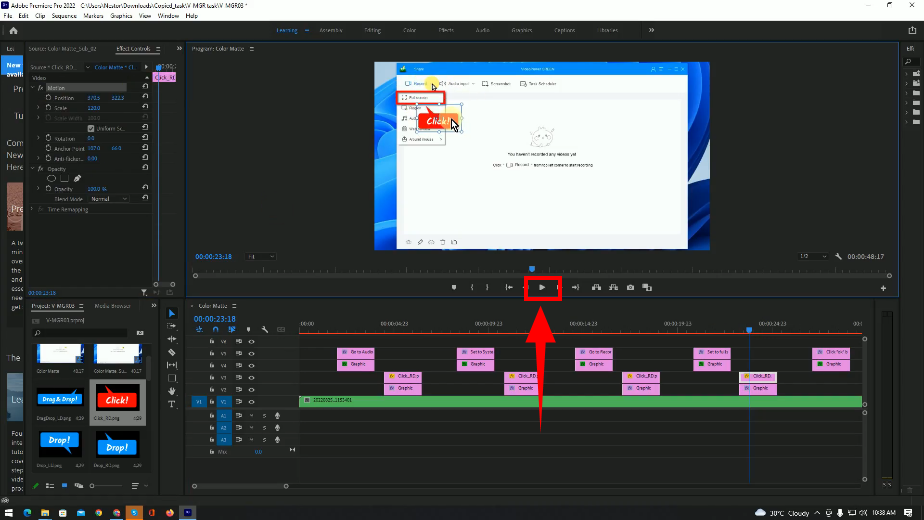
add highlights, preview the video

Video Download
Record
Convert

videopower red icon

VideoPower
RED

  • Download video and audio from over 1000 video site
  • Batch download YouTube playlist
  • Record screen and audio with real-time annotation
  • Trim, crop, rotate video with a strong video editor
  • Windows 7, 8, 8.1, 10, 11 (32/64bits)

> DOWNLOAD <
LEARN MORE

Record Screen&Audio
Annotation, Schedule
Video Edit&Convert

videopower green icon

VideoPower
GREEN

  • Record screen and audio with real-time annotation
  • Create a scheduled task to record screen and webcam
  • Enrich your recorded video by powerful Video Editor
  • Capture and annotate your screen in the picture
  • Windows 7, 8, 8.1, 10, 11 (32/64bits)

> DOWNLOAD <
LEARN MORE

Video Convert
Slideshow Maker
Video Collage

videopower blue icon

VideoPower
BLUE

  • Convert video to various formats at super fast speed without quality loss

  • Make your own video clips or movies with fantastic themes
  • Transform multiple videos and photos in one frame as a collage
  • Trim, crop, rotate, effect, watermark, etc. video editing

  • Windows 7, 8, 8.1, 10, 11 (32/64bits)

> DOWNLOAD <
LEARN MORE

Music Search
Download
Record

videopower yellow icon

VideoPower
YELLOW

  • Records music and audio from various sources in lossless

  • Search and download music

  • Auto-add music ID3 tags for recorded music

  • ID3 Tag Identifier and Editor, Audio Editor/Converter, CD Ripper/Burner, Transfer to iTunes, etc

  • Windows 7, 8, 8.1, 10, 11 (32/64bits)

> DOWNLOAD <
LEARN MORE

ZEUS Series
VideoPower brother products, start easier with more affordable prices!

ZEUS FREE DOWNLOAD for Windows
ZEUS BUNDLE
1 Year License
$59.97 50%OFF
⇒ $29.99

Add to Cart

ZEUS BUNDLE
LITE
1 Year License
$39.97 50%OFF
⇒ $19.99

Add to Cart

ZEUS RECORD
LITE
1 Year License
$19.97 50%OFF
⇒ $9.98

Add to Cart

ZEUS DOWNLOAD LITE
1 Year License
$19.95 50%OFF
⇒ $9.98

Add to Cart

Screen Recorder Screen&Audio Recording
Duration Setting, Schedule Recording
Video Downloader Paste URL to download, batch download
Search/download video,browser detector
Music Recorder Record music and get music ID3 tag info
Music search/download/record, CD Ripper/Creator, Audio Editor
Video Editor Edit and convert videos, create slideshow
Screen Capture Capture screen, image editor

Whatever fits your needs,it’s here.
Which one would you choose?

> VideoPower Series Comparison <



