











Follow the steps below on how to add subtitle using the Adobe Premiere.
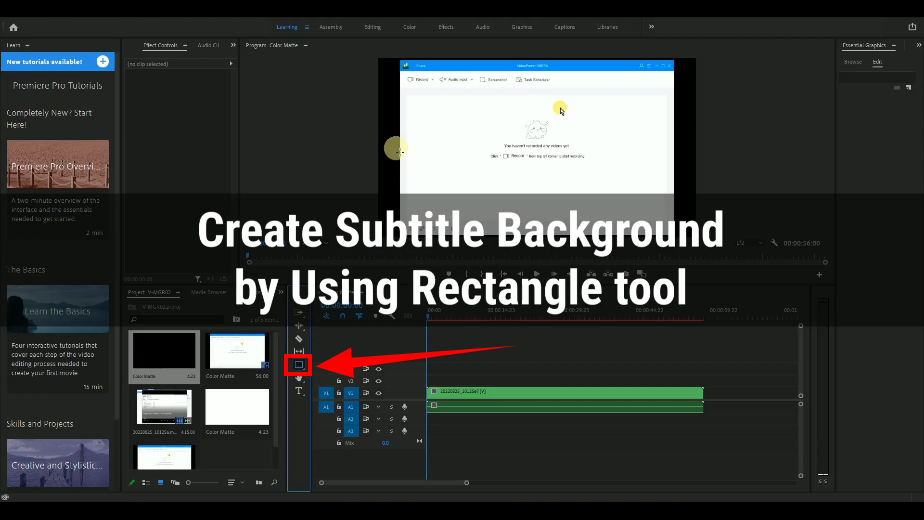
Step 1: Create subtitle background by using reactangle tool
1.1 Click the “rectangle” tool.
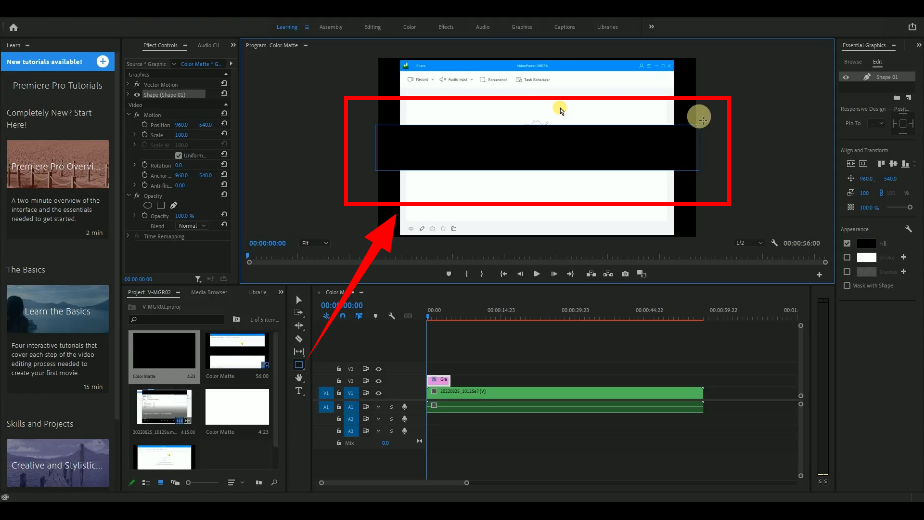
1.2. Add a rectangle in the video.
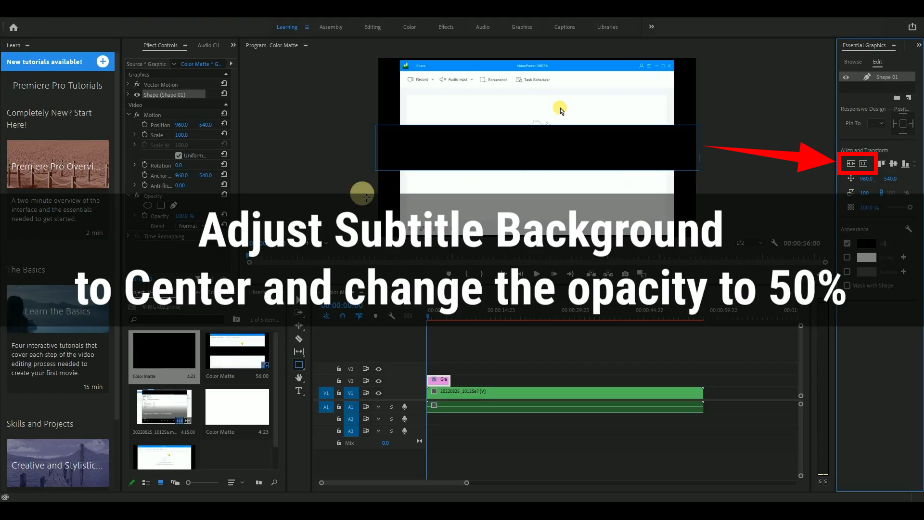
1.3. Adjust the subtitle background to center.
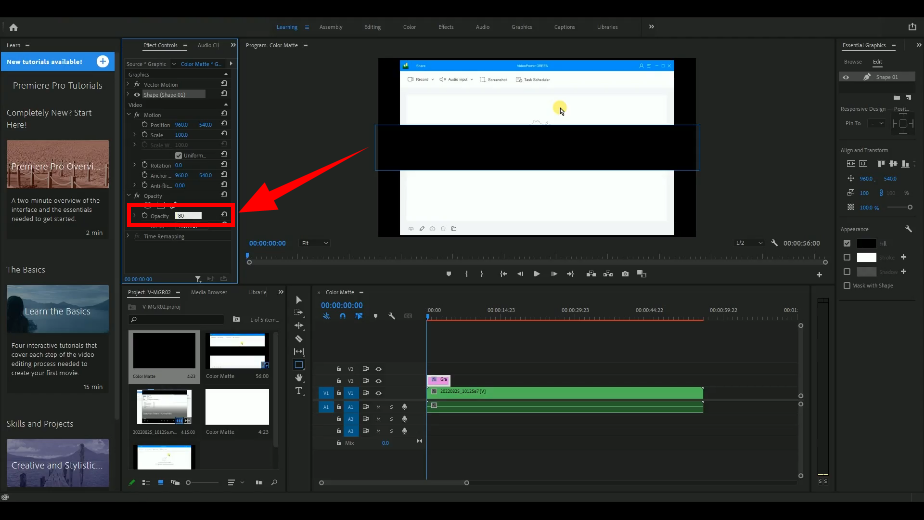
1.4. Change the opacity to 50%.
Step 2: Add a subtitle to the video
2.1. Click the “Text” icon and add a subtitle to the video.
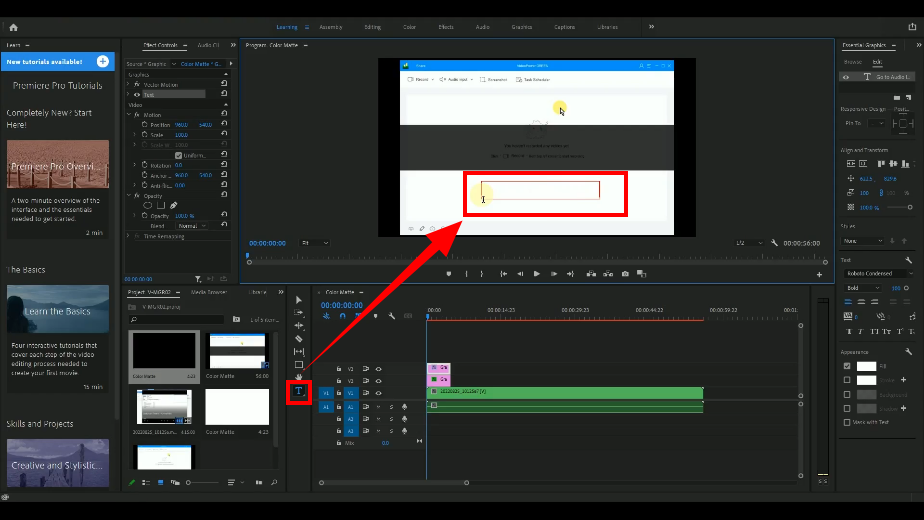
2.2. Highlight the the subtitle and place it to the center.
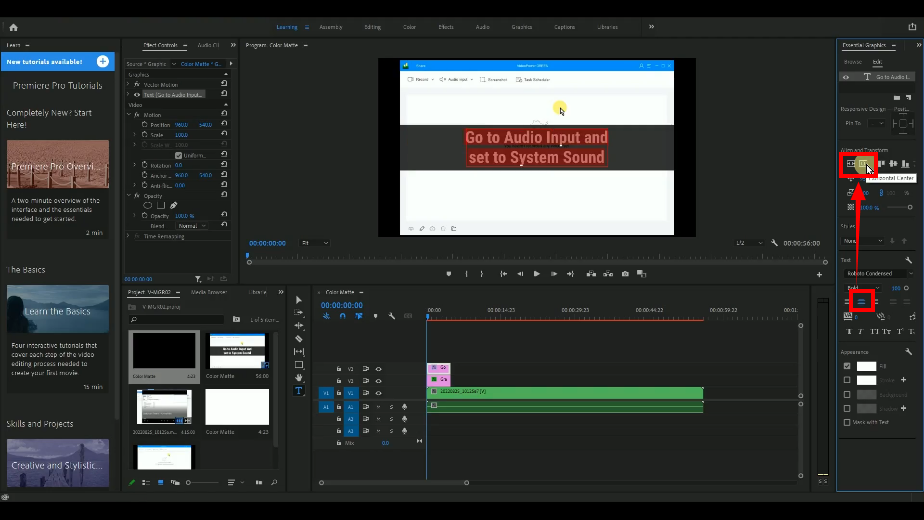
2.3. Trim the subtitle and background to fit the action on the video. If the subtitle is disturbing an action, place it to somewhere safe.
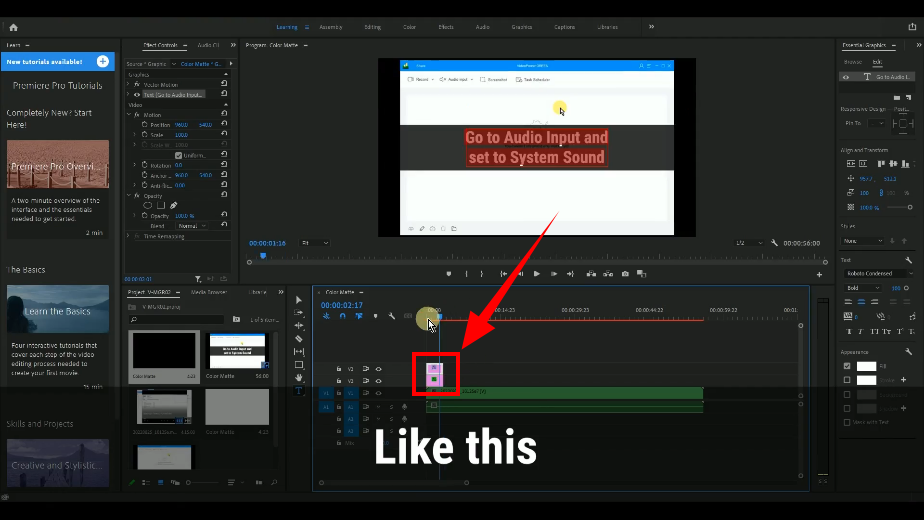
Step 3: Duplicate your subtitle and background
3.1. To duplicate the subtitle, highlight the subtitle, hold press “Alt”, and drag it to the right side.
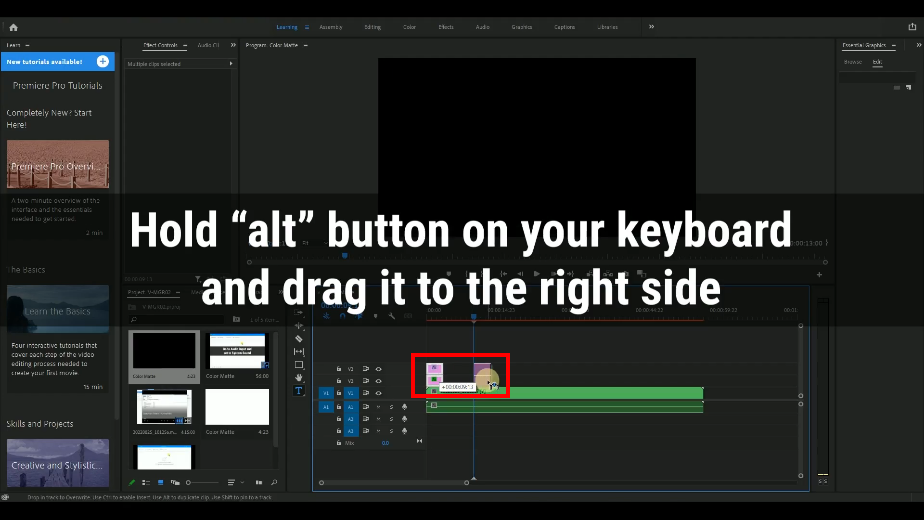
3.2. Move the subtitle to fit in the video.
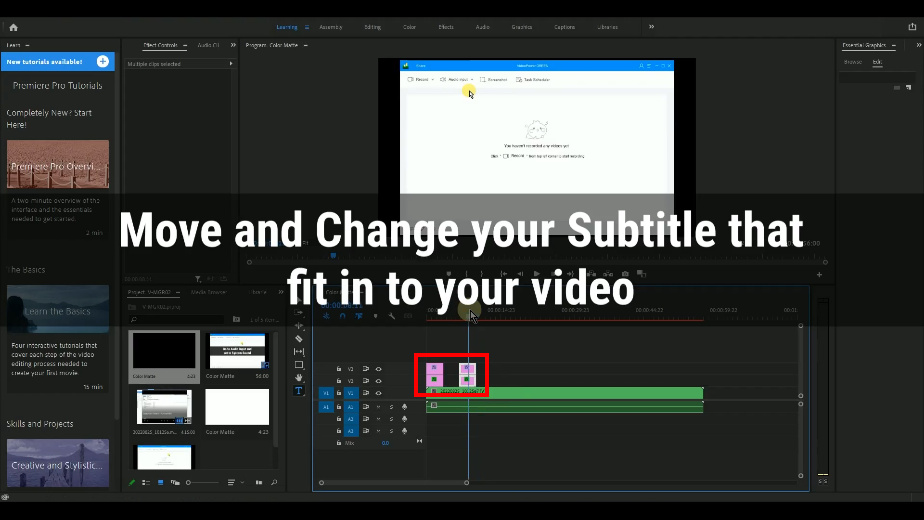
Repeat the process to the other scenes.
Subtitle Duration Rule:
- 2-3 sec. for 1 line.
- 4 sec. for 2 lines.
- 7 sec. for 3 lines.
Basically, the subtitle should be 2 lines or less.




ZEUS Series
VideoPower brother products, start easier with more affordable prices!
| ZEUS BUNDLE 1 Year License ⇒ $29.99 |
ZEUS BUNDLE LITE 1 Year License ⇒ $19.99 |
ZEUS RECORD LITE 1 Year License ⇒ $9.98 |
ZEUS DOWNLOAD LITE 1 Year License ⇒ $9.98 |
||
| Screen Recorder | Screen&Audio Recording | ✔ | ✔ | ✔ | |
| Duration Setting, Schedule Recording | ✔ | ||||
| Video Downloader | Paste URL to download, batch download | ✔ | ✔ | ✔ | |
| Search/download video,browser detector | ✔ | ||||
| Music Recorder | Record music and get music ID3 tag info | ✔ | ✔ | ||
| Music search/download/record, CD Ripper/Creator, Audio Editor | ✔ | ||||
| Video Editor | Edit and convert videos, create slideshow | ✔ | |||
| Screen Capture | Capture screen, image editor | ✔ | |||