











Brief Introduction of WAV
The WAV format audio is the most common and classical multimedia audio file on the PC platform. This is an audio file format that was developed jointly by Microsoft and IBM. This format can store tracks, bit rate, and audio data.
WAV is also known as a waveform file that can directly store sound waveform, and the restored waveform curve is very realistic. This format is larger than other audio formats like MP3. Because of this, WAV is used mainly in the recording industry that produces professional music to keep the quality of the audio.
Supported Programs
•Windows Media Player
•VLC Media Player
•iTunes
•Winamp
Free WAV Converting Software
VideoPower BLUE or ZEUS software is a free WAV format converter. It is also capable of converting video/audio to a different format with ease. If you wished to convert other formats to WAV or vice versa, this software is highly recommended to use. Aside from its converting function, VideoPower BLUE has a built-in editor that can be used to trim the audio and many more. You can also merge audio files into one for free.
Without further ado, let’s get started. First, download the app for free by clicking the link below.
ZEUS can do what VideoPower series can do and more with an almost similar interface.
Check out NOW! Start easier with more affordable prices!
Convert WAV via VideoPower BLUE for Free
We will guide you to convert WAV to another format below for instant. If you want to do the opposite, follow the same steps as well.
Step 1: Add the WAV format song file
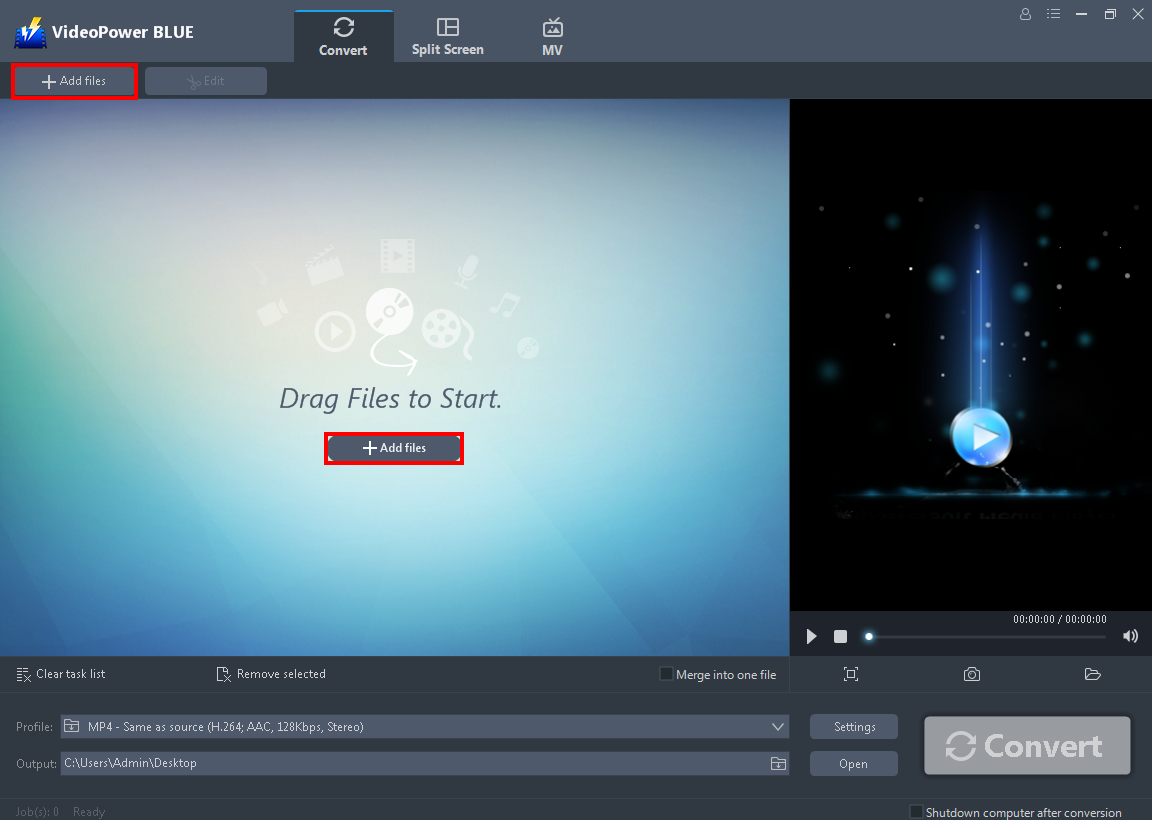
Launch VideoPower BLUE. Directly import the audio file to the software by clicking the “+ Add files” button or by drag-and-drop the file.
Step 2: Edit the WAV audio before converting
Note: This step is optional. If users opt to edit the file before conversion then follow through with this step. If users do not wish to edit the audio, they may go directly to Step 3.
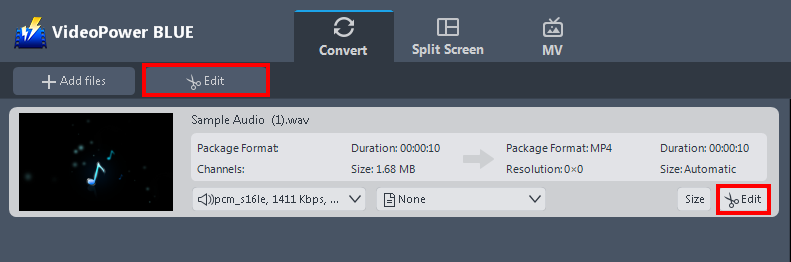
The imported audio file is displayed in the list. Click the “Edit” button on the right side of the file to open the built-in audio editor.
The built-in editor will pop up, with its help, you can trim or cut your audio before converting it.
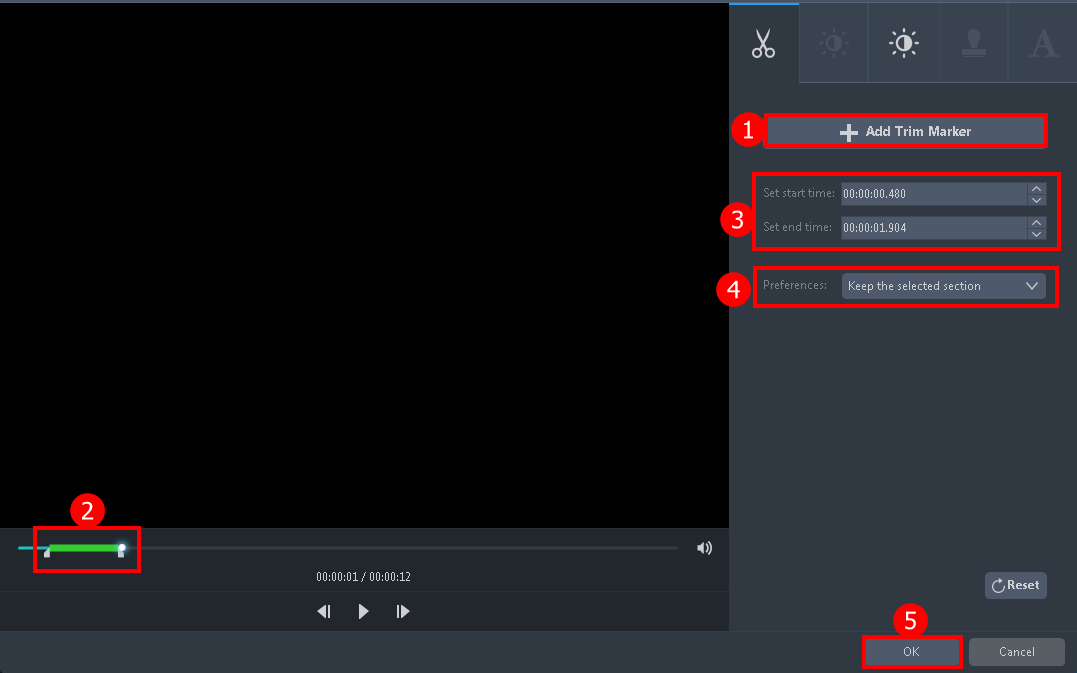
1. Click “Add Trim Marker”.
2. Drag the mark as shown below to select the part you want to cut.
If you want to select multi-sections, please repeat 1 and 2.
3. Set the start time and end time.
4. Choose the “Keep the selected section” or “Delete the selected section” from “Preferences”.
5. Click “OK” to save the setting.
Step 3: Select output format for conversion
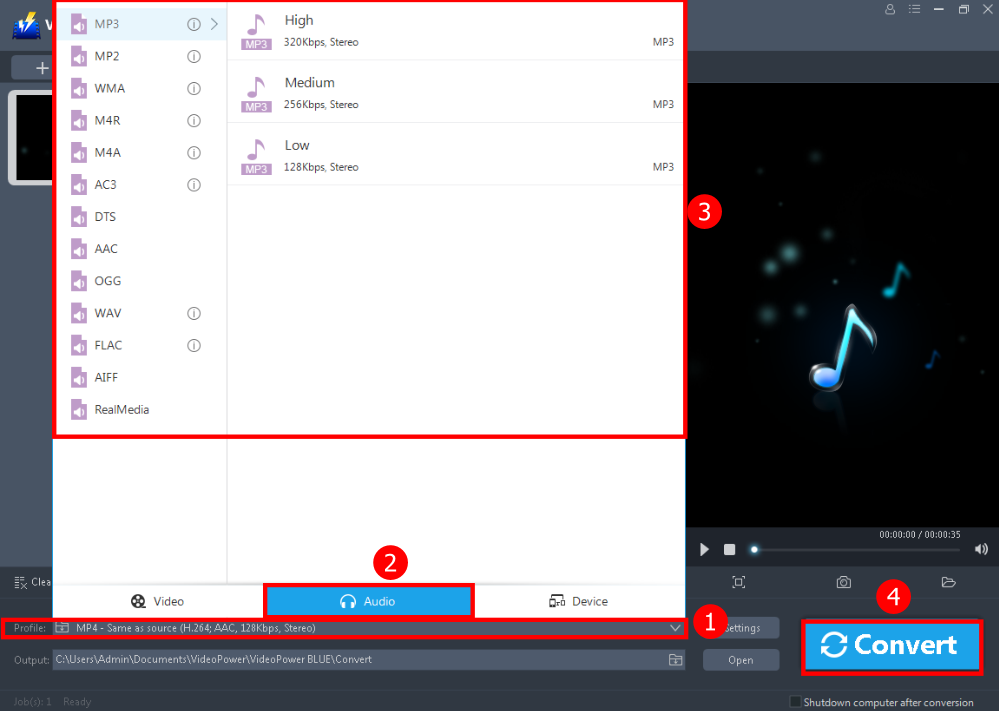
1. Click the “Profile” drop-down button.
2. Navigate to “Audio” to see all the audio formats.
3. Select the format you want to convert to. If you want to convert WAV to other formats, select whatever you deem appropriate.
4. Then click the big “Convert” button to save the file.
A pop-up window from the program will appear informing you that the conversion is complete. Click “OK” to open the folder of your saved converted audio files.
Conclusion:
If you want to convert WAV format because of its large size, convert other formats to WAV because of its quality, whatever your purpose is, VideoPower BLUE is a must-have free WAV converter out there. It is a friendly user software and easy to use which will be a big help for those who don’t have much knowledge in converting.
This software is not just a converter but it also comes with other features. Users can convert audio or video files into various formats, make videos using the built-in video editor where you can edit slideshows or videos, apply watermarks, effects, and other basic video editing options such as trimming or cropping.
ZEUS series can do everything that VideoPower series can do and more, the interface is almost the same.
Check out NOW! Start easier with more affordable prices!




ZEUS Series
VideoPower brother products, start easier with more affordable prices!
| ZEUS BUNDLE 1 Year License ⇒ $29.99 |
ZEUS BUNDLE LITE 1 Year License ⇒ $19.99 |
ZEUS RECORD LITE 1 Year License ⇒ $9.98 |
ZEUS DOWNLOAD LITE 1 Year License ⇒ $9.98 |
||
| Screen Recorder | Screen&Audio Recording | ✔ | ✔ | ✔ | |
| Duration Setting, Schedule Recording | ✔ | ||||
| Video Downloader | Paste URL to download, batch download | ✔ | ✔ | ✔ | |
| Search/download video,browser detector | ✔ | ||||
| Music Recorder | Record music and get music ID3 tag info | ✔ | ✔ | ||
| Music search/download/record, CD Ripper/Creator, Audio Editor | ✔ | ||||
| Video Editor | Edit and convert videos, create slideshow | ✔ | |||
| Screen Capture | Capture screen, image editor | ✔ | |||