











AAC is a file compression format specially designed for sound data and a common audio format.Unlike MP3, it uses a new algorithm for encoding, which is more efficient and ‘cost-effective’.
By using the AAC format, the file can be made smaller without the significant reduction in sound quality. Compared to MP3, the AAC format has a better sound quality and smaller files.
Here we will recommend an MP3 to AAC format conversion software for you and show you how to use this software for format conversion.
VideoPower BLUE or ZEUS is a great MP3 to AAC Converter with a variety of options and features including screen capture and recording, editing, music, and conversion.
Download the software from the link below and follow the step-by-step guide to convert MP3 to AAC format in a few minutes.
ZEUS can do what VideoPower series can do and more with an almost similar interface.
Check out NOW! Start easier with more affordable prices!
Step 1: Add the MP3 file to convert it to AAC
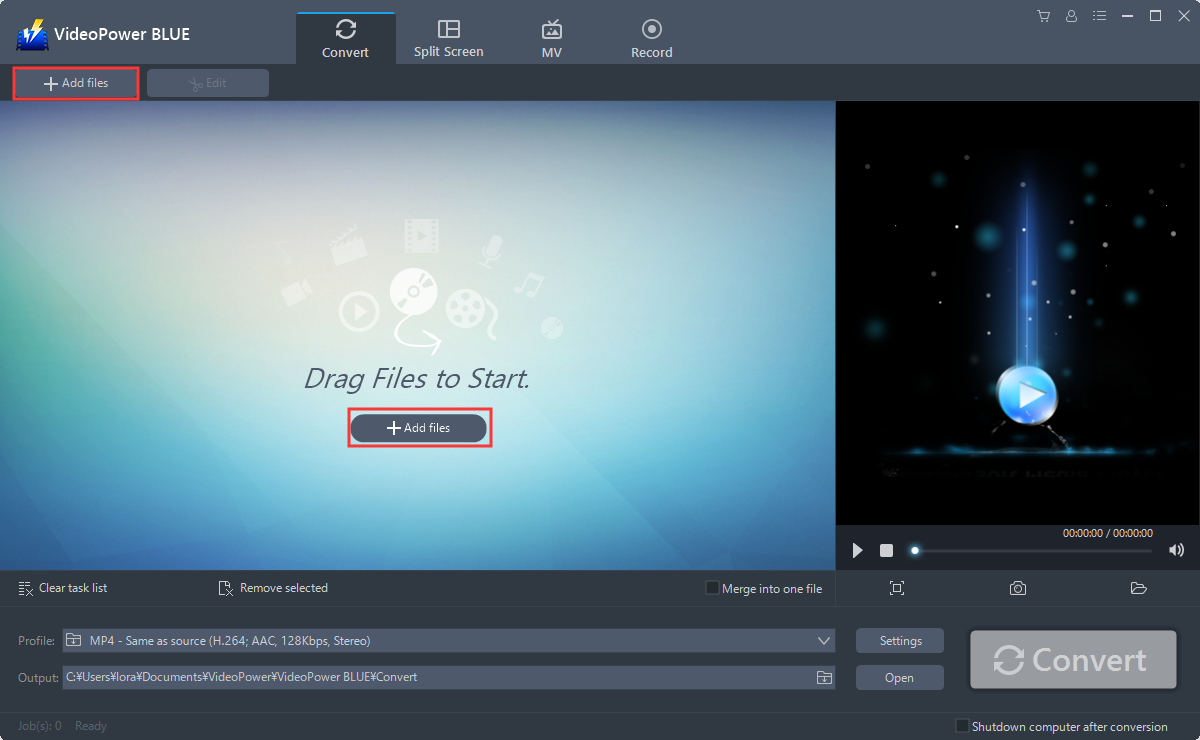
Run the program if you have installed the Audio Converter software successfully on your PC. You can directly import the MP3 file to the program by clicking the “Add files” button or by drag-and-drop to the interface.
Step 2: Edit MP3 file before conversion
If you need to trim your MP3 file before converting it to AAC you can use the editing function provided by the software. Do the following steps to edit your audio file.
The imported file is displayed in the list.
Click the “Edit” button on the right side of the file.

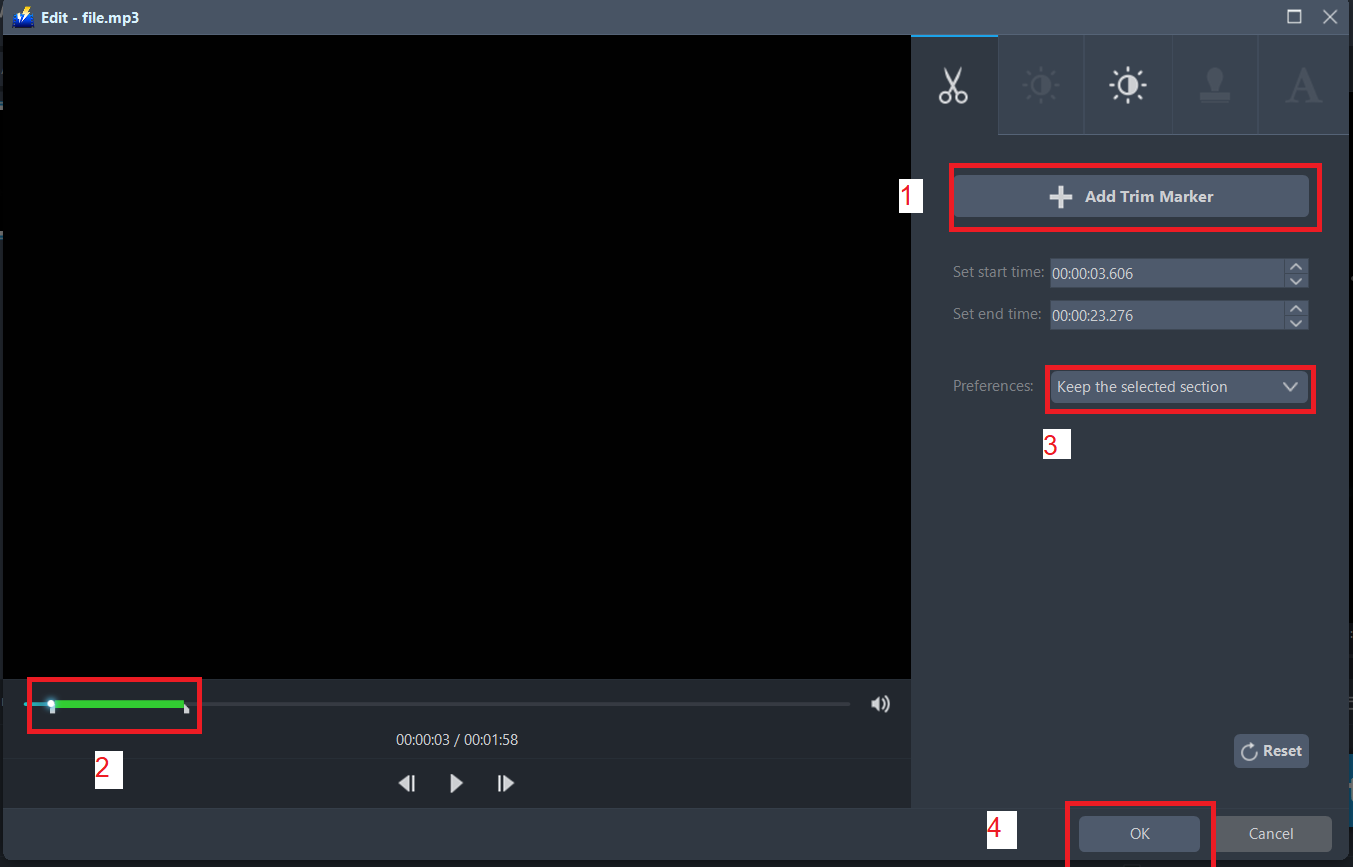
The built-in audio editor will pop up. Adjust speed and volume, or add a trim.
For example, you can trim your audio as shown below:
1) Click “Add Trim Marker”.
2) Drag the mark as shown below to select the part you want to cut.
If you want to select multi-sections, please repeat 1 and 2.
3) Choose “Keep the selected section” or “Delete the selected section” from “Preferences”.
4) Click “OK” to save the setting.
Step 3: Convert MP3 to ACC format
3.1 Set the output format
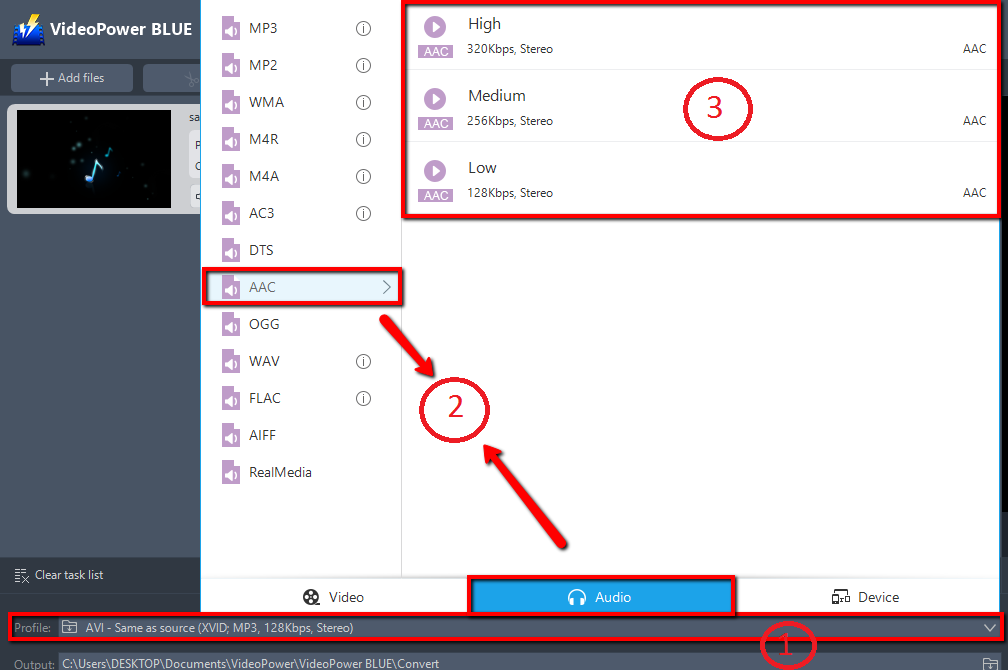
1) Click to open the “Profile” drop-down menu, then choose the format you want from the profile list.
2) Here you can click “Audio” and then “AAC”.
3) Choose the quality “High, Medium or Low” as per your need.
3.2 Start Conversion
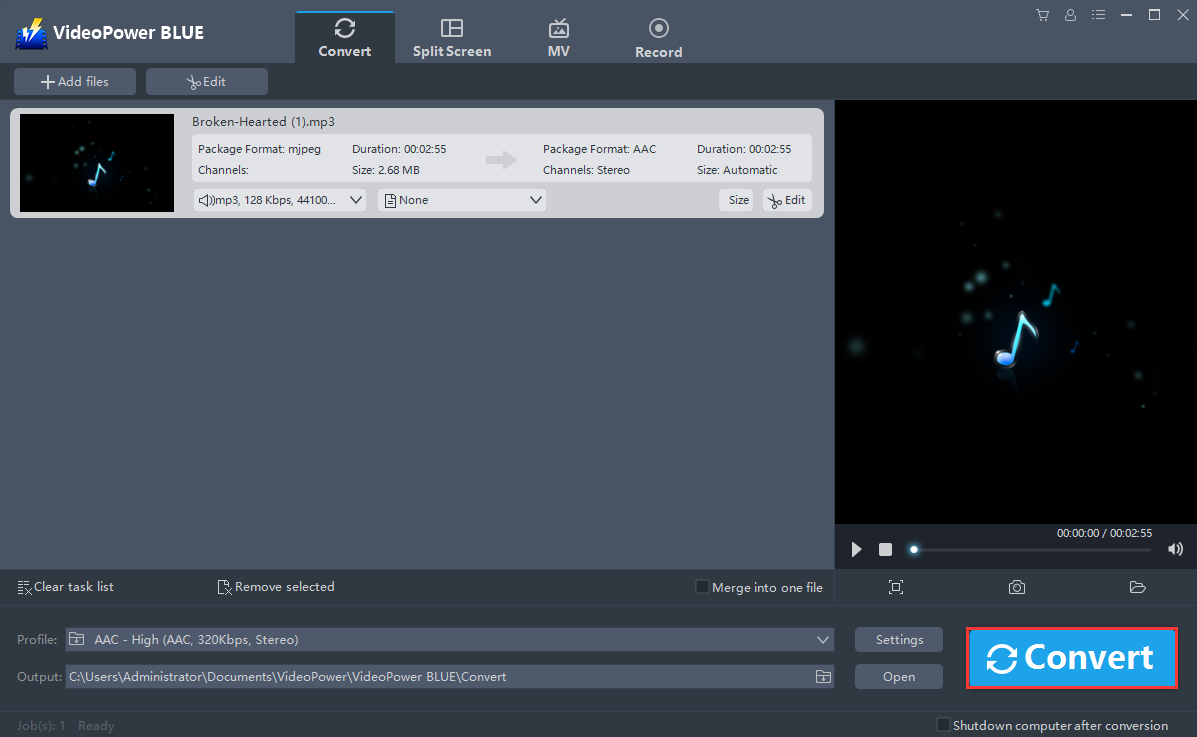
Return to the file list.
Click the “Convert” button, then the converted AAC file will be saved in the default output folder.
3.3 Open saved folder
The program will pop up a window to inform you once the conversion is completed. Click “OK” to open the folder of your saved converted AAC file.
ZEUS series can do everything that VideoPower series can do and more, the interface is almost the same.
Check out NOW! Start easier with more affordable prices!
mp3 to aac converter free online, mp3 to aac converter app, mp3 to aac converter free download, mp3 to aac converter mac, mp3 to aac converter apk, mp3 to aac converter windows, mp3 to aac converter freeware, best mp3 to aac converter, best free mp3 to aac converter




ZEUS Series
VideoPower brother products, start easier with more affordable prices!
| ZEUS BUNDLE 1 Year License ⇒ $29.99 |
ZEUS BUNDLE LITE 1 Year License ⇒ $19.99 |
ZEUS RECORD LITE 1 Year License ⇒ $9.98 |
ZEUS DOWNLOAD LITE 1 Year License ⇒ $9.98 |
||
| Screen Recorder | Screen&Audio Recording | ✔ | ✔ | ✔ | |
| Duration Setting, Schedule Recording | ✔ | ||||
| Video Downloader | Paste URL to download, batch download | ✔ | ✔ | ✔ | |
| Search/download video,browser detector | ✔ | ||||
| Music Recorder | Record music and get music ID3 tag info | ✔ | ✔ | ||
| Music search/download/record, CD Ripper/Creator, Audio Editor | ✔ | ||||
| Video Editor | Edit and convert videos, create slideshow | ✔ | |||
| Screen Capture | Capture screen, image editor | ✔ | |||