











VLC (short for VLC Media Player) is a free open source media player and multimedia framework written by the VideoLAN project.
VLC is a powerful multimedia player, supporting the playback of a variety of video, audio codec and file formats, as well as DVD, VCD, and various streaming media protocols. However, VLC files are not supported by portable devices like iPhone, iPad, Android phone, tablet, and so on.
So if you want to watch your VLC movies on your mobile devices, I suggest converting the VLC files to MP4 format with sound, because MP4 is the most compatible video format of all.
VideoPower BLUEor ZEUS can do this job for you. It is a powerful format converting software that can convert video to video, video to audio, audio to audio, etc. Considering VLC video files are in various formats, you need a powerful Video Converter for your help.
It is able to support a broad range of audio & video formats. In a flash, this great VLC to MP4 converter can make you enjoy all of your VLC videos on your MP4 media player with the best viewing effect. The operation is so easy, and the process is extremely fast.
Download and install the program on your PC with the link below to start the conversion.
ZEUS can do what VideoPower series can do and more with an almost similar interface.
Check out NOW! Start easier with more affordable prices!
Steps to Convert VLC to MP4 Formats
Step 1: Add the VLC Video
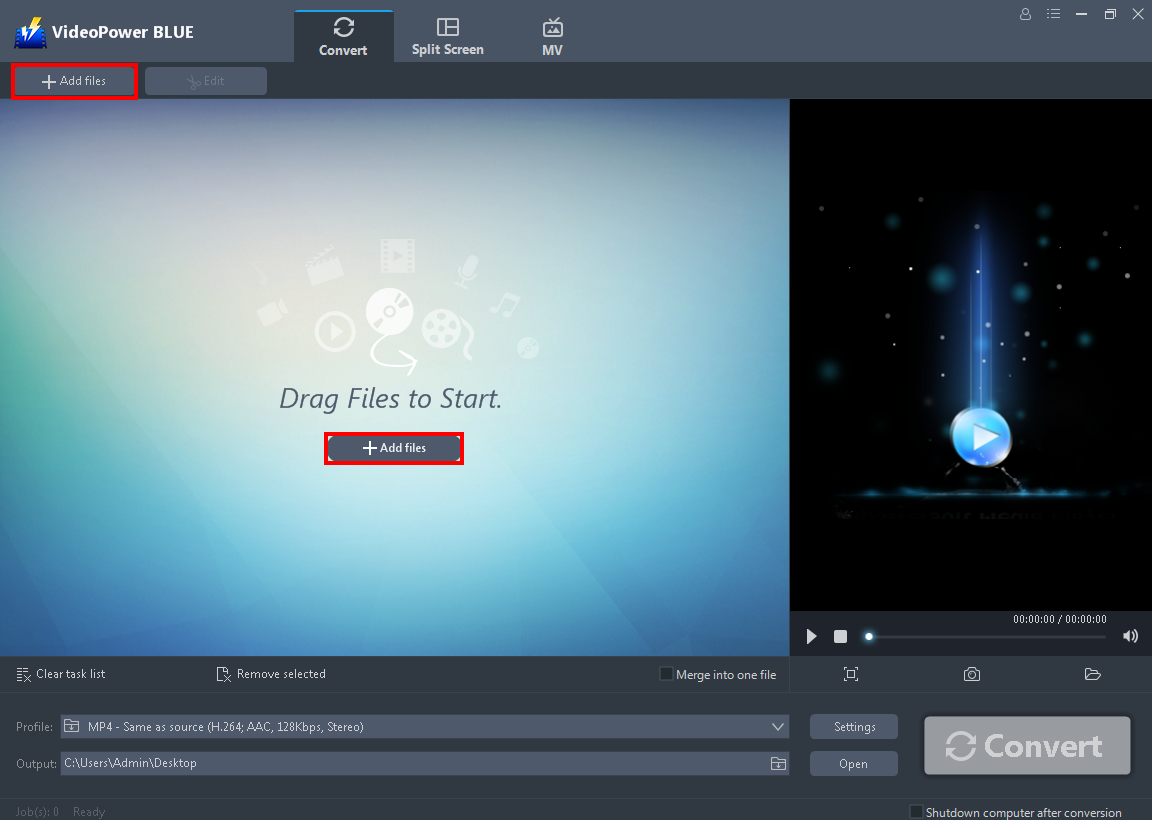
You can directly import the file to the program by clicking the “+ Add files” button or by drag-and-drop to the interface.
Here, we will use an MTS file format played in VLC Media Player to MP4.
Step 2: Edit the Video before Converting
Note: This step is optional. If users opt to edit the video before conversion then follow through this step. If users do not wish to edit the video, go directly to Step 3.
2. 1 Open the Video Editor
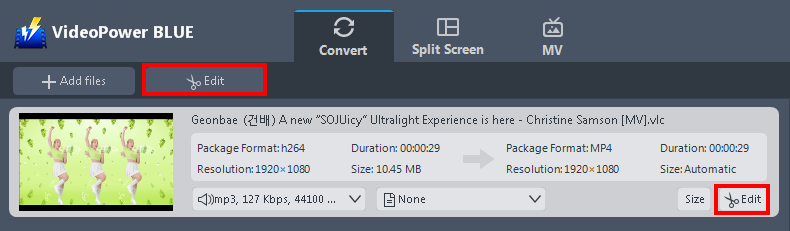
The imported video file is displayed in the list. Click the “Edit” button on the right side of the file to open the video editor.
2.2 Edit the Video
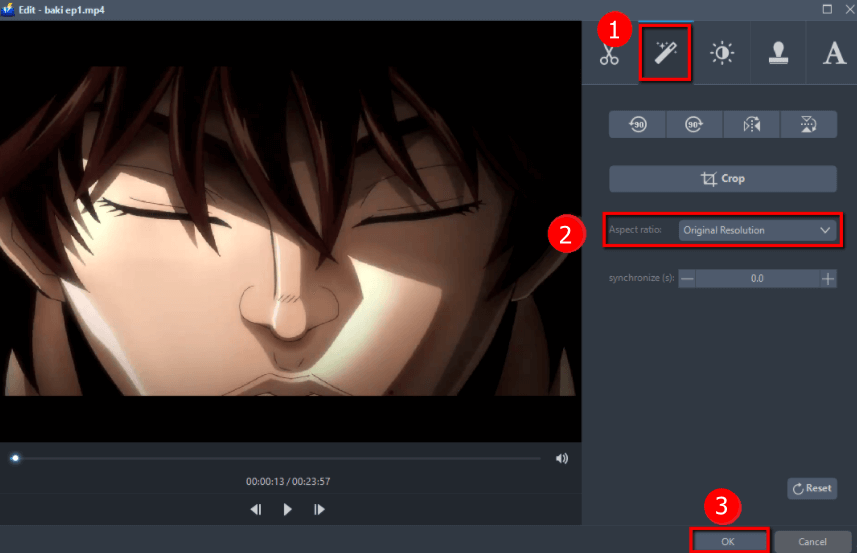
The built-in video editor will pop up, with its help, you can make the perfect movie. Adjust speed and volume, trim, cut, crop, rotate, or flip videos. Add effects, subtitles, and watermark while adjusting brightness, contrast, and saturation that will make editing conveniently easier.
For example, you want to change the aspect ratio:
1. Go to the “Adjust” section.
2. Click the “Aspect Ratio” drop-down button to select the ratio you preferred.
3. Click “OK” to save the setting.
Step 3: Start Converting VLC to MP4 Format
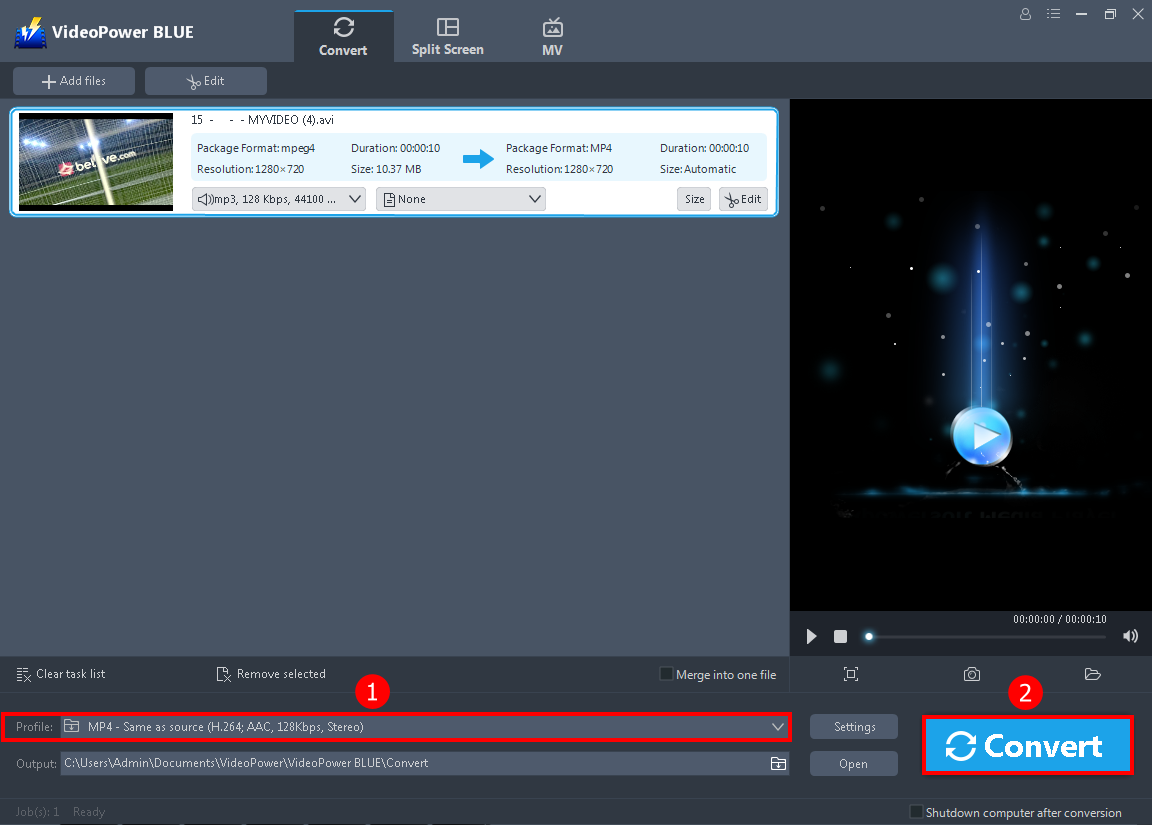
1. Click to open the “Profile” drop-down menu, then choose the format you want from the profile list.
2. Click the “Convert” button on the lowest-right of the interface, then the conversion process will automatically start. The converted file will automatically be saved in the default output folder when the conversion process is complete.
A pop-up window from the program will appear informing you that the conversion is complete. Click “OK” to open the folder of your saved converted video files.
Conclusion:
To ensure maximum enjoyment anytime and anywhere on our mobile devices from VLC video then convert it to MP4.
VideoPower BLUE is definitely perfect for you. It’s fast and flexible with a built-in video editor that will enable you to merge multiple videos into one single file. This software will allow you to edit slideshows or videos, apply watermarks, effects, and other basic video editing options such as trimming or cropping. Moreover, it has a split-screen tool for your photos and videos.
ZEUS series can do everything that VideoPower series can do and more, the interface is almost the same.
Check out NOW! Start easier with more affordable prices!




ZEUS Series
VideoPower brother products, start easier with more affordable prices!
| ZEUS BUNDLE 1 Year License ⇒ $29.99 |
ZEUS BUNDLE LITE 1 Year License ⇒ $19.99 |
ZEUS RECORD LITE 1 Year License ⇒ $9.98 |
ZEUS DOWNLOAD LITE 1 Year License ⇒ $9.98 |
||
| Screen Recorder | Screen&Audio Recording | ✔ | ✔ | ✔ | |
| Duration Setting, Schedule Recording | ✔ | ||||
| Video Downloader | Paste URL to download, batch download | ✔ | ✔ | ✔ | |
| Search/download video,browser detector | ✔ | ||||
| Music Recorder | Record music and get music ID3 tag info | ✔ | ✔ | ||
| Music search/download/record, CD Ripper/Creator, Audio Editor | ✔ | ||||
| Video Editor | Edit and convert videos, create slideshow | ✔ | |||
| Screen Capture | Capture screen, image editor | ✔ | |||