











WAV is an audio file format developed by Microsoft. This file format has become a standard PC audio file format for everything from system and game sounds to CD-quality audio.
The standard formatted WAV file is the same as the CD format and is also a 44.1K sampling frequency and a 16-bit quantized number. So the sound quality of the WAV audio is almost the same as the CD!
The Windows system and its applications support this format very well, but Apple does not.
Apple devises users opt to convert their WAV files to M4A. A file with the M4A file extension is a MPEG-4 Audio file and they’re most often found in Apple’s iTunes Store as the format of song downloads.
WAV files will normally have a big size. Converting it to a different format such as the M4A format is better – it’ll also allow compatibility with Apple devices.
Convert your WAV files to the M4A file format for free with VideoPower BLUE or ZEUS. This tool is one of the best online applications for basic video and audio conversion. The user interface is pretty intuitive so you would immediately know how to use it even if it’s the first time visiting this page. It can be used to convert both audio and video files.
You can try to use the software for free by downloading its trial version below.
ZEUS can do what VideoPower series can do and more with an almost similar interface.
Check out NOW! Start easier with more affordable prices!
Follow the Steps in Converting WAV to M4A for Free
Step 1: Add the WAV file to the program.
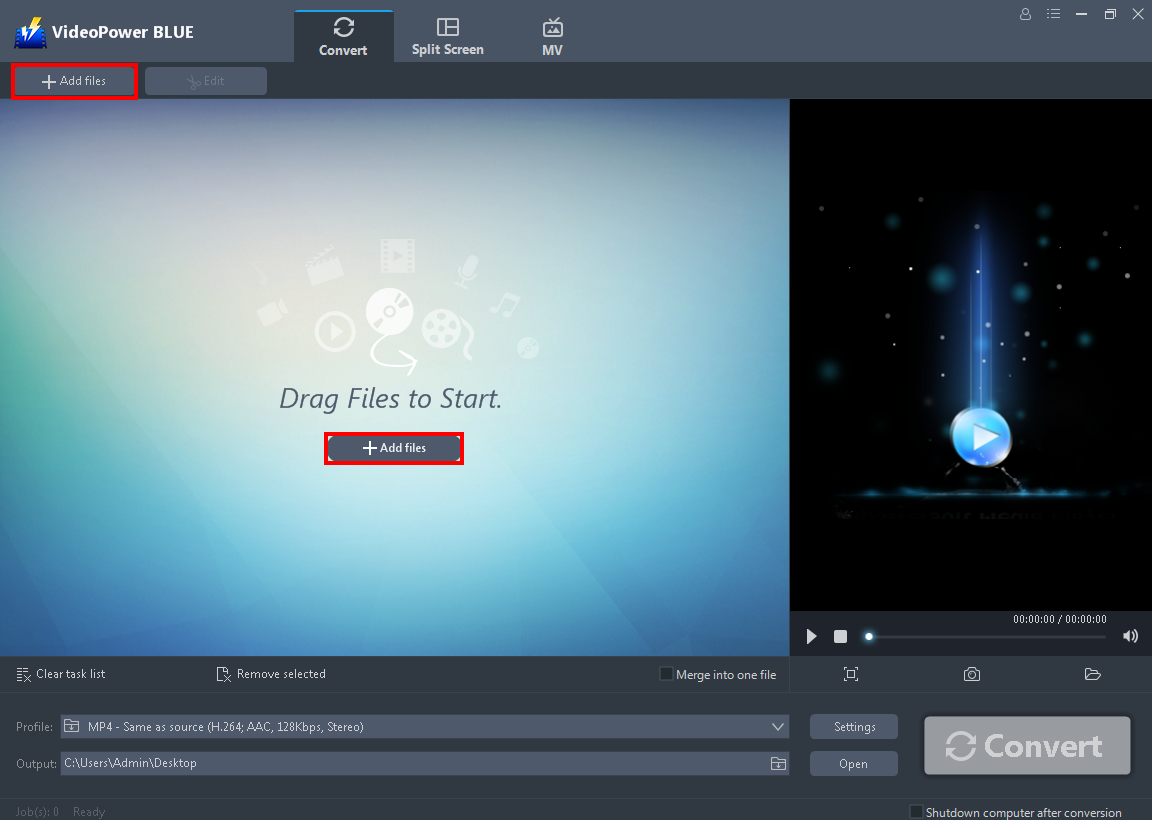
Launch the program and directly import the file to the program by clicking the “+ Add files” button or by drag-and-drop the WAV file to the interface.
Step 2: Edit the WAV audio (Optional)
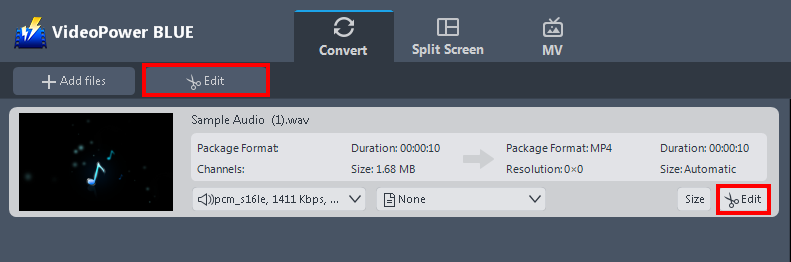
If you need to edit the audio first before converting, just follow the instructions below.
The imported WAV file is displayed in the list.
Click the “Edit” button on the right side of the file to open the Edit box.
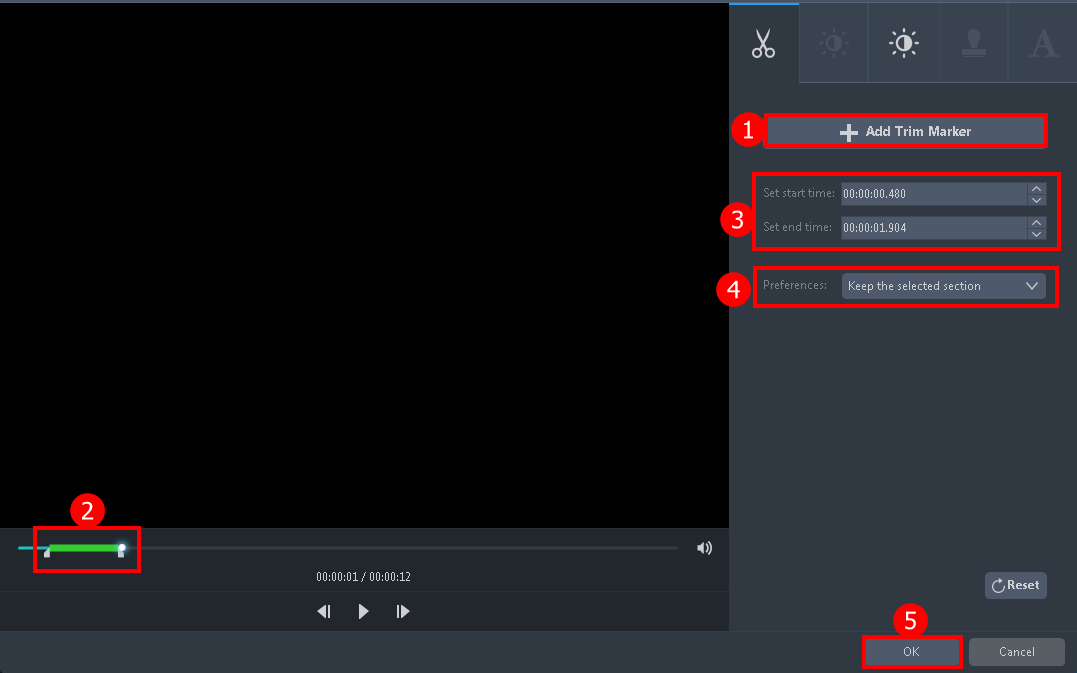
The editor will pop up. Here you can make changes to the audio – trim, cut, etc.
For example, you can trim your audio as showing below:
1. Click “Add Trim Marker”.
2. Drag the mark as shown below to select the part you want to cut.
3. You can also set the starting and end time.
4. Choose “Keep the selected section” or “Delete the selected section” from “Preferences”.
5. Click “OK” to save the setting.
Step 3: Start converting the WAV to M4A for free
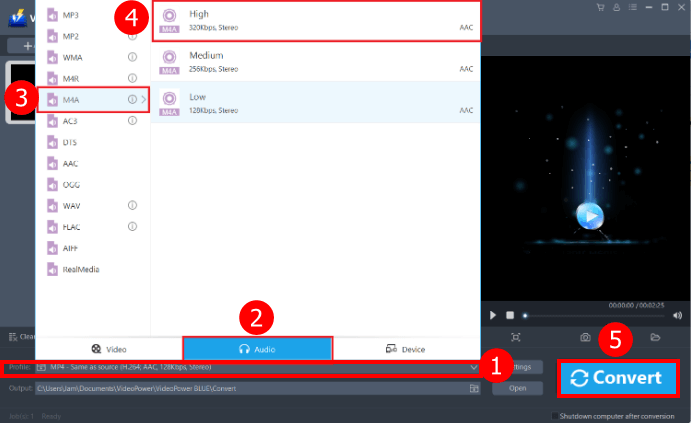
1. Click to open the “Profile” drop-down menu, then choose the format you want from the profile list.
2. Here click the “Audio”.
3. Choose the “M4A” format from the list.
4. Select “High”.
5. Click the “Convert” button, then the converted M4A file will be saved in the default output folder.
Conclusion:
There are a lot of converters out there, however, only a few stand out. VideoPower BLUE has all the features you are looking for. This free audio converter lets you easily convert WAV to M4A or more different formats. It has a built-in editor so you can enhance your audio files or trim it based on your purposes.
It has a split-screen feature and you can also make a video slideshow on it. Download it now!
ZEUS series can do everything that VideoPower series can do and more, the interface is almost the same.
Check out NOW! Start easier with more affordable prices!
convert wav to m4a mac, convert wav to m4a windows, convert wav to m4a itunes, convert wav to m4a audacity, convert wav to m4a free, convert wav to m4a file, ffmpeg convert wav to m4a, python convert wav to m4a, c# convert wav to m4a




ZEUS Series
VideoPower brother products, start easier with more affordable prices!
| ZEUS BUNDLE 1 Year License ⇒ $29.99 |
ZEUS BUNDLE LITE 1 Year License ⇒ $19.99 |
ZEUS RECORD LITE 1 Year License ⇒ $9.98 |
ZEUS DOWNLOAD LITE 1 Year License ⇒ $9.98 |
||
| Screen Recorder | Screen&Audio Recording | ✔ | ✔ | ✔ | |
| Duration Setting, Schedule Recording | ✔ | ||||
| Video Downloader | Paste URL to download, batch download | ✔ | ✔ | ✔ | |
| Search/download video,browser detector | ✔ | ||||
| Music Recorder | Record music and get music ID3 tag info | ✔ | ✔ | ||
| Music search/download/record, CD Ripper/Creator, Audio Editor | ✔ | ||||
| Video Editor | Edit and convert videos, create slideshow | ✔ | |||
| Screen Capture | Capture screen, image editor | ✔ | |||