











SWF, also known as “Small Web Format” or “Shockwave Flash”, is an Adobe Flash file format that is used to display animated vector graphics on the webpages. It is an ideal format for browser games.
One big advantage of using the SWF file format is that it uses a non-patented lossless data compression method which makes it easy and smooth enough to publish various animations on the web. Using this format, you can create compact animations that load quickly.
However, one of the most frequent problems experienced by users is the conversion of video to SWF file format. Usually, the main reason is the converter’s compatibility with the file format.
So is it impossible to convert SWF format?
Of course not! VideoPower BLUE or ZEUS is one of the few converters that could convert video files into SWF format.
Download and install the program on your PC with the below link to start the conversion.
ZEUS can do what VideoPower series can do and more with an almost similar interface.
Check out NOW! Start easier with more affordable prices!
Steps on How to Convert Video to SWF Format
Step 1: Add the video file to the program
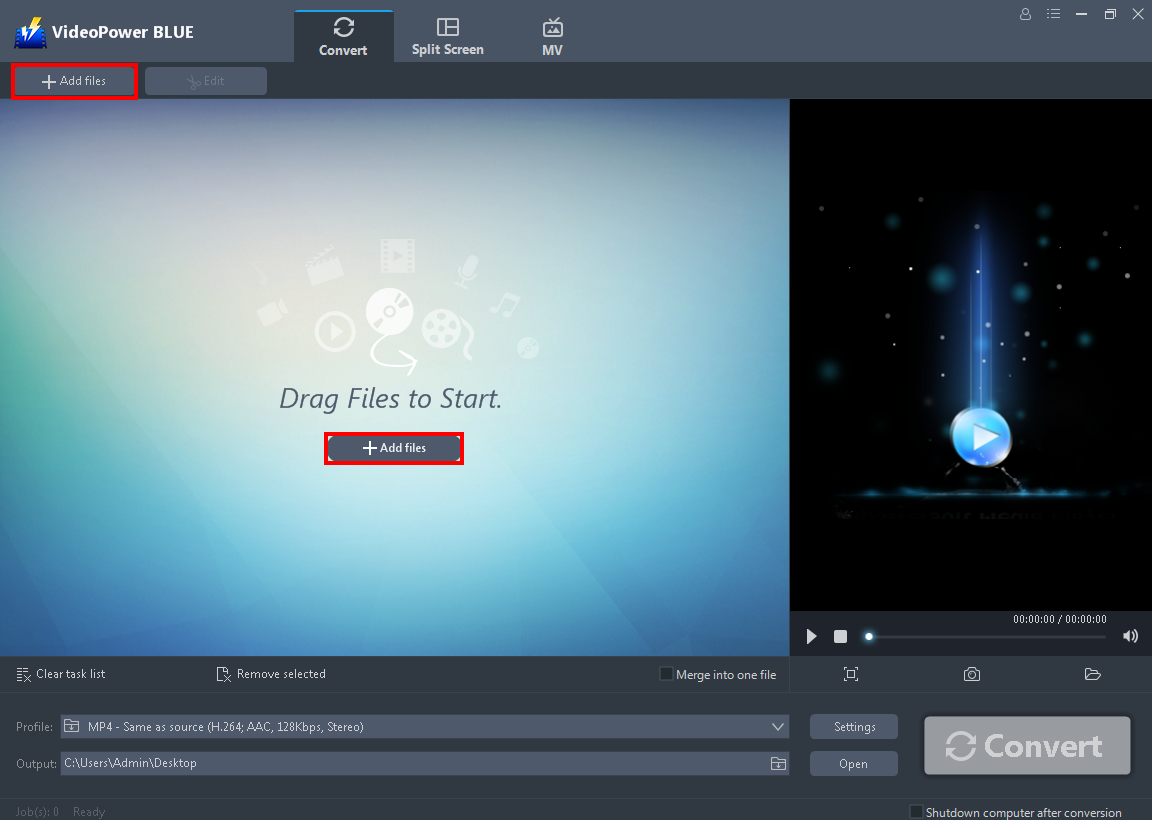
Run the program if you have installed the video converter software – VideoPower BLUE successfully on your PC.
Click on the “Add files” button to import the video file or you can drag-and-drop it directly to the interface.
Step 2: Edit the Video
To edit your videos, follow the instructions below:
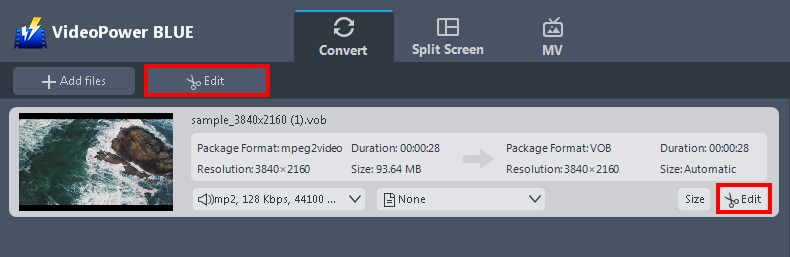
The imported video file is displayed in the list.
Click the “Edit” button on the right side of the file. You can trim your video as shown below:
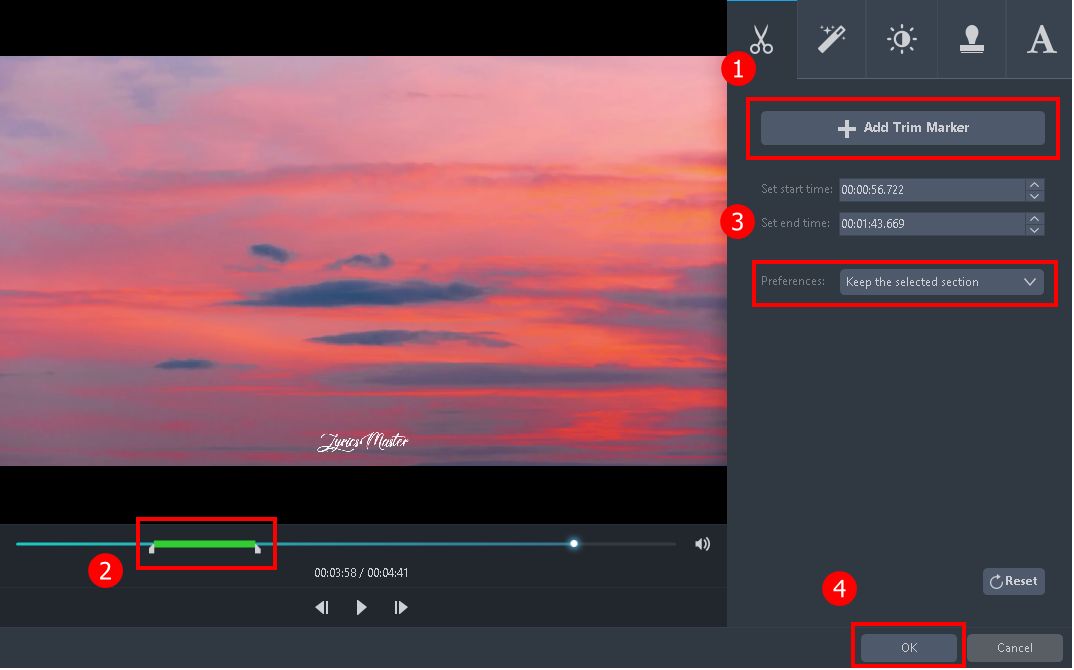
1) Click “Add Trim Marker”.
2) Drag the mark as shown below to select the part you want to cut.
If you want to select multi-sections, please repeat 1 and 2.
3) Choose “Keep the selected section” or “Delete the selected section” from “Preferences”.
4) Click “OK” to save the setting.
Step 3: Convert video to SWF format
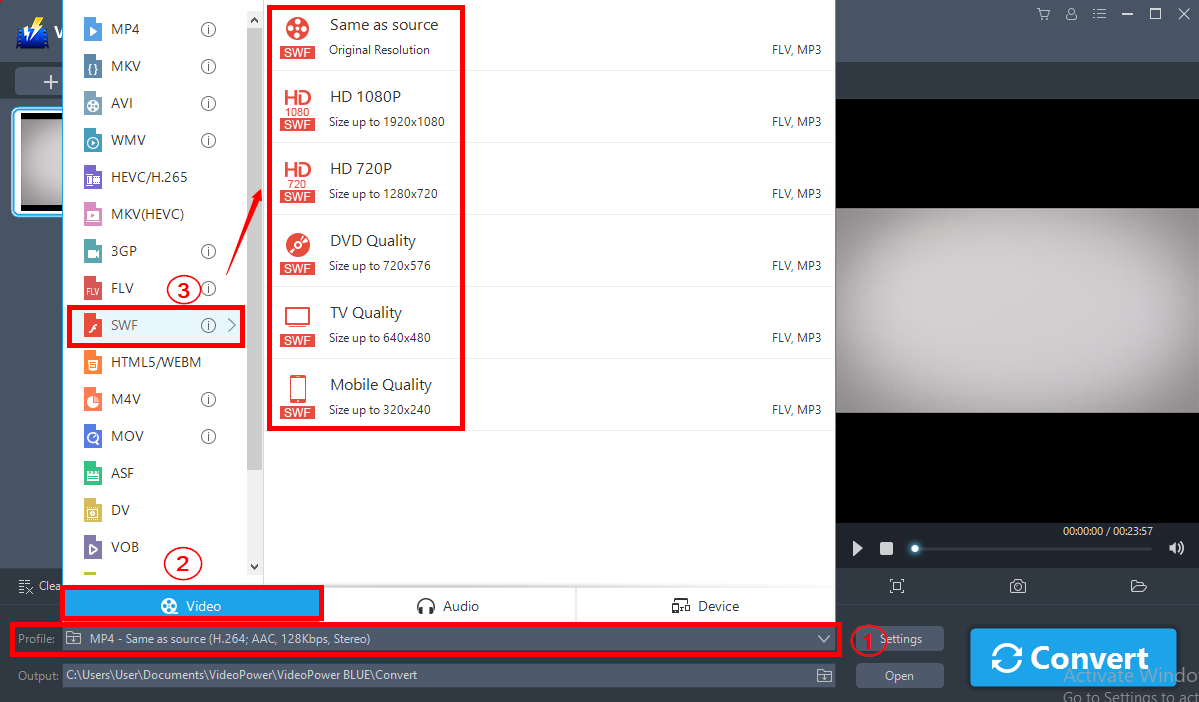
1) Click to open the “Profile” drop-down menu, then choose the format you want from the profile list.
2) Here you can click “Video” and then “SWF” to convert video files to SWF format.
3) You may now choose the quality you prefer.
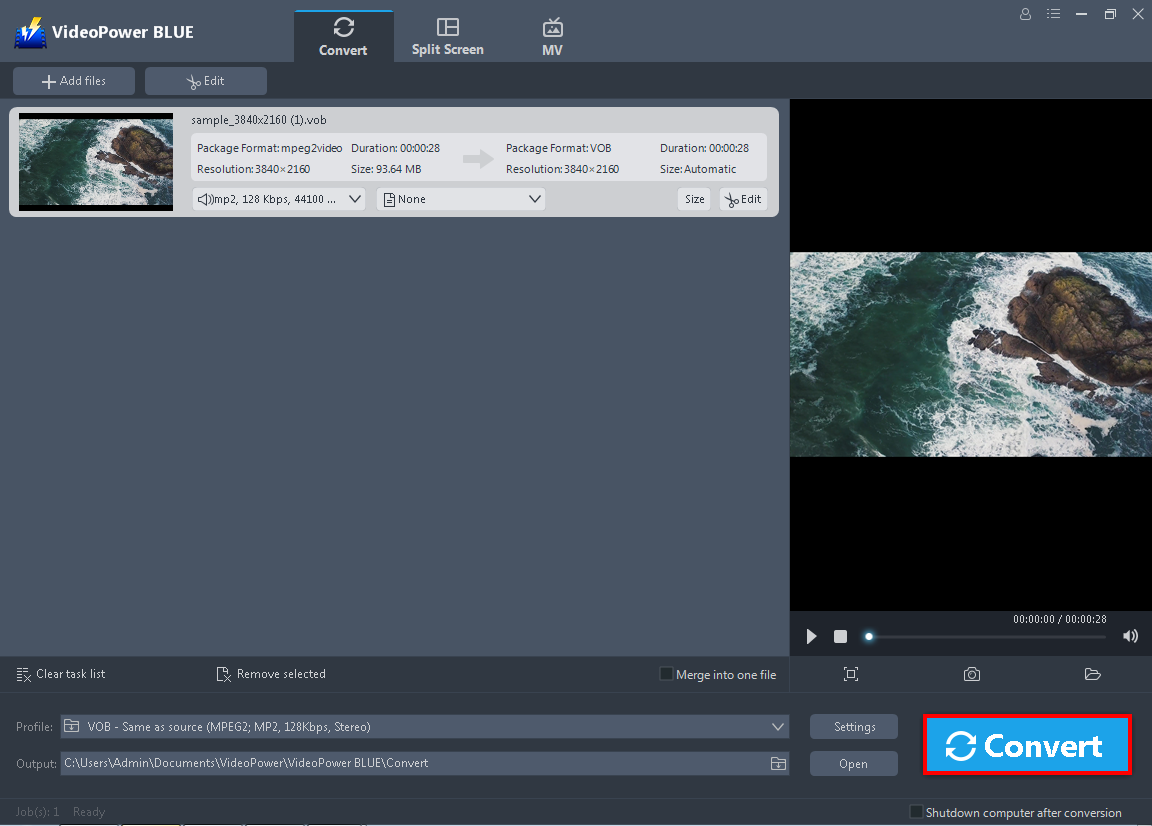
Now click the big blue “Convert” button to start the conversion process.
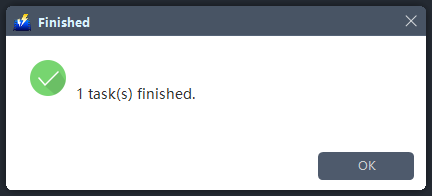
A pop-up window from the program will appear informing you that the conversion is complete. Click “OK” to open the folder of your saved converted SWF files.
Conclusion:
Many users preferred using the SWF file format because it is vector based that allows you to scale graphics easily without losing its clarity and smoothness. This is best used for motion graphics videos or browser games.
Using VideoPower BLUE, it allows you to easily convert video to SWF format in just a few clicks. The wide range of file formats this application supports is what makes it stand out. Aside from the conversion feature, this application also offers many major features such as Slideshow Maker and a variety of Video Editing functions. Moreover, it has a split-screen tool for video/photo collage.
ZEUS series can do everything that VideoPower series can do and more, the interface is almost the same.
Check out NOW! Start easier with more affordable prices!




ZEUS Series
VideoPower brother products, start easier with more affordable prices!
| ZEUS BUNDLE 1 Year License ⇒ $29.99 |
ZEUS BUNDLE LITE 1 Year License ⇒ $19.99 |
ZEUS RECORD LITE 1 Year License ⇒ $9.98 |
ZEUS DOWNLOAD LITE 1 Year License ⇒ $9.98 |
||
| Screen Recorder | Screen&Audio Recording | ✔ | ✔ | ✔ | |
| Duration Setting, Schedule Recording | ✔ | ||||
| Video Downloader | Paste URL to download, batch download | ✔ | ✔ | ✔ | |
| Search/download video,browser detector | ✔ | ||||
| Music Recorder | Record music and get music ID3 tag info | ✔ | ✔ | ||
| Music search/download/record, CD Ripper/Creator, Audio Editor | ✔ | ||||
| Video Editor | Edit and convert videos, create slideshow | ✔ | |||
| Screen Capture | Capture screen, image editor | ✔ | |||