











SWF files can only be played if you have the Macromedia Flash plug-in installed. Otherwise, conversion to another file format that is well supported by many media players like the MOV would be necessary.
MOV is a great format to convert it with as it provides high output quality and is well supported by most media players, especially for Mac. You can easily change SWF to MOV for Mac in just simple steps using a good converter tool like the VideoPower BLUE or ZEUS.
It is a great software for converting SWF to MOV that offers easy and fast conversion through its user-friendly interface. It also has multiple functions and features such as basic video editing and slideshow creation.
ZEUS can do what VideoPower series can do and more with an almost similar interface.
Check out NOW! Start easier with more affordable prices!
How to Use the Software for Converting SWF to MOV
Once the software is successfully installed on your PC, click the application to run the program and follow the steps below to start the conversion.
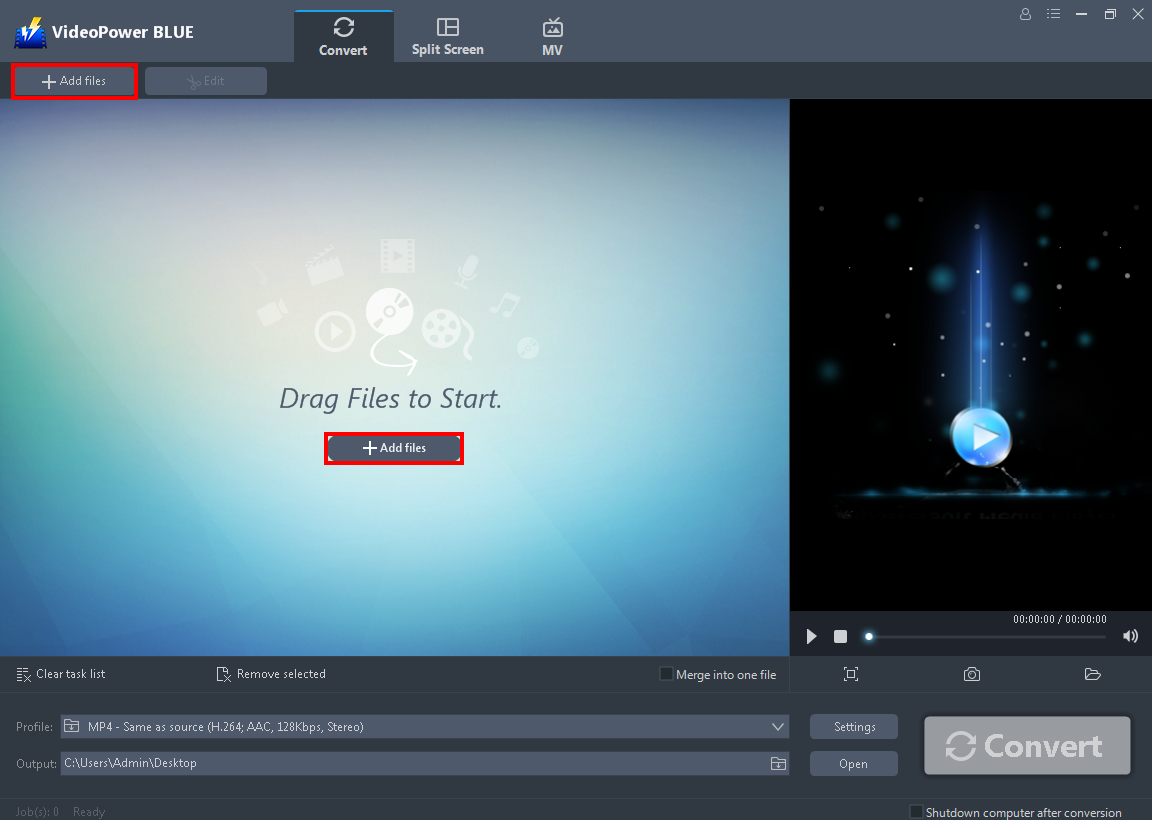
To import your SWF file, just click on the “Add files” button or you can drag-and-drop the file directly to the interface.
After the file is imported, it will be added automatically to your file displayed list.
Step 1: Import SWF file
Once the software is successfully installed on your PC, click the application to run the program and follow the steps below to start the conversion.
To import your SWF file, just click on the “Add files” button or you can drag-and-drop the file directly to the interface.
After the file is imported, it will be added automatically to your file displayed list.
Step 2: Edit the SWF video
If you need to edit the video file before the conversion, follow the instructions below.
2.1 Open editor
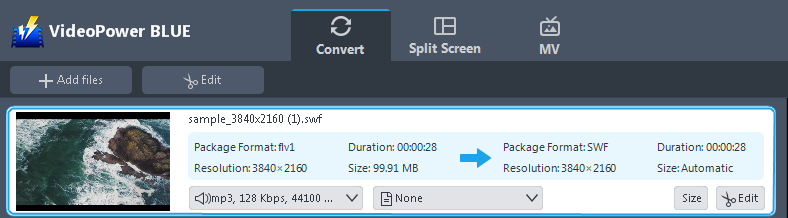
Click the “Edit” button located at the bottom right of your file from the displayed file list.
2.2 Edit video
The built-in video editor will pop up in which you can use to make video enhancements. You can adjust the speed & volume, trim, cut, crop, rotate, or flip videos. You can also add effects, subtitles, and watermark while adjusting the brightness, contrast, and saturation that will make editing conveniently easier.
For example, you can trim your video as shown below:
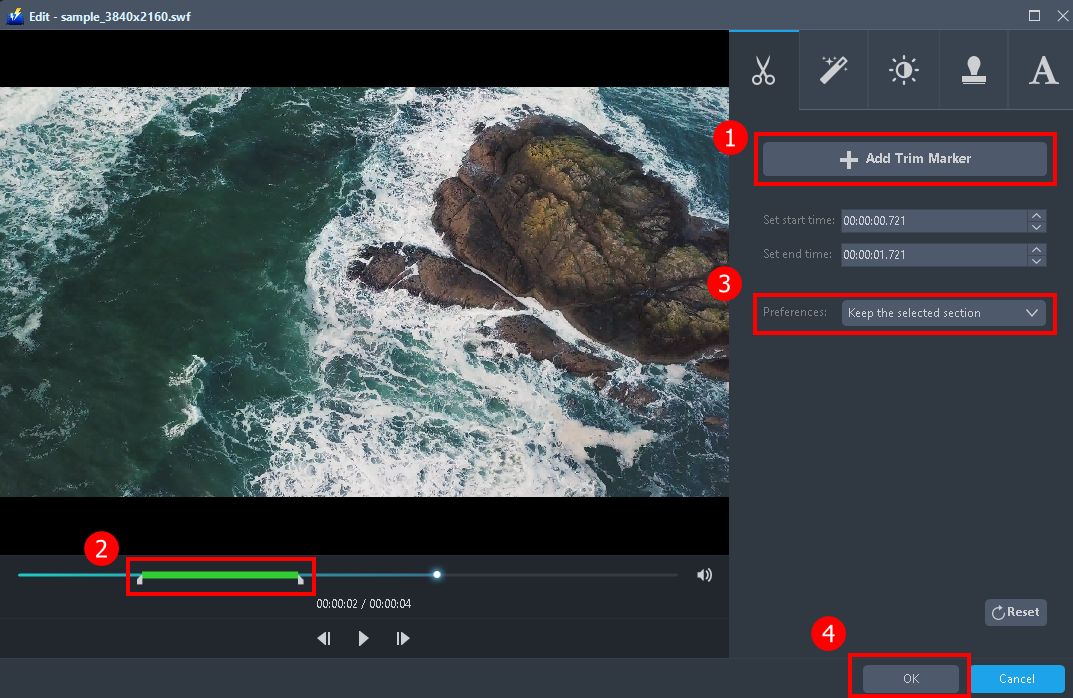
1) In the video editor, click the “Add Trim Marker” button on the area that you want to trim.
2) You can adjust the trim marker by dragging the mark on the portion you wanted to trim.
3) Set the “Preferences” to “Keep the selected section” if you want to keep the part where you put the trim marker or “Delete the selected section” if you want to delete it.
4) Click “OK” to save the setting.
You can also add multiple trim markers to multiple areas of the video. See the example below.
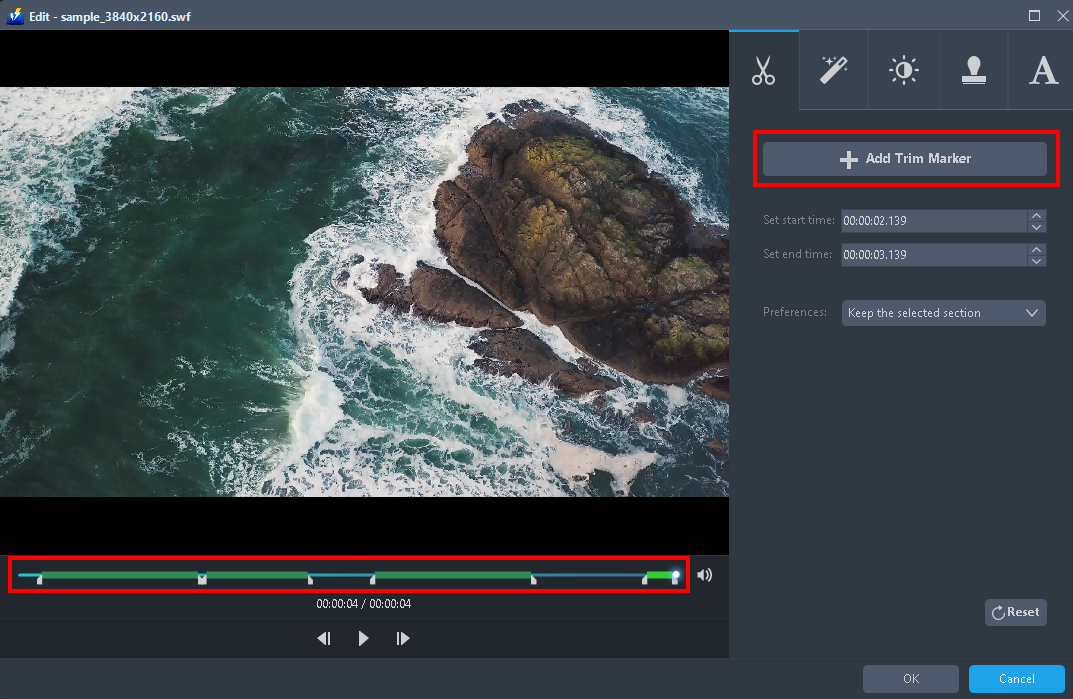
Just click the “Add Trim Marker” button several times to the areas that you want to trim.
Step 3: Convert SWF to MOV
3.1 Set the output format
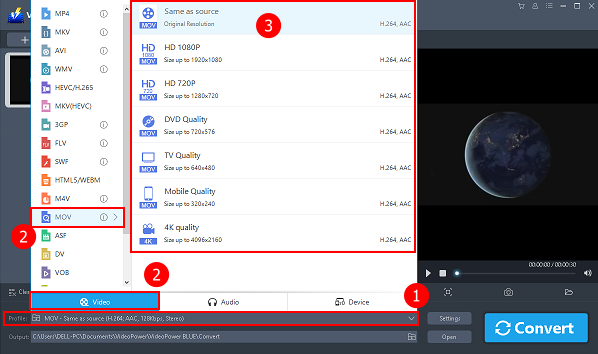
1) Click to open the “Profile” drop-down menu.
2) Click “Video” and then “MOV”.
3) Set the format quality to “Same as source, HD 1080P, HD720P, DVD Quality, TV Quality, Mobile Quality, or 4K Quality”.
3.2 Start conversion
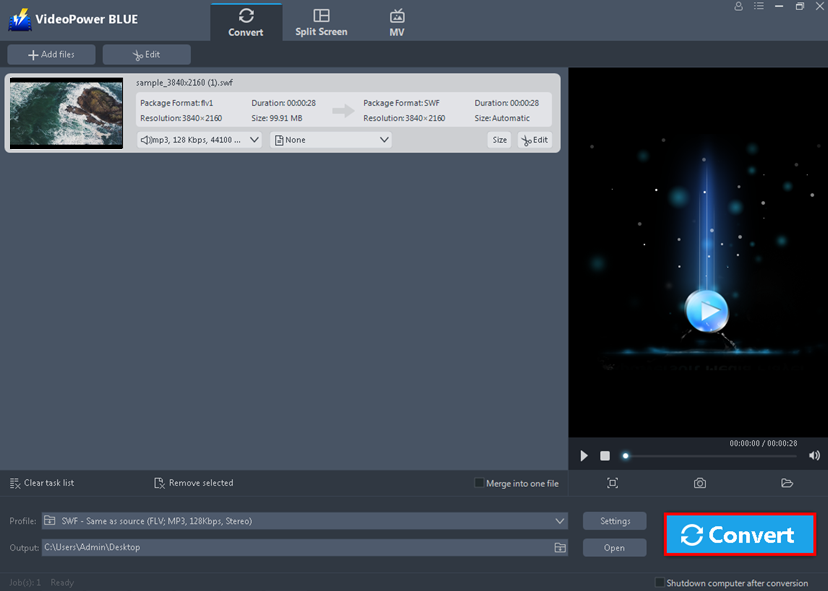
Return to the file list.
Click the “Convert” button, then the converted MOV file will be saved in the default output folder.
3.3 Conversion complete
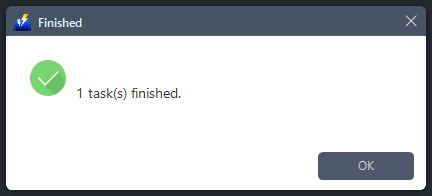
The program will pop up a window to inform you once the conversion is completed.
Click “OK” to open the folder of your saved converted files.

Or you can click the “Open” button to find the MOV video.
Conclusion:
SWF requires a heavy CPU load as it always plays live. Also, SWF files cannot be played without a Flash plug-in therefore, it is not easily played on portable devices like iPad, iPhone, and others.
To resolve this, converting the SWF file to a much more compatible format is needed like the MOV. MOV can produce a good output quality and is recognized by many media players or portable devices.
With the use of the VideoPower BLUE software, converting the SWF file to a MOV format would be very easy in just a few clicks. It has a user-friendly interface that is good for any type of user, especially for non-technical users. Moreover, this software has many additional features and options which makes it flexible to use. Some of its major features are a video editor for basic editings like add subtitles, watermarks, and effects; split-screen for photo and video collage; and MV for creating great slideshows.
ZEUS series can do everything that VideoPower series can do and more, the interface is almost the same.
Check out NOW! Start easier with more affordable prices!




ZEUS Series
VideoPower brother products, start easier with more affordable prices!
| ZEUS BUNDLE 1 Year License ⇒ $29.99 |
ZEUS BUNDLE LITE 1 Year License ⇒ $19.99 |
ZEUS RECORD LITE 1 Year License ⇒ $9.98 |
ZEUS DOWNLOAD LITE 1 Year License ⇒ $9.98 |
||
| Screen Recorder | Screen&Audio Recording | ✔ | ✔ | ✔ | |
| Duration Setting, Schedule Recording | ✔ | ||||
| Video Downloader | Paste URL to download, batch download | ✔ | ✔ | ✔ | |
| Search/download video,browser detector | ✔ | ||||
| Music Recorder | Record music and get music ID3 tag info | ✔ | ✔ | ||
| Music search/download/record, CD Ripper/Creator, Audio Editor | ✔ | ||||
| Video Editor | Edit and convert videos, create slideshow | ✔ | |||
| Screen Capture | Capture screen, image editor | ✔ | |||