











“I downloaded several MKV HD videos on the Internet, but I can’t import them into iTunes. Is there any solution to make it?”
iTunes only supports MP4, MOV, and some other formats. iTunes does not support MKV format, so you can’t import the MKV file into iTunes directly, let alone play it on iTunes or sync it to Apple devices like iPhone, iPad, iPod, or Apple TV.
If you are also frustrated about having a hard time adding MKV files to iTunes, you can find the perfect solution in this article.
VideoPower BLUE or ZEUS is a professional MKV to iTunes converter that can batch convert MKV to iTunes format or any popular audio/video formats. What’s more, it has other features like edit video/audio and make MV.
ZEUS can do what VideoPower series can do and more with an almost similar interface.
Check out NOW! Start easier with more affordable prices!
Easy Steps on How to Convert MKV Files into iTunes
Step 1: Add MKV files to VideoPower BLUE
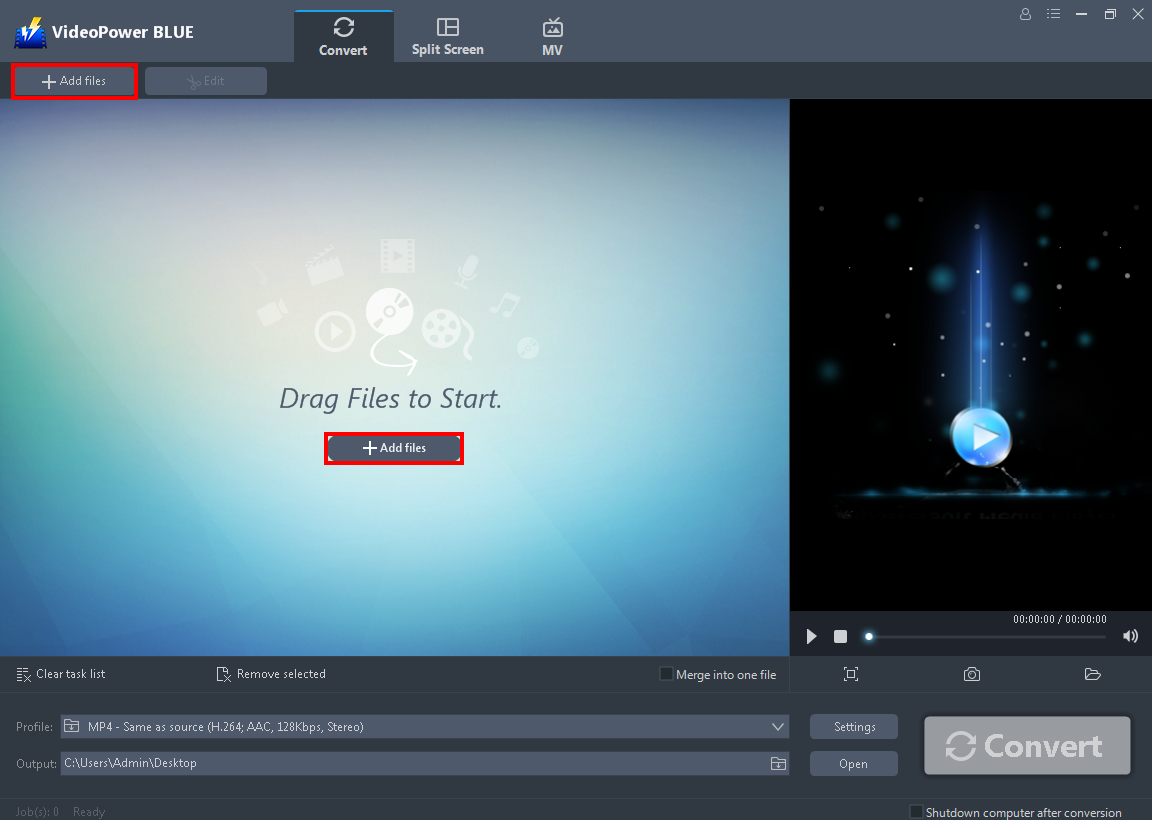
You can directly import the MKV file to the program by clicking the “Add files” button or by drag-and-drop the file to the interface.
Step 2: Edit file before conversion
Note: This step is optional. Users can use the edit function before conversion but if not necessary, skip this step and proceed directly to Step 3 for conversion.
2.1 Open the editor
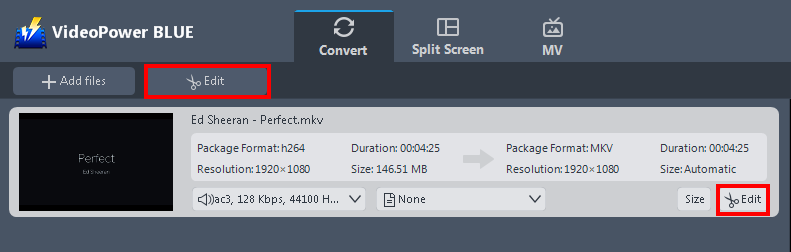
The imported MKV file is displayed in the list.
Click the “Edit” button on the right side of the file.
2.2 Trim the video
The built-in video editor will pop up and with its help, you can easily adjust the speed & volume, trim, cut, crop, rotate, or flip videos. You can also add effects, subtitles, and watermark while adjusting the brightness, contrast, and saturation that will make editing conveniently easier.
For example, you can trim your video as shown below:
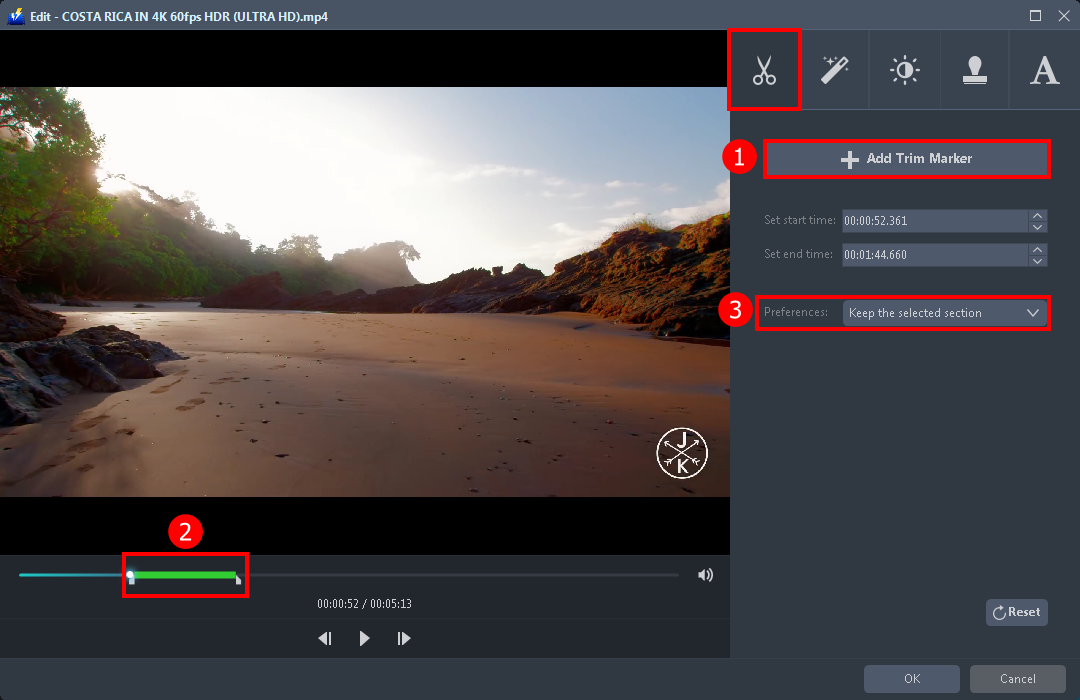
1) Click “Add Trim Marker”.
2) Drag the mark as shown below to select the part you want to cut. If you want to select multi-sections, please repeat 1 and 2.
3) Choose “Keep the selected section” or “Delete the selected section” from “Preferences”.
2.3 Adjustments
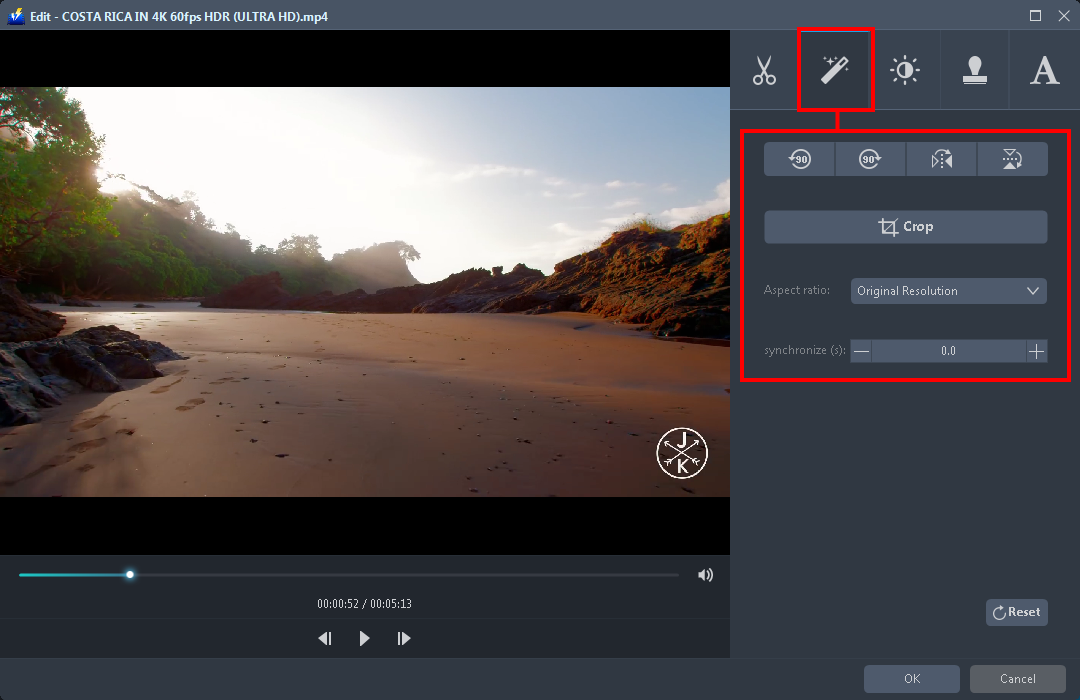
Navigate to the “Adjust” section. You can flip and rotate the video if needed as well as crop or set the aspect ratio.
2.4 Effects
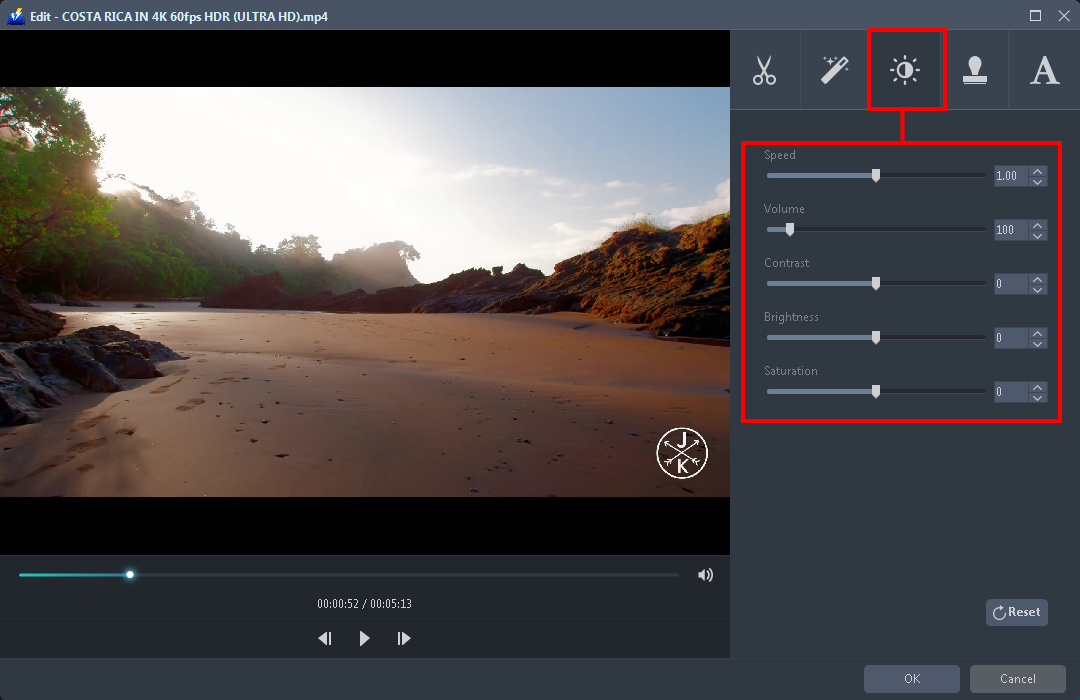
You can do the following steps to change some effects on your video:
Speed – Speed up, slow down, the tempo of your video.
Volume – Set sound level.
Contrast – Change or adjust the difference in lightness, brightness, and/or hue.
Brightness – Where you can increase or decrease the brightness of your video.
Saturation – Adjust the intensity of color in an image.
2.5 Watermark
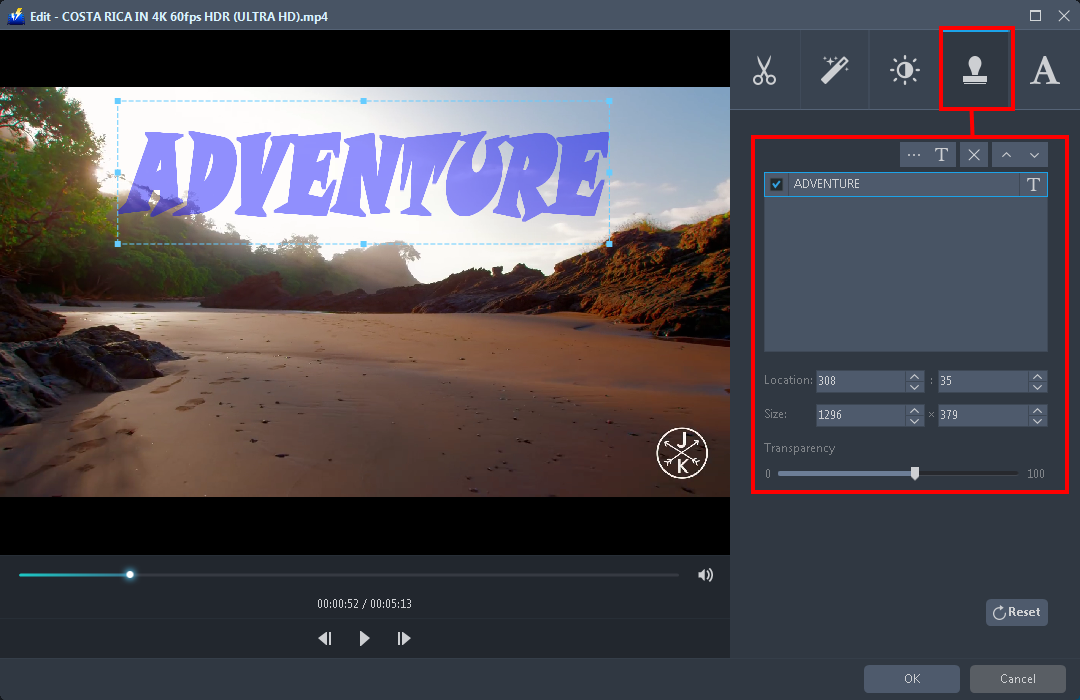
Add a watermark on the video. You can add text or image as a watermark.
2.6 Subtitle
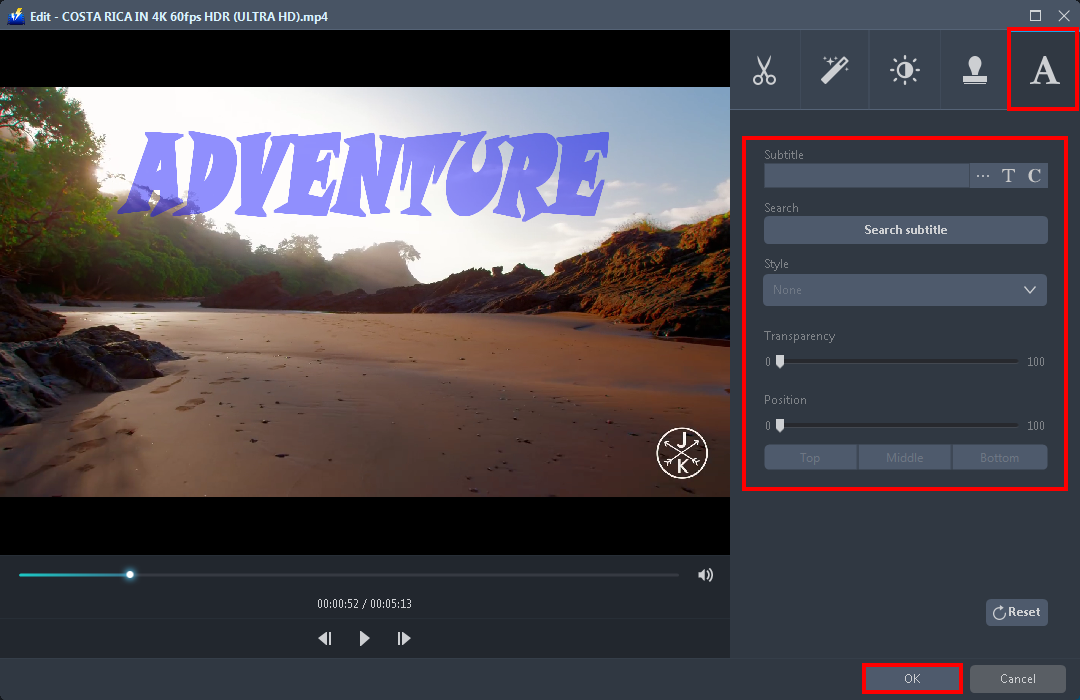
In adding a subtitle to your video, you have the option to either import external subtitles or search corresponding subtitles from the Internet. If you are done editing, click “OK” to save all the changes you have made.
Step 3: Convert MKV to iTunes
3.1 Set the output format
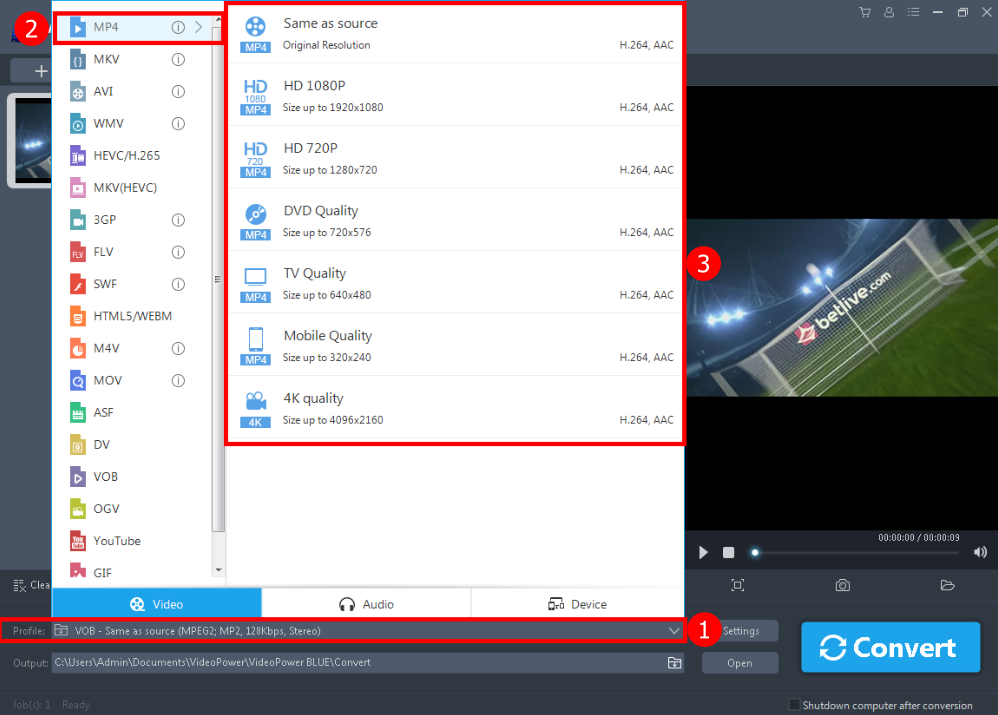
1. If you want to convert MKV to iTunes format, click to open the “Profile” drop-down menu, then choose the format you want from the profile list.
2. You can click “Video” and then “MP4” that is compatible with iTunes.
3. Choose the quality from the list as per your needs.
3.2 Start Conversion
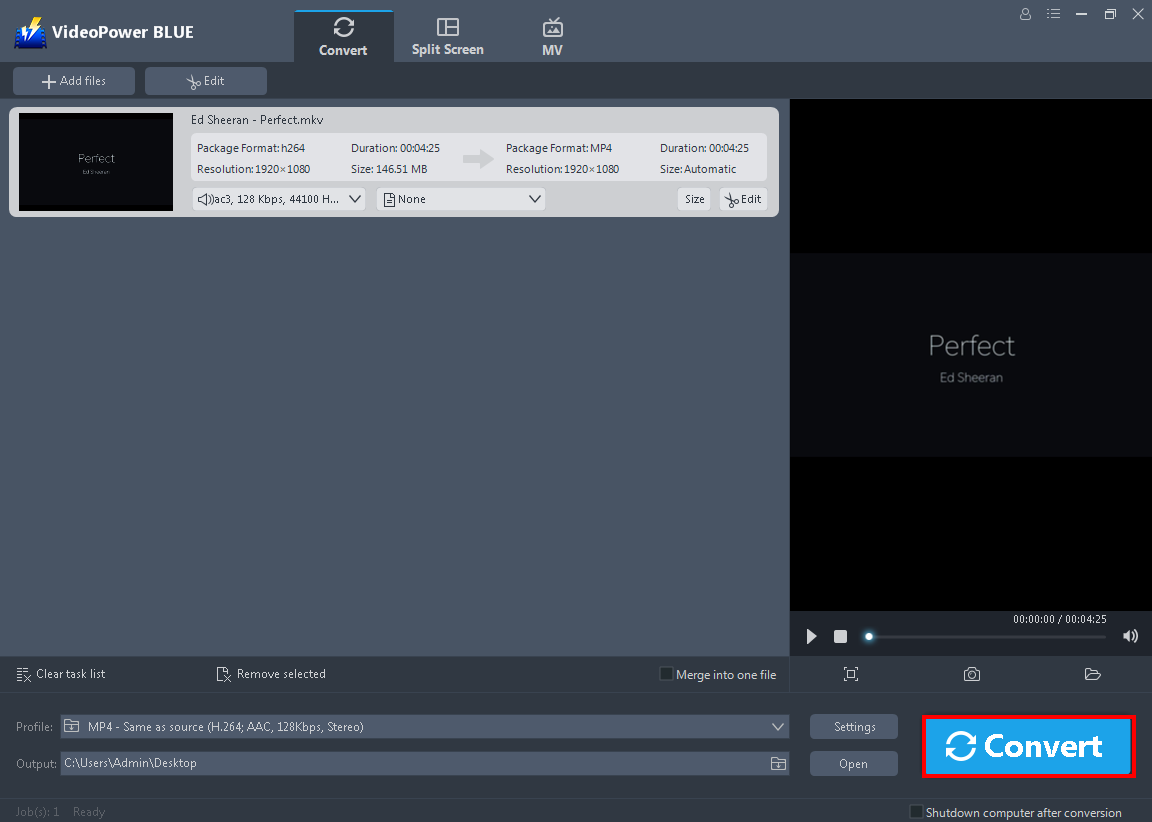
Return to the file list. Click the “Convert” button, then the converted video file will be saved in the default output folder.
3.3 Open saved folder

The program will pop up a window to inform you once the conversion is completed. Click “OK” to open the folder of your saved converted file.
Conclusion:
VideoPower BLUE can convert all video and audio files into common formats and devices easily. Especially when using MKV video files to iTunes. iTunes only supports limited audio/video format types. This application makes it very easy to convert MKV to iTunes format. Also, it’s handy and reliable that you can even convert in batches simultaneously while preserving good quality.
ZEUS series can do everything that VideoPower series can do and more, the interface is almost the same.
Check out NOW! Start easier with more affordable prices!
convert mkv to itunes format, convert mkv to itunes handbrake, convert mkv files to itunes, vlc convert mkv to itunes, convert mkv to mp4 using itunes, convert itunes movies to mkv, convert itunes m4v to mkv




ZEUS Series
VideoPower brother products, start easier with more affordable prices!
| ZEUS BUNDLE 1 Year License ⇒ $29.99 |
ZEUS BUNDLE LITE 1 Year License ⇒ $19.99 |
ZEUS RECORD LITE 1 Year License ⇒ $9.98 |
ZEUS DOWNLOAD LITE 1 Year License ⇒ $9.98 |
||
| Screen Recorder | Screen&Audio Recording | ✔ | ✔ | ✔ | |
| Duration Setting, Schedule Recording | ✔ | ||||
| Video Downloader | Paste URL to download, batch download | ✔ | ✔ | ✔ | |
| Search/download video,browser detector | ✔ | ||||
| Music Recorder | Record music and get music ID3 tag info | ✔ | ✔ | ||
| Music search/download/record, CD Ripper/Creator, Audio Editor | ✔ | ||||
| Video Editor | Edit and convert videos, create slideshow | ✔ | |||
| Screen Capture | Capture screen, image editor | ✔ | |||