











MKV was developed by Matroska. It is a format container that can store multiple videos, audio, images, and text data such as subtitles.
On the other hand, AVI or Audio Video Interleave was developed by Microsoft. It also saves both audio and video. With that, it is similar to the MKV format.
The problem is MKV format occupies a large space and sometimes the video is not playing smoothly. The best solution is converting the MKV video file to AVI. To achieve this, a converter video for MKV to AVI is needed.
VideoPower BLUE or ZEUS best works in converting the MKV file to AVI format. It supports all common and major formats and provides a good quality output and conversion without losing the quality of the video. This software is also capable of making slideshows videos, and a split-screen that can add 2 or more videos/pictures in one frame.
Without further ado, let’s get started. Click the download button below to install the software for free and use the free trial version.
ZEUS can do what VideoPower series can do and more with an almost similar interface.
Check out NOW! Start easier with more affordable prices!
How to Transform Video from MKV to AVI Format
Step 1: Launch VideoPower BLUE and add the MKV video
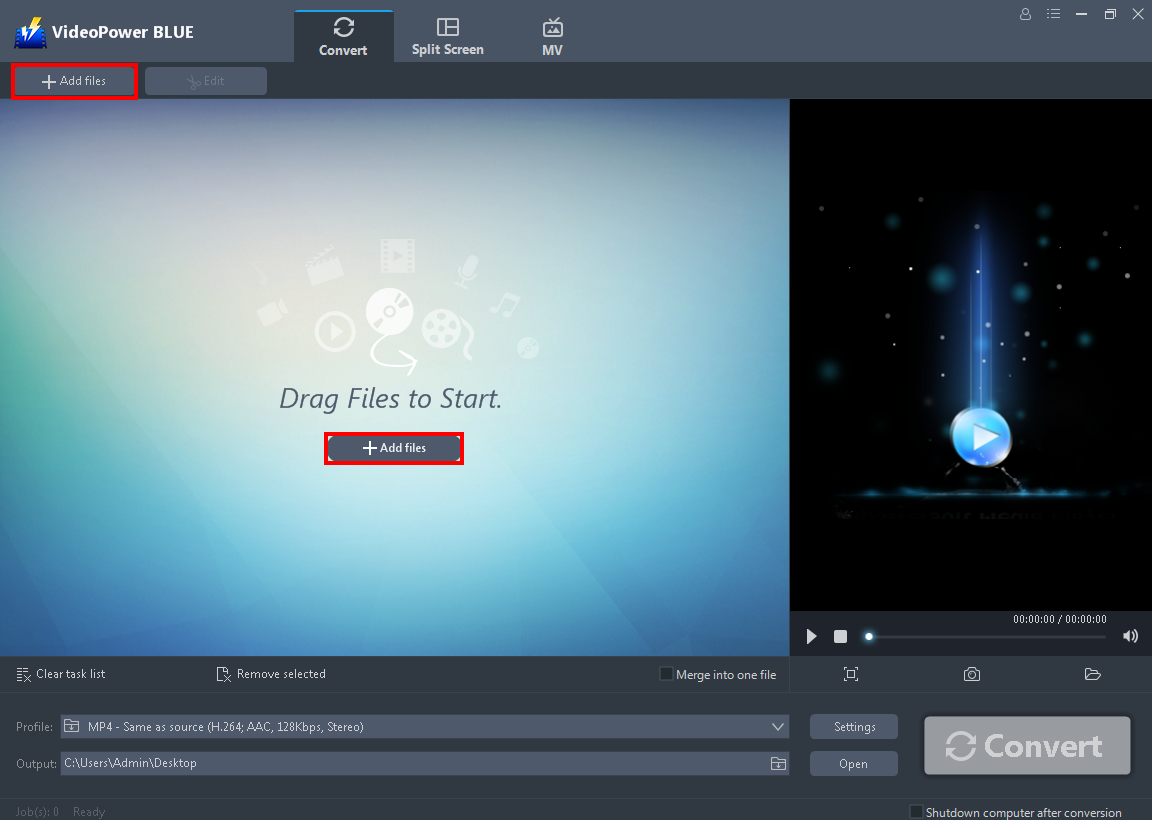
After you launch the software you will automatically be in the convert window. Click the “+ Add Files” that you can see on its interface or drag and drop to import the MKV file that you want to convert to AVI.
Step 2: Edit the MKV video file
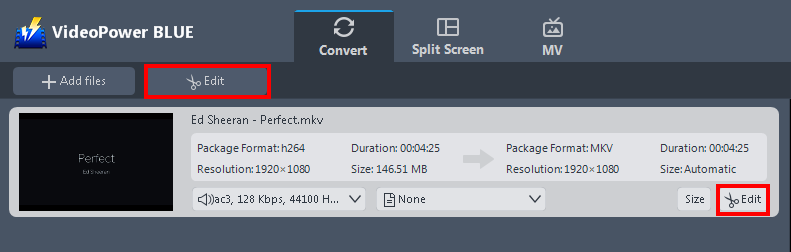
If you need to edit the MKV video file before converting it, you may do so. To start, click the “Edit” button on the right side of the file to open the edit box.
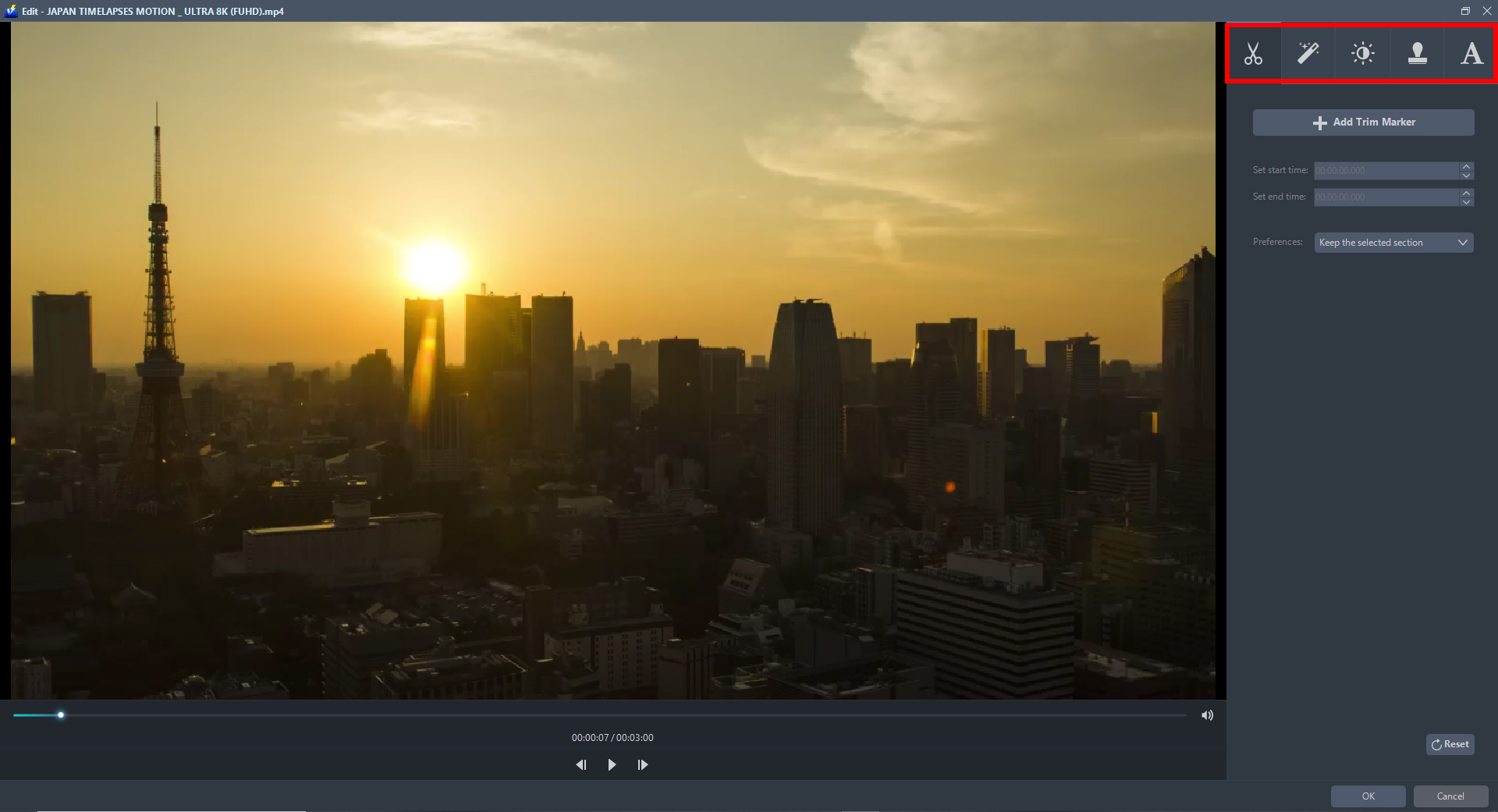
The built-in editor will appear on the screen. You can start to explore each section and enhance the video before converting it. You can flip, rotate, crop, and trim the video. If you want to enhance it, you can do it by adjusting its brightness, saturation, speed, and many more. You can also add subtitles and texts on it.
Step 3: Set output format to AVI and start the conversion
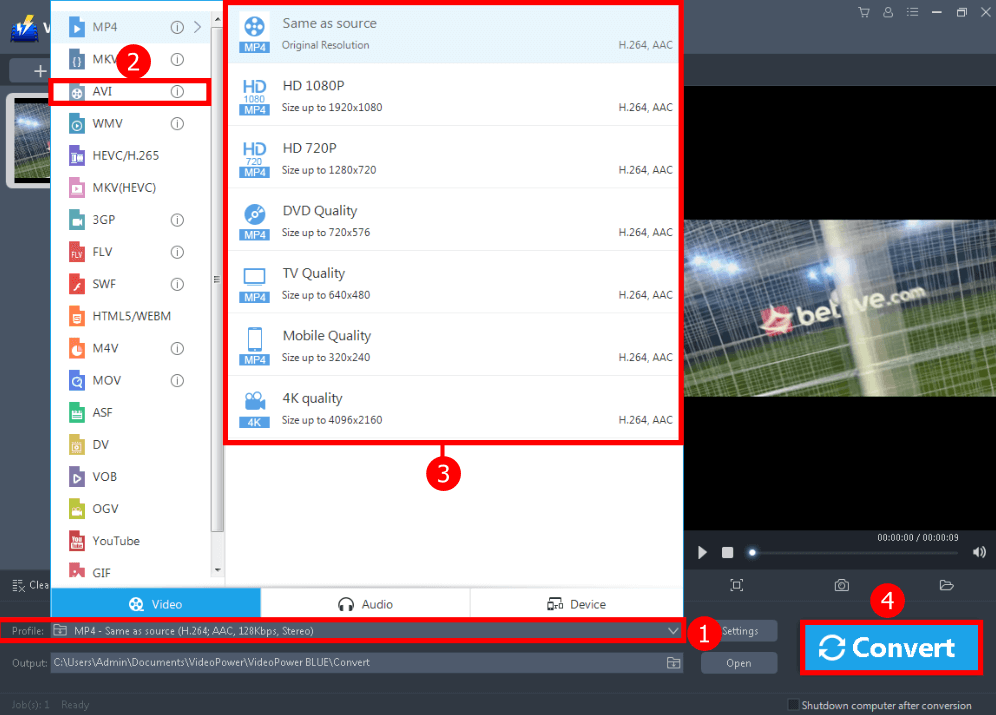
1. Just click the “Profile” drop-down button to see all the formats.
2. Go to the “Video” to select the video format you preferred.
3. Choose the “AVI” format to the left side then the resolution “Same as source” to the right. You can also select HD, TVquality, or whatever you deem appropriate.
4. Hit the “Convert” button to save your converted video file.

After the conversion, a pop-up box will appear informing you that one task is complete. Click “OK” to open the folder to find the location of the MKV to AVI converted file.
Conclusion:
Playing MKV videos is quite problematic for some devices that users use. Thus, converting it to a common format like AVI can make things simple and at ease. To sum it all, VideoPower BLUE will help you convert the MKV to AVI for free. It exceeds your expectations and needs for converting that convert in quick speed and excellent output.
ZEUS series can do everything that VideoPower series can do and more, the interface is almost the same.
Check out NOW! Start easier with more affordable prices!




ZEUS Series
VideoPower brother products, start easier with more affordable prices!
| ZEUS BUNDLE 1 Year License ⇒ $29.99 |
ZEUS BUNDLE LITE 1 Year License ⇒ $19.99 |
ZEUS RECORD LITE 1 Year License ⇒ $9.98 |
ZEUS DOWNLOAD LITE 1 Year License ⇒ $9.98 |
||
| Screen Recorder | Screen&Audio Recording | ✔ | ✔ | ✔ | |
| Duration Setting, Schedule Recording | ✔ | ||||
| Video Downloader | Paste URL to download, batch download | ✔ | ✔ | ✔ | |
| Search/download video,browser detector | ✔ | ||||
| Music Recorder | Record music and get music ID3 tag info | ✔ | ✔ | ||
| Music search/download/record, CD Ripper/Creator, Audio Editor | ✔ | ||||
| Video Editor | Edit and convert videos, create slideshow | ✔ | |||
| Screen Capture | Capture screen, image editor | ✔ | |||