











I recorded a 4K video before, but now the computer and mobile phone cannot open it, so I was thinking to compress the video resolution. How to compress 4K video to 1080p? Do you have the same demand for converting 4K video to 1080p resolution? Then you have come to the right place.
4K is known as Ultra High Definition (UHD), while 1080P is simply labeled High Definition. 4K has a considerably higher resolution than 1080P HD video. Regardless of how amazing 4k video quality is, some people prefer their videos compressed to 1080P high definition video quality because it occupies lesser storage and quality is admired for its clarity and a standard high definition format in use around the world.
We are going to introduce a powerful and professional 4K video conversion software called VideoPower BLUE or ZEUS, which can help you convert 4K video to 1080p resolution without any hassle.
Users can convert 4K video to 1080p, 720p HD. In addition to video resolution conversion, this software also provides format converting function. It can convert 4K video into MP4, MKV, AVI formats supported by 4K TV.
The software also comes with an excellent built-in video editor and fast conversion of 4K video. Given most of your requirements for 4K video conversion, Let’s see how this software works.
You can try to use the software for free by downloading its trial version below.
ZEUS can do what VideoPower series can do and more with an almost similar interface.
Check out NOW! Start easier with more affordable prices!
Step 1: Add Files to VideoPower BLUE
You can directly import the 4k video file to the program by clicking the “Add files” button or by drag-and-drop the file to the interface.
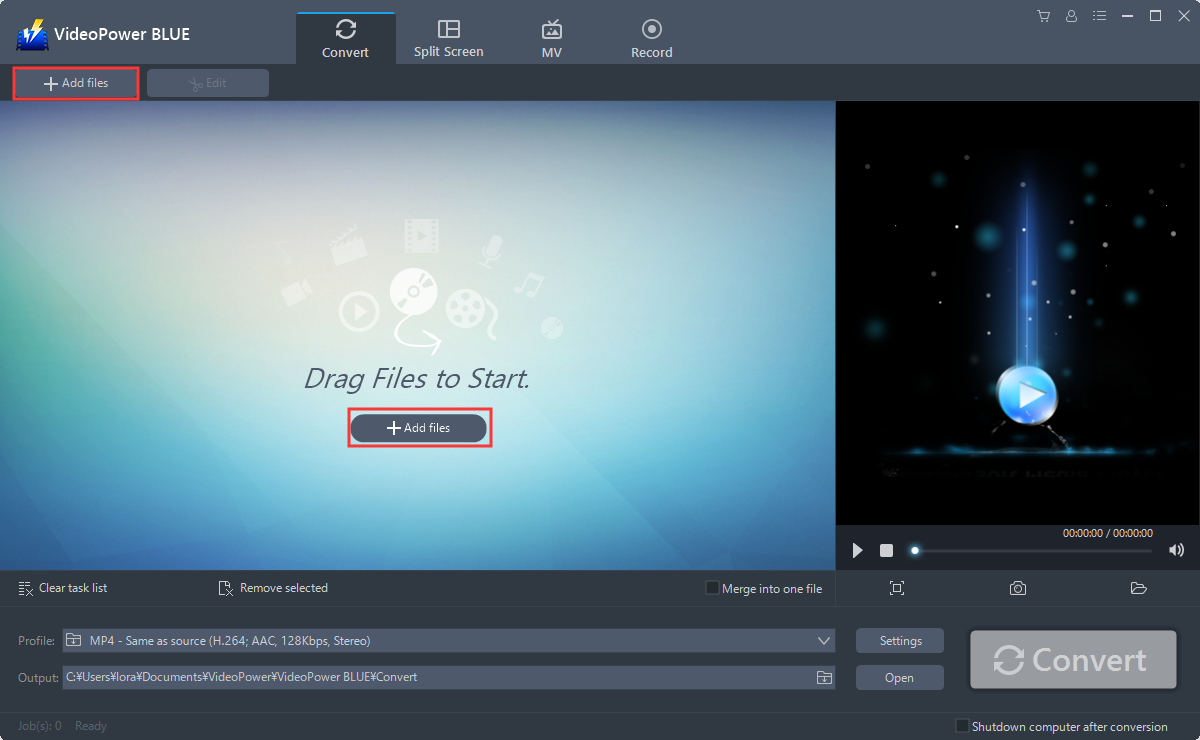
Step 2: Edit file before conversion
If you need to edit the video file before conversion, follow the instructions below.
2.1 Edit the video
The imported file is displayed in the list.
Click the “Edit” button on the right side of the file.
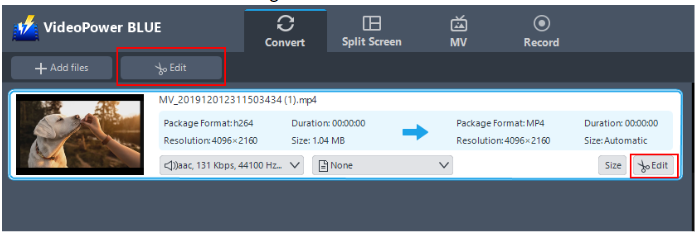
2.2 Trim the video
The built-in video editor will pop up, with its help, you can make the perfect movie. Adjust speed and volume, trim, cut, crop, rotate or flip videos. Add effects, subtitles, and watermark while adjusting brightness, contrast, and saturation that will make editing conveniently easier.
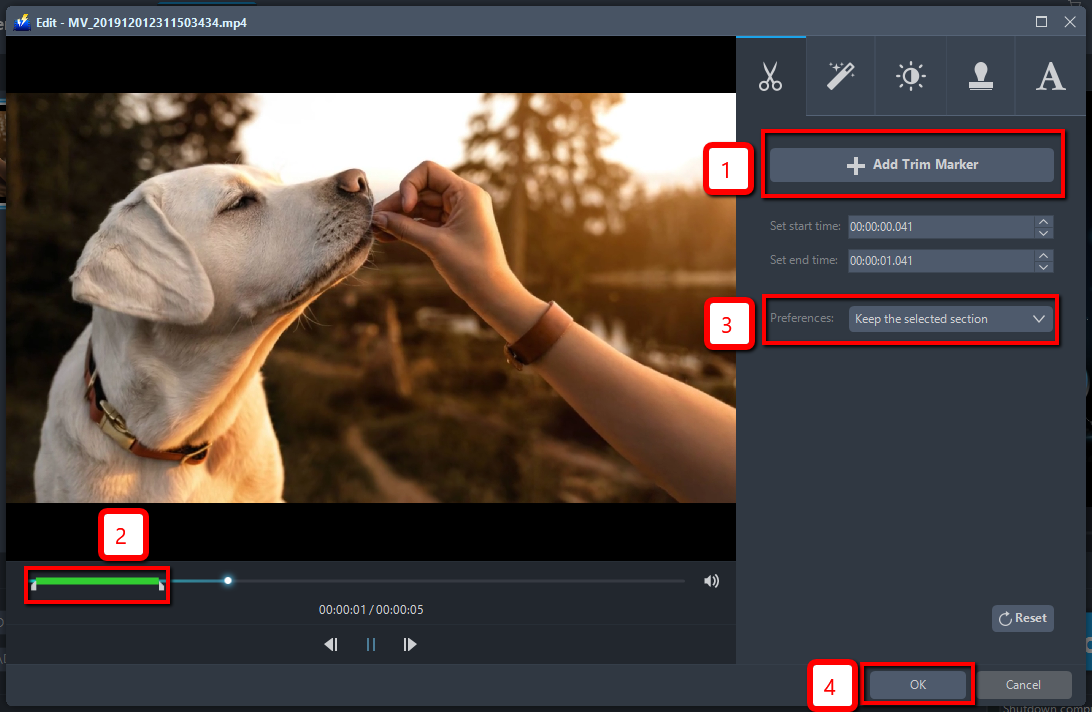
For example, you can trim your video as shown below:
1) Click “Add Trim Marker”.
2) Drag the mark as shown below to select the part you want to cut. If you want to select multi-sections, please repeat 1 and 2.
3) Choose “Keep the selected section” or “Delete the selected section” from “Preferences”.
4) Click “OK” to save the setting.
Step 3: Convert 4K Videos to 1080p quality
3.1 Set the output format
1) Click to open the “Profile” drop-down menu, then choose the format you want from the profile list.
2) Here you can click “Video” and then “MP4”.
3) Choose “HD 1080P” from the list.
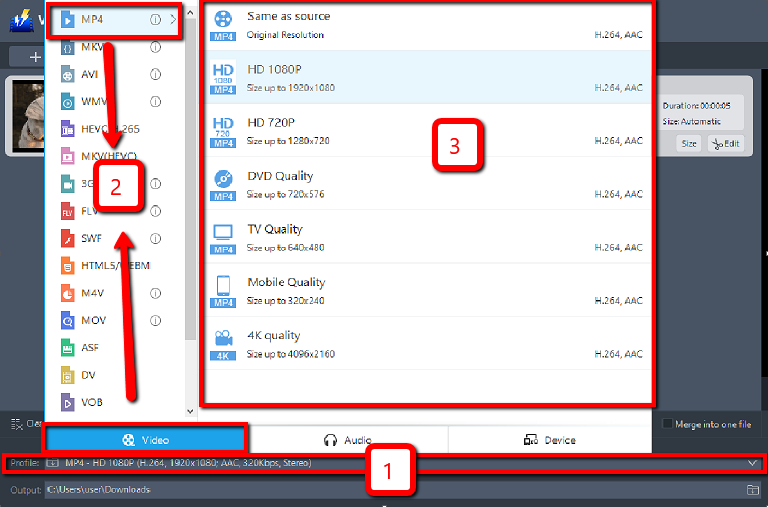
3.2 Start Conversion
Return to the file list.
Click the “Convert” button, then the converted video file will be saved in the default output folder.
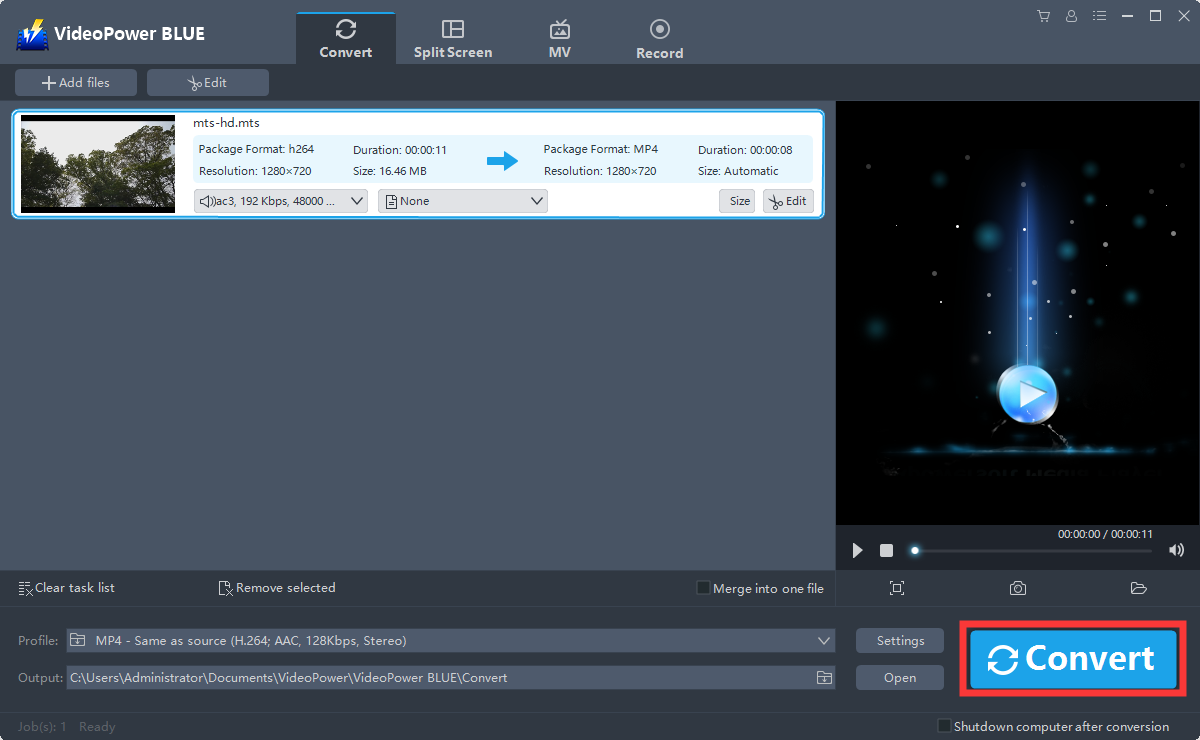
3.3 Find the Converted video files
A pop-up window from the program will appear informing you that the conversion is complete.
Click “OK” to open the folder of your saved converted MP4 files.

Conclusion:
With these steps, you can now trim and convert files from 4K to 1080P. 4k videos occupy too much space so an alternative is to convert it to 1080p, which is still the most popular resolution widely used by streaming video sites. So if you convert 4K to 1080p using VideoPower BLUE you can feast your eyes with no reduction of quality on common monitors.
More importantly, this software is a multi-faceted software that is a simple, easy-to-use and straightforward interface. These functions are built-in video editor that will enable you to edit slideshows or videos, apply watermarks, effects, and other basic video editing options such as trimming or cropping. Moreover, it has a split-screen tool for your photos and videos and a screen recorder which allows you to capture any on-screen activity on your computer.
ZEUS series can do everything that VideoPower series can do and more, the interface is almost the same.
Check out NOW! Start easier with more affordable prices!
convert 4k video to 1080p without losing quality, convert 4k video to 1080p online, convert 4k video to 1080p iPhone, convert 4k video to 1080p online free, convert 4k video to 1080p android, convert 4k video to 1080p free, convert 4k video to 1080p app, convert 4k video to 1080p mac, convert 4k video to 1080p vlc, convert 4k video to 1080p premiere pro




ZEUS Series
VideoPower brother products, start easier with more affordable prices!
| ZEUS BUNDLE 1 Year License ⇒ $29.99 |
ZEUS BUNDLE LITE 1 Year License ⇒ $19.99 |
ZEUS RECORD LITE 1 Year License ⇒ $9.98 |
ZEUS DOWNLOAD LITE 1 Year License ⇒ $9.98 |
||
| Screen Recorder | Screen&Audio Recording | ✔ | ✔ | ✔ | |
| Duration Setting, Schedule Recording | ✔ | ||||
| Video Downloader | Paste URL to download, batch download | ✔ | ✔ | ✔ | |
| Search/download video,browser detector | ✔ | ||||
| Music Recorder | Record music and get music ID3 tag info | ✔ | ✔ | ||
| Music search/download/record, CD Ripper/Creator, Audio Editor | ✔ | ||||
| Video Editor | Edit and convert videos, create slideshow | ✔ | |||
| Screen Capture | Capture screen, image editor | ✔ | |||