











OGG, short for Ogg Vorbis, is a compressed audio format. This format file can continuously improve the size and sound quality without affecting the original encoder or player. It does explicit bit rates. Plus, it is not commonly used that most audio players are not compatible with this format.
Different from OGG, MP3 allows a variable bit rate encoding. It is also one of the common formats that are compatible with both Windows Media Player and Apple products. If you have OGG audio files but can’t play on your device, converting OGG to MP3 is the best thing to do.
VideoPower BLUE or ZEUS is the best and free OGG to MP3 converter which can be used in just a few, simple steps. It also offers a variety of options and features like editing, MV making, and many more.
Using this software, converting OGG to MP3 file format on Windows 10, 8.1, 8, and 7 will be more efficient as it supports batch conversion of files. The conversion speed is more than double compared to other media converters.
ZEUS can do what VideoPower series can do and more with an almost similar interface.
Check out NOW! Start easier with more affordable prices!
Convert OGG to MP3 on Windows for Free
Step 1: Add the OGG file to VideoPower BLUE
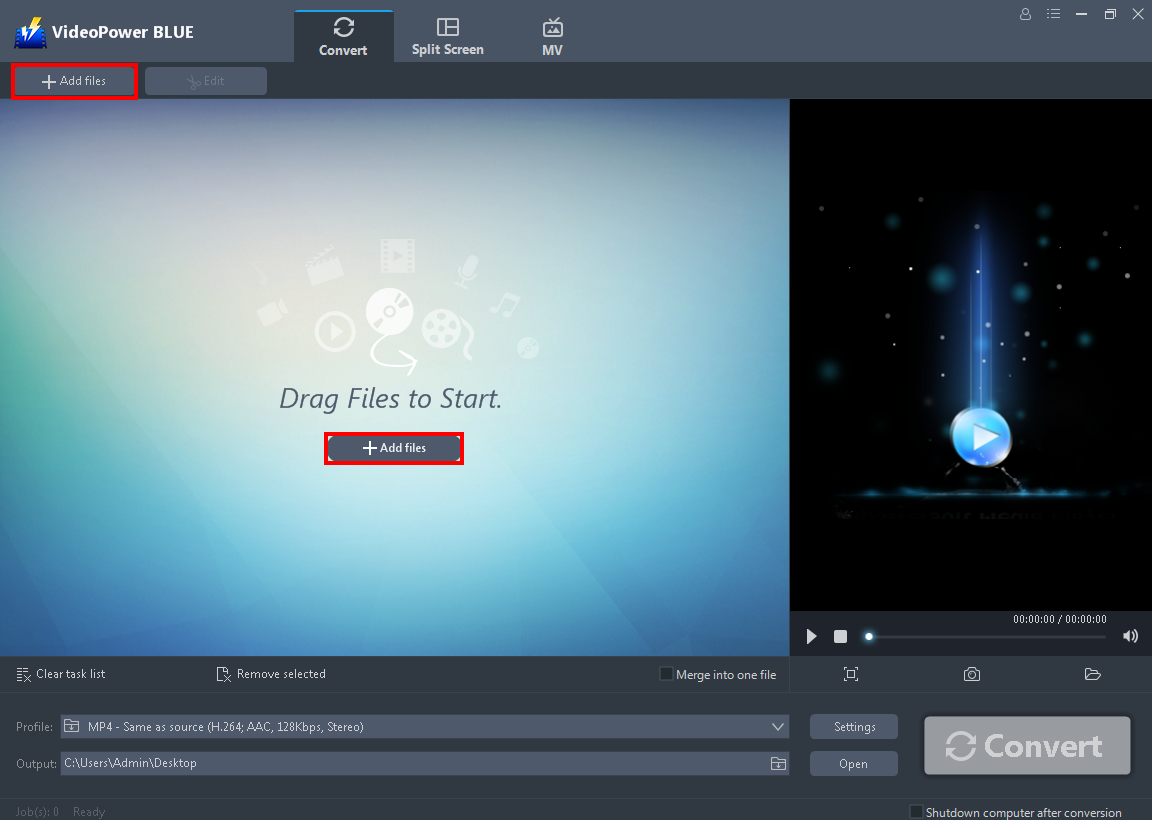
To import your OGG file, just click on the “Add files” button or you can drag-and-drop the file directly to the interface.
Step 2: Edit file before conversion
If you need to edit the audio file before the conversion, follow the instructions below.
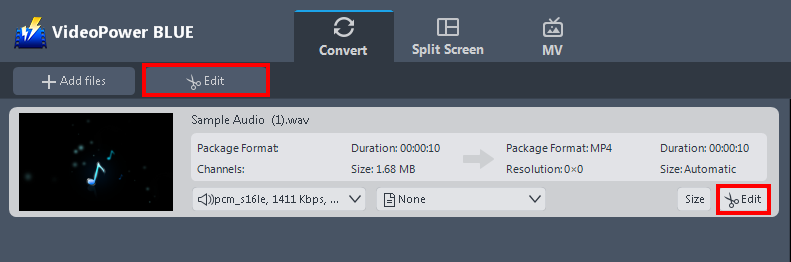
The imported file is displayed in the list. Click the “Edit” button on the right side of the file.
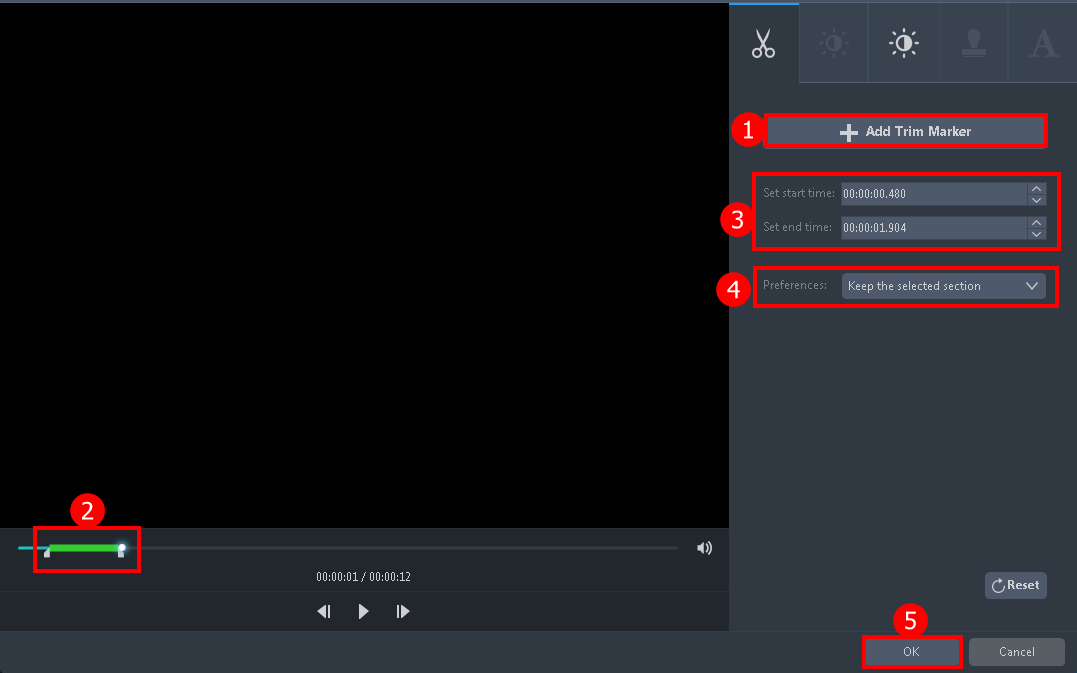
The built-in audio editor will pop up. Adjust speed and volume, or add a trim.
For example, you can trim your audio as shown below:
1) Click “Add Trim Marker”.
2) Drag the slider to select the part you desire to trim.
3) Drag the mark as shown below to select the part you want to cut. If you want to select multi-sections, please repeat 1 and 2.
4) Choose “Keep the selected section” or “Delete the selected section” from “Preferences”.
5) Click “OK” to save the setting
Step 3: Convert OGG to MP3 format
3.1 Set the output format.
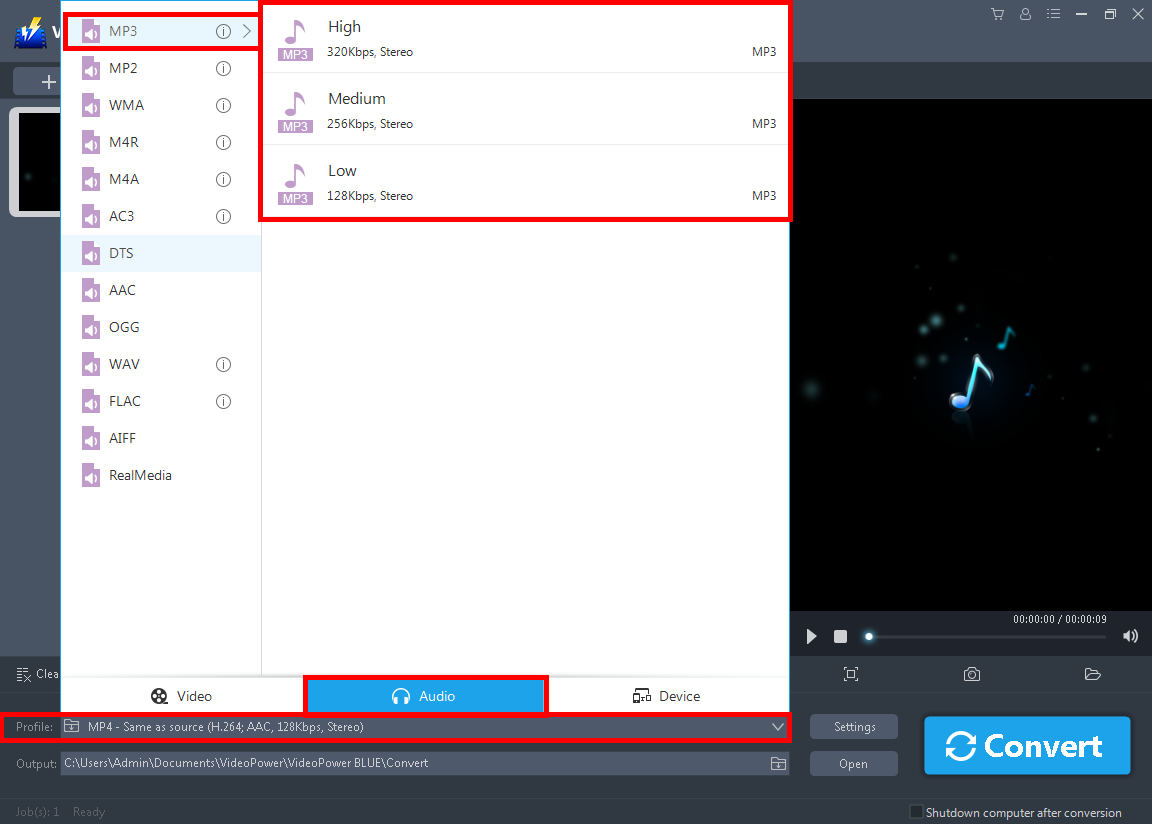
Click to open the “Profile” drop-down menu, click “Audio” and then “MP3”. Set the format quality to “High, Medium, or Low”.
3.2 Start the conversion

Return to the file list. Click the “Convert” button, then the converted MP3 file will be saved in the default output folder.
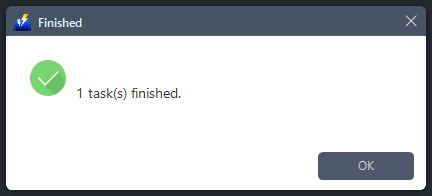
The program will pop up a window to inform you once the conversion is completed.
Click “OK” to open the folder of your saved converted file.
Conclusion:
VideoPower BLUE is a flexible and free audio converter which is the perfect conversion tool to convert OGG format to MP3 as well as to other formats.
Moreover, this software provides you various features such as video editing which includes trimming, rotating, adjusting the resolution, speed, volume, brightness, adding subtitles, and a lot more. It has a split-screen feature for your photos and videos.
ZEUS series can do everything that VideoPower series can do and more, the interface is almost the same.
Check out NOW! Start easier with more affordable prices!




ZEUS Series
VideoPower brother products, start easier with more affordable prices!
| ZEUS BUNDLE 1 Year License ⇒ $29.99 |
ZEUS BUNDLE LITE 1 Year License ⇒ $19.99 |
ZEUS RECORD LITE 1 Year License ⇒ $9.98 |
ZEUS DOWNLOAD LITE 1 Year License ⇒ $9.98 |
||
| Screen Recorder | Screen&Audio Recording | ✔ | ✔ | ✔ | |
| Duration Setting, Schedule Recording | ✔ | ||||
| Video Downloader | Paste URL to download, batch download | ✔ | ✔ | ✔ | |
| Search/download video,browser detector | ✔ | ||||
| Music Recorder | Record music and get music ID3 tag info | ✔ | ✔ | ||
| Music search/download/record, CD Ripper/Creator, Audio Editor | ✔ | ||||
| Video Editor | Edit and convert videos, create slideshow | ✔ | |||
| Screen Capture | Capture screen, image editor | ✔ | |||