











MP3 is a standard audio digital encoding format. The advantage of distinguishing it from other formats is that it can greatly reduce the file size without degrading the sound quality. Therefore, the MP3 format is some of the most widely used in regards to audio formats.
Most electronic devices nowadays can recognize and play this format, including the iPhone.
However, despite being able to play it, iPhone cannot use MP3 format as ringtones because the compatible format is M4R.
Therefore, you will need a MP3 to M4R Converter to help you if you want to set the MP3 music as your iPhone ringtone.
VideoPower BLUE or ZEUS is a powerful, multi-faceted tool that contains a lot of features such as screen recording, video editing, and conversion. This program can convert MP3 to M4R without any hassle.
Get this software now and convert the MP3 file to a more usable format.
Here we will guide you on how to use this software to perform format conversion.
ZEUS can do what VideoPower series can do and more with an almost similar interface.
Check out NOW! Start easier with more affordable prices!
Step 1: Add the MP3 file to VideoPower BLUE
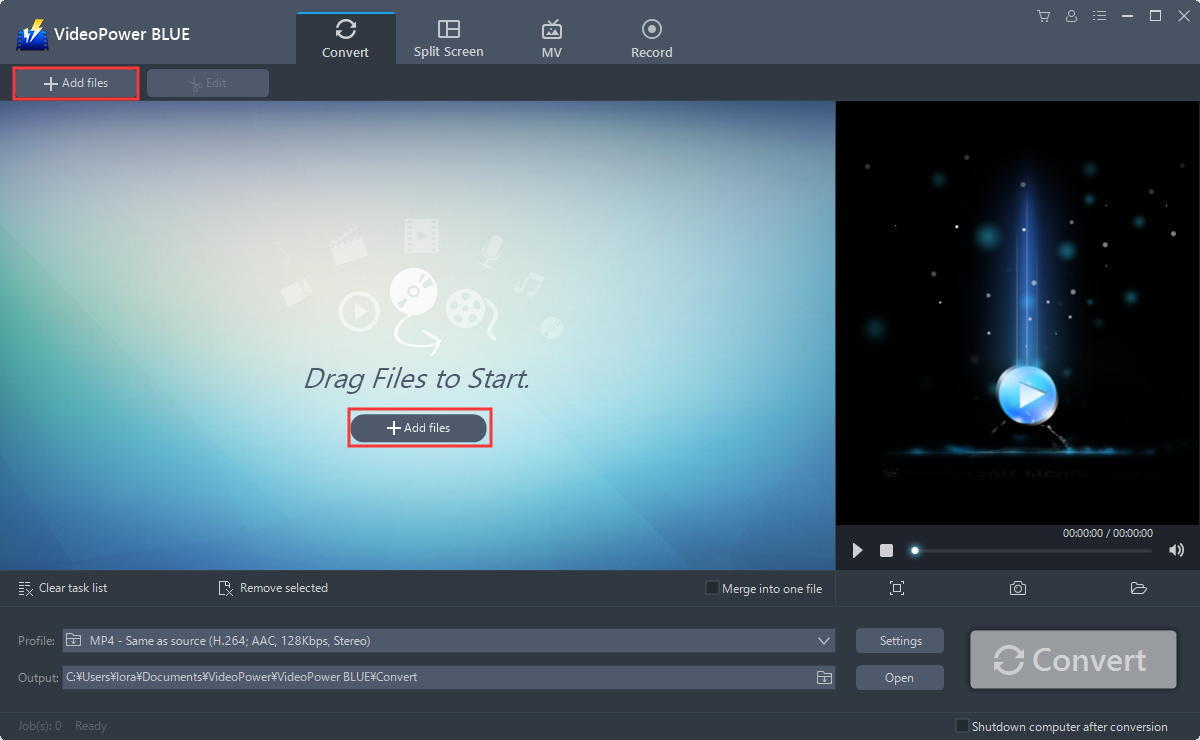
Run the program if you have installed VideoPower BLUE successfully on your PC. Click the “Add files” button to select files from your PC, or directly drag-and-drop the MP3 files to the interface.
Step 2: Edit the MP3 file.
If you need to edit the file before converting, just follow the instructions below.
The imported MP3 file is displayed in the list. Click the “Edit” button at the right side of the added MP3 file to enter the Edit window so you can make adjustments to your MP3 now.

Step 3. Convert MP3 to M4R
3.1 Set Output Format
You should change the output format first as the default output format is MP4.
1) Click the “Profile” bar
2) Choose “Audio”.
3) Set the format to “M4R – High”.

3.2 Set Output Folder
Choose a location to save the converted files. Click the “Output” icon and select the destination wherever you want to store the file.

3.3 Start Conversion
When you’re satisfied with the edits, click the “Convert” button, then the software will start to convert and save the edited audio in M4R format.

3.4 Conversion Complete
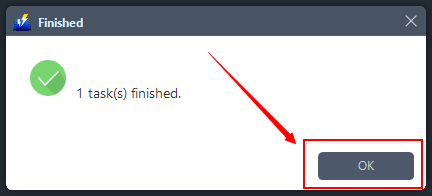
The program will pop up a window to inform you once the conversion is completed. Click “OK” to open the folder of your saved converted M4R files.
Conclusion:
VideoPower BLUE is a built-in video editor that is ready to use in case you want to edit the audio file on your computer before converting. Use this software to convert videos to videos or audio formats that work on your mobile phone, tablet, TV media player, game console, computer, or web browser.
ZEUS series can do everything that VideoPower series can do and more, the interface is almost the same.
Check out NOW! Start easier with more affordable prices!




ZEUS Series
VideoPower brother products, start easier with more affordable prices!
| ZEUS BUNDLE 1 Year License ⇒ $29.99 |
ZEUS BUNDLE LITE 1 Year License ⇒ $19.99 |
ZEUS RECORD LITE 1 Year License ⇒ $9.98 |
ZEUS DOWNLOAD LITE 1 Year License ⇒ $9.98 |
||
| Screen Recorder | Screen&Audio Recording | ✔ | ✔ | ✔ | |
| Duration Setting, Schedule Recording | ✔ | ||||
| Video Downloader | Paste URL to download, batch download | ✔ | ✔ | ✔ | |
| Search/download video,browser detector | ✔ | ||||
| Music Recorder | Record music and get music ID3 tag info | ✔ | ✔ | ||
| Music search/download/record, CD Ripper/Creator, Audio Editor | ✔ | ||||
| Video Editor | Edit and convert videos, create slideshow | ✔ | |||
| Screen Capture | Capture screen, image editor | ✔ | |||