











MediaCoder is a universal media transcoding software that is developed by Stanley Huang and a proprietory of Microsoft Windows. Mediacoder uses various open-source audio and video codecs to transcode media files into a different file format. It offers different options and adjustable parameters which lets you take full control of the transcoding. New features and newly added codecs are also updated constantly.
Functions of MediaCoder
• Wide range of supported formats and codecs.
• Ripping BD/DVD/VCD/CD or video cameras captured.
• Available filters for audio and video contents.
• Extremely rich adjustable transcoding parameters for adjustments and tuning.
• Segmental video encoding for parallel processes.
Advantages
• Good compression for audio and video file sizes.
• Can convert media files for playback on different devices.
• Compact media standard and storage format.
• Can extract audio from video files.
• Can repair corrupted or partially downloaded files.
Disadvantages
• Its advanced tools and broad options can overwhelm non-technical users.
• Not supported by Apple products.
MediaCoder is good for advanced users because of its advanced features, however, it may not be suitable for users who are looking for a simple way to do conversions. Its GUI can confuse general users because you need to figure out the difference between different options.
VideoPower BLUE or ZEUS is a great MediaCoder converter alternative designed for general users who are looking for easy, fast, and free conversions. This software offers a user-friendly interface that allows conversions in just simple steps. Similar to MediaCoder, this software also has a wide range of formats supported with good output quality. Moreover, it has many added features that make it flexible and multifunctional for any type of users like its built-in audio or video editor, split-screen and MV.
ZEUS can do what VideoPower series can do and more with an almost similar interface.
Check out NOW! Start easier with more affordable prices!
Convert Files Using MediaCoder Alternative
MediaCoder is proprietary of Microsoft Windows therefore it is not supported for any Apple devices or operating system. In this example, we will convert the WAV file format to the iPhone device supported format.
Step 1: Add the file to VideoPower BLUE.
Once the software is successfully installed on your PC, click the application to run the program and follow the steps below to start the conversion.
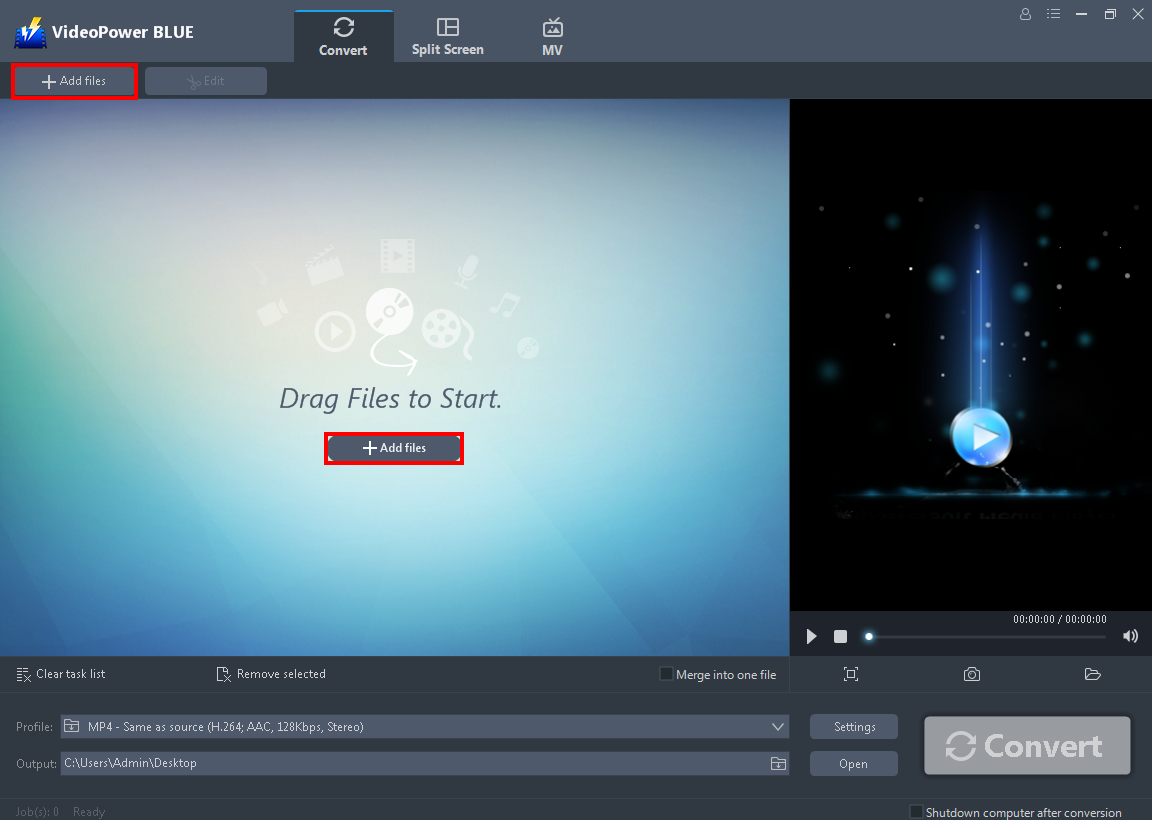
To import your WAV file, just click on the “Add files” button or you can drag-and-drop the file directly to the interface.
After the file is imported, it will be added automatically to your file displayed list.
Step 2: Edit the audio before conversion
If you need to edit the audio file before the conversion, follow the instructions below.
2.1 Open Editor
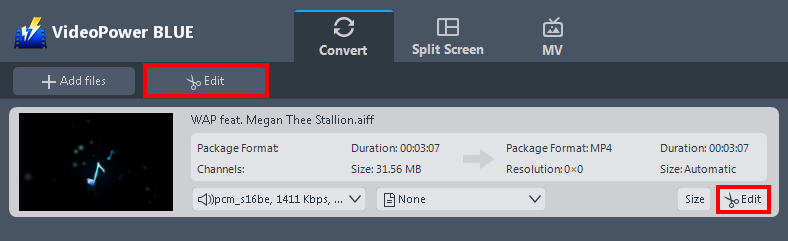
Click the “Edit” button located beside the “Add files” button or directly at the bottom right of your file from the displayed file list.
2.2 Edit audio
The built-in audio editor will pop up in which you can use to make audio enhancements. You can adjust its speed & volume or trim the audio. Since we are using audio as an example, there are only a few changes needed for the enhancements.
For example, you can trim your audio as shown below:

1) In the video editor, click the “Add Trim Marker” button on the area that you want to trim.
2) You can adjust the trim marker by dragging the mark on the portion you wanted to trim.
3) Set the “Preferences” to “Keep the selected section” if you want to keep the part where you put the trim marker or “Delete the selected section” if you want to delete it.
4) Click “OK” to save the setting.
Step 3: Convert WAV to iPhone format for free
3.1 Set the output format

1) Click to open the “Profile” drop-down menu.
2) Click “Devices” and choose “Apple” since the iPhone is an Apple product.
3) Choose your device from the list. Use the dropdown to see more available devices.
3.2 Start conversion
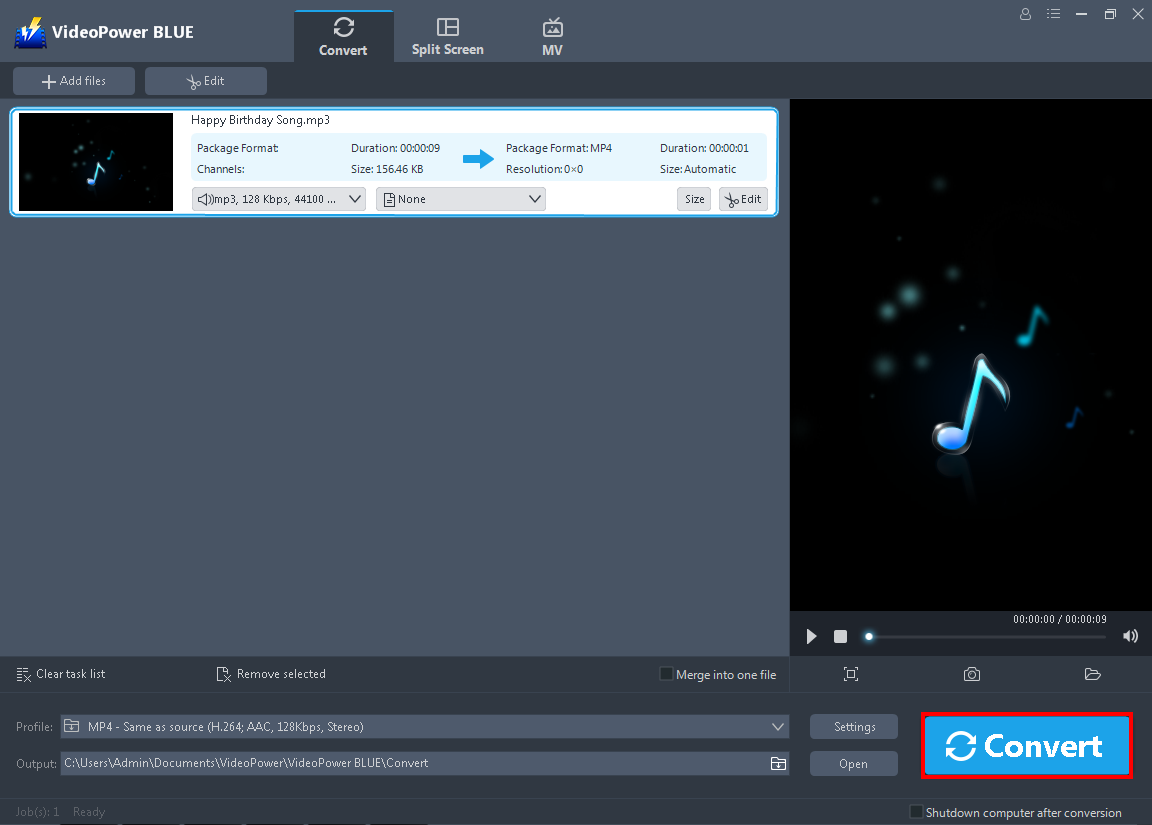
Return to the file list.
Click the “Convert” button, then the converted iPhone file format will be saved in the default output folder.
3.3 Conversion complete
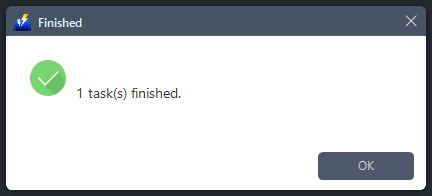
The program will pop up a window to inform you once the conversion is completed.
Click “OK” to open the folder of your saved converted files.
Conclusion:
MediaCoder offers advanced settings with advanced functionalities that are dedicated to super users. When you want the most out of your videos and audios, and want to install lots of codecs, this software is for you.
However, this software can be overwhelming to some and may get lost because of its many options. VideoPower BLUE is a great Mediacoder alternative. This software has an easy to use interface dedicated to general users. It allows easy, fast, and free conversions in just a few clicks. Aside from the conversion feature, it is also a multi-faceted software that offers a lot of additional functions like a built-in audio or video editor for basic editing, split-screen for photo video collage, and MV for creating beautiful slideshows.
ZEUS series can do everything that VideoPower series can do and more, the interface is almost the same.
Check out NOW! Start easier with more affordable prices!




ZEUS Series
VideoPower brother products, start easier with more affordable prices!
| ZEUS BUNDLE 1 Year License ⇒ $29.99 |
ZEUS BUNDLE LITE 1 Year License ⇒ $19.99 |
ZEUS RECORD LITE 1 Year License ⇒ $9.98 |
ZEUS DOWNLOAD LITE 1 Year License ⇒ $9.98 |
||
| Screen Recorder | Screen&Audio Recording | ✔ | ✔ | ✔ | |
| Duration Setting, Schedule Recording | ✔ | ||||
| Video Downloader | Paste URL to download, batch download | ✔ | ✔ | ✔ | |
| Search/download video,browser detector | ✔ | ||||
| Music Recorder | Record music and get music ID3 tag info | ✔ | ✔ | ||
| Music search/download/record, CD Ripper/Creator, Audio Editor | ✔ | ||||
| Video Editor | Edit and convert videos, create slideshow | ✔ | |||
| Screen Capture | Capture screen, image editor | ✔ | |||