











Can you Convert OGV TO MP4?
OGV is a lossy video file format developed by Xiph.Org Foundation. It is not widely used and supports a few devices and programs. Converting OGV to MP4 will be a great help to view OGV files on your iPhone, PSP, iPad, and other portable devices. Because MP4 is one of a common format and can be played for almost all of the programs and software.
This article will focus on how to convert OGV format to MP4 using VideoPower BLUE or ZEUS.
It is a powerful software that can convert OGV and MP4 on Windows 10, 8.1, 8, and 7. It supports numerous formats and it offers fast conversion speed. It has a built-in editor where you can enhance and adjust your video or audio file.
Click the download link below and start converting your files using the free trial version.
ZEUS can do what VideoPower series can do and more with an almost similar interface.
Check out NOW! Start easier with more affordable prices!
Convert OGV to MP4 on Windows
Step 1: Add the OGV File to the Program
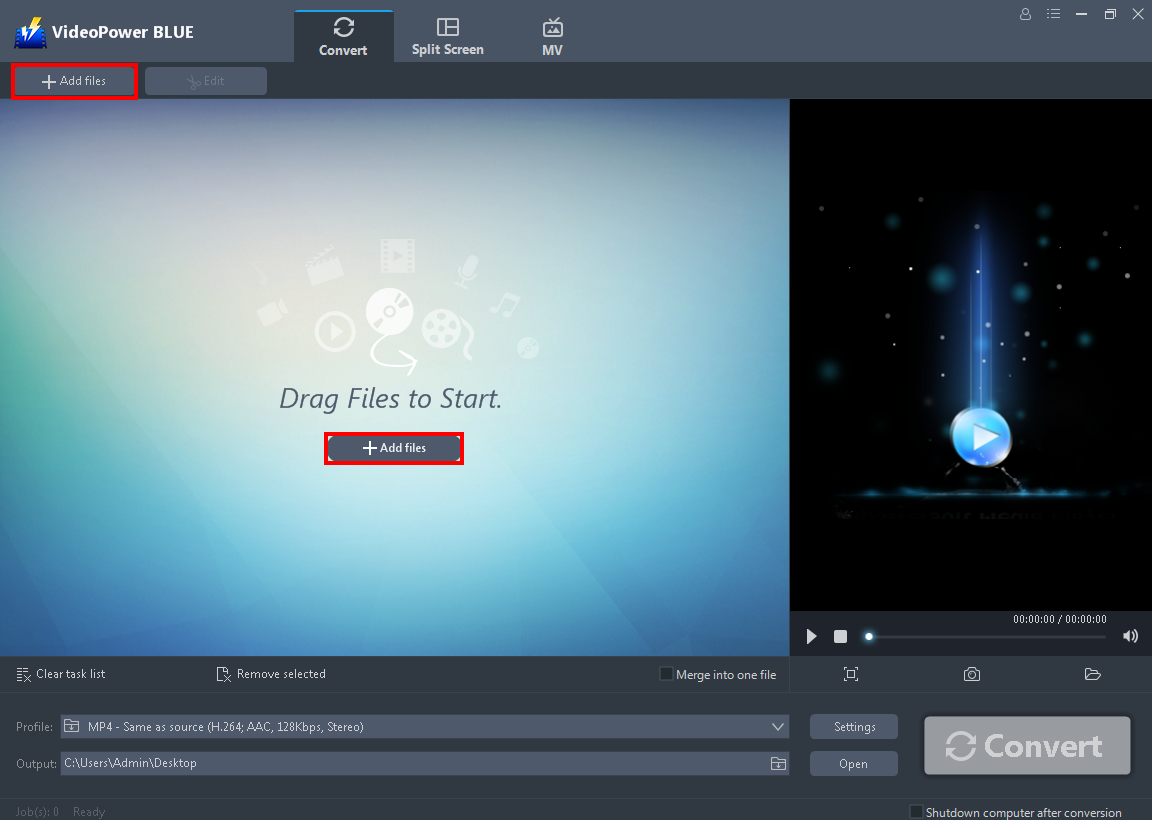
After you successfully install the software it will automatically launch. You can directly import the OGV file to this tool by clicking the “+ Add files” button.
Step 2: Edit the OGV Video File
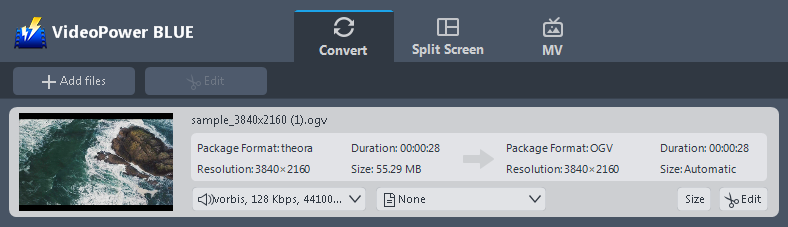
The imported video file is displayed in the list. Click the “Edit” button on the right side of the file to open the built-in video editor.
With this built-in video editor, you can make the perfect modifications to your video before conversion.
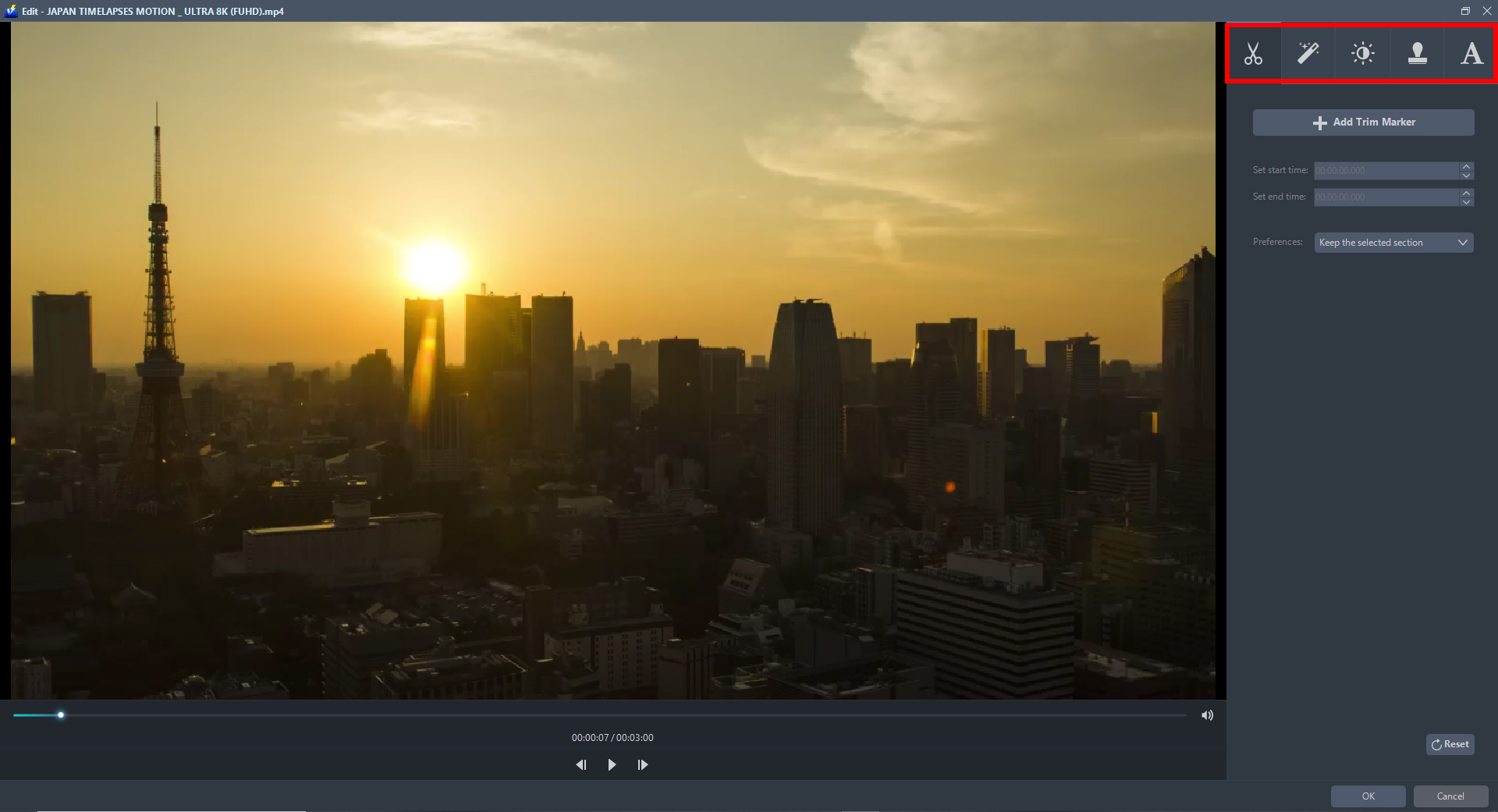
You can explore each section from this video editor and make a video enhancement. You can adjust speed and volume, trim, cut, crop, rotate, or flip videos. Add effects, subtitles, and watermark while adjusting brightness, contrast, and saturation that will make editing conveniently easier.
Step 3: Convert OGV to MP4 Format
3.1 Choose output format and quality
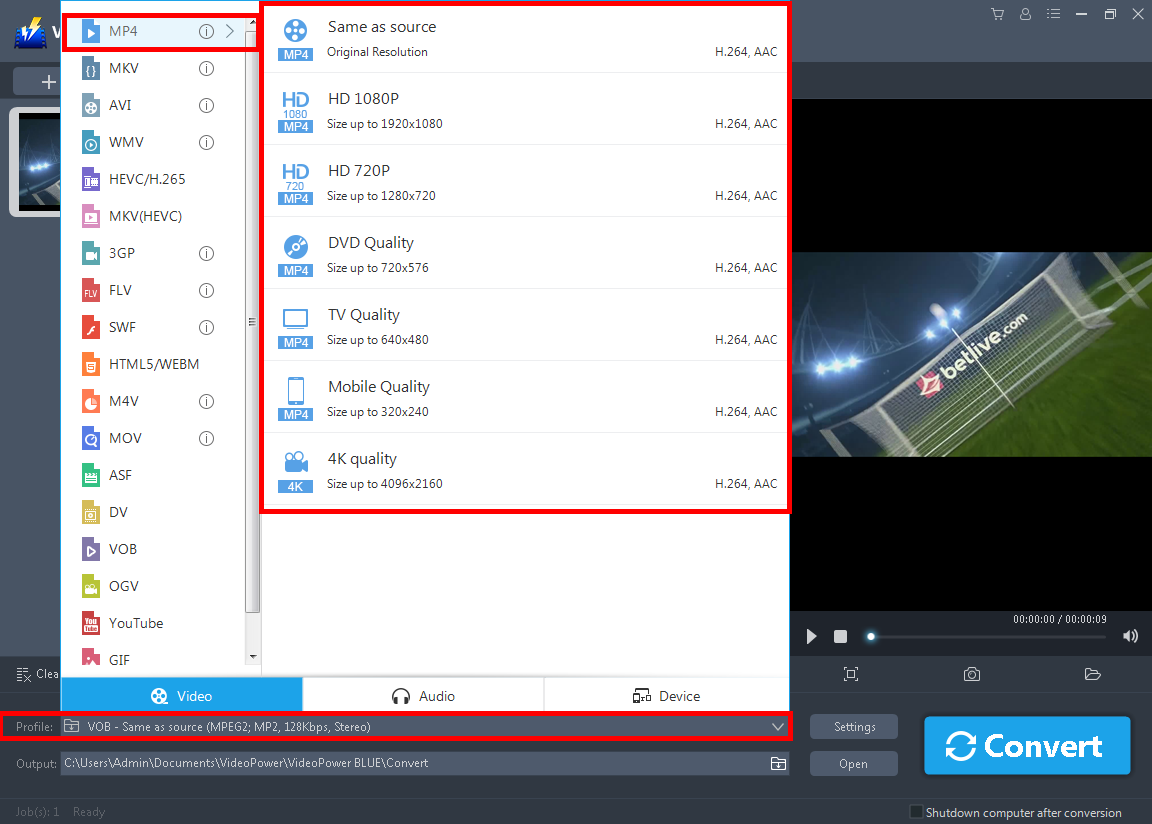
Click the “Profile” arrow-up menu to see the format list. Choose the “MP4” format to the left and quality “Same as Source” or other options such as TV, DVD Mobile, 4K quality, or HD resolution to the right depending on what you deem is appropriate.
3.2 Specify output folder
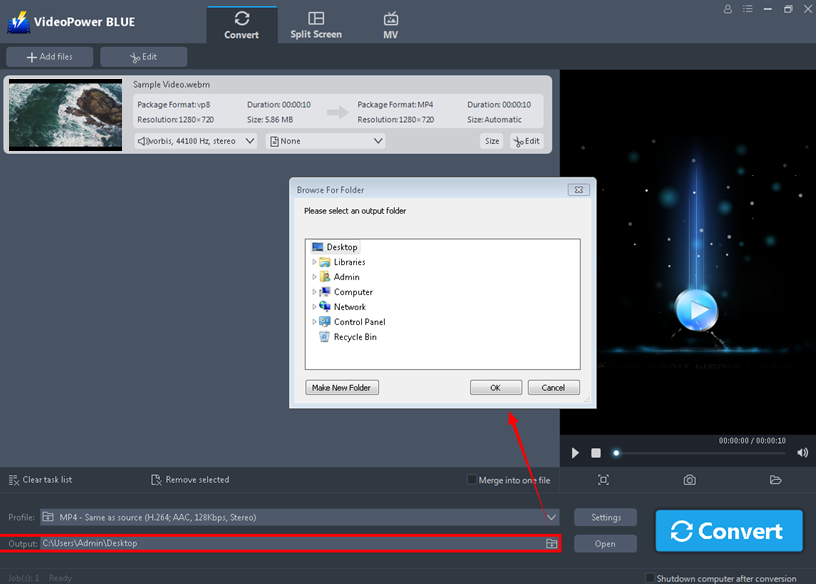
Click the “Output” button below the Profile and a pop-up box will appear. From there, you can specify and select the folder where the converted file will be located.
3.3 Start converting OGV to MP4

Click the “Convert” button on the lowest right on its interface. The conversion will naturally start.
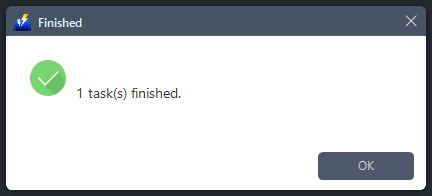
Then a pop-up window from the program will appear, informing you that the conversion is complete. Click “OK” to open the folder of your converted MP4 video file.
Conclusion:
With video the rampant converting technology making everyone an expert in transcoding media files, you can quickly convert your OGV movies in minutes. But the question is, what is the most reliable and fastest way to convert OGV to MP4.
Due to its wide array of formats to choose from, VideoPower BLUE is the best converter out there. A powerful converter that supports many video formats with video editing function, enables adding subtitles, apply watermarks, make MV and split-screen videos.
ZEUS series can do everything that VideoPower series can do and more, the interface is almost the same.
Check out NOW! Start easier with more affordable prices!




ZEUS Series
VideoPower brother products, start easier with more affordable prices!
| ZEUS BUNDLE 1 Year License ⇒ $29.99 |
ZEUS BUNDLE LITE 1 Year License ⇒ $19.99 |
ZEUS RECORD LITE 1 Year License ⇒ $9.98 |
ZEUS DOWNLOAD LITE 1 Year License ⇒ $9.98 |
||
| Screen Recorder | Screen&Audio Recording | ✔ | ✔ | ✔ | |
| Duration Setting, Schedule Recording | ✔ | ||||
| Video Downloader | Paste URL to download, batch download | ✔ | ✔ | ✔ | |
| Search/download video,browser detector | ✔ | ||||
| Music Recorder | Record music and get music ID3 tag info | ✔ | ✔ | ||
| Music search/download/record, CD Ripper/Creator, Audio Editor | ✔ | ||||
| Video Editor | Edit and convert videos, create slideshow | ✔ | |||
| Screen Capture | Capture screen, image editor | ✔ | |||