











The MOV file format was developed by Apple and has the best playback support in QuickTime Player. It is also a native video format for iOS devices such as iPhone/iPad. This file format used an algorithm for audio and video compression. Even though it is exclusively from Apple, this format runs both on Mac and Windows OS.
As one of the most popular video formats, WMV format is compatible with most devices and can be played on Mac and Windows platforms. It is compressed with Windows Media. This format has better device compatibility and better support.
MOV somehow is not compatible with some of the media players or Windows devices. For instances like this, your MOV file will not be wasted. Converting MOV to WMV is the best solution because WMV is the default format for the Windows system.
MOV to WMV Converter on Windows
VideoPower BLUE or ZEUS is highly recommended which is a great multifaceted MOV to WMV video converter. It supports numerous formats like MP4, AVI, MKV, etc, for videos and MP3, AIFF, AIC, etc, for audio. It has a built-in editor where you can trim, crop, enhance the brightness, saturation, add texts, and watermarks before the conversion.
Moreover, this software is also capable of creating photo and video slideshow and split-screen video.
Download and install the program on your PC with the below link to start the conversion.
the conversion.
ZEUS can do what VideoPower series can do and more with an almost similar interface.
Check out NOW! Start easier with more affordable prices!
How to Convert MOV Video to WMV
Step 1: Import the MOV file
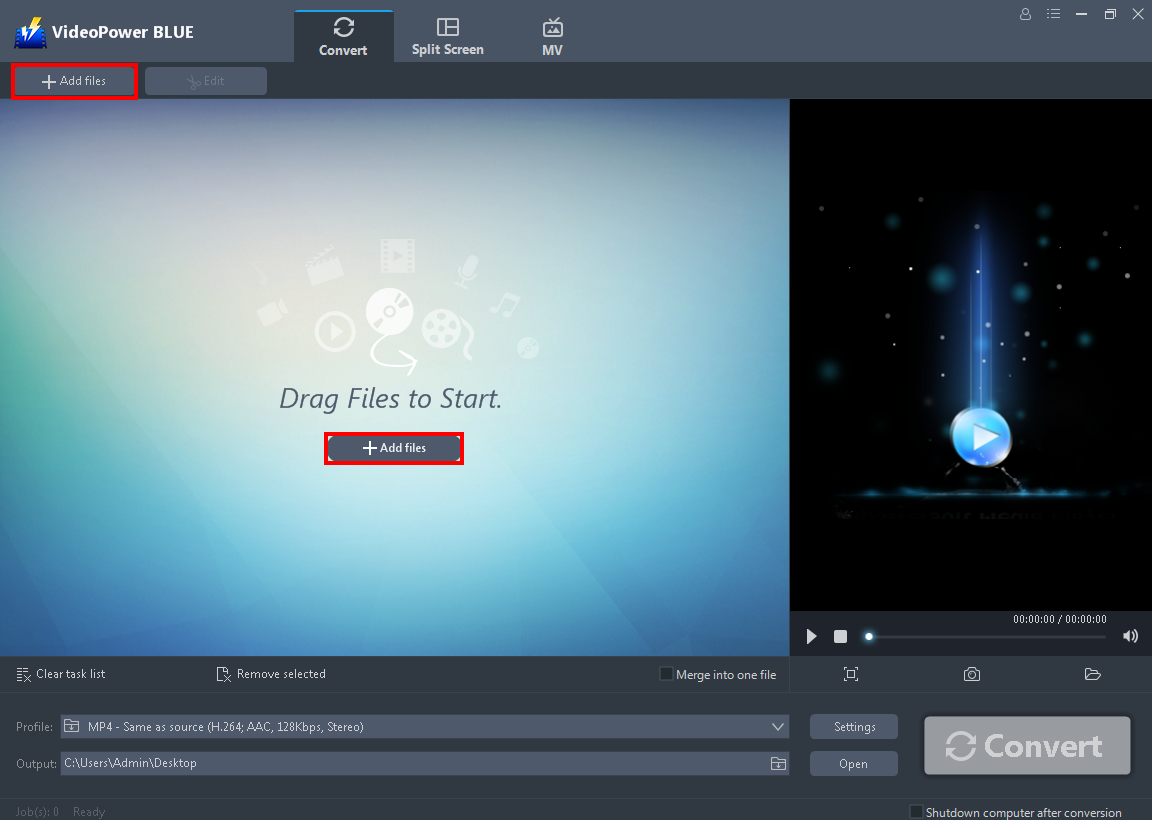
After you launch the software you will automatically be in the convert window. Hit the “+ Add Files” that you can see on its interface or drag and drop to import the MOV file that you want to transform into WMV.
Step 2: Edit the MOV video file before converting
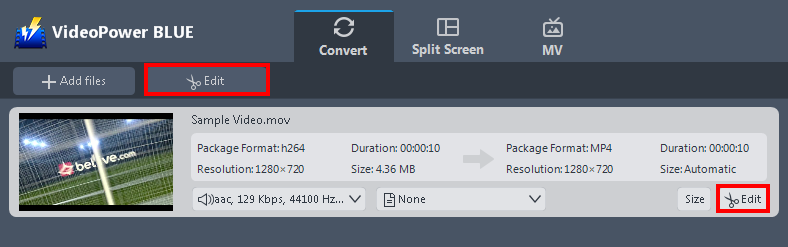
If you need to edit the MOV video file before converting it, you may do so. To start, click the “Edit” button on the right side of the file to open the edit box.
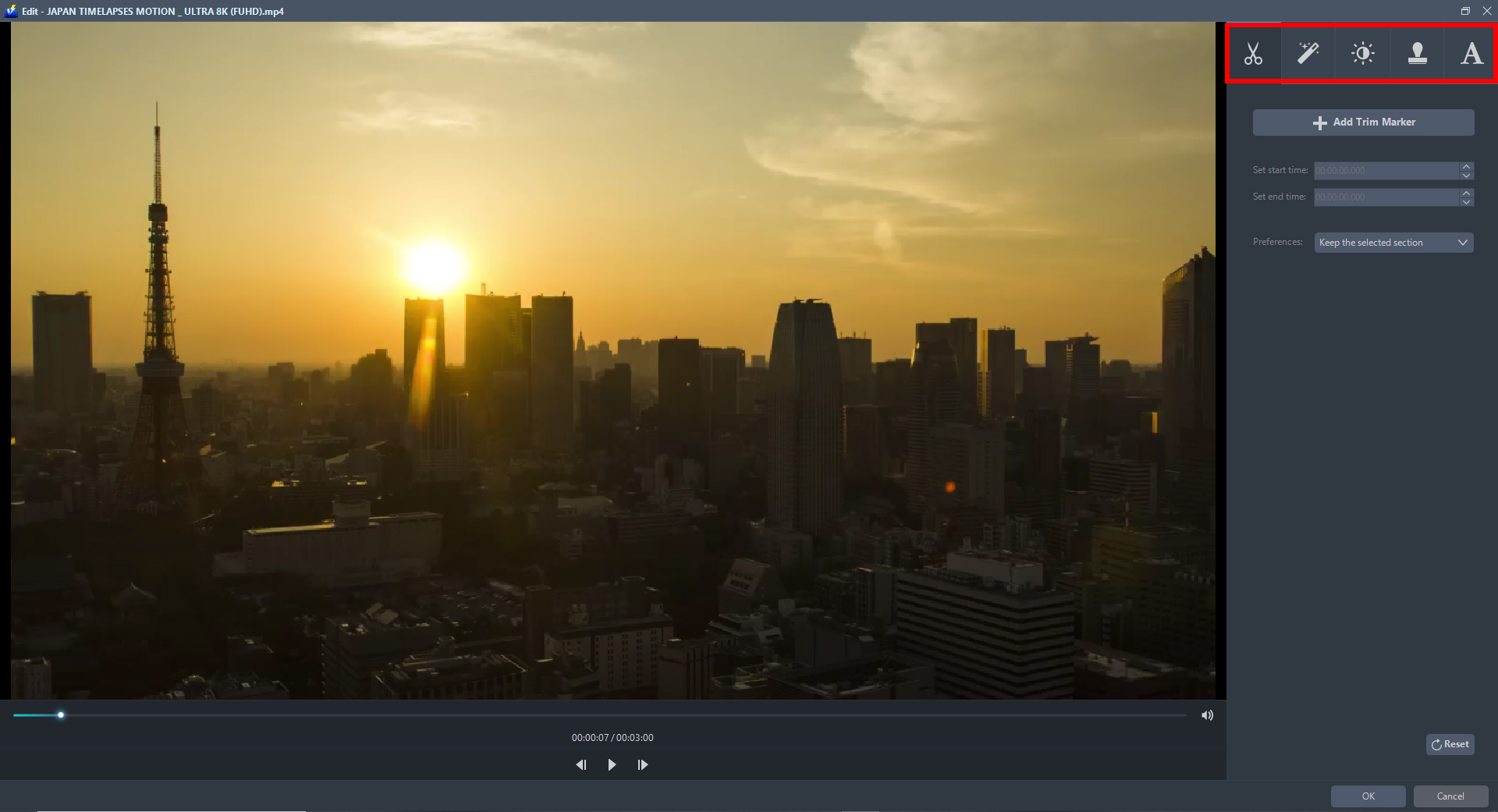
The built-in editor will appear on the screen. You can start to explore each section and enhance the video before converting it. You can flip, rotate, crop, and trim the video. If you want to enhance it, you can do it by adjusting its brightness, saturation, speed, and many more. You can also add subtitles and texts on it.
Step 3: Convert MOV video to WMV Format
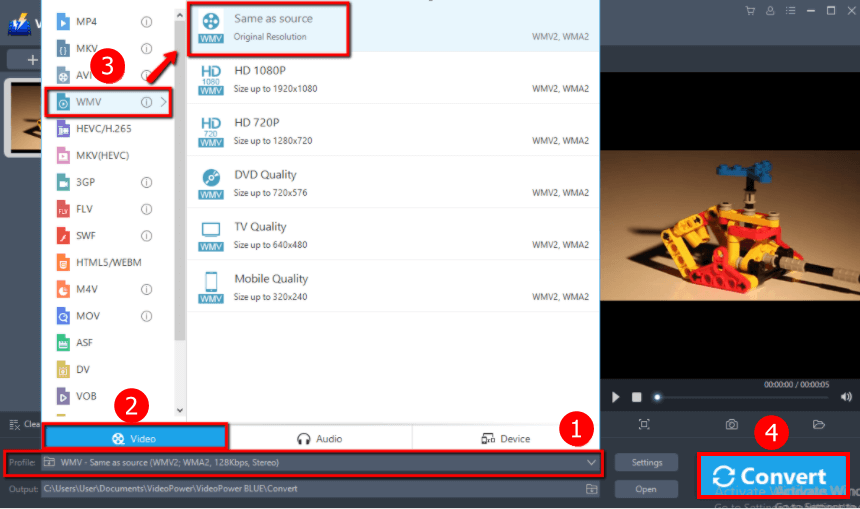
To start the MOV to the WMV conversion process, do the following.
1. Just click the “Profile” arrow-down button to see all the formats.
2. Go to the “Video” to enter the video format preferred.
3. Choose the “WMV” format then the resolution “Same as source”. You can also select HD, TVquality, or whatever you deem appropriate.
4. Click the “Convert” button to save your converted video file.
The program will pop up a window to inform you once the conversion is completed. Click “OK” to open the folder of your saved converted files.
Conclusion:
After you learn about these two formats, you can easily distinguish which one you need. Converting files into another file format can be complicated and exhausting but through this article and conversion software like VideoPower BLUE, then it’s easy peasy. Finally, it is the best MOV to WMV converting software and has far advanced features compared to other means of video conversion.
ZEUS series can do everything that VideoPower series can do and more, the interface is almost the same.
Check out NOW! Start easier with more affordable prices!




ZEUS Series
VideoPower brother products, start easier with more affordable prices!
| ZEUS BUNDLE 1 Year License ⇒ $29.99 |
ZEUS BUNDLE LITE 1 Year License ⇒ $19.99 |
ZEUS RECORD LITE 1 Year License ⇒ $9.98 |
ZEUS DOWNLOAD LITE 1 Year License ⇒ $9.98 |
||
| Screen Recorder | Screen&Audio Recording | ✔ | ✔ | ✔ | |
| Duration Setting, Schedule Recording | ✔ | ||||
| Video Downloader | Paste URL to download, batch download | ✔ | ✔ | ✔ | |
| Search/download video,browser detector | ✔ | ||||
| Music Recorder | Record music and get music ID3 tag info | ✔ | ✔ | ||
| Music search/download/record, CD Ripper/Creator, Audio Editor | ✔ | ||||
| Video Editor | Edit and convert videos, create slideshow | ✔ | |||
| Screen Capture | Capture screen, image editor | ✔ | |||