











HandBrake is a professional video format conversion tool. The software supports setting video size, adding filters, importing chapters, and so on. This program is being sought after due to its reputation as a good converter. This tool can also rip and convert any DVD which includes Bluray discs that are not copy-protected.
As much as it is a good converter, it has issues that are deemed to be frustrating not to mention. Oftentimes it crashes during the process so you need to repeat the conversion, it cannot perform an audio conversion and does not support the file format aside from MP4 and MKV format.
Best Handbrake Alternative on PC
VideoPower BLUE or ZEUS is a fantastic HandBrake alternative. This software assures that smooth and easy conversion. It is user-friendly and has a satisfactory interface, also known for its fast conversion speed while preserving original quality. It offers different and numerous video and audio formats.
Aside from converting, this software has multiple functions such as basic video editing, video and audio conversion, and slideshow making.
| HandBrake | VideoPower GREEN | |
|---|---|---|
| Supported OS | Windows, Mac and Linux | Windows |
| Convert DVD video | ✔ | ✔ |
| Fast conversion | ✔ | ✔ |
| Convert audio file | X | ✔ |
| Supported formats | Only MKV and MP4 | MKV, MP4, MOV, AVI, M2TS, 100+ formats |
| Easy to use | X | ✔ |
| Has a built–in editor | X | ✔ |
ZEUS can do what VideoPower series can do and more with an almost similar interface.
Check out NOW! Start easier with more affordable prices!
Convert File Format on Windows
Step 1: Import the file VideoPower BLUE
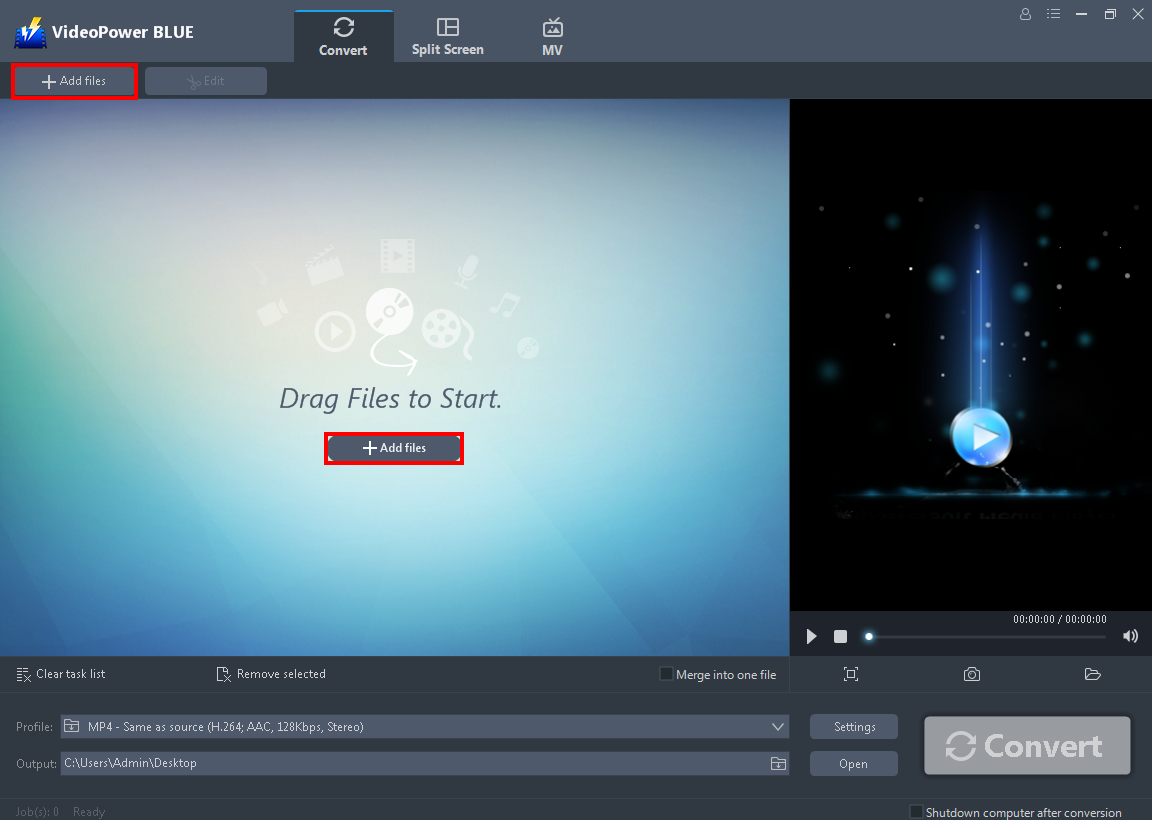
After you launch the VideoPower BLUE you will automatically be in the convert window. Click the “+ Add Files” that you can see on its interface to import the file you want to convert. You can also add multiple videos to convert.
Step 2: Edit the file before converting
If you need to edit the video file before conversion, follow the instructions below.
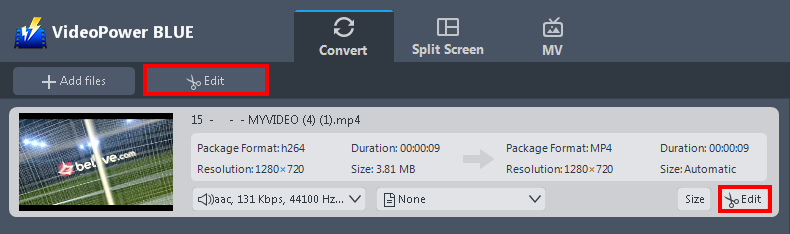
The imported file is displayed in the list.
Click the “Edit” button on the right side of the file to open the edit box.
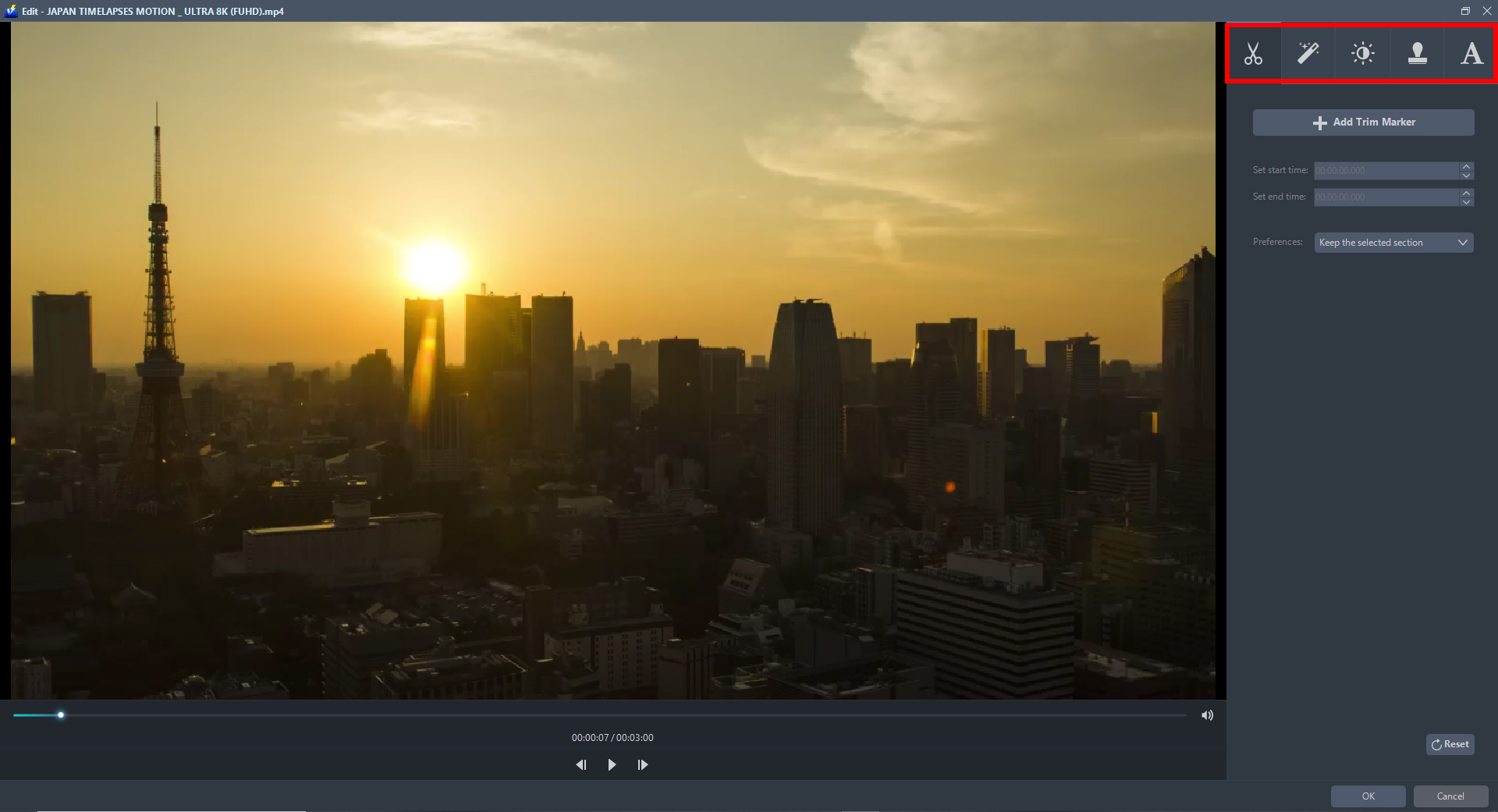
The Edit box will appear so you can start to explore each section before you convert the file. You can crop, flip, trim, and rotate the video file. You can adjust the brightness, speed, saturation, volume and etc, or add subtitles, watermark, or text on the video file. This really helps you to enhance your video.
Click “OK” when you are done editing to save all the changes.
Step 3: Hit the convert button
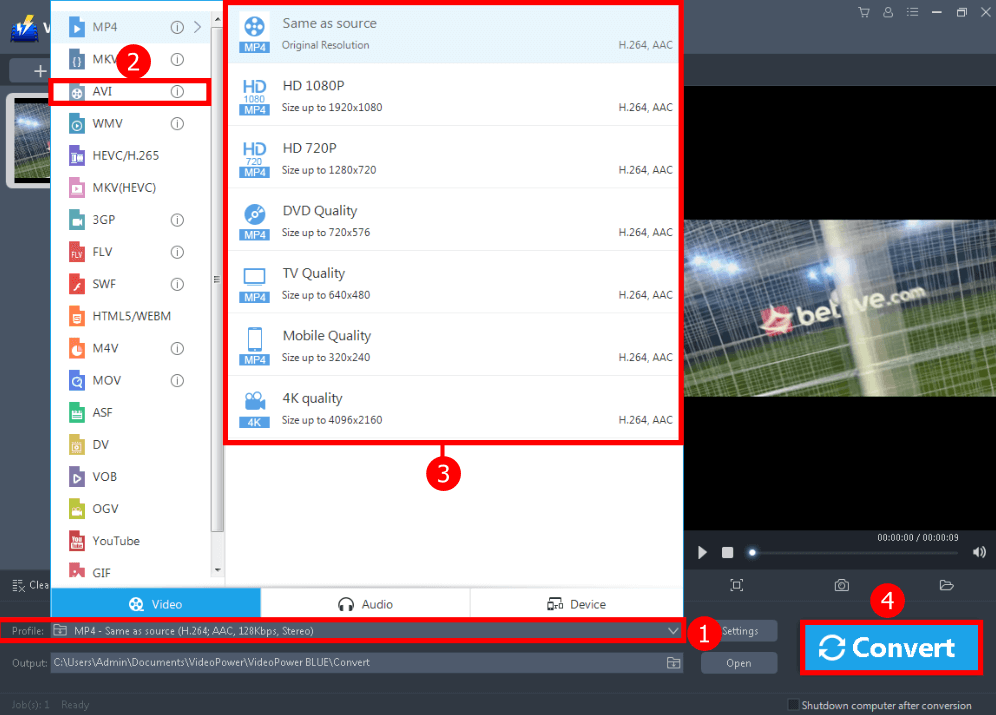
After you are done editing the video. You can start converting it.
1. Click the “Profile” button to see all the formats offered.
2. You can choose from the “Video”, “Audio” or “Device” to select if you want to convert the file video, audio, or other devices.
3. From there, you can see all the formats to choose from. Just click whatever output format you deem appropriate.
4. Click the “Convert” button to start converting the file and to save it to your hard drive.
After the conversion, a pop-up box will appear informing you that one task is complete. Click “OK” to open the folder where the converted file is located.
Conclusion:
With VideoPower BLUE as a great Handbrake alternative on Windows 7, 8, 8.1, and 10, you can now convert videos to formats that are compatible with any device. Whatever you need it for, your converted files with this software will be just perfect.
It’s fast and flexible with a built-in video editor that will enable you to edit slideshows or videos, apply watermarks, effects and other basic video editing options such as trimming or cropping. It also has a split-screen tool for your photos and videos.
ZEUS series can do everything that VideoPower series can do and more, the interface is almost the same.
Check out NOW! Start easier with more affordable prices!




ZEUS Series
VideoPower brother products, start easier with more affordable prices!
| ZEUS BUNDLE 1 Year License ⇒ $29.99 |
ZEUS BUNDLE LITE 1 Year License ⇒ $19.99 |
ZEUS RECORD LITE 1 Year License ⇒ $9.98 |
ZEUS DOWNLOAD LITE 1 Year License ⇒ $9.98 |
||
| Screen Recorder | Screen&Audio Recording | ✔ | ✔ | ✔ | |
| Duration Setting, Schedule Recording | ✔ | ||||
| Video Downloader | Paste URL to download, batch download | ✔ | ✔ | ✔ | |
| Search/download video,browser detector | ✔ | ||||
| Music Recorder | Record music and get music ID3 tag info | ✔ | ✔ | ||
| Music search/download/record, CD Ripper/Creator, Audio Editor | ✔ | ||||
| Video Editor | Edit and convert videos, create slideshow | ✔ | |||
| Screen Capture | Capture screen, image editor | ✔ | |||