











Audiobooks were popularized because as technology advances, our society became more complicated thus the time spent on reading became very little. Audiobooks are a way to consume information while doing another task simultaneously such as cooking, driving, etc.
However, most audiobooks (especially iTunes audiobooks) are not compatible with devices running systems other than iOS or Mac systems.
In this case, you need to change the audiobook to a format that is compatible with all systems and devices.
MP3 is the most popular file format type for audio and music. Thus, this format is great if you want your Audiobook to be compatible with any player.
This article will tell you how to convert Audiobook files to an MP3 format. By the help of VideoPower BLUE or ZEUS, a comprehensive format converting tool which is able to convert Audiobook files to MP3.
Now, let’s go through the simple guide on how to use this tool to perform format conversion.
You can try to use the software for free by downloading its trial version below.
ZEUS can do what VideoPower series can do and more with an almost similar interface.
Check out NOW! Start easier with more affordable prices!
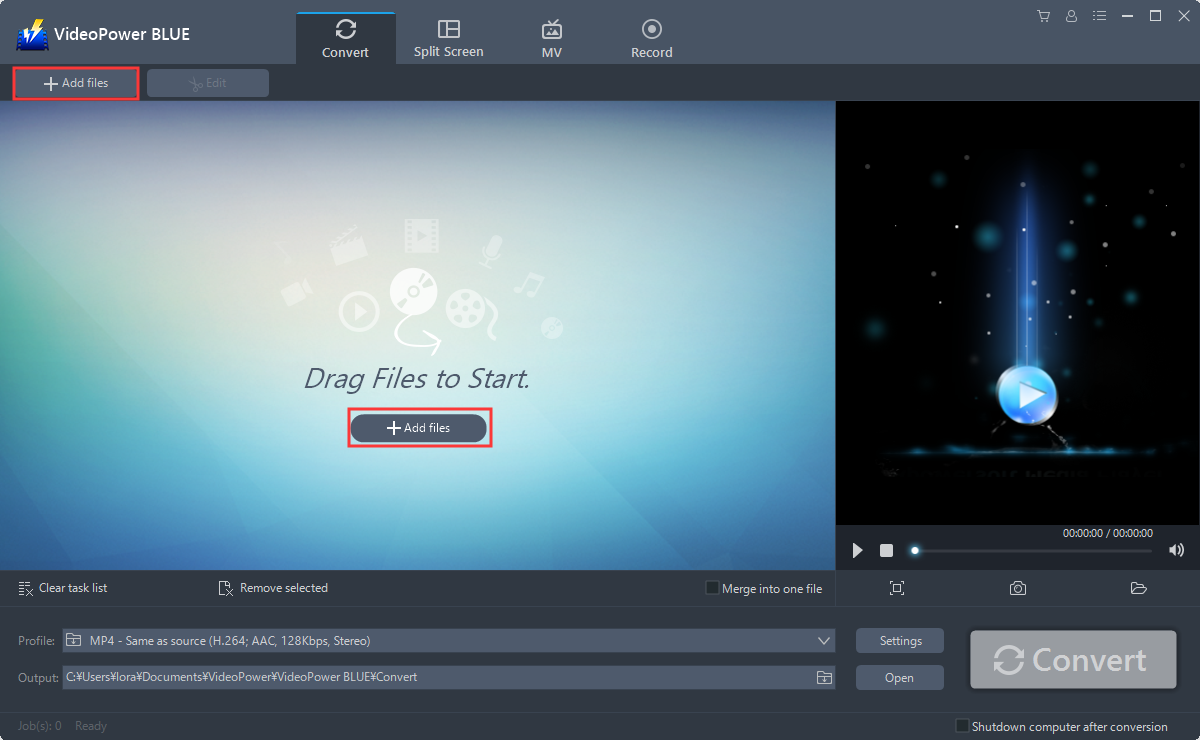
Step 1: Add the M4B file to the program.
Run the program if you have installed the audio converter software – VideoPower BLUE successfully on your PC. You can directly import the file to the program by clicking the “Add files” button or by drag-and-drop the file to the interface.
Step 2: Edit the M4B audio.
If you need to edit the audio file first before converting, just follow the instructions below.
The imported Audiobook file is displayed in the list.
Click the “Edit” button on the right side of the file.
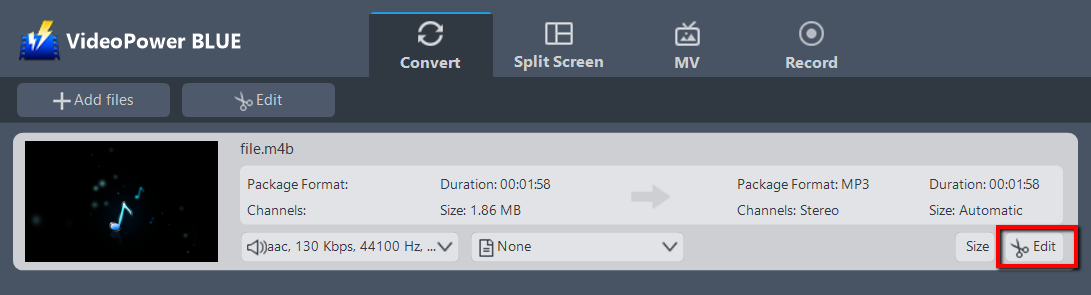
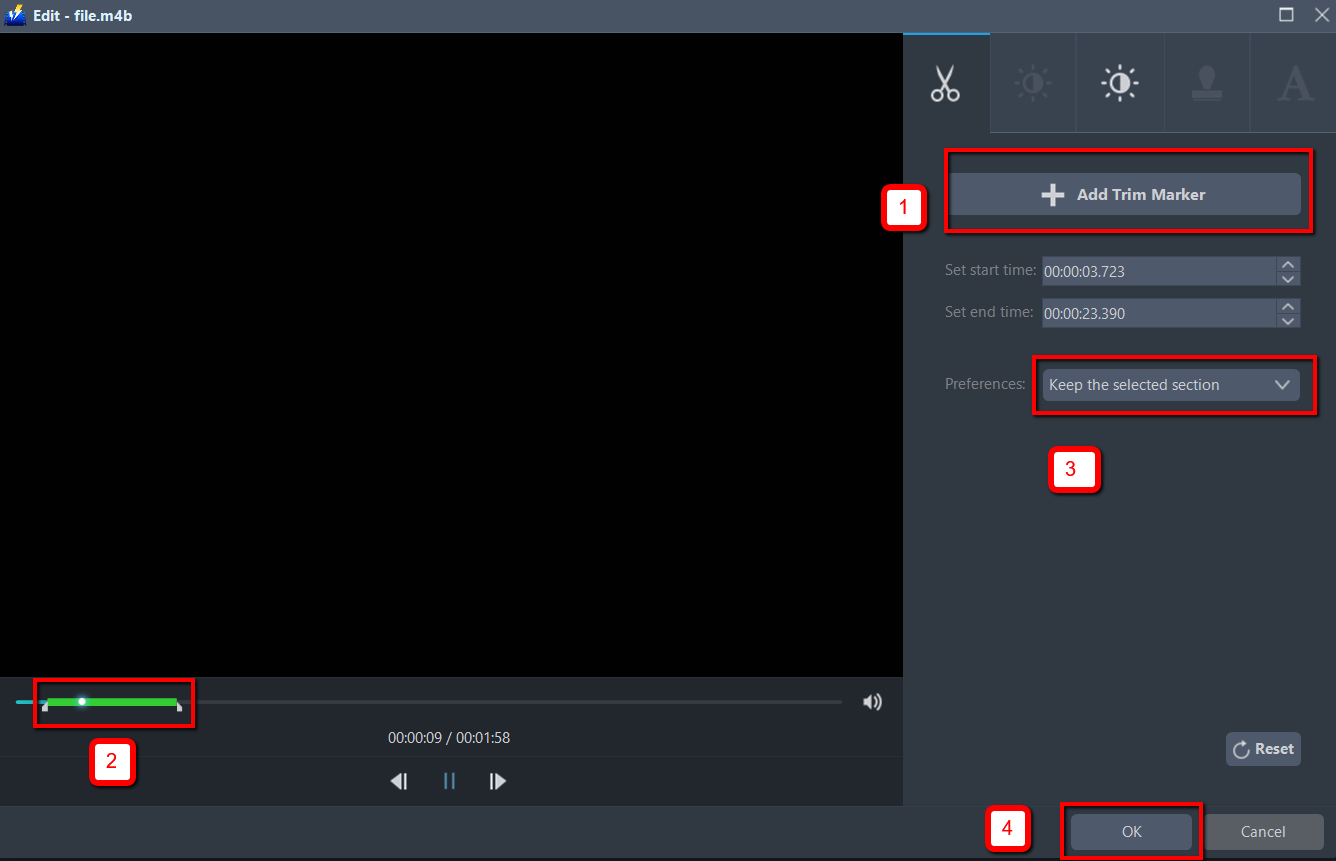
The editor will open. Here, you can make changes to the audio file – trim, cut, etc.
For example, you can trim your video as showing below:
1) Click “Add Trim Marker”.
2) Drag the mark as shown below to select the part you want to cut. If you want to select multi-sections, please repeat 1 and 2.
3) Choose “Keep the selected section” or “Delete the selected section” from “Preferences”.
4) Click “OK” to save the setting.
Step 3: Convert Audiobook file to MP3 format.
3.1 Set the output format
Click to open the “Profile” drop-down menu, then choose the format you want from the profile list. Here choose “Audio”, “MP3”, and quality “High” or whatever quality you deem appropriate.

3.2 Start Conversion
Return to the file list.
Click the “Convert” button, then the converted MP3 file will be saved in the default output folder.

The program will pop up a window to inform you once the conversion is completed. Click “OK” to open the folder of your saved converted MP3 files.
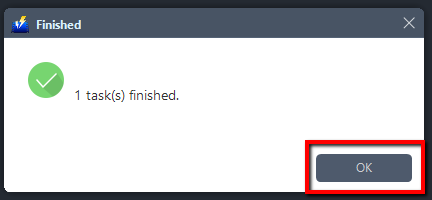
Or you can click the “Open” button to find the MP3 file.

Conclusion:
Converting Audiobooks to MP3 using VideoPower BLUE software gives people a better experience in conversion through its high-quality, fast processing speed, wide variety of supported devices, and many other available features.
These functions are built-in video editor that will enable you to edit slideshows or videos, apply watermarks, effects, and other basic video editing options such trimming or cropping. Moreover, it has a split screen tool for your photos and videos and a screen recorder which allows you to capture any on-screen activity on your computer.
ZEUS series can do everything that VideoPower series can do and more, the interface is almost the same.
Check out NOW! Start easier with more affordable prices!




ZEUS Series
VideoPower brother products, start easier with more affordable prices!
| ZEUS BUNDLE 1 Year License ⇒ $29.99 |
ZEUS BUNDLE LITE 1 Year License ⇒ $19.99 |
ZEUS RECORD LITE 1 Year License ⇒ $9.98 |
ZEUS DOWNLOAD LITE 1 Year License ⇒ $9.98 |
||
| Screen Recorder | Screen&Audio Recording | ✔ | ✔ | ✔ | |
| Duration Setting, Schedule Recording | ✔ | ||||
| Video Downloader | Paste URL to download, batch download | ✔ | ✔ | ✔ | |
| Search/download video,browser detector | ✔ | ||||
| Music Recorder | Record music and get music ID3 tag info | ✔ | ✔ | ||
| Music search/download/record, CD Ripper/Creator, Audio Editor | ✔ | ||||
| Video Editor | Edit and convert videos, create slideshow | ✔ | |||
| Screen Capture | Capture screen, image editor | ✔ | |||