











SWF or Shockwave Flash is a file format created by Macromedia that is specifically designed to support online animations, streaming games, videos, etc. It is now owned by Adobe and many online videos and animations are now using such file format. If you happen liked a funny streaming videos, online clips, mini-games, video animations well, they are more likely made out of SWF.
Have you found some amazing Flash animation MV on the Internet and want to extract the audio from it so you can listen to the music all you want?
If you already have the SWF format file (Flash special format), you only need a very simple SWF audio extraction or video to audio converter program.
In this post, we are going to share a powerful and reliable audio extractor from SWF files. What you should do is convert SWF files to an MP3 file format.
VideoPower BLUE or ZEUS is great software with a variety of options and features including screen capture and recording, editing, music, and conversion. This software can extract audio from SWF file and convert video to audio file.
The procedure is simple and easy to understand. Download the software from the below link and do the follows to extract audio from the SWF file with no hassle.
You can try to use the software for free by downloading its trial version below.
ZEUS can do what VideoPower series can do and more with an almost similar interface.
Check out NOW! Start easier with more affordable prices!
Step 1: Add the SFW Video to VideoPower BLUE.
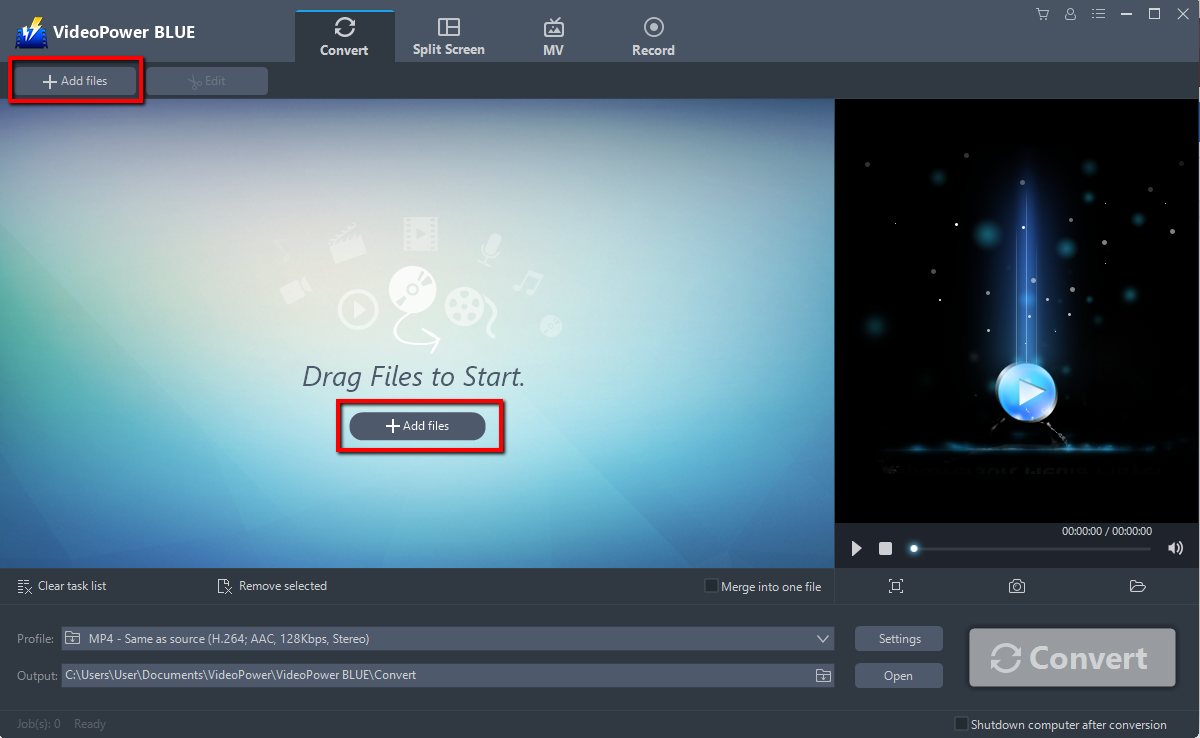
Run the program if you have installed the Video Converter software successfully on your PC. You can directly import the Video file to the program by clicking the “Add files” button or by drag-and-drop the file to the interface.
Step 2: Edit file before conversion
If you need to edit the video file before conversion, follow the instructions below.
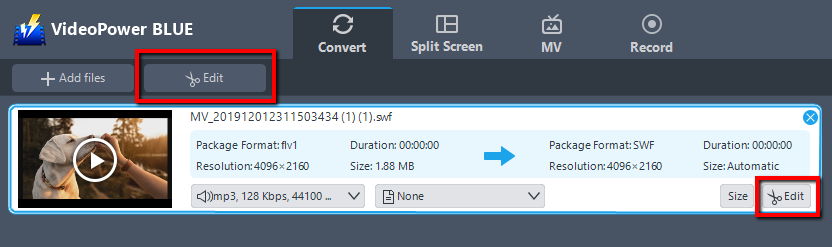
The imported file is displayed in the list.
Click the “Edit” button on the right side of the file.
The built-in video editor will pop up, with its help, you can make the perfect movie. Adjust speed and volume, trim, cut, crop, rotate or flip videos. Add effects, subtitles, and watermark while adjusting brightness, contrast, and saturation that will make editing conveniently easier.
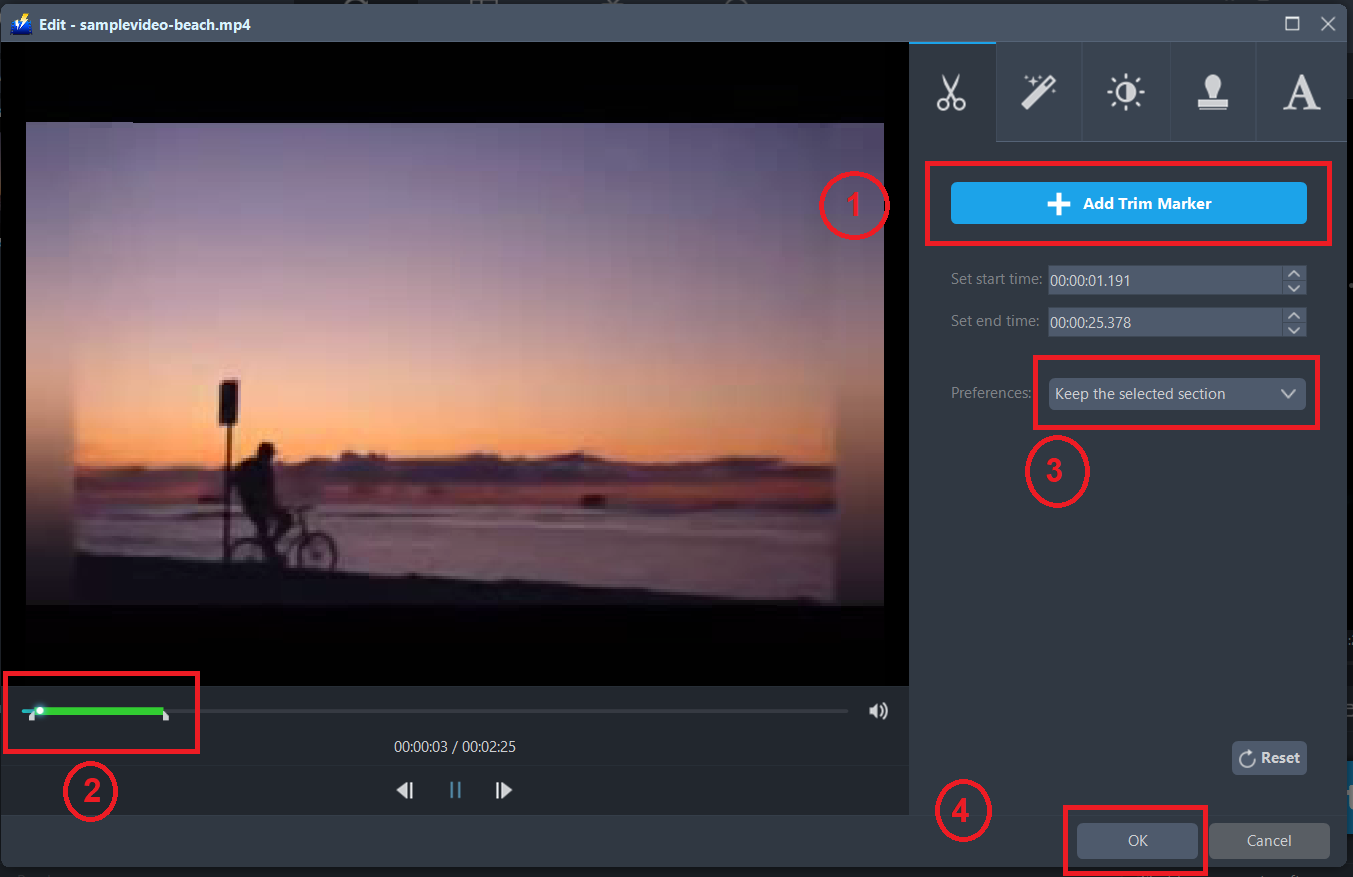
For example, you can trim your video as shown below:
1) Click “Add Trim Marker”.
2) Drag the mark as shown below to select the part you want to cut.
3) Choose “Keep the selected section” or “Delete the selected section” from “Preferences”.
4) Click “OK” to save the settings.
Step 3: Extract Audio from SWF file.
3.1 Set the output format.
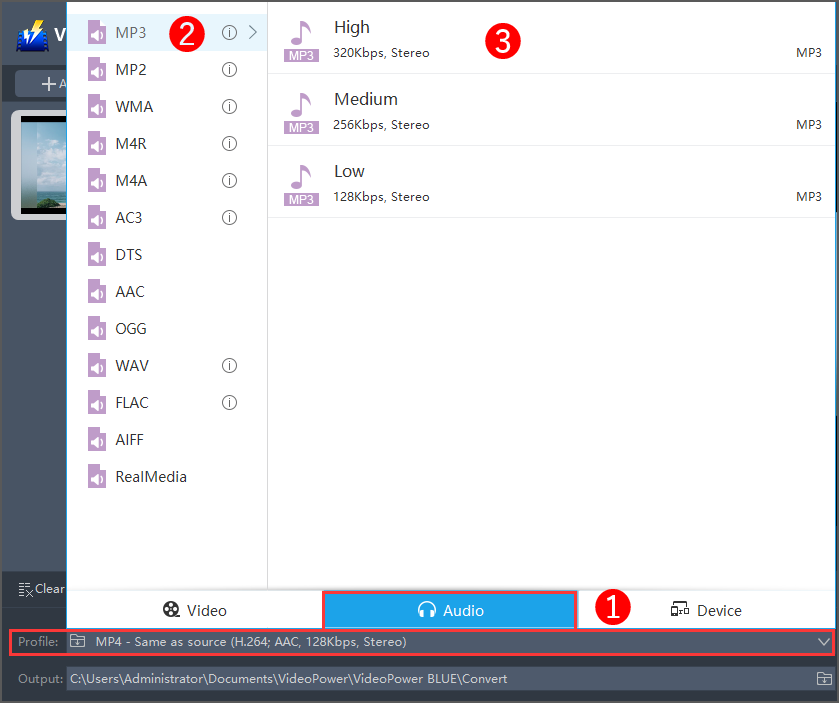
1) Click to open the “Profile” drop-down menu, then choose the format you want from the profile list.
2) Here you can click “Audio” and then “MP3”.
3) You may now choose the quality you prefer.
3.2 Start Conversion
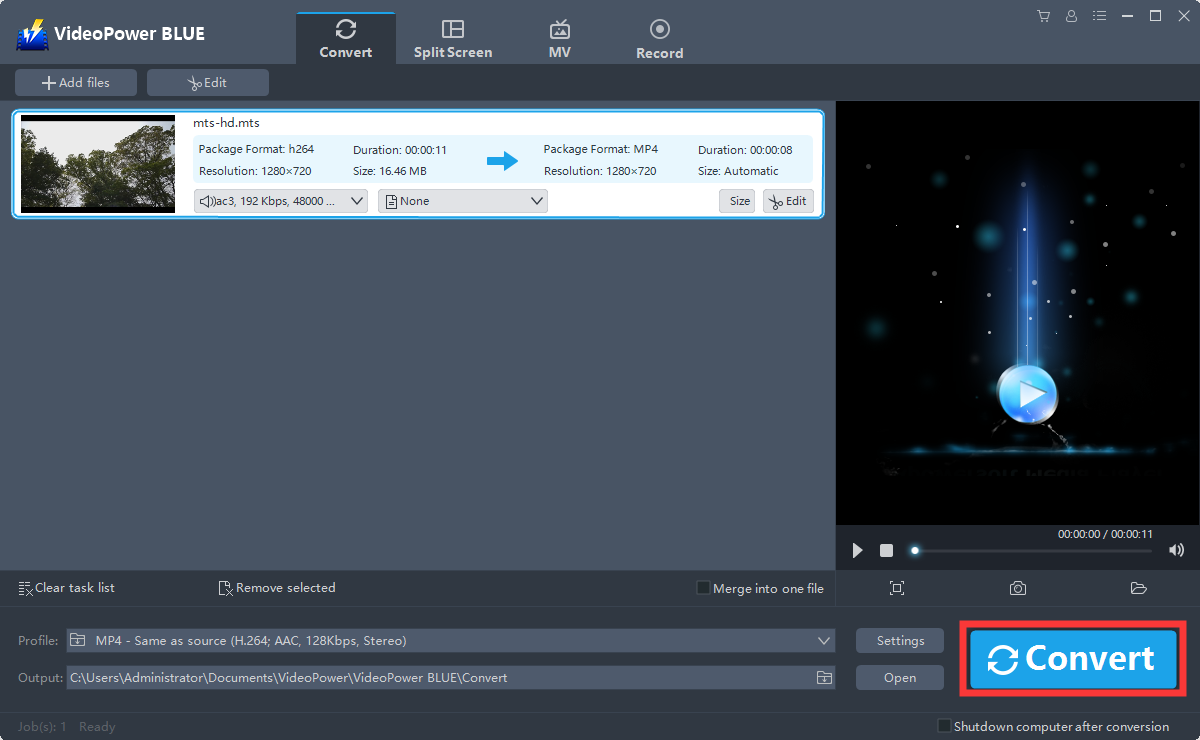
Return to the file list.
Click the “Convert” button, then the converted MP3 file will be saved in the default output folder.
3.3 Find the Converted MP3 files.
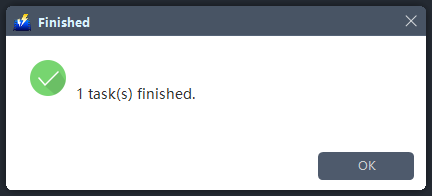
A pop-up window from the program will appear informing you that the conversion is complete. Click “OK” to open the folder of your saved converted MP3 files.
Conclusion:
Conversion are easy to do these days but problems are quality, size restriction and speed. Considering all this and the various output settings for easy customization and audio personalization are important in choosing the best converter.
VideoPower BLUE is a multi-faceted software that has a lot of functions. These functions include recording screen activity, basic video, and audio editing, and file conversions. Due to its wide array of formats to choose from, it is the best converter out there.
ZEUS series can do everything that VideoPower series can do and more, the interface is almost the same.
Check out NOW! Start easier with more affordable prices!




ZEUS Series
VideoPower brother products, start easier with more affordable prices!
| ZEUS BUNDLE 1 Year License ⇒ $29.99 |
ZEUS BUNDLE LITE 1 Year License ⇒ $19.99 |
ZEUS RECORD LITE 1 Year License ⇒ $9.98 |
ZEUS DOWNLOAD LITE 1 Year License ⇒ $9.98 |
||
| Screen Recorder | Screen&Audio Recording | ✔ | ✔ | ✔ | |
| Duration Setting, Schedule Recording | ✔ | ||||
| Video Downloader | Paste URL to download, batch download | ✔ | ✔ | ✔ | |
| Search/download video,browser detector | ✔ | ||||
| Music Recorder | Record music and get music ID3 tag info | ✔ | ✔ | ||
| Music search/download/record, CD Ripper/Creator, Audio Editor | ✔ | ||||
| Video Editor | Edit and convert videos, create slideshow | ✔ | |||
| Screen Capture | Capture screen, image editor | ✔ | |||